You are viewing the documentation for an older COMSOL version. The latest version is available here.
PDF

Electromagnetic Forces on Parallel Current-Carrying Wires
Introduction
One ampere is defined as the constant current in two straight parallel conductors of infinite length and negligible circular cross section, placed one meter apart in vacuum, that produces a force of × 107 newton per meter of length (N/m). This example shows a setup of two parallel wires in the spirit of this definition, but with the difference that the wires have finite cross sections.
For wires with circular cross section carrying a uniform current density as in this example, the mutual magnetic force is the same as for line currents. This can be understood by the following arguments: Start from a situation where both wires are line currents (I). Each line current is subject to a Lorentz force (I × B), where the magnetic flux density (B) is the one produced by the other wire. Now, give one wire a finite radius. It follows directly from circular symmetry and Maxwell-Ampère’s law that, outside this wire, the produced flux density is exactly the same as before so the force on the remaining line current is unaltered. Further, the net force on the wire with the distributed current density must be of exactly the same magnitude (but with opposite direction) as the force on the line current so that force did not change either. If the two wires exchange places, the forces must still be the same, and it follows from symmetry that the force is independent of wire radius as long as the wire cross sections do not intersect. The wires can even be cylindrical shells or any other shape with circular symmetry. For an experimental setup, negligible cross section is required as resistive voltage drop along the wires and Hall effect may cause electrostatic forces that increase with wire radius but such effects are not included in this example.
The force between the wires is computed using two different methods: first automatically by integrating the stress tensor on the boundaries, then by integrating the volume (Lorentz) force density over the wire cross section. The results converge to × 107 N/m for the 1 ampere definition, as expected.
Model Definition
The application is built using the 2D Magnetic Fields interface. The modeling plane is a cross section of the two wires and the surrounding air.
Domain Equations
The equation formulation assumes that the only nonzero component of the magnetic vector potential is Az. This corresponds to all currents being perpendicular to the modeling plane. The following equation is solved:
where μ is the permeability of the medium and is the externally applied current. is set so that the applied current in the wires equals 1 A, but with different signs.


Surrounding the air is an infinite element domain. For details, see the AC/DC Module User’s Guide.
Results and Discussion
The expression for the surface stress reads
where n1 is the boundary normal pointing out from the conductor wire and T2 the stress tensor of air. The closed line integral of this expression around the circumference of either wire evaluates to 1.99 × 107 N/m. The minus sign indicates that the force between the wires is repulsive. The software automatically provides the coordinate components of the force on each wire.
The volume force density is given by
The surface integral of the x component of the volume force on the cross section of a wire gives the result 2.00 × 107 N/m.
By refining the mesh and re-solving the problem, you can verify that the solution with both method converges to × 107 (N/m), see Mesh Convergence. The volume force density integral is typically the most accurate one for reasons explained in the COMSOL Multiphysics Reference Manual.
Mesh Convergence
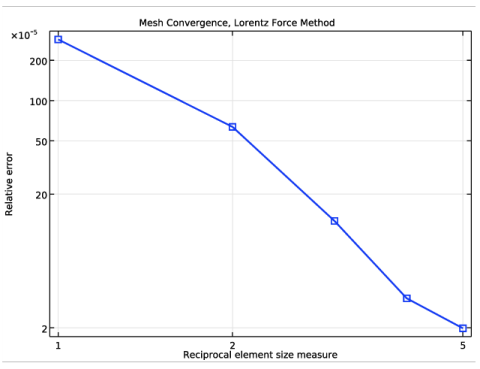
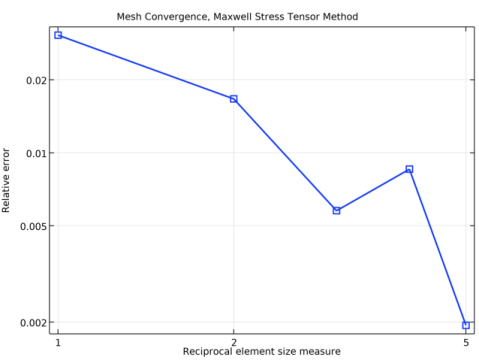
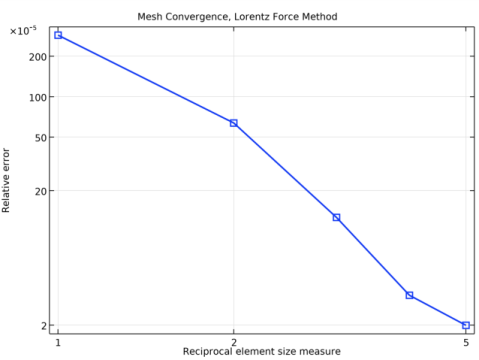
In order to investigate the accuracy of the model, it is recommended to perform a systematic mesh convergence analysis of the desired entity, here the force on the wire. In Figure 1 and Figure 2, the mesh convergence is shown for the absolute errors in the Maxwell surface stress method and the volumetric Lorentz force method, respectively. The Lorentz force is 2–3 orders of magnitude more accurate than the Maxwell stress tensor force for a given mesh density.
Figure 1: Mesh convergence is shown for the force computation using the Maxwell surface stress method.
Figure 2: Mesh convergence is shown for the force computation using the volumetric Lorentz force method.
Application Library path: ACDC_Module/Verification_Examples/parallel_wires
Modeling Instructions
From the File menu, choose New.
New
In the New window, click Model Wizard.
Model Wizard
1
In the Model Wizard window, click 2D.
2
In the Select Physics tree, select AC/DC>Electromagnetic Fields>Magnetic Fields (mf).
3
Click Add.
4
Click Study.
5
In the Select Study tree, select General Studies>Stationary.
6
Click Done.
Global Definitions
Parameters 1
1
In the Model Builder window, under Global Definitions click Parameters 1.
2
In the Settings window for Parameters, locate the Parameters section.
3
Geometry 1
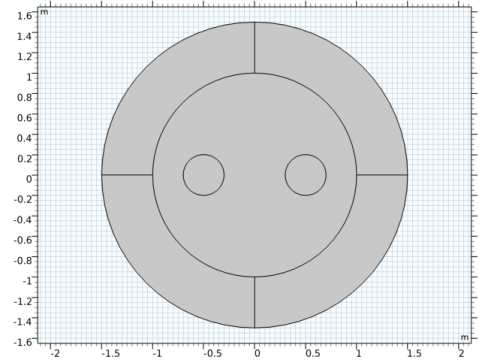
Add a circle for the main air domain. The outer layer will constitute an infinite element domain to approximate a region extending to infinity.
Circle 1 (c1)
1
In the Geometry toolbar, click Circle.
2
In the Settings window for Circle, locate the Size and Shape section.
3
In the Radius text field, type 1.5.
4
Click to expand the Layers section. In the table, enter the following settings:
Circle 2 (c2)
1
In the Geometry toolbar, click Circle.
2
In the Settings window for Circle, locate the Size and Shape section.
3
In the Radius text field, type r.
4
Locate the Position section. In the x text field, type 0.5.
Circle 3 (c3)
1
In the Geometry toolbar, click Circle.
2
In the Settings window for Circle, locate the Size and Shape section.
3
In the Radius text field, type r.
4
Locate the Position section. In the x text field, type -0.5.
5
Click Build All Objects.
Definitions
Define an infinite element region in the outer domains.
Infinite Element Domain 1 (ie1)
1
In the Definitions toolbar, click Infinite Element Domain.
2
3
In the Settings window for Infinite Element Domain, locate the Geometry section.
4
From the Type list, choose Cylindrical.
Add Material
1
In the Home toolbar, click Add Material to open the Add Material window.
2
Go to the Add Material window.
3
4
Click Add to Component in the window toolbar.
5
In the Home toolbar, click Add Material to close the Add Material window.
Magnetic Fields (mf)
By default, the first material you select will apply to your entire geometry. Air is defined with a zero conductivity, and relative permittivity and permeability both equal to 1. These properties are the same as those of vacuum, which is the assumed material in the definition of the ampere. Since the model assumes a given static and uniform current distribution, the electrical conductivity of the wires does not appear in the equations, so it is safe to use the same properties in the wires too.
External Current Density 1
1
In the Model Builder window, under Component 1 (comp1) right-click Magnetic Fields (mf) and choose External Current Density.
2
3
In the Settings window for External Current Density, locate the External Current Density section.
4
Specify the Je vector as
External Current Density 2
1
In the Physics toolbar, click Domains and choose External Current Density.
2
3
In the Settings window for External Current Density, locate the External Current Density section.
4
Specify the Je vector as
The definition of the physics of the system is now complete. Add a Force Calculation feature to make Maxwell’s stress tensor available as a variable.
Force Calculation 1
1
In the Physics toolbar, click Domains and choose Force Calculation.
2
3
In the Settings window for Force Calculation, locate the Force Calculation section.
4
In the Force name text field, type wire1.
Force Calculation 2
1
In the Physics toolbar, click Domains and choose Force Calculation.
2
3
In the Settings window for Force Calculation, locate the Force Calculation section.
4
In the Force name text field, type wire2.
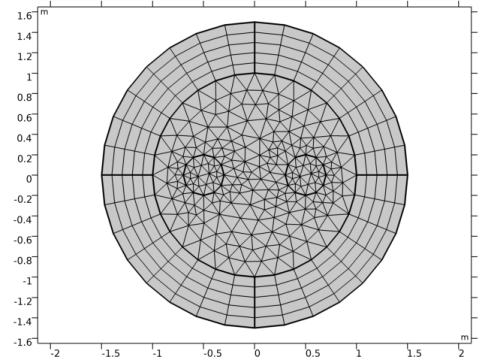
The infinite element domain requires some attention when meshing. As it is steeply scaled in the radial direction to model a very large geometry (approximating a geometry extending to infinity), the mesh will effectively be stretched in that direction. A structured mesh is indicated in this case to prevent poor element quality. The Magnetic Fields interface can automatically create an appropriate mesh for this application.
Mesh 1
1
In the Model Builder window, under Component 1 (comp1) right-click Mesh 1 and choose Build All.
The automatically created mesh applies a Mapped operation on the finite element domain. Modify it according to the following instructions.
Size
1
Right-click Component 1 (comp1)>Mesh 1 and choose Edit Physics-Induced Sequence.
2
In the Settings window for Size, locate the Element Size section.
3
From the Predefined list, choose Coarser.
4
Click to expand the Element Size Parameters section. In the Maximum element size text field, type 0.2.
5
Click Build All.
The mesh should look like in the figure.
Study 1
In the Home toolbar, click Compute.
Results
Magnetic Flux Density Norm (mf)
The default plot shows the norm of the magnetic flux density. Note that the value inside the infinite element domain has no physical relevance.
Arrow Line 1
1
Right-click Magnetic Flux Density Norm (mf) and choose Arrow Line.
2
In the Settings window for Arrow Line, click Replace Expression in the upper-right corner of the Expression section. From the menu, choose Component 1>Magnetic Fields>Mechanical>mf.nTx_wire1,mf.nTy_wire1 - Maxwell surface stress tensor.
3
Locate the Coloring and Style section. Select the Scale factor check box.
4
5
From the Color list, choose Blue.
6
In the Magnetic Flux Density Norm (mf) toolbar, click Plot.
7
Click the Zoom In button in the Graphics toolbar.
Arrow Line 2
1
Right-click Magnetic Flux Density Norm (mf) and choose Arrow Line.
2
In the Settings window for Arrow Line, click Replace Expression in the upper-right corner of the Expression section. From the menu, choose Component 1>Magnetic Fields>Mechanical>mf.nTx_wire2,mf.nTy_wire2 - Maxwell surface stress tensor.
3
Locate the Coloring and Style section. Select the Scale factor check box.
4
5
From the Color list, choose Black.
6
In the Magnetic Flux Density Norm (mf) toolbar, click Plot.
The plot shows the Maxwell’s stress tensor distribution on the surface of the wires. The total force on each wire is evaluated as the surface integral of the stress tensor and is available as a postprocessing variable.
Global Evaluation 1
1
In the Results toolbar, click Global Evaluation.
2
In the Settings window for Global Evaluation, click Replace Expression in the upper-right corner of the Expressions section. From the menu, choose Component 1>Magnetic Fields>Mechanical>Electromagnetic force - N>mf.Forcex_wire1 - Electromagnetic force, x component.
3
Click Evaluate.
Table
1
Go to the Table window.
The force in the x direction on the first wire evaluates to something between
2.0×10⁷ N/m and 1.9×10⁷ N/m.
2
In the Settings window for Global Evaluation, click Replace Expression in the upper-right corner of the Expressions section. From the menu, choose Component 1>Magnetic Fields>Mechanical>Electromagnetic force - N>mf.Forcex_wire2 - Electromagnetic force, x component.
3
Click Evaluate.
4
Go to the Table window.
As expected, the force on the second wire has a similar value but the opposite sign.
Proceed to compare the value with those from the Lorentz force distribution.
Results
Surface Integration 1
1
In the Results toolbar, click More Derived Values and choose Integration>Surface Integration.
2
3
In the Settings window for Surface Integration, click Replace Expression in the upper-right corner of the Expressions section. From the menu, choose Component 1>Magnetic Fields>Mechanical>Lorentz force contribution, instantaneous value - N/m³>mf.FLtzix - Lorentz force contribution, instantaneous value, x component.
4
Click Evaluate.
Table
1
Go to the Table window.
This time, the value is expected to be consistently closer to 2×10⁷ N/m. When applicable, Lorentz force integrals usually give more accurate results than the Maxwell’s stress tensor.
2
3
Click Evaluate.
Once again, integration over the second wire gives a similar but positive result.
Mesh 1
Proceed with the mesh convergence analysis for the force. Create a parameterized mesh.
1
In the Model Builder window, under Component 1 (comp1) right-click Mesh 1 and choose Duplicate.
Mesh 2
Size
1
In the Model Builder window, expand the Mesh 2 node, then click Size.
2
In the Settings window for Size, locate the Element Size Parameters section.
3
In the Maximum element size text field, type 0.2/N.
Distribution 1
1
In the Model Builder window, expand the Component 1 (comp1)>Meshes>Mesh 2>Mapped 1 node, then click Component 1 (comp1)>Meshes>Mesh 2>Distribution 1.
2
In the Settings window for Distribution, locate the Distribution section.
3
In the Number of elements text field, type 4*N.
Perform the mesh convergence analysis in a new study.
Add Study
1
In the Home toolbar, click Add Study to open the Add Study window.
2
Go to the Add Study window.
3
Find the Studies subsection. In the Select Study tree, select General Studies>Stationary.
4
Click Add Study in the window toolbar.
5
In the Home toolbar, click Add Study to close the Add Study window.
Study 2
Perform a sweep over the mesh multiplier parameter.
Parametric Sweep
1
In the Study toolbar, click Parametric Sweep.
2
In the Settings window for Parametric Sweep, locate the Study Settings section.
3
Click Add.
4
From the list in the Parameter name column, choose N (Mesh multiplier).
5
Click Range.
6
In the Range dialog box, type 1 in the Start text field.
7
In the Step text field, type 1.
8
In the Stop text field, type 5.
9
Click Replace.
Define an integration operator to compute the total force from the Lorentz force contribution.
Definitions
Integration 1 (intop1)
1
In the Definitions toolbar, click Nonlocal Couplings and choose Integration.
2
Study 2
In the Home toolbar, click Compute.
Results
Magnetic Flux Density Norm (mf) 1
In the Settings window for 2D Plot Group, type Magnetic Flux Density Norm (Mesh Convergence Study) in the Label text field.
1D Plot Group 3
1
In the Home toolbar, click Add Plot Group and choose 1D Plot Group.
Plot the absolute error versus the mesh multiplier parameter for the force computed using Maxwell’s stress tensor.
2
In the Settings window for 1D Plot Group, locate the Data section.
3
From the Dataset list, choose Study 2/Parametric Solutions 1 (sol3).
Global 1
1
Right-click 1D Plot Group 3 and choose Global.
2
In the Settings window for Global, locate the y-Axis Data section.
3
4
Click to expand the Coloring and Style section. In the Width text field, type 2.
5
Find the Line markers subsection. From the Marker list, choose Square.
6
From the Positioning list, choose In data points.
7
In the 1D Plot Group 3 toolbar, click Plot.
Switch to logarithmic scale and add suitable plot annotations.
8
Click the x-Axis Log Scale button in the Graphics toolbar.
9
Click the y-Axis Log Scale button in the Graphics toolbar.
1D Plot Group 3
1
In the Model Builder window, click 1D Plot Group 3.
2
In the Settings window for 1D Plot Group, click to expand the Title section.
3
From the Title type list, choose Manual.
4
In the Title text area, type Mesh Convergence, Maxwell Stress Tensor Method.
5
Locate the Plot Settings section. Select the x-axis label check box.
6
In the associated text field, type Reciprocal element size measure.
7
Select the y-axis label check box.
8
9
In the Label text field, type Mesh Convergence, Maxwell Stress Tensor Method.
Global 1
1
In the Model Builder window, click Global 1.
2
In the Settings window for Global, click to expand the Legends section.
3
Clear the Show legends check box.
4
In the Mesh Convergence, Maxwell Stress Tensor Method toolbar, click Plot.
Mesh Convergence, Maxwell Stress Tensor Method
Plot the absolute error versus the mesh multiplier parameter for the force computed using the Lorentz force contribution.
Mesh Convergence, Maxwell Stress Tensor Method 1
1
In the Model Builder window, right-click Mesh Convergence, Maxwell Stress Tensor Method and choose Duplicate.
2
In the Settings window for 1D Plot Group, locate the Title section.
3
In the Title text area, type Mesh Convergence, Lorentz Force Method.
4
In the Label text field, type Mesh Convergence, Lorentz Force Method.
Global 1
1
In the Model Builder window, expand the Results>Mesh Convergence, Lorentz Force Method node, then click Global 1.
2
In the Settings window for Global, locate the y-Axis Data section.
3
Mesh Convergence, Lorentz Force Method
1
In the Model Builder window, click Mesh Convergence, Lorentz Force Method.
2
In the Mesh Convergence, Lorentz Force Method toolbar, click Plot.
Using the Lorentz force method gives results that are 2-3 orders of magnitude more accurate than the ones obtained using Maxwell’s stress tensor for a given mesh density.
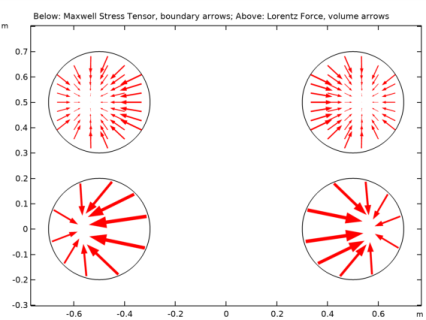
In the following, it is presented another way to visualize Maxwell Stress tensor together with the Lorentz Force. The plot highlights clearly that the Maxwell Stress tensor is a boundary vector (whose main property is that its surface integral is the total force on the body) and that the Lorentz Force is a volumetric force. Differently from Maxwell Stress tensor, Lorentz Force is an actual volumetric force, and, for the present case where the objects are nonmagnetic conductor, Lorentz Force is the only contribution to the total force.
2D Plot Group 5
1
In the Home toolbar, click Add Plot Group and choose 2D Plot Group.
2
In the Settings window for 2D Plot Group, type Compared visualization of Lorenz Force and Maxwell Stress tensor in the Label text field.
First, remove representation of all the edges, and reproduce only the coil edges twice, one above the other.
3
Locate the Plot Settings section. Clear the Plot dataset edges check box.
4
Click to expand the Selection section. From the Geometric entity level list, choose Domain.
5
6
Select the Propagate to lower dimensions check box.
Line 1
1
Right-click Compared visualization of Lorenz Force and Maxwell Stress tensor and choose Line.
2
In the Settings window for Line, locate the Expression section.
3
In the Expression text field, type 1.
4
Locate the Coloring and Style section. Clear the Color legend check box.
5
From the Coloring list, choose Uniform.
6
From the Color list, choose Black.
Line 2
In the Model Builder window, right-click Line 1 and choose Duplicate.
Deformation 1
1
In the Model Builder window, right-click Line 2 and choose Deformation.
2
In the Settings window for Deformation, locate the Expression section.
3
In the X component text field, type 0.
4
In the Y component text field, type 0.5.
5
Locate the Scale section. Select the Scale factor check box.
6
Where the Deform feature is used to displace the two upper circles.
Add a title well representing what is going to be shown.
Compared visualization of Lorenz Force and Maxwell Stress tensor
1
In the Model Builder window, click Compared visualization of Lorenz Force and Maxwell Stress tensor.
2
In the Settings window for 2D Plot Group, click to expand the Title section.
3
From the Title type list, choose Manual.
4
In the Title text area, type Below: Maxwell Stress Tensor, boundary arrows; Above: Lorentz Force, volume arrows.
Now add Maxwell Stress Tensor representation on both conductors.
Arrow Line 1
1
Right-click Compared visualization of Lorenz Force and Maxwell Stress tensor and choose Arrow Line.
2
In the Settings window for Arrow Line, locate the Expression section.
3
In the X component text field, type try_catch(mf.nTx_wire1,mf.nTx_wire2).
4
In the Y component text field, type try_catch(mf.nTy_wire1,mf.nTy_wire2).
5
Locate the Coloring and Style section. Select the Scale factor check box.
6
7
Locate the Arrow Positioning section. In the Number of arrows text field, type 20.
Finally add Lorentz Force representation, shifted up.
Arrow Surface 1
1
Right-click Compared visualization of Lorenz Force and Maxwell Stress tensor and choose Arrow Surface.
2
In the Settings window for Arrow Surface, click Replace Expression in the upper-right corner of the Expression section. From the menu, choose Component 1>Magnetic Fields>Mechanical>mf.FLtzix,mf.FLtziy - Lorentz force contribution, instantaneous value.
3
Locate the Arrow Positioning section. Find the X grid points subsection. In the Points text field, type 21.
4
Find the Y grid points subsection. In the Points text field, type 11.
5
Locate the Coloring and Style section. Select the Scale factor check box.
6
Deformation 1
1
Right-click Arrow Surface 1 and choose Deformation.
2
In the Settings window for Deformation, locate the Expression section.
3
In the X component text field, type 0.
4
In the Y component text field, type 0.5.
5
Locate the Scale section. Select the Scale factor check box.
6
Execute the plot and rescale the view to get a representation of Maxwell Stress Tensor and Lorentz Force. The result will look like in the following figure.
Compared visualization of Lorenz Force and Maxwell Stress tensor
1
In the Model Builder window, click Compared visualization of Lorenz Force and Maxwell Stress tensor.
2
In the Compared visualization of Lorenz Force and Maxwell Stress tensor toolbar, click Plot.
3
Click the Zoom Extents button in the Graphics toolbar.