Study, Bidirectional
1
In the Settings window for Study, change the Label text field to
Study, Bidirectional
.
2
In the Home toolbar, click Add Study
to close the Add Study window.
3
In the Model Builder window, under Study, Unidirectional
, Ctrl-click to select Step 1: Boundary Mode Analysis
, Step 2: Boundary Mode Analysis 1
, Step 3: Boundary Mode Analysis 2
, Step 4: Boundary Mode Analysis 3
, and Step 5: Frequency Domain
.
4
Right-click and choose Copy
.
5
In the Model Builder window, right-click Study, Bidirectional
and choose Paste Multiple Items
.
Step 1: Boundary Mode Analysis
1
In the Model Builder window, under Study, Bidirectional
, select Step 1: Boundary Mode Analysis
.
2
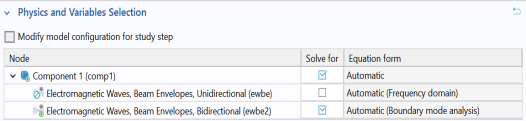
In the Settings window for Boundary Mode Analysis, locate the Physics and Variables Selection section. In the table, clear the Solve for checkbox for Electromagnetic Waves, Beam Envelopes, Unidirectional.
3
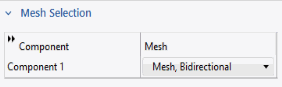
Click to expand the Mesh Selection section. In the table, select Mesh, Bidirectional.
4
Repeat steps 2 and 3 above for Step 2: Boundary Mode Analysis 1
, Step 3: Boundary Mode Analysis 2
, Step 4: Boundary Mode Analysis 3
, and Step 5: Frequency Domain
.
5
In the Home toolbar, click Compute
.
 to close the Add Study window.
 , Ctrl-click to select Step 1: Boundary Mode Analysis
  , Step 2: Boundary Mode Analysis 1
  , Step 3: Boundary Mode Analysis 2
  , Step 4: Boundary Mode Analysis 3
  , and Step 5: Frequency Domain
  .
. .
. and choose Paste Multiple Items
  .
. , select Step 1: Boundary Mode Analysis
  .
.
 , Step 3: Boundary Mode Analysis 2
  , Step 4: Boundary Mode Analysis 3
  , and Step 5: Frequency Domain
  .
. .
.