|
1
|
|
1
|
|
6
|
Click the Plot button
 . The plot below shows the symmetric mode polarized in the z direction (same as Figure 15 in Results and Discussion). . The plot below shows the symmetric mode polarized in the z direction (same as Figure 15 in Results and Discussion).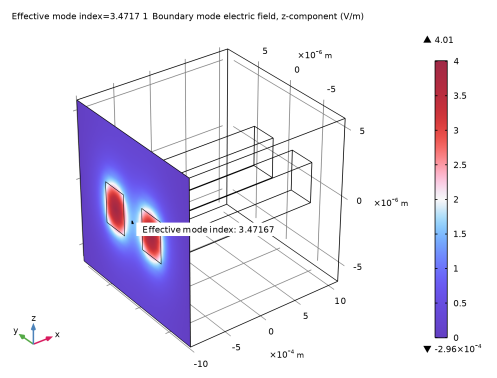 |
|
8
|
|
10
|
From the Settings window for Surface, locate the Expression section and enter ewbe.tEbm1y in the Expression text field, to plot the mode field polarized in the y direction.
|
|
13
|
Click the Plot button
 . The plot below shows the symmetric mode polarized in the y direction (same as Figure 17 in Results and Discussion). . The plot below shows the symmetric mode polarized in the y direction (same as Figure 17 in Results and Discussion).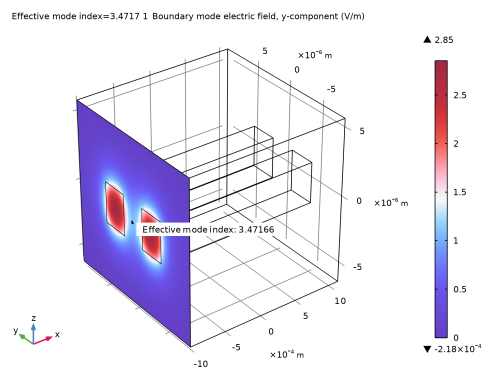 |
|
15
|
|
2
|
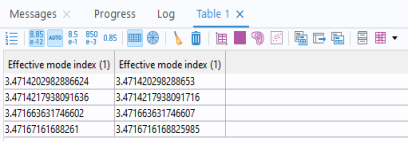
Locate the Expressions section in the Settings window for Global Evaluation and enter ewbe.neff_1 in the Expression cell for the first table row. The variable ewbe.neff_1 is the effective index for the first port.
|
 , and then select Surface 1
  .
. in the upper-right corner of the Expression section. From the menu, navigate to and select the variable Model > Component 1 > Electromagnetic Waves, Beam Envelopes, Unidirectional > Boundary mode analysis > Boundary mode electric field - V/m > ewbe.tEbm1z - Boundary mode electric field,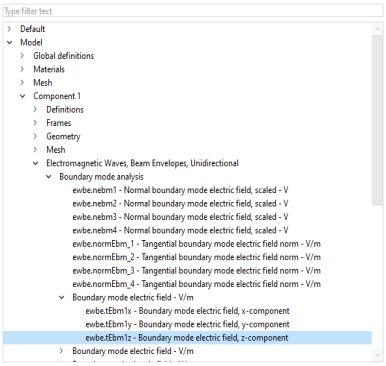
 .
. button. The plot below shows the anti-symmetric mode polarized in the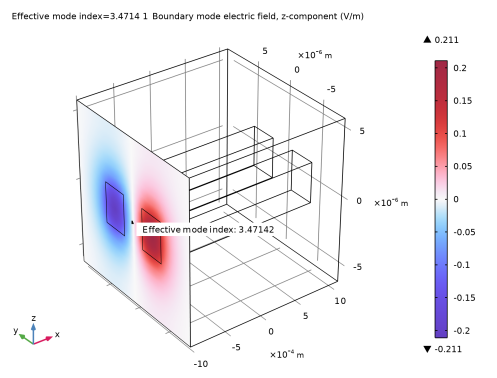
 , click Surface 1
  .
. .
. . The plot below shows the anti-symmetric mode polarized in the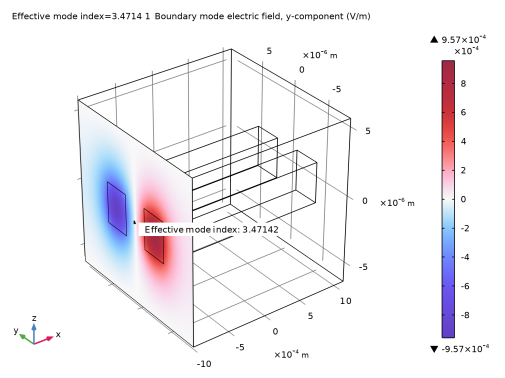
 .
. .
. .
.
 .
.