Compute and Display Results
In general, the resulting system of equations in a multiphysics problem can be solved using two different strategies:
•
In the fully coupled approach, all degrees of freedom (DOF) are solved simultaneously using a single large system of equations.
•
In the segregated approach, one smaller system of equations is solved for each type of physics. The couplings between the types of DOF are introduced through the load vectors. Except for some special cases, it is then necessary to repeat the solutions several times, until convergence.
In most cases, the segregated approach will be the default suggestion when the solver sequence is generated for a multiphysics problem. Based on your knowledge of the underlying properties of a problem, it is often possible to reduce the solution time by making appropriate changes to the solver settings. In this example, there are two important properties that can be used:
•
Both the heat transfer problem and the solid mechanics problem are linear.
•
The heat transfer problem is independent of the solution to the solid mechanics problem. This is a very common situation in thermal-stress analysis.
As long as the heat transfer problems is solved first, it is thus sufficient to make one pass through the segregated solver, and no iterations are needed for either physics interface.
1
In the Study toolbar, click Show Default Solver
.
2
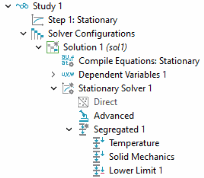
In the Model Builder window, expand the Solution 1 node. Then, expand the Stationary Solver 1 node.
3
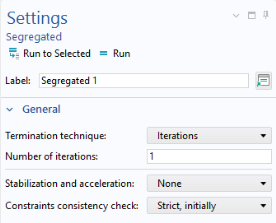
Click Segregated 1. In the Settings window, locate the General section.
4
From the Termination technique list, choose Iterations.
5
Expand the Segregated 1 node, and inspect the segregated steps. Note that the Temperature node appears above the Solid Mechanics node, which is the optimal order for this problem, since the coupling between the physics interfaces is unidirectional.
6
On the Study or Home toolbar, click Compute
.
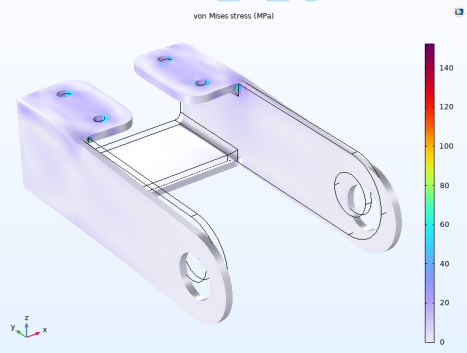
Under the Results node, two plot groups are automatically added to show the default results for a structural analysis and a thermal analysis. The first plot group, Stress (solid), shows the von Mises stresses on a scaled deformed geometry. Due to the boundary conditions and the nonuniform temperature distribution, thermal stresses develop in the structure.
Improve the plot slightly.
Volume 1
1
In the Model Builder window, expand the Stress (solid) node, then click Volume 1.
2
In the Settings window for Volume, locate the Expression section. From the Unit list, choose MPa.
3
Click the Show Grid
button in the Graphics toolbar to switch off the grid.
4
Click the Zoom Extents button
in the Graphics toolbar.
5
Click Plot
.
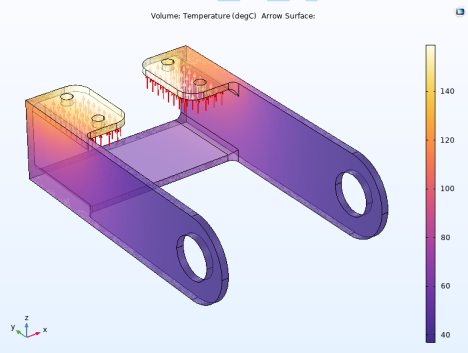
The second default plot group, Temperature (ht), displays the temperature distribution. The temperature is highest where the inward heat flux is prescribed, and decreases as heat is removed by convection from all other boundaries.
Add some arrows indicating the thermal loading.
Temperature (ht)
1
In the Model Builder window, right-click Temperature (ht), and choose Arrow Surface.
2
In the Settings window for Arrow Surface, locate the Expression section.
3
In the X-component and Y-component text fields, type
0
.
4
In the Z-component text field, type
1
.
5
Locate the Arrow Positioning section. In the Number of arrows text field, type
100
.
6
Locate the Coloring and Style section. From the Arrow base list, choose Head.
7
Select the Scale factor checkbox. In the associated text field, type
0.02
.
8
Right-click Arrow Surface 1 and choose Selection.
9
Select Boundaries 17 and 27.
10
Click Volume and locate the Expression section. From the Unit list, choose degC.
11
Right-click Volume and choose Transparency.
12
Set the Transparency value to
0.4
.
13
Set the Fresnel transmittance to
0.4
.
14
Click Plot
.
As a final step, pick one of the plots to use as a model thumbnail.
1
In the Model Builder under Results click any of the plot groups.
2
Adjust the image in the Graphics window using the toolbar buttons until the image is one that is suitable to your purposes.
3
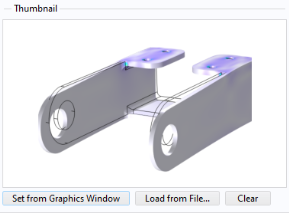
Click the Root node (the first node in the model tree). In the Settings window for Root under Thumbnail, click Set from Graphics Window.