Importing the Geometry
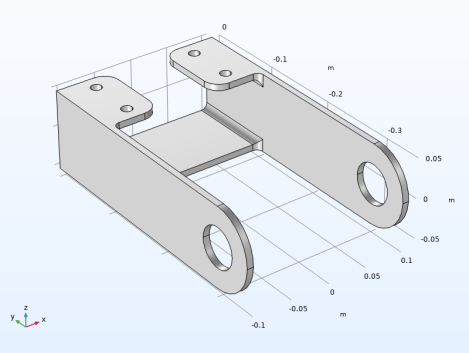
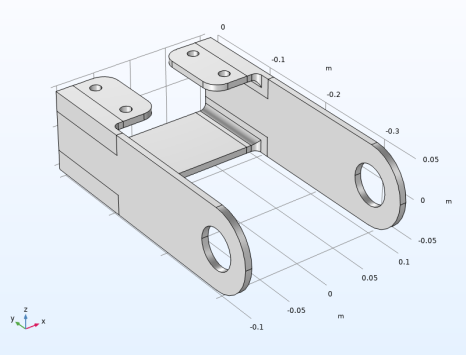
The next step is to create your geometry, which also can be imported from an external program. COMSOL Multiphysics supports a multitude of CAD programs and file formats. In this example, import a file in the COMSOL Multiphysics geometry file format (.mphbin).
Note: The location of the files used in this exercise varies based on your installation. For example, if the installation is on your hard drive, the file path might be similar to C:\Program Files\COMSOL\COMSOL64\Multiphysics\applications\Structural_Mechanics_Module\Tutorials.
1
Note: On Linux and Mac, the Home toolbar refers to the specific set of controls near the top of the Desktop.
2
3
4
5
Browse to the folder Structural_Mechanics_Module\Tutorials under the COMSOL installation directory and double-click the file bracket.mphbin.
6
It is possible to automatically create a free tetrahedral mesh covering the whole component. Such a strategy is however not optimal for the large flat regions. For this reason, you will partition the geometry so that you can create a better mesh.
For a small linear problem like this, it would still be more efficient just to use a rather fine tetrahedral mesh, but the approach shown here is useful for more general cases.
1
2
3
4
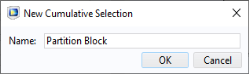
In the New Cumulative Selection dialog, type Partition Block in the Name text field.
5
6
7
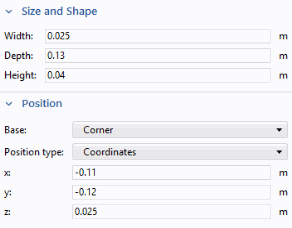
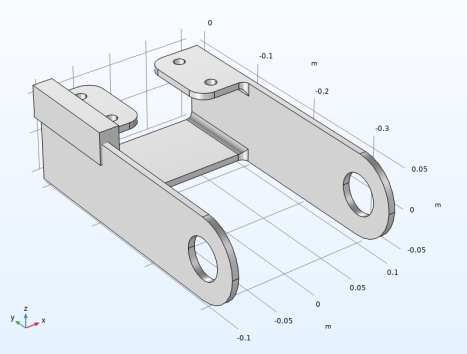
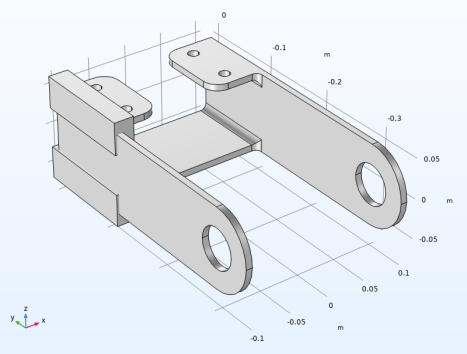
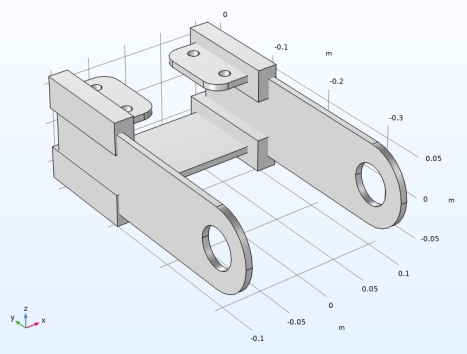
You have now created a block which encompasses the part of the geometry which has a more complex geometry, and thus requires free tetrahedral mesh. Now, mirror this block twice, so that all four fillets are covered.
8
9
10
11
Since the x-y plane happens to be the default mirror plane, you did not have to change any settings to specify it.
Create the second mirror copy.
12
13
14
15
16
17
18
Partition objects
1
2
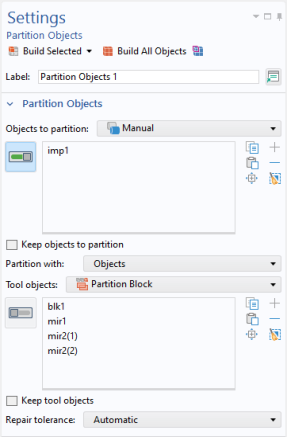
Note: There are many ways to select geometric entities. When you know the geometric entity to add, as in these exercises, you can click the Paste Selection button  and enter the information in the Selection text field. In this case, ‘imp1’ is the whole bracket, so quickest way to select it is to click on it in the graphics window.
For more information about selecting geometric entities in the Graphics window, see the COMSOL Multiphysics Reference Manual.
3
4
The solid geometry has now been partitioned into nine separate domains, five of which are thin objects with a constant thickness.
Form Union (fin)
1
The Form Union node determines how the objects will be considered in the analysis. By using the default setting, Form a union, any adjacent objects will be bonded, and the interior boundaries assume continuity. If Form an assembly were selected instead, each objects would be considered as a different part in an assembly and they would not be connected to each other. With this approach, structural contact could be modeled. In this case, the Form Union node would also be renamed to Form Assembly, so that you can see in which state the model is just by looking at the geometry sequence.