Global Definitions - Parameters
It is good modeling practice to gather constants and parameters in one place so that you can change them easily. Using parameters will also improve the readability of your input data. You can also easily add new parameters when needed.
1
In the Model Builder Window, under Global Definitions, select Parameters 1
.
2
In the Settings window for Parameters, locate the Parameters section.
3
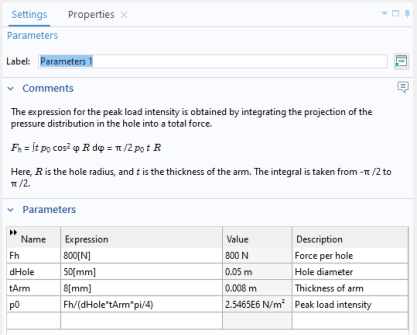
In the table, enter the following settings:
Name
Expression
Value
Description
Fh
800[N]
800 N
Force per hole
dHole
50[mm]
0.05 m
Hole diameter
tArm
8[mm]
0.008 m
Thickness of arm
p0
Fh/(dHole*tArm*pi/4)
2.5465E6 N/m
2
Peak load intensity
The third column in the table is filled out automatically. Note that you can enter data in any unit; it will automatically be converted to the base units of your model. You can choose unit system under the top level node in the model tree.
The value of the peak load intensity, p0, is computed based on the resultant load applied to each hole. Creating parameters using expressions containing other parameters is a powerful tool.
In any node in the Model Builder, you can add comments to explain the settings. Here, you may want to explain the expression for the peak load intensity.
You add and modify comments in the Properties tab for a certain node.
1
To open the Properties tab, right-click the Parameters 1 node, and select Properties and Comments
.
2
In the Settings window for Properties, locate the Node Properties section.
3
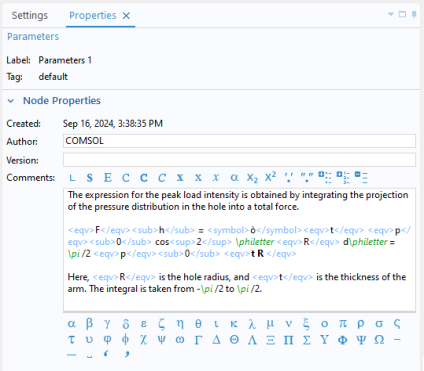
In the Comments edit field enter the following text:
The expression for the peak load intensity is obtained by integrating the projection of the pressure distribution in the hole into a total force.
Fh = integral(t p0 cos2 \philetter R d\philetter) = \pi /2 p0 t R
Here, R is the hole radius and t is the thickness of the arm. The integral is taken from -\pi /2 to \pi /2.
To improve the visualization, enrich the text fonts with subscripts, superscripts, or equation variable formatting. This can be done by selecting one or more characters and then clicking the associated button above the text field. In the figure you can see how the text looks after formatting.
If you want to directly paste the final formatted expression, copy the following text:
The expression for the peak load intensity is obtained by integrating the projection of the pressure distribution in the hole into a total force.
<eqv>F</eqv><sub>h</sub> = <symbol>ò</symbol><eqv>t</eqv> <eqv>p</eqv><sub>0</sub> cos<sup>2</sup> \philetter <eqv>R</eqv> d\philetter = \pi /2 <eqv>p</eqv><sub>0</sub> <eqv>t R </eqv>
Here, <eqv>R</eqv> is the hole radius, and <eqv>t</eqv> is the thickness of the arm. The integral is taken from -\pi /2 to \pi /2.
Once you have added a comment for a node in the model, it will be visible in the Settings tab.
 .
. .
.