Semiconductor
Next define the physics settings. Start with the carrier statistics and doping.
1
2
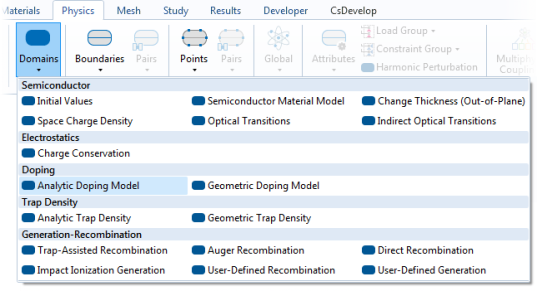
Analytic Doping Model 1
First a constant background acceptor concentration is defined.
1
2
3
Locate the Impurity section. In the NA0 text field, type 1e17[1/cm^3].
Analytic Doping Model 2
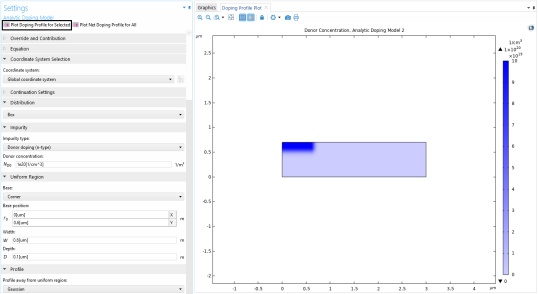
Add a second doping feature to define the implanted doping profile for the source.
1
2
3
When defining a Box doping distribution, a rectangular region of constant doping is defined, with a Gaussian drop off away from the edges of this rectangular region.
Define the location of the lower-left corner of the uniformly doped rectangular region.
1
-
2
-
In the Width: W text field, type 0.6[um].
-
In the Depth: D text field, type 0.1[um].
Choose the dopant type and the doping level in the uniformly doped region.
3
-
-
In the ND0 text field, type 1e20[1/cm^3].
Next, specify the length scale over which the Gaussian drop off occurs. If doping into a background dopant distribution of opposite type (as in this case), this setting specifies the junction depth. In this model, different length scales are used in the x and y directions.
4
5
Specify the dj vector as
Finally specify the constant background doping level.
6
From the Nb list, choose “Acceptor concentration (semi/adm1)”.
7
Analytic Doping Model 3
Add a similar Gaussian doping profile for the drain.
1
2
-
Specify the r0 vector as
Next set up boundary conditions for the contacts and gate.
Metal Contact 1
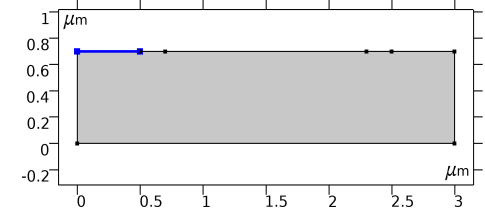
First add a contact for the source.
1
The Metal Contact feature is used to define Metal–Semiconductor interfaces of various types. In this instance use the default Ideal Ohmic contact type to define the source.
2
Note: The Metal Contact feature in COMSOL Multiphysics is a so called Terminal boundary condition. By default a fixed potential of 0 V is applied, which is appropriate in this instance, since the source is grounded. The terminal can also be set up to specify an input current, input power, or to connect to a voltage or current source from an external circuit.
Metal Contact 2
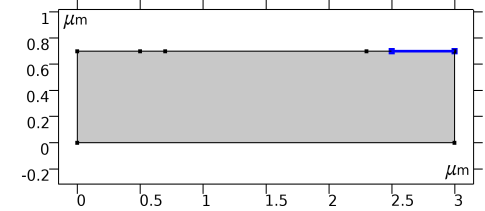
Add a second Metal Contact feature to define the drain.
1
2
Set the drain voltage to be specified by the previously defined parameter.
3
Metal Contact 3
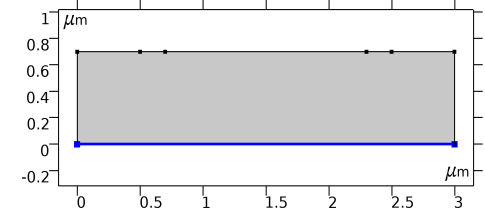
Add a third Metal Contact to set the body voltage to 0 V.
1
2
Thin Insulator Gate 1
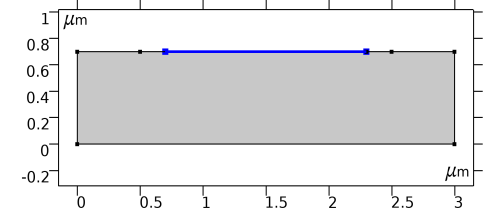
Set up the Gate. The Gate dielectric is not explicitly represented in the model, instead the Thin Insulator Gate boundary condition represents both the gate contact and the thin layer of oxide.
1
The Thin Insulator Gate feature is also a terminal, but in this instance it is possible to fix the voltage or charge on the terminal, as well as to connect it to a circuit.
Note: The charge setting determines the charge on the conductor and does not relate to trapped charge at the oxide–semiconductor interface.
The voltage applied to the gate is specified by the parameter added previously.
2
3
-
In the εins text field, type 4.5.
-
In the dins text field, type 30[nm].
4
Trap-Assisted Recombination 1
A range of generation–recombination mechanisms are available to be added to the model. In this case, we simply add trap-assisted recombination, using the default Shockley–Read–Hall model.
1
2