 :
:|
1
|
|
2
|
In the Settings window for 3D Plot Group, type Ray Diagram 1 in the Label text field.
|
|
7
|
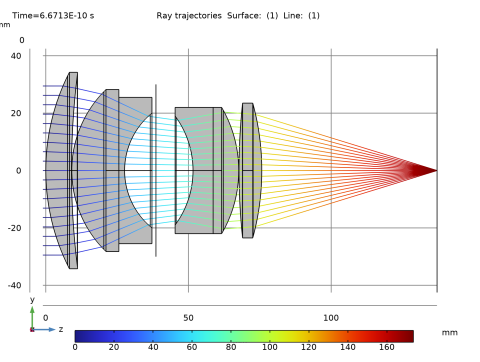
In the Logical expression for inclusion text field, type at(0,abs(gop.deltaqx)<0.1[mm]). This logical expression will render rays in the yz-plane. In this expression, at() is a special operator that takes two arguments. It evaluates the second argument at the solution time given by the first argument, so the logical expression abs(gop.deltaqx)<0.1[mm] is being evaluated at the initial ray positions.
|
|
2
|
In the Settings window for 3D Plot Group, type Ray Diagram 2 in the Label text field.
|
|
2
|
In the settings for Color Expression 1
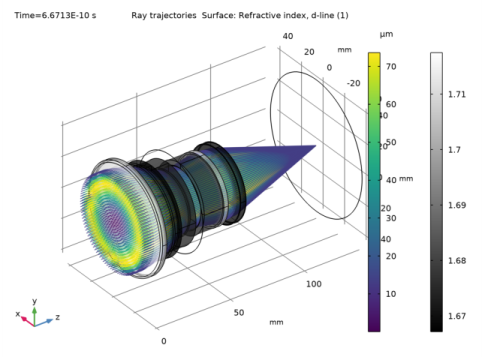
 , locate the Expression section. In the Expression text field, type at(‘last’,gop.rrel). This is the radial coordinate relative to the average ray position in the image plane. , locate the Expression section. In the Expression text field, type at(‘last’,gop.rrel). This is the radial coordinate relative to the average ray position in the image plane. |
|
2
|
In the Settings window for 2D Plot Group, type Spot Diagram in the Label text field.
|
|
3
|
|
2
|
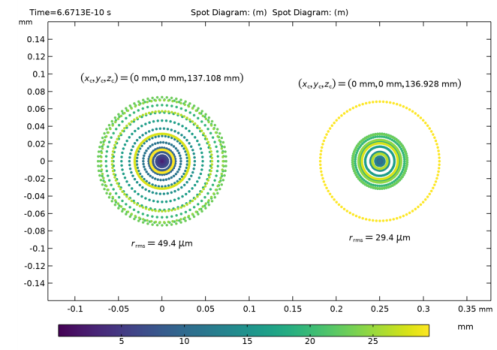
Locate the Expression section. In the Expression text field, type at(0,gop.rrel). This is the radial coordinate relative to the centroid at the location of the ray release. This allows the origin of each ray to be visualized.
|
|
2
|
In the Settings window for 2D Plot Group, type Optical Aberration Diagram in the Label text field.
|
 > Datasets
  > Study 1/Solution 1 (sol1)
  , the default dataset created by most study types,
 > Datasets
  > Ray 1
  , a dataset for plotting rays,
 > Ray Trajectories (gop)
  plot group, and
 > Ray Trajectories (gop)
  > Ray Trajectories 1
  plot, which displays the ray paths.
 attribute (subnode) that colors the rays in proportion to their optical path length.
 attribute node can be used to plot only a specified number or fraction or rays, or filter the rays by a logical expression.
 . This Cut Plane dataset will be used to render the double Gauss lens cross-section. Use the default settings, which align the cut plane parallel to the
  click the Ray Trajectories (gop)
  plot group.
 > Ray Diagram 1
  > Ray Trajectories 1
  node, then click Filter 1
  .
. .
. .
. . The figure should look like the figure below:
 .
. .
. > Ray Diagram 2
  > Ray Trajectories 1
  node and click Color Expression
  . Alternatively, in the Ray Diagram 2 toolbar, click Color Expression
  in the Attributes section.
 .
. button in the upper-right corner of the Expression section. From the menu, expand Component 1 (comp1) > Geometrical Optics > Refractive index and choose gop.nrefd - Refractive Index, d-line. This is the refractive index at 587.56 nm.
 .
. . This allows you to see the rays inside the lenses.
 .
. button in the Graphics toolbar.
 in the window toolbar. Orient the view so that the color expression in the object plane can be clearly seen. The figure should look like the first figure below. As noted above, in this figure the rays are colored according to their radial distance from the centroid. This makes it possible to visualize which rays contribute most to the overall spot size.
 .
. .
. .
. and choose Duplicate
  .
. , click to expand the Focal Plane Orientation section. This section is used to control how the best focus plane is determined.
 dataset on a plane. In this model, which has a single on-axis field and monochromatic light, the location of the best focus plane happens to be in front of the nominal image surface. The focal plane is located 180 microns in front of the nominal image surface.
 .
. button in the Graphics toolbar. Compare the resulting image to the figure below:
 .
. .
. and choose Duplicate
  .
. , locate the Zernike Polynomials section.
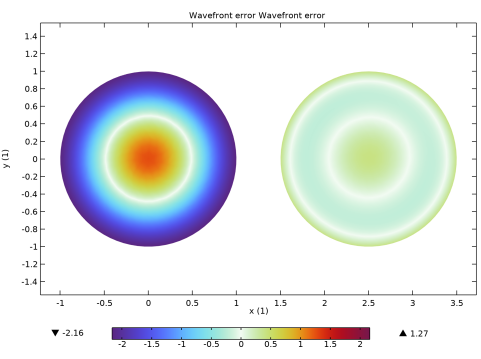
 plot, combinations of Zernike polynomials are always plotted on a unit circle.
 .
. button in the Graphics toolbar. Compare the resulting image to the figure below. The remaining wavefront error (about 0.6 waves) is dominated by spherical aberration.