The Electromagnetic Waves, Boundary Elements (embe) interface (

) is used to solve for time-harmonic electromagnetic field distributions. This interface is found under the
Radio Frequency branch (

) when adding a physics interface,. The formulation is based on the boundary element method (BEM) and is available in 2D and 3D. The physics interface solves the vector Helmholtz equation for piecewise-constant material properties and uses the electric field as dependent variable.
For large models (problems that contain many wavelengths, at high frequency or for large domains) the stabilized formulation option (see Stabilization) ensures efficient convergence at the cost of some additional degrees of freedom. For low to medium frequencies (small to medium models), running without stabilization is more efficient. The stabilized formulation only gives a benefit in computing time for the large models.
When this physics interface is added, these default nodes are also added to the Model Builder —
Wave Equation, Electric,
Perfect Electric Conductor, and
Initial Values. Then, from the
Physics toolbar, add other nodes that implement, for example, boundary conditions. You can also right-click
Electromagnetic Waves, Boundary Elements to select physics features from the context menu.
The physics-controlled mesh only defines mesh settings for the boundaries. It is controlled from the Settings window for the
Mesh node (if the
Sequence type is
Physics-controlled mesh). In the table in the
Physics-Controlled Mesh section, find the physics interface in the
Contributor column and select or clear the checkbox in the
Use column on the same row for enabling (the default) or disabling contributions from the physics interface to the physics-controlled mesh.
When the Use checkbox for the physics interface is selected, this invokes a parameter for the maximum mesh element size in free space. The physics-controlled mesh automatically scales the maximum mesh element size as the wavelength changes in different dielectric and magnetic regions.
When the Use checkbox is selected for the physics interface, in the section for the physics interface below the table, choose one of the four options for the
Maximum mesh element size control parameter —
From study (the default),
User defined,
Frequency, or
Wavelength. When
From study is selected, 1/5 of the vacuum wavelength from the highest frequency defined in the study step is used for the maximum mesh element size. For the option
User defined, enter a suitable
Maximum element size in free space. For example, 1/5 of the vacuum wavelength or smaller. When
Frequency is selected, enter the highest frequency intended to be used during the simulation. The maximum mesh element size in free space is 1/5 of the vacuum wavelength for the entered frequency. For the
Wavelength option, enter the smallest vacuum wavelength intended to be used during the simulation. The maximum mesh element size in free space is 1/5 of the entered wavelength.
|
|
In the COMSOL Multiphysics Reference Manual see the Physics-Controlled Mesh section for more information about how to define the physics-controlled mesh.
|
The Label is the default physics interface name.
The Name is used primarily as a scope prefix for variables defined by the physics interface. Refer to such physics interface variables in expressions using the pattern
<name>.<variable_name>. In order to distinguish between variables belonging to different physics interfaces, the
name string must be unique. Only letters, numbers, and underscores (_) are permitted in the
Name field. The first character must be a letter.
The default Name (for the first physics interface in the model) is
embe.
The Convert to a Half-Symmetry Model button creates a half-geometry and assigns PEC- or PMC-type
Symmetry properties, depending on the user’s selection. There are six available options. These buttons operate only in 3D.
|
•
|
PEC XY-symmetry Plane, PEC YZ-symmetry Plane, PEC ZX-symmetry Plane
|
|
•
|
PMC XY-symmetry Plane, PMC YZ-symmetry Plane, PMC ZX-symmetry Plane
|
From the Selection list, select any of the options —
Manual,
All domains,
All voids, or
All domains and voids (the default). The geometric entity list displays the selected domain entity numbers. Edit the list of selected domain entity numbers using the selection toolbar buttons to the right of the list or by selecting the geometric entities in the
Graphics window. Entity numbers for voids can be entered by clicking the Paste (

) button in the selection toolbar and supplying the entity numbers in the dialog. The entity number for the infinite void is 0, and finite voids have negative entity numbers.
Selections can also be entered using the Selection List window, available from the
Windows menu in the
Home toolbar.
Select the Electric field components solved for —
Three-component vector,
Out-of-plane vector, or
In-plane vector. Select:
|
•
|
Out-of-plane vector to solve for the electric field vector component perpendicular to the modeling plane, assuming that there is no electric field in the plane.
|
|
•
|
In-plane vector to solve for the electric field vector components in the modeling plane assuming that there is no electric field perpendicular to the plane.
|
From the Formulation list, select whether to solve for the
Full field (the default) or the
Scattered field.
For Scattered field select a
Background wave type according to the following table:
Enter the component expressions for the Background electric field Eb (SI unit: V/m). The entered expressions must be differentiable.
For Gaussian beam select the
Gaussian beam type —
Paraxial approximation (the default) or
Plane wave expansion.
When selecting Paraxial approximation, the Gaussian beam background field is a solution to the paraxial wave equation, which is an approximation to the Helmholtz equation solved for by the
Electromagnetic Waves, Boundary Elements (embe) interface. The approximation is valid for Gaussian beams that have a beam radius that is much larger than the wavelength. Since the paraxial Gaussian beam background field is an approximation to the Helmholtz equation, for tightly focused beams, you can get a nonzero scattered field solution, even if you do not have any scatterers. The option
Plane wave expansion means that the electric field for the Gaussian beam is approximated by an expansion of the electric field into a number of plane waves. Since each plane wave is a solution to the Helmholtz equation, the plane wave expansion of the electric field is also a solution to the Helmholtz equation. Thus, this option can be used also for tightly focused Gaussian beams.
For Plane wave expansion select
Wave vector distribution type —
Automatic (the default) or
User defined. For
Automatic also check
Allow evanescent waves, to include evanescent waves in the plane wave expansion. For
User defined also enter values for the
Wave vector count Nk (the default value is 13) and
Maximum transverse wave number kt,max (SI unit: rad/m, default value is
(2*(sqrt(2*log(10))))/embe.w0). Use an odd number for the
Wave vector count Nk to make sure that a wave vector pointing in the main propagation direction is included in the plane-wave expansion. The
Wave vector count Nk specifies the number of wave vectors that will be included per transverse dimension. So for 3D the total number of wave vectors will be
Nk·Nk.
|
•
|
Select a Beam orientation: Along the x-axis (the default), Along the y-axis, or for 3D components, Along the z-axis.
|
|
•
|
Enter a Beam waist radius w0 (SI unit: m). The default is 20π/ embe. k0 m (10 vacuum wavelengths).
|
|
•
|
Enter a Focal plane along the axis p0 (SI unit: m). The default is 0 m.
|
|
•
|
Select an Input quantity: Electric field amplitude (the default) or Power.
|
|
•
|
Enter the component expressions for the Transverse background electric field amplitude, Gaussian beam ETbg0 (SI unit: V/m) if the Input quantity is Electric field amplitude. Notice that this is the transverse Gaussian beam amplitude in the focal plane. When the Gaussian beam type is set to Paraxial approximation the background field is always orthogonal (transverse) to Beam orientation. However, when the Gaussian beam type is set to Plane wave expansion, the background field amplitude can also have a component in the propagation direction. Specify here only the field amplitude components that are orthogonal to the propagation direction. COMSOL computes automatically the component in the propagation direction, if needed.
|
|
•
|
If the Input quantity is set to Power, enter the Input power (SI unit: W in 2D axisymmetry and 3D and W/m in 2D) and the component expressions for the Nonnormalized transverse electric field amplitude, Gaussian beam ETbg0 (SI unit: V/m).
|
|
•
|
Enter a Wave number k (SI unit: rad/m). The default is embe. k0 rad/m. The wave number must evaluate to a value that is the same for all the domains the scattered field is applied to. Setting the Wave number k to a positive value means that the wave is propagating in the positive x-, y-, or z-axis direction, whereas setting the Wave number k to a negative value means that the wave is propagating in the negative x-, y-, or z-axis direction.
|
The initial background wave is predefined as E0 = exp(
−jkxx)
z. This field is transformed by three successive rotations along the roll, pitch, and yaw angles, in that order. For a graphic representation of the initial background field and the definition of the three rotations, compare with
Figure 4-1 below.
|
•
|
Enter an Electric field amplitude E0 (SI unit: V/m). The default is 1 V/m.
|
|
•
|
Enter a Roll angle (SI unit: rad), which is a right-handed rotation with respect to the + x direction. The default is 0 rad, corresponding to polarization along the + z direction.
|
|
•
|
Enter a Pitch angle (SI unit: rad), which is a right-handed rotation with respect to the + y direction. The default is 0 rad, corresponding to the initial direction of propagation pointing in the + x direction.
|
|
•
|
Enter a Yaw angle (SI unit: rad), which is a right-handed rotation with respect to the + z direction.
|
|
•
|
Enter a Wave number k (SI unit: rad/m). The default is embe. k0 rad/m. The wave number must evaluate to a value that is the same for the domains the scattered field is applied to. 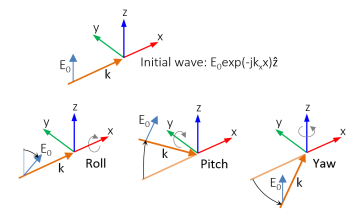
|
Symmetry planes are normal to the Cartesian coordinate axes. For Condition for the x=x0 plane,
Condition for the y=y0 plane, and
Condition for the z=z0 plane, select
Off (the default),
Zero tangential magnetic field (PMC), or
Zero tangential electric field (PEC), respectively. For the option
Zero tangential magnetic field (PMC) or
Zero tangential electric field (PEC), enter an axis coordinate value of the symmetry plane (SI unit: m).
Select the Use manual port sweep checkbox to enable the port sweep. When selected, this invokes a parametric sweep over the ports in addition to the frequency sweep already added. The generated lumped parameters are in the form of an S-parameter matrix.
For Use manual port sweep enter a
Sweep parameter name to assign a specific name to the parameter that controls the port number solved for during the sweep. Before making the port sweep, the parameter must also have been added to the list of parameters in the
Parameters section of the
Parameters node under the
Global Definitions node. This process can be automated by clicking the
Configure Sweep Settings button. The
Configure Sweep Settings button helps add a necessary port sweep parameter and a
Parametric Sweep study step in the last study node. If there is already a
Parametric Sweep study step, the sweep settings are adjusted for the port sweep. Select
Export Touchstone file and the S-parameters are subject to
Touchstone file export. Click
Browse to locate the file, or enter a filename and path. Select an
Parameter format (value pair):
Magnitude angle,
Magnitude (dB) angle, or
Real imaginary.
Enter a Reference impedance for Touchstone file export Zref (SI unit:
Ω) that is used only for the header in the exported Touchstone file. The default is 50
Ω.
To display this section, click the Show More Options button (

) and select
Stabilization in the
Show More Options dialog.
For large models (problems that contain many wavelengths, at high frequency or for large domains) enable the Use stabilization option (enable by default) to ensure efficient convergence at the cost of some additional degrees of freedom.
When Use stabilization is selected, a text field for the
Stabilization parameter is enabled with the default value
sqrt(abs(embe.k[m])). This is a parameter that should scale inversely with the wavelength. The default gives good performance in most cases.
To display this section, click the Show More Options button (

) and select
Advanced Physics Options in the
Show More Options dialog.
When Use far-field approximation for matrix assembly is selected, a text field for the
Minimum near field range in vacuum for preconditioning is enabled with the default value
((2*pi)/embe.k0)/10 (one tenth of a wavelength). For problems having a wide distribution of mesh element sizes, including mesh elements that are much smaller than the wavelength, a smaller value for this parameter may make the iterative solver convergence faster.
To display this section, click the Show More Options button (

) and select
Advanced Physics Options in the
Show More Options dialog.
From the Electric field/Flux field list, choose from predefined options for the boundary element discretization order for the electric field variable and the flux field (magnetic field) variable, respectively. The predefined options represent the suitable combinations of element orders such as
Quadratic/Linear (the default). For more information about the
Discretization section, see
Settings for the Discretization Sections in the
COMSOL Multiphysics Reference Manual.
The dependent variables (field variables) are for the Electric field E and its components (in the
Electric field components fields). The name can be changed but the names of fields and dependent variables must be unique within a model.


