Electromagnetic Waves, Frequency Domain
The ferrite is introduced in the physics interface as a separate, user-defined equation model, referring to the global variables defined in the section
Global Definitions - Parameters
.
Wave Equation, Electric 2
1
In the Physics toolbar click Domains
and choose Wave Equation, Electric
.
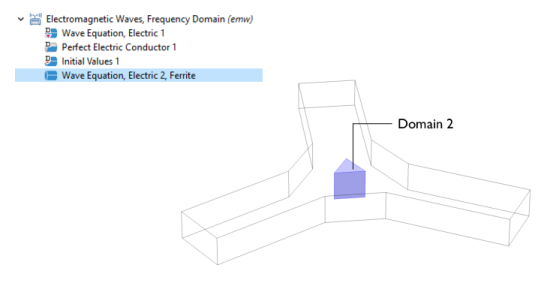
A new node called Wave Equation, Electric 2 is added to the Model Builder. The nodes with a ‘D’ in the upper left corner indicate a default node.
2
To get a view of the interior part of the circulator, click the Wireframe Rendering button
in the Graphics toolbar.
3
In the Settings window for Wave Equation, Electric 2, type Wave Equation, Electric 2, Ferrite in the Label text field.
4
Select Domain 2 only.
Note:
There are many ways to select geometric entities. When you know the domain to add, such as in this exercise, you can click the Paste Selection button
located beside the Selection list and enter the information in the Selection text field. In this example enter
2
in the Paste Selection window. For more information about selecting geometric entities in the Graphics window, see the
COMSOL Multiphysics Reference Manual
.
5
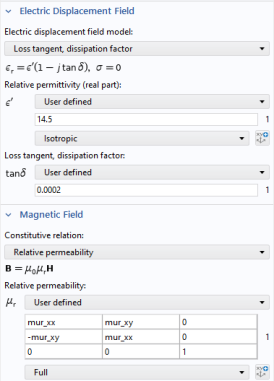
Go to the Settings window for Wave Equation, Electric 2. Under Electric Displacement Field:
-
From the Electric displacement field model list, select Loss tangent, dissipation factor.
-
From the
ε
′
list, select User defined. In the associated text field, enter
14.5
.
-
From the tan
δ
list, select User defined. In the associated text field, enter
0.0002
.
6
Under Magnetic Field, from the
μ
r
list, select User defined and Full.
7
In the
μ
r
table, enter the settings as in the figure to the right.
Now add ports for excitation and transmission.
Port 1, Port 2, and Port 3
1
In the Physics toolbar click Boundaries
and choose Port
. Port 1 is added to the Model Builder.
2
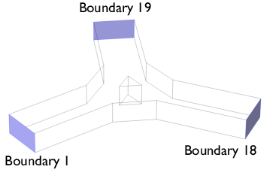
Select Boundary 1 only for Port 1.
3
Go to the Settings window for Port. Under Port Properties from the Type of port list, select Rectangular.
4
For the first port, the Wave excitation at this port is On by default.
5
In the Physics toolbar click Boundaries
and choose Port
to add another Port
node. For Port 2:
-
Select Boundary 18
-
Select Rectangular from the Type of port list
6
Add another Port
node. For Port 3:
-
Select Boundary 19
-
Select Rectangular from the Type of port list
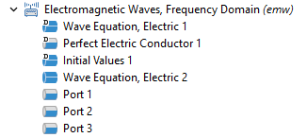
The node sequence in the Model Builder should match this figure.