|
1
|
|
1
|
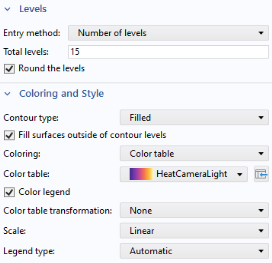
In the Settings window for 2D Plot Group, type Isothermal Contours & Velocity Streamlines in the Label text field
|
|
2
|
In the Settings window for Color Expression, locate the Expression section and type p in the Expression text field.
|
|
2
|
In the Settings window for Cut Point 2D, locate the Point Data section. In the r text field type 0, and in the z text field type 0.05 0.47/2 0.42. These points will evaluate temperatures in the packed bed at three different positions along the symmetry axis.
|
|
2
|
|
3
|
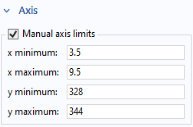
Locate the Axis section and select the Manual axis limits checkbox. In the x minimum text field, type 3.5, and in the x maximum text field type 9. This zooms into the time range between 3.5 and 9 hours. In the y minimum text field type 328, and in the y maximum text field type 344. to adjust the temperature range.
 |
|
3
|
|
4
|
In the toolbar, click Plot
 and click the Zoom Extents and click the Zoom Extents  button in the Graphics toolbar and compare with Figure 5. button in the Graphics toolbar and compare with Figure 5. |
|
3
|
In the Settings window for
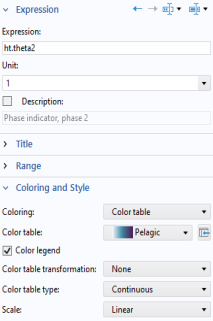 Volume enter ht.theta2 in the Expression text field. This is the name of the variable for the phase indicator of phase 2. To find these expressions, click Replace Expression Volume enter ht.theta2 in the Expression text field. This is the name of the variable for the phase indicator of phase 2. To find these expressions, click Replace Expression  in the upper-right corner of the Expression section. You can then search for expressions or browse through the list. in the upper-right corner of the Expression section. You can then search for expressions or browse through the list. |
|
5
|
Click to expand the Range section. Select the Manual color range checkbox and type 1 in the Maximum text field.
|
|
2
|
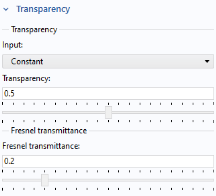
In the Settings window, type 0.2 in the Fresnel transmittance text field.
|
|
2
|
In the Settings window for 3D Plot Group, type Liquid Phase in the Label text field.
|
|
4
|
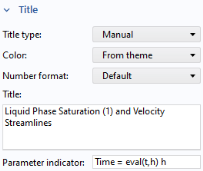
In the Title text area, type Liquid Phase Saturation (1) and Velocity Streamlines.
|
|
5
|
In the Parameter indicator text field, type Time = eval(t,h) h to update the title with the correct time automatically.
|
 to open the Result Templates window.
 button in the window toolbar.
 to close the Result Templates window.
 .
.
 .
. .
. .
. .
.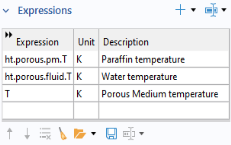
 . A table is created with the data for the temperature variables evaluated at the cut-points for all the time steps.
 in the window toolbar. This generates a 1D Plot Group 7 node with a Table Graph 1
  node.
node.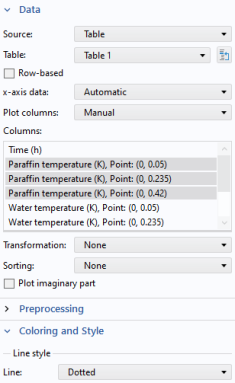
 node and choose Duplicate
  .
. node and choose Duplicate
  .
. .
. in the Temperature evolution toolbar to visualize the data.
 to open the Result Templates window.
 button in the window toolbar. Click again on Result Templates to close the Result Templates window.
 .
. and choose 3D Plot Group
  .
. .
. .
.
 .
. .
. .
.
 .
.
 .
. or Plot Next
  buttons at the top of the Settings window to plot the results for the previous or next time step respectively. Note, that plotting may take a few seconds.