Geometry
Note:
The location of the files used in this example varies based on your installation. For example, if the installation is on your hard drive, the file path is similar to
C:\ProgramĀ Files\COMSOL\COMSOL64\Multiphysics\applications\
.
Begin by defining the geometry of the piping system. Because these systems consist of multiple segments, create selections for different sections to simplify the model setup.
Start by creating the pipe system geometry. Since piping systems contain numerous segments, create selections for various parts of the system to facilitate an efficient and structured model setup. You can simplify this by inserting a prepared geometry sequence from a file.
1
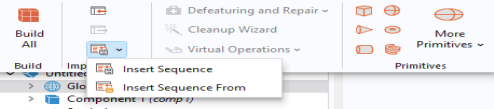
In the Geometry toolbar click Insert Sequence
.
2
Browse to the application library folder and under
Pipe_Flow_Module\Heat_Transfer
double-click the file
geothermal_heating_geom_sequence.mph
.
3
In the Geometry toolbar click Build AllĀ
.
You can at a later time inspect the geometry sequence in the Model Builder tree in detail if you want to learn how to build such a geometry from scratch.
Definitions
Now input the required data through the use of interpolation tables.
Interpolation 1
The pond water is stratified, with a temperature gradient along the depth. This profile, previously measured, will be implemented using an interpolation table.
1
In the Definitions toolbar click Interpolation
.
Note:
On Linux and Mac, the Home toolbar refers to the specific set of controls near the top of the Desktop.
2
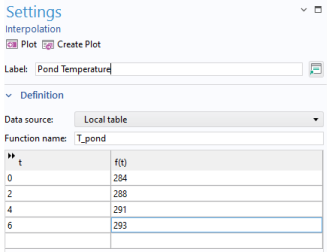
In the Settings window for Interpolation, locate the Definition section.
In the Function name text field, type T_pond. In the Label text field, type Pond Temperature.
3
In the Settings window for Interpolation under Definition, enter the following in the table:
4
Locate the Units section.
-
In the Function text field, type
K.
-
In the Arguments text field, type
m
.