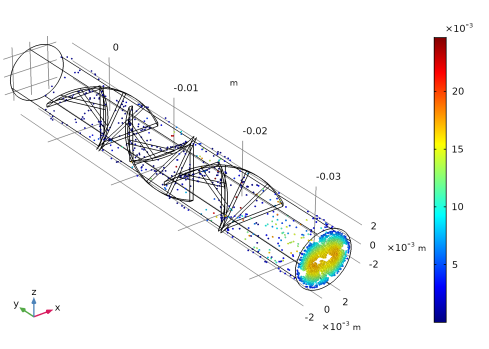
|
7
|
|
9
|
In the Expression text field, type at(0,qx<0).
|
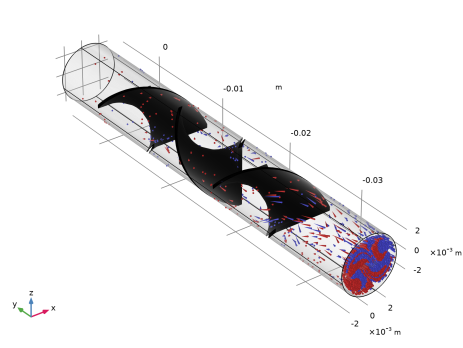
|
7
|
|
9
|
In the Expression text field, type at(0,qx).
|
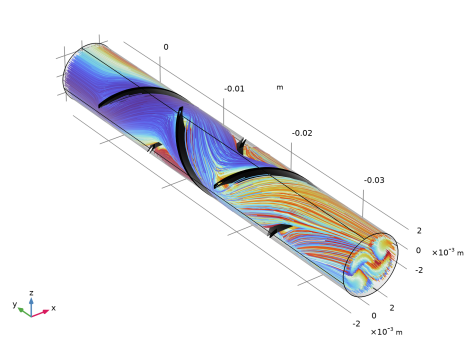
|
-
|
|
-
|
In the Distances text field, type 0.006 0.016 0.026 0.036 0.042.
|
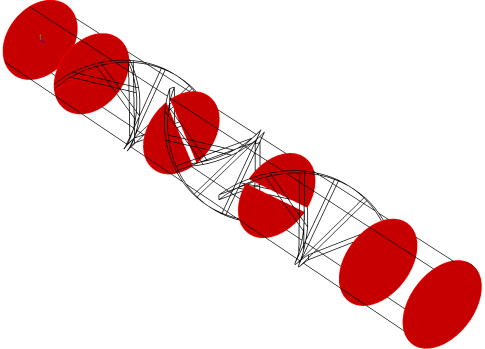
|
-
|
In the associated text field, type 0.4. This scaling factor is multiplied by the Point radius expression to determine the size of each point in the plot.
|
|
8
|
|
2
|
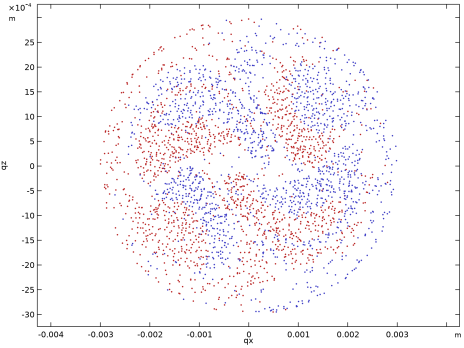
In the Settings window for 2D Plot Group, type Phase Portrait in the Label text field.
|
 node and click Particle Trajectories 1
  .
. node and click Color Expression 1
  .
. Surface.
 Selection.
 Surface.
 Selection.
 and choose
  Transparency.
 .
. in the Graphics toolbar. The plot should look like the following figure. Fresnel transmittance makes surfaces look more transparent if they are viewed normally, or more opaque when viewed at an angle.
 node. You can also cycle through
 node.
node. and choose Duplicate. This will create a copy called Particle Trajectories (fpt) 1
  .
. node and click Particle Trajectories 1
  .
. node and click Color Expression 1
  .
. .
. in the Graphics toolbar.
 .
. in the upper-right corner of the Expression section. From the menu, choose Model > Component 1 > Particle Tracing for Fluid Flow > Particle Counter 1 > fpt.pcnt1.alpha – Transmission probability.
 . The transmission probability should be about
  .
. .
. and choose 3D Plot Group
  .
. and choose Poincaré Map
  .
. .
. and choose Color Expression
  .
. .
. .
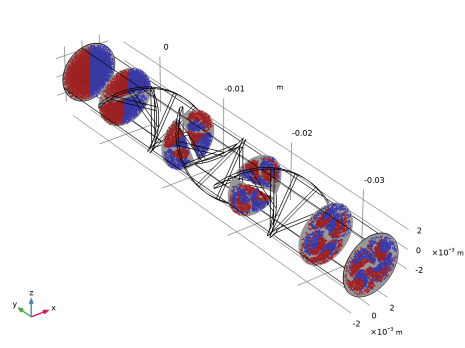
. button in the Graphics toolbar. The plot should look like the following figure.
 and choose 2D Plot Group
  .
. More Plots and choose Phase Portrait
  .
. and choose Color Expression
  .
. .
. plot group.
 . Now the plot will be shown with a 1:1 aspect ratio.