Model Wizard
Now that the fluid velocity has been computed, add a physics interface and a new study to compute the particle trajectories.
1
In the Home toolbar click Add Physics
.
2
Go to the Add Physics window. In the default configuration, the Add Physics window appears to the right of the Graphics window. In the Add Physics tree under Fluid Flow
expand Particle Tracing
and click Particle Tracing for Fluid Flow
.
3
Find the Physics interfaces in study subsection. This is located beneath the list of physics interfaces. In the Solve column, deactivate Study 1 by clicking on the checkbox containing the blue check
. The checkbox will be cleared
indicating that this physics interface is not solved in Study 1. This subsection then looks like the following:
The Particle Tracing for Fluid Flow interface is excluded from the Stationary study because the particles are only solved for in the time domain.
4
Click the Add to Component 1
button, which is located above the list of physics interfaces.
5
In the Home toolbar click Add Study
.
6
Go to the Add Study window. By default, this will appear to the right of the Graphics window, covering the Add Physics window. Find the Studies subsection. In the tree under General Studies, click Time Dependent
.
7
Find the Physics interface in study subsection. In the table, click on the blue check
next to the Laminar Flow interface so that this subsection looks like the following:
It is not necessary to solve for the Laminar Flow physics in the new Time Dependent study step because it is a stationary field that was already solved for in a previous step.
8
Click the Add Study
button.
9
In the Home toolbar, again click the Add Physics
and Add Study
buttons to remove the corresponding windows from view.
 .
. expand Particle Tracing
  and click Particle Tracing for Fluid Flow
  .
. . The checkbox will be cleared
  indicating that this physics interface is not solved in Study 1. This subsection then looks like the following: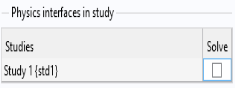
 button, which is located above the list of physics interfaces.
 .
. .
. next to the Laminar Flow interface so that this subsection looks like the following: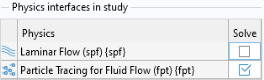
 button.
 and Add Study
  buttons to remove the corresponding windows from view.