 node.
node.|
2
|
Browse to the application library folder and double-click the file laminar_mixer_particle_geom_sequence.mph. The location of the files used in this exercise varies based on your installation. For example, if the installation is on your hard drive, the file path might be similar to C:\Program Files\COMSOL\COMSOL64\Multiphysics\applications\. The folder for this example is Particle_Tracing_Module\Fluid_Flow.
|
 button in the Geometry toolbar.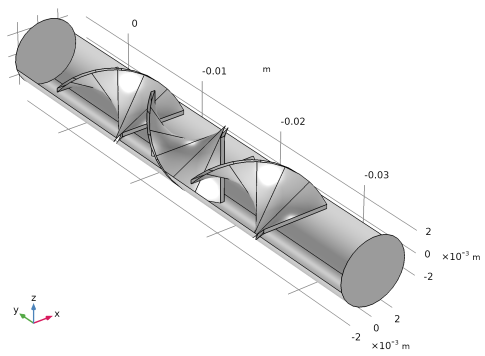
 .
. to see the geometry.
 in the Graphics toolbar, to hide all surfaces in the Graphics window.
 and Click and Hide
  buttons in the Graphics toolbar. Then you can hide the outer surfaces of the channel by clicking on them. The resulting view is shown below.