Mesh 1
Next create the mesh.
Edge 1 and Size 1
Add a fine mesh along the beam line.
1
In the Mesh toolbar, click
Boundary and choose
Edge.
2
In the Settings window for Edge, locate the Edge Selection section.
3
From the Selection list, choose Work Plane 1.
4
Right-click Edge 1
and choose Size
.
5
In the Settings window for Size locate the Element Size section. Click the Custom button.
6
Locate the Element Size Parameters section.
-
Select the Maximum element size checkbox.
-
In the associated text field, type
0.005
.
Size
Change the global mesh size setting to refine the mesh.
1
In the Mesh section of the Model Builder click Mesh 1
> Size
.
2
In the Settings window for Size locate the Element Size section. From the Predefined list, choose Extra fine.
Free Triangular 1
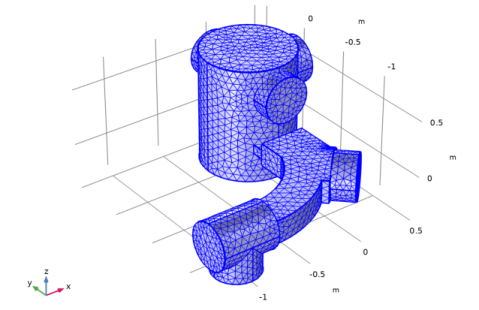
Add a free triangular surface mesh. This inherits the global mesh size setting.
1
In the Mesh toolbar, click
Boundary and choose Free Triangular
.
2
In the Settings window for Free Triangular locate the Boundary Selection section. From the Selection list, choose All boundaries.
3
Click the Build All
button.
The domain does not need to be meshed since the interface solves equations only on the surfaces of the model. Note that it is possible to mesh only surfaces, edges, and points (as in this model) or to mesh all the Molecular Flow domains. If the model contains several domains, volume meshing only a subset of them (with surfaces meshed for the remaining domains) may lead to incorrect results.
 Boundary and choose
  Edge.
Edge. and choose Size
  .
. > Size
  .
. Boundary and choose Free Triangular
  .
. button.