
PDF

Thermal Heating of a Semiconductor Saturable Absorber Mirror (SESAM)
Introduction
Semiconductor Saturable absorber mirrors (SESAMs) are devices used for shaping optical pulses and used in laser cavities to form mode locked lasers. The pulse shaping performance from the SESAM comes from a nonlinear absorbance profile in the material that has a higher absorption rate for lower intensity light and a lower absorption rate for higher intensity light. At higher powers, the optical absorption in the SESAM results in an increase in temperature and, in turn, thermal expansion, which deforms the surface of the SESAM. This deformation affects the reflected beam shape, changing the focal properties of the mirror. This can cause instabilities in mode locked laser cavities as the SESAM warms during operation and changes the shape of the reflected beam. This model demonstrates the thermal heating of a SESAM and the effect this has on the reflected beam.
A SESAM typically consists of a layered Bragg reflector mounted to a substrate. Within the Bragg reflector, there are one or more layers of quantum wells (QWs). These are made of a semi-conductor material that is highly absorptive at the design wavelength, for example, GaAs-InAs. At higher incident optical intensities, the free electrons in the valence band that absorb each photon are depleted, resulting in saturated absorption, so a higher proportion of the high-intensity light is reflected. The timescale of the optical pulse to the recovery time of the SESAM carriers determines if the behavior is modeled as fast or slow saturable absorption. This model demonstrates fast saturable absorption.
Model Definition
Geometry
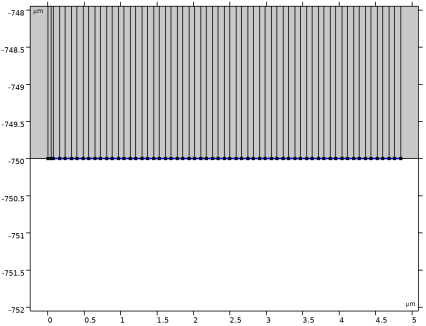
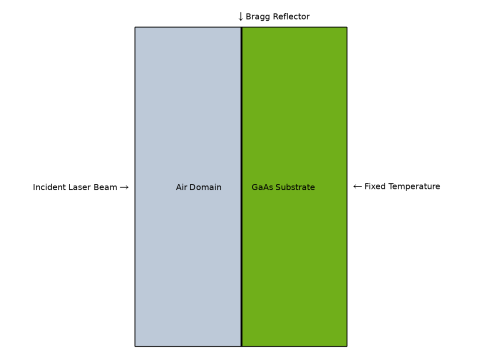
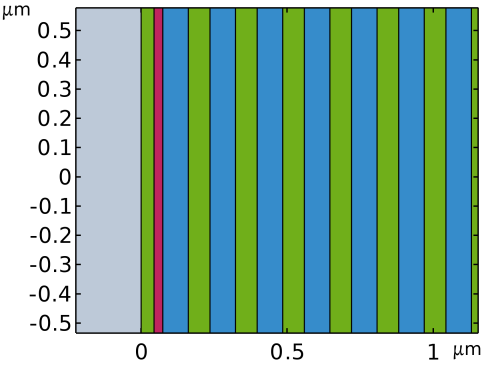
The SESAM in this model is represented by a 2D cross-section. The laser beam is represented by a Gaussian beam incident on the SESAM through an air domain, as shown in Figure 1. The SESAM is on a GaAs substrate that is mounted on a heat sink, which is represented by a fixed temperature boundary. The SESAM is an anti-resonant design consisting of a 30-layer Bragg reflector with a QW, as shown in Figure 2.
Figure 1: Cross-section of SESAM with a laser beam excited from the boundary on the left side of the air domain. The SESAM is grown on a GaAs Substrate attached to a heat sink, which is represented by a fixed temperature on the right boundary.
Figure 2: Closeup of the Bragg reflector geometry: green — GaAs layers, blue — AlAs layers, red — GaInAs QW.
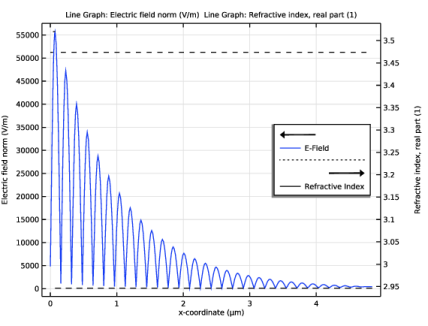
The layers of the Bragg reflector are alternating high index, nH, GaAs and lower index, nL, AlAs. The layer thickness is such that nH/tH = nL/tL = λ0/4. Further details can be found in the Ray Optics Module Application Library model Distributed Bragg Reflector. The QW is added at the interface between the first GaAs and AlAs layers. The layers form an anti-resonant SESAM with the E-field being a minimum at the SESAM surface. The first peak of the E-field coincides with the QW, shown in Figure 3.
Figure 3: Electric field within the Bragg reflector. The black line shows the layers of high and low refractive index corresponding to the GaAs and AlAs layers, as well as the higher index GaInAs of the QW. The blue line shows the E-field in each layer. The maximum coincides with the QW.
Materials
The optical absorption in the materials is set in the extinction coefficient, that is, the imaginary part of the refractive index, ki. The material properties have a linear absorption by default. To model the nonlinear and saturating behavior of the semiconductors, ki is modified to include an extra factor d, which is dependent on the optical intensity and denotes fast saturable absorption.
where Ipulse is the incident pulse intensity and I0 is the Saturation intensity of the SESAM.
Physics
This model includes four physics interfaces with two Multiphysics couplings. The main simulation is conducted in the first Frequency-Stationary Study. This study type is suited to handle the frequency solution from the Electromagnetic Waves, Beam Envelopes interface and the stationary solution from Heat Transfer in Solids, which are coupled through Electromagnetic Heating. The deformation of the SESAM is simulated in the same study by adding a Solid Mechanics interface that couples to Heat Transfer in Solids through the Thermal Expansion Multiphysics.
A separate Global ODEs and DAEs interface and a second Stationary study are added to provide curve fitting to the electric field produced from the first study and to quantify the results.
Mesh
To ensure precise modeling of the optical effects, a fine mesh that is subwavelength in element size is required. However, the thermal and structural properties of the model do not require such a fine mesh, so these regions can be set with a coarser mesh for computational efficiency.
Results and Discussion
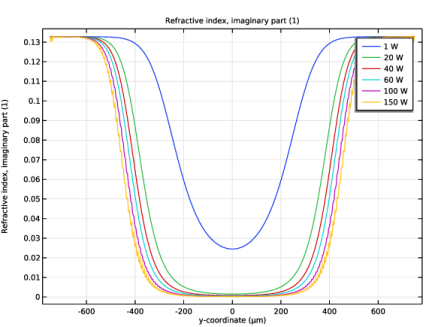
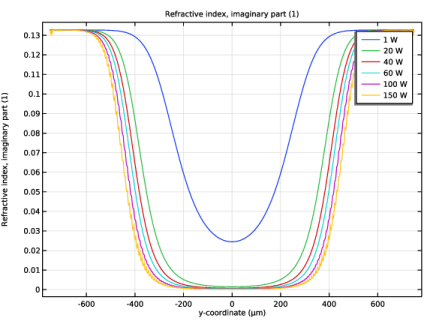
The saturable nature of the SESAM means that the model does not have a linear response to the incident laser power, as the proportion of energy absorbed depends on the pulse parameters and intensity. The absorption within the SESAM is shown in Figure 4. The complex refractive index is much lower in the regions with a higher electric field amplitude.
Figure 4: Reduction of the extinction coefficient in the QW as the SESAM is saturated at higher incident powers.
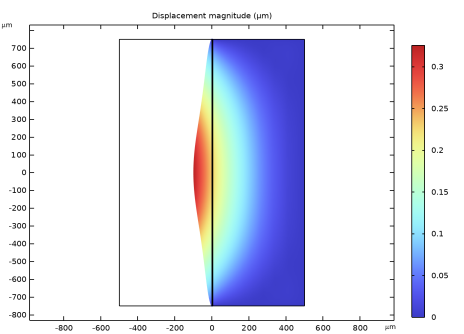
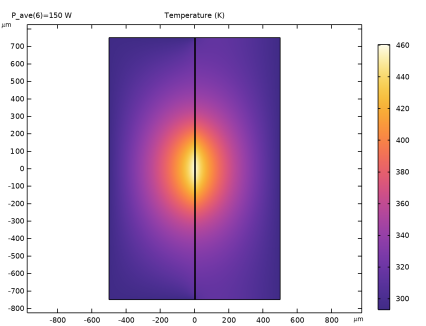
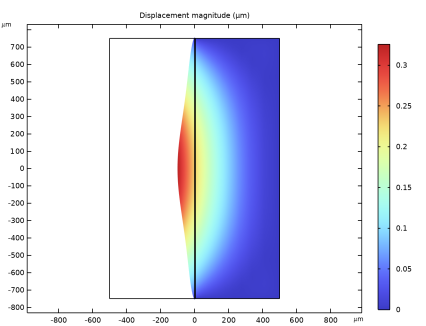
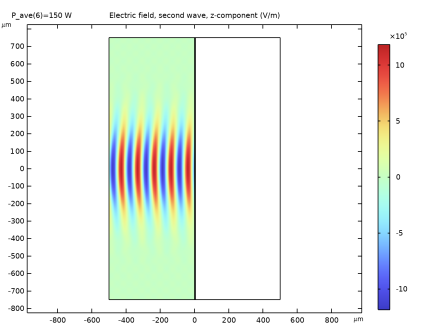
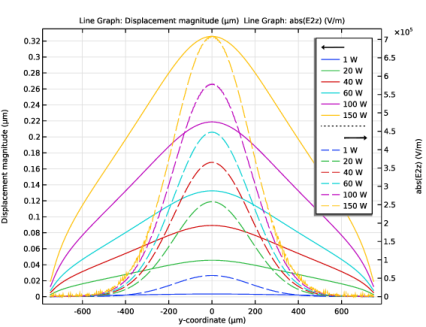
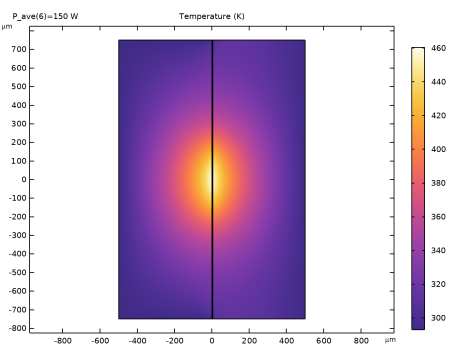
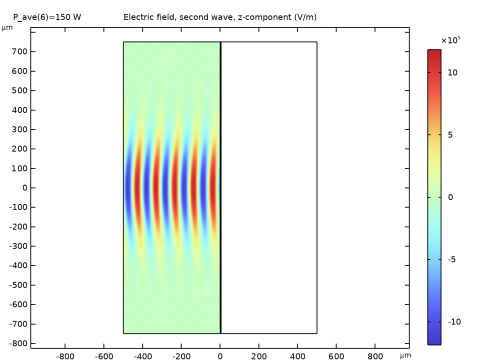
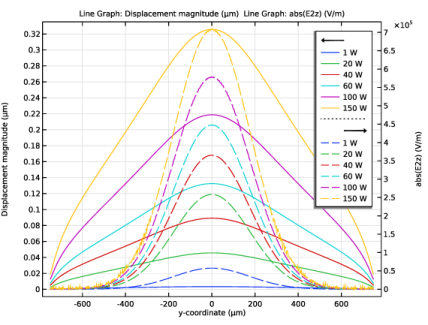
Figure 5 shows the resultant temperature distribution within the model. The fixed room temperature boundary at the back of the substrate sets the lower bound of the temperature distribution on that side. The material properties then set how the SESAM deforms at those temperatures. The expansion of the SESAM surface is shown in Figure 6. This is a small fraction of the wavelength, but it has a measurable impact on the phase and wavefront curvature of the reflected beam. This curvature is shown for different laser incident powers in Figure 8.
Figure 5: Temperature distribution in both the air and substrate domains.
Figure 6: The deformation of the SESAM due to thermal expansion.
Figure 7: The electric field of the reflected beam showing the wavefront curvature from the deformed SESAM surface.
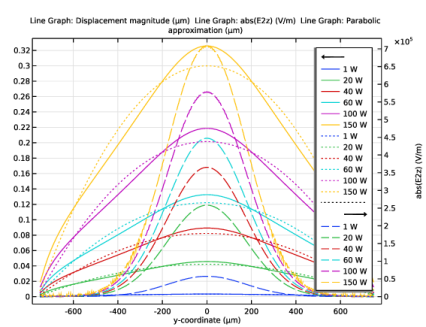
Figure 8: The curvature of the SESAM surface under different incident laser powers (solid lines). The Electric field of the reflected beam (dashed lines).
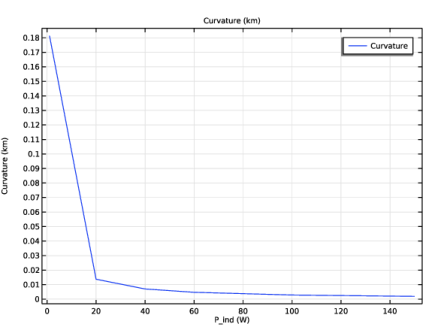
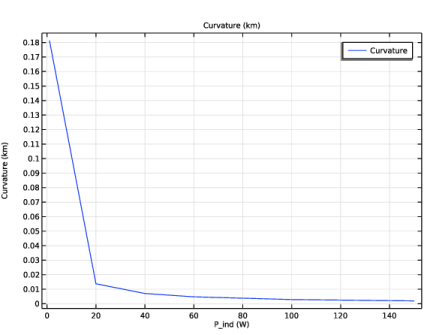
The radius of curvature of the SESAM surface decreases with laser power as the surface deforms further. This can be seen in Figure 9, which shows the resultant change in the curvature of the mirror from the fitted curves.
Figure 9: Change in mirror curvature as a function of incident laser power.
Application Library path: Wave_Optics_Module/Couplers_Filters_and_Mirrors/sesam_laser_heating
Modeling Instructions
From the File menu, choose New.
New
In the New window, click  Model Wizard.
Model Wizard
1
In the Model Wizard window, click  2D.
2
In the Select Physics tree, select Heat Transfer > Electromagnetic Heating > Laser Heating.
3
Click Add.
4
Click  Study.
5
In the Select Study tree, select Preset Studies for Selected Multiphysics > Frequency–Stationary.
6
Geometry 1
1
In the Model Builder window, under Component 1 (comp1) click Geometry 1.
2
In the Settings window for Geometry, locate the Units section.
3
From the Length unit list, choose µm.
Global Definitions
SESAM Parameters
1
In the Model Builder window, under Global Definitions click Parameters 1.
2
In the Settings window for Parameters, type SESAM Parameters in the Label text field.
3
Locate the Parameters section. Click  Load from File.
4
Beam Parameters
1
In the Home toolbar, click  Parameters and choose Add > Parameters.
2
In the Settings window for Parameters, type Beam Parameters in the Label text field.
3
Locate the Parameters section. Click  Load from File.
4
Geometry 1
Rectangle 1 (r1)
1
In the Geometry toolbar, click  Rectangle.
2
In the Settings window for Rectangle, locate the Size and Shape section.
3
In the Width text field, type thickness_air+thickness.
4
In the Height text field, type height.
5
Locate the Position section. In the x text field, type -thickness_air.
6
In the y text field, type -height/2.
GaAs
1
In the Geometry toolbar, click  Rectangle.
2
In the Settings window for Rectangle, type GaAs in the Label text field.
3
Locate the Size and Shape section. In the Width text field, type thickness_GaAs.
4
In the Height text field, type height.
5
Locate the Position section. In the y text field, type -height/2.
GaAs Layers
1
In the Geometry toolbar, click  Selections and choose Explicit Selection.
2
In the Settings window for Explicit Selection, type GaAs Layers in the Label text field.
3
On the object r2, select Domain 1 only.
AlAs
1
In the Geometry toolbar, click  Rectangle.
2
In the Settings window for Rectangle, type AlAs in the Label text field.
3
Locate the Size and Shape section. In the Width text field, type thickness_AlAs.
4
In the Height text field, type height.
5
Locate the Position section. In the x text field, type thickness_GaAs.
6
In the y text field, type -height/2.
AlAs Layers
1
In the Geometry toolbar, click  Selections and choose Explicit Selection.
2
In the Settings window for Explicit Selection, type AlAs Layers in the Label text field.
3
On the object r3, select Domain 1 only.
Array 1 (arr1)
1
In the Geometry toolbar, click  Transforms and choose Array.
2
Select the objects r2 and r3 only.
3
In the Settings window for Array, locate the Size section.
4
In the x size text field, type N_layers.
5
Locate the Displacement section. In the x text field, type thickness_AlAs+thickness_GaAs.
Rectangle 4 (r4)
1
In the Geometry toolbar, click  Rectangle.
2
In the Settings window for Rectangle, locate the Size and Shape section.
3
In the Width text field, type thickness_QW.
4
In the Height text field, type height.
5
Locate the Position section. In the x text field, type thickness_GaAs-thickness_QW.
6
In the y text field, type -height/2.
This puts the QW layer over the first interface between the GaAs and AlAs layers. This places them in the antinode of the E-field in the Bragg reflector.
QW
1
In the Geometry toolbar, click  Selections and choose Explicit Selection.
2
In the Settings window for Explicit Selection, type QW in the Label text field.
3
On the object r4, select Domain 1 only.
Union 1 (uni1)
1
In the Geometry toolbar, click  Booleans and Partitions and choose Union.
2
In the Settings window for Union, locate the Union section.
3
From the Input objects list, choose All objects.
4
Click  Build Selected.
Substrate
1
In the Geometry toolbar, click  Selections and choose Explicit Selection.
2
In the Settings window for Explicit Selection, type Substrate in the Label text field.
3
On the object uni1, select Domain 63 only.
GaAs Domains
1
In the Geometry toolbar, click  Selections and choose Union Selection.
2
In the Settings window for Union Selection, type GaAs Domains in the Label text field.
3
Locate the Input Entities section. Click  Add.
4
In the Add dialog, in the Selections to add list, choose GaAs Layers and Substrate.
5
SESAM Surface
1
In the Geometry toolbar, click  Selections and choose Explicit Selection.
2
In the Settings window for Explicit Selection, type SESAM Surface in the Label text field.
3
Locate the Entities to Select section. From the Geometric entity level list, choose Boundary.
4
On the object uni1, select Boundary 4 only.
Point 1 (pt1)
In the Geometry toolbar, click  Point.
Form Union (fin)
Click  Build All.
Electromagnetic Waves, Beam Envelopes (ewbe)
1
In the Model Builder window, under Component 1 (comp1) click Electromagnetic Waves, Beam Envelopes (ewbe).
2
3
In the Settings window for Electromagnetic Waves, Beam Envelopes, locate the Components section.
4
From the Electric field components solved for list, choose Out-of-plane vector.
Scattering Boundary Condition 1
1
In the Physics toolbar, click  Boundaries and choose Scattering Boundary Condition.
2
Click the  Zoom Extents button in the Graphics toolbar.
3
4
In the Settings window for Scattering Boundary Condition, locate the Scattering Boundary Condition section.
5
From the Incident field list, choose Gaussian beam.
6
In the w0 text field, type w0.
7
From the Input quantity list, choose Power.
8
In the P text field, type P_ave/w0.
9
Specify the Eg0 vector as
Scattering Boundary Condition 2
1
In the Physics toolbar, click  Boundaries and choose Scattering Boundary Condition.
2
This scattering boundary condition absorbs any remaining optical power assuming it is dissipated into the substrate without having to include that domain in the optical modeling.
Heat Transfer in Solids (ht)
Temperature 1
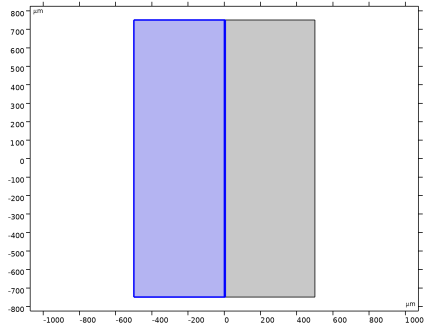
Next, set a fixed temperature at the backface of the substrate to emulate an attached heat sink. The fixed temperature around the air domain maintains ambient room temperature.
1
In the Physics toolbar, click  Boundaries and choose Temperature.
2
Add Physics
1
In the Home toolbar, click  Add Physics to open the Add Physics window.
2
Go to the Add Physics window.
3
In the tree, select Structural Mechanics > Solid Mechanics (solid).
4
Click the Add to Component 1 button in the window toolbar.
5
In the Home toolbar, click  Add Physics to close the Add Physics window.
Solid Mechanics (solid)
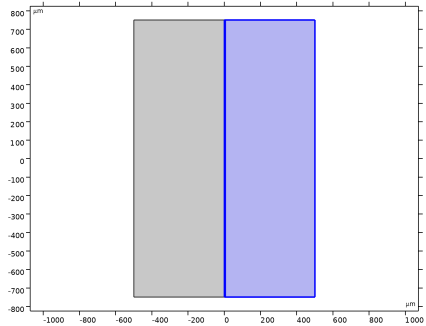
Select Domains 2–63 only.
Fixed Constraint 1
1
In the Physics toolbar, click  Boundaries and choose Fixed Constraint.
2
Click the  Select Box button in the Graphics toolbar.
3
Multiphysics
Thermal Expansion 1 (te1)
1
In the Physics toolbar, click  Multiphysics Couplings and choose Domain > Thermal Expansion.
2
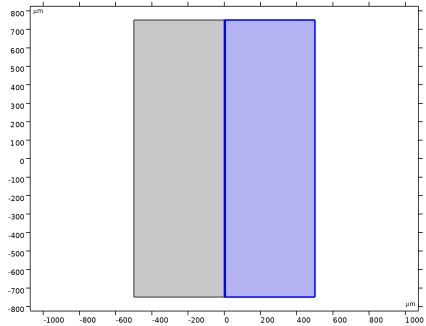
Click the  Select Box button in the Graphics toolbar.
3
Mesh 1
The nature of this model requires a specific mesh to solve efficiently as the optical domains require a much finer mesh then that needed to model thermal effects.
1
In the Model Builder window, under Component 1 (comp1) click Mesh 1.
2
In the Settings window for Mesh, locate the Sequence Type section.
3
From the list, choose User-controlled mesh.
4
In the Mesh toolbar, click  Clear Sequence.
Distribution 1
1
Right-click Component 1 (comp1) > Mesh 1 and choose Distribution.
2
3
In the Settings window for Distribution, locate the Distribution section.
4
In the Number of elements text field, type floor(0.12*height/lda0).
Distribution 2
1
In the Model Builder window, right-click Mesh 1 and choose Distribution.
2
3
In the Settings window for Distribution, locate the Distribution section.
4
In the Number of elements text field, type floor(0.1*thickness_air/lda0).
Distribution 3
1
Right-click Mesh 1 and choose Distribution.
2
Click the  Select Box button in the Graphics toolbar.
3
Distribution 4
1
Right-click Mesh 1 and choose Distribution.
2
3
In the Settings window for Distribution, locate the Distribution section.
4
From the Distribution type list, choose Predefined.
5
In the Number of elements text field, type floor(0.03*thickness/lda0).
6
In the Element ratio text field, type 0.1.
7
From the Growth rate list, choose Exponential.
Mapped 1
1
In the Mesh toolbar, click  Mapped.
2
In the Settings window for Mapped, click to expand the Reduce Element Skewness section.
3
Select the Adjust edge mesh checkbox.
4
Click  Build All.
Definitions
Variables SESAM
1
In the Model Builder window, expand the Component 1 (comp1) > Definitions node.
2
Right-click Definitions and choose Variables.
These variables define the saturation properties of the SESAM and will be applied in the material properties.
3
In the Settings window for Variables, type Variables SESAM in the Label text field.
4
Locate the Variables section. In the table, enter the following settings:
Fitting Variables
1
Right-click Definitions and choose Variables.
These variables will be used later when fitting the curvature of the SESAM.
2
In the Settings window for Variables, type Fitting Variables in the Label text field.
3
Locate the Variables section. In the table, enter the following settings:
Integration 1 (intop1)
1
In the Definitions toolbar, click  Nonlocal Couplings and choose Integration.
2
In the Settings window for Integration, locate the Source Selection section.
3
From the Geometric entity level list, choose Boundary.
4
From the Selection list, choose SESAM Surface.
Integration 2 (intop2)
1
In the Definitions toolbar, click  Nonlocal Couplings and choose Integration.
2
In the Settings window for Integration, locate the Source Selection section.
3
From the Geometric entity level list, choose Boundary.
4
Maximum 1 (maxop1)
1
In the Definitions toolbar, click  Nonlocal Couplings and choose Maximum.
2
In the Settings window for Maximum, locate the Source Selection section.
3
From the Geometric entity level list, choose Boundary.
4
From the Selection list, choose SESAM Surface.
Integration 3 (intop3)
1
In the Definitions toolbar, click  Nonlocal Couplings and choose Integration.
2
In the Settings window for Integration, locate the Source Selection section.
3
From the Geometric entity level list, choose Point.
4
Add Material
1
In the Materials toolbar, click  Add Material to open the Add Material window.
2
Go to the Add Material window.
3
In the tree, select Built-in > Air.
4
Click the Add to Component button in the window toolbar.
5
In the tree, select Optical > Inorganic Materials > As - Arsenides > Models and simulations > GaAs (Gallium arsenide) (Adachi 1989: n,k 0.207-12.4 um).
6
Click the Add to Component button in the window toolbar.
Materials
GaAs (Gallium arsenide) (Adachi 1989: n,k 0.207-12.4 um) (mat2)
1
In the Settings window for Material, locate the Geometric Entity Selection section.
2
From the Selection list, choose GaAs Domains.
3
Locate the Material Contents section. In the table, enter the following settings:
Add Material
1
Go to the Add Material window.
2
In the tree, select Optical > Inorganic Materials > As - Arsenides > Models and simulations > AlAs (Aluminium arsenide) (Rakic and Majewski 1996: n,k 0.221-2.48 um).
3
Click the Add to Component button in the window toolbar.
Materials
AlAs (Aluminium arsenide) (Rakic and Majewski 1996: n,k 0.221-2.48 um) (mat3)
1
In the Settings window for Material, locate the Geometric Entity Selection section.
2
From the Selection list, choose AlAs Layers.
3
Locate the Material Contents section. In the table, enter the following settings:
Add Material
1
Go to the Add Material window.
2
In the tree, select Optical > Miscellaneous > Semiconductor alloys > GaAs-InAs (Gallium indium arsenide, GaInAs) (Adachi 1989: n,k 0.207-12.4 um).
3
Click the Add to Component button in the window toolbar.
4
In the Materials toolbar, click  Add Material to close the Add Material window.
Materials
GaAs-InAs (Gallium indium arsenide, GaInAs) (Adachi 1989: n,k 0.207-12.4 um) (mat4)
1
In the Settings window for Material, locate the Geometric Entity Selection section.
2
From the Selection list, choose QW.
3
Locate the Material Contents section. In the table, enter the following settings:
Component 1 (comp1)
Add a deforming mesh to the air domain.
Deforming Domain 1
1
In the Physics toolbar, click  Moving Mesh and choose Free Deformation.
2
In the Settings window for Deforming Domain, locate the Domain Selection section.
3
Click  Clear Selection.
4
Study 1
Step 1: Frequency–Stationary
1
In the Model Builder window, under Study 1 click Step 1: Frequency–Stationary.
2
In the Settings window for Frequency–Stationary, locate the Study Settings section.
3
In the Frequency text field, type c_const/lda0.
Parametric Sweep
1
In the Study toolbar, click  Parametric Sweep.
2
In the Settings window for Parametric Sweep, locate the Study Settings section.
3
4
A Frequency domain study step is used to obtain initial values for the Electromagnetic Waves physics.
Step 2: Frequency Domain
1
In the Study toolbar, click  Frequency Domain.
2
Drag and drop below Parametric Sweep.
3
In the Settings window for Frequency Domain, locate the Physics and Variables Selection section.
4
In the Solve for column of the table, under Component 1 (comp1), clear the checkboxes for Solid Mechanics (solid) and Moving Mesh.
5
Locate the Study Settings section. In the Frequencies text field, type c_const/lda0.
The nonlinear nature of this model requires some adjustments to the default solver settings. Namely, using a segregated solver to alternately solve for the electromagnetic problem in one step and then the structural and thermal problems in the second step.
Solution 1 (sol1)
1
In the Study toolbar, click  Show Default Solver.
2
In the Model Builder window, expand the Solution 1 (sol1) node.
3
In the Model Builder window, expand the Study 1 > Solver Configurations > Solution 1 (sol1) > Stationary Solver 2 node.
4
Right-click Study 1 > Solver Configurations > Solution 1 (sol1) > Stationary Solver 2 and choose Segregated.
5
In the Model Builder window, expand the Study 1 > Solver Configurations > Solution 1 (sol1) > Stationary Solver 2 > Segregated 1 node, then click Segregated Step.
6
In the Settings window for Segregated Step, locate the General section.
7
In the Variables list, choose Spatial Mesh Displacement (comp1.spatial.disp), Temperature (comp1.T), and Displacement Field (comp1.u).
8
Under Variables, click  Delete.
9
In the Model Builder window, under Study 1 > Solver Configurations > Solution 1 (sol1) > Stationary Solver 2 right-click Segregated 1 and choose Segregated Step.
10
In the Settings window for Segregated Step, locate the General section.
11
Under Variables, click  Add.
12
In the Add dialog, in the Variables list, choose Spatial Mesh Displacement (comp1.spatial.disp), Temperature (comp1.T), and Displacement Field (comp1.u).
13
14
In the Study toolbar, click  Compute.
Results
Add two cut lines for evaluating behavior at different points in the model.
Cut Line 2D 1
1
In the Model Builder window, expand the Results > Datasets node.
2
Right-click Results > Datasets and choose Cut Line 2D.
3
In the Settings window for Cut Line 2D, locate the Data section.
4
From the Dataset list, choose Study 1/Parametric Solutions 1 (sol3).
5
Locate the Line Data section. In row Point 2, set x to thickness.
6
Study 1/Parametric Solutions 1 (4) (sol3)
1
In the Model Builder window, under Results > Datasets right-click Study 1/Parametric Solutions 1 (sol3) and choose Duplicate.
2
In the Settings window for Solution, locate the Solution section.
3
From the Frame list, choose Material  (X, Y, Z).
Cut Line 2D 2
1
In the Results toolbar, click  Cut Line 2D.
2
In the Settings window for Cut Line 2D, locate the Data section.
3
From the Dataset list, choose Study 1/Parametric Solutions 1 (4) (sol3).
4
Locate the Line Data section. In row Point 1, set X to thickness_GaAs-thickness_QW/2.
5
In row Point 1, set Y to -height/2.
6
In row Point 2, set Y to height/2.
7
In row Point 2, set X to thickness_GaAs-thickness_QW/2.
8
Global Evaluation 1
The reflectivity can be evaluated by using the outcoupling efficiency on the Scattering Boundary Condition with the input wave.
1
In the Results toolbar, click  Global Evaluation.
2
In the Settings window for Global Evaluation, locate the Data section.
3
From the Dataset list, choose Study 1/Parametric Solutions 1 (3) (sol3).
4
Locate the Expressions section. In the table, enter the following settings:
5
Click  Evaluate.
Electric Field, First Wave (ewbe)
1
In the Model Builder window, under Results click Electric Field, First Wave (ewbe).
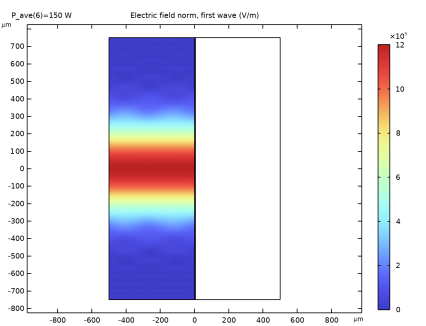
The electric field is evaluated only in the air and SESAM domains.
Temperature (ht)
1
In the Model Builder window, click Temperature (ht).
The temperature increase is centered at the overlap between the laser beam and the SESAM, and extends into both the substrate and surrounding air.
Displacement
1
In the Results toolbar, click  2D Plot Group.
2
In the Settings window for 2D Plot Group, type Displacement in the Label text field.
Surface 1
1
Right-click Displacement and choose Surface.
2
In the Settings window for Surface, locate the Expression section.
3
In the Expression text field, type solid.disp.
4
In the Displacement toolbar, click  Plot.
Deformation 1
1
Right-click Surface 1 and choose Deformation.
The resulting displacement is maximum at the highest temperature.
Electric Field
1
In the Model Builder window, expand the Results > Electric Field, Second Wave (ewbe) node, then click Electric Field.
2
In the Settings window for Surface, locate the Expression section.
3
In the Expression text field, type ewbe.E2z.
4
In the Electric Field, Second Wave (ewbe) toolbar, click  Plot.
The E2z component shows the change in wavefront curvature of the reflected beam.
Next, the Cut Line data sets can be used to see more detailed behavior of the E-field within the SESAM.
E-Field in SESAM
1
In the Results toolbar, click  1D Plot Group.
2
In the Settings window for 1D Plot Group, type E-Field in SESAM in the Label text field.
3
Locate the Data section. From the Dataset list, choose Cut Line 2D 1.
4
Locate the Plot Settings section. Select the Two y-axes checkbox.
Line Graph 1
1
In the E-Field in SESAM toolbar, click  Line Graph.
2
In the Settings window for Line Graph, click to expand the Legends section.
3
Select the Show legends checkbox.
4
Locate the x-Axis Data section. From the Parameter list, choose Expression.
5
In the Expression text field, type x.
E-Field in SESAM
In the E-Field in SESAM toolbar, click  Line Graph.
Line Graph 2
1
In the Settings window for Line Graph, locate the Data section.
2
From the Dataset list, choose Cut Line 2D 1.
3
From the Parameter selection (P_ave) list, choose First.
4
Locate the y-Axis Data section. In the Expression text field, type ewbe.n_iso.
5
Locate the Legends section. Select the Show legends checkbox.
6
Locate the x-Axis Data section. From the Parameter list, choose Expression.
7
In the Expression text field, type x.
E-Field in SESAM
1
In the Model Builder window, click E-Field in SESAM.
2
In the Settings window for 1D Plot Group, locate the Plot Settings section.
3
In the table, select the Plot on secondary y-axis checkbox for Line Graph 2.
4
In the E-Field in SESAM toolbar, click  Plot.
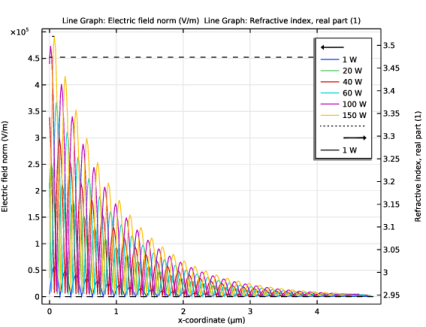
The E-field of the antiresonant SESAM showing negligible amplitude at the surface but peak amplitude in the quantum wells. The refractive index plot highlights the layers of the quantum wells and the layers of the Bragg reflector. The field clearly shows a reduction in amplitude with each layer until it is minimal. You can experiment with different numbers of layers to achieve different reflectivities.
Absorption in QW, y Direction
1
In the Home toolbar, click  Add Plot Group and choose 1D Plot Group.
2
In the Settings window for 1D Plot Group, type Absorption in QW, y Direction in the Label text field.
3
Locate the Data section. From the Dataset list, choose Cut Line 2D 2.
Line Graph 1
1
In the Absorption in QW, y Direction toolbar, click  Line Graph.
2
In the Settings window for Line Graph, locate the y-Axis Data section.
3
In the Expression text field, type ewbe.ki_iso.
4
Locate the Legends section. Select the Show legends checkbox.
5
Locate the x-Axis Data section. From the Parameter list, choose Expression.
6
In the Expression text field, type y.
7
In the Absorption in QW, y Direction toolbar, click  Plot.
The absorption in the quantum well is saturated at the point of highest intensity on the incident laser beam.
Temperature with Laser Power
1
In the Results toolbar, click  1D Plot Group.
2
In the Settings window for 1D Plot Group, type Temperature with Laser Power in the Label text field.
3
Locate the Data section. From the Dataset list, choose Study 1/Parametric Solutions 1 (3) (sol3).
Global 1
1
In the Temperature with Laser Power toolbar, click  Global.
2
In the Settings window for Global, locate the y-Axis Data section.
3
4
In the Temperature with Laser Power toolbar, click  Plot.
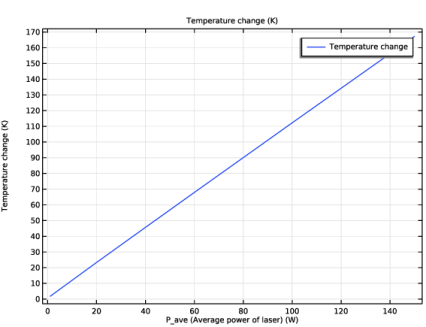
The peak temperature compared to the ambient initial temperature.
Reflectivity with Laser Power
1
In the Home toolbar, click  Add Plot Group and choose 1D Plot Group.
2
In the Settings window for 1D Plot Group, locate the Data section.
3
From the Dataset list, choose Study 1/Parametric Solutions 1 (3) (sol3).
4
In the Label text field, type Reflectivity with Laser Power.
Global 1
1
In the Reflectivity with Laser Power toolbar, click  Global.
2
In the Settings window for Global, locate the y-Axis Data section.
3
4
In the Reflectivity with Laser Power toolbar, click  Plot.
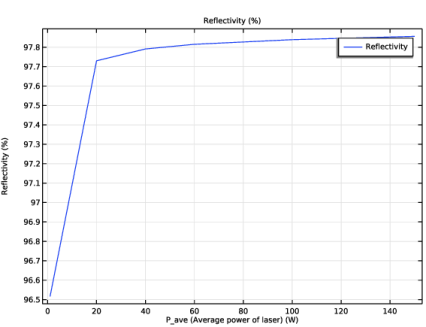
The reflectivity increases with incident power.
SESAM Curvature
1
In the Results toolbar, click  1D Plot Group.
2
In the Settings window for 1D Plot Group, locate the Data section.
3
From the Dataset list, choose Study 1/Parametric Solutions 1 (3) (sol3).
4
In the Label text field, type SESAM Curvature.
5
Locate the Plot Settings section. Select the Two y-axes checkbox.
Surface Curvature
1
In the SESAM Curvature toolbar, click  Line Graph.
2
In the Settings window for Line Graph, type Surface Curvature in the Label text field.
3
Locate the Selection section. From the Selection list, choose SESAM Surface.
4
Locate the y-Axis Data section. In the Expression text field, type solid.disp.
5
Locate the Legends section. Select the Show legends checkbox.
6
Locate the x-Axis Data section. From the Parameter list, choose Expression.
7
In the Expression text field, type y.
SESAM Curvature
In the SESAM Curvature toolbar, click  Line Graph.
E-Field: z-Component
1
In the Settings window for Line Graph, type E-Field: z-Component in the Label text field.
2
Locate the Selection section. From the Selection list, choose SESAM Surface.
3
Locate the y-Axis section. Select the Plot on secondary y-axis checkbox.
4
Locate the y-Axis Data section. In the Expression text field, type abs(E2z).
5
Locate the x-Axis Data section. From the Parameter list, choose Expression.
6
In the Expression text field, type y.
7
Click to expand the Coloring and Style section. From the Color list, choose Cycle (reset).
8
Find the Line style subsection. From the Line list, choose Dashed.
9
Locate the Legends section. Select the Show legends checkbox.
10
In the SESAM Curvature toolbar, click  Plot.
Add Physics
Next, add a Global ODEs and DAEs interface and a separate stationary study to fit a parabolic curve to the curvature of the SESAM surface.
1
In the Home toolbar, click  Add Physics to open the Add Physics window.
2
Go to the Add Physics window.
3
In the tree, select Mathematics > ODE and DAE Interfaces > Global ODEs and DAEs (ge).
4
Click the Add to Component 1 button in the window toolbar.
5
In the Home toolbar, click  Add Physics to close the Add Physics window.
Global ODEs and DAEs (ge)
Global Equations 1 (ODE1)
1
In the Settings window for Global Equations, locate the Global Equations section.
2
3
Locate the Units section. Click  Select Dependent Variable Quantity.
4
In the Physical Quantity dialog, type leng in the text field.
5
In the tree, select General > Length (m).
6
7
In the Settings window for Global Equations, locate the Units section.
8
Click  Define Source Term Unit.
9
In the Source term quantity table, enter the following settings:
Study 1
Step 1: Frequency Domain
Disable the ODE interface in the first study so it does not affect future runs of this study.
1
In the Model Builder window, under Study 1 click Step 1: Frequency Domain.
2
In the Settings window for Frequency Domain, locate the Physics and Variables Selection section.
3
In the Solve for column of the table, under Component 1 (comp1), clear the checkbox for Global ODEs and DAEs (ge).
Step 2: Frequency–Stationary
1
In the Model Builder window, click Step 2: Frequency–Stationary.
2
In the Settings window for Frequency–Stationary, locate the Physics and Variables Selection section.
3
In the Solve for column of the table, under Component 1 (comp1), clear the checkbox for Global ODEs and DAEs (ge).
Add Study
1
In the Study toolbar, click  Add Study to open the Add Study window.
2
Go to the Add Study window.
3
Find the Studies subsection. In the Select Study tree, select Preset Studies for Some Physics Interfaces > Stationary.
4
Click the Add Study button in the window toolbar.
5
In the Study toolbar, click  Add Study to close the Add Study window.
Study 2
1
In the Settings window for Study, locate the Study Settings section.
2
Clear the Generate default plots checkbox.
Parametric Sweep
1
In the Study toolbar, click  Parametric Sweep.
2
In the Settings window for Parametric Sweep, locate the Study Settings section.
3
4
Step 1: Stationary
1
In the Model Builder window, click Step 1: Stationary.
2
In the Settings window for Stationary, locate the Physics and Variables Selection section.
3
In the Solve for column of the table, under Component 1 (comp1), clear the checkboxes for Solid Mechanics (solid) and Heat Transfer in Solids (ht).
4
In the Solve for column of the table, under Component 1 (comp1) > Multiphysics, clear the checkboxes for Electromagnetic Heating 1 (emh1) and Thermal Expansion 1 (te1).
5
In the Solve for column of the table, under Component 1 (comp1), clear the checkbox for Moving Mesh.
The purpose of this study is only to evaluate the Global ODEs and DAEs interface.
Solution 10 (sol10)
In the Study toolbar, click  Show Default Solver.
Solution 10 (sol10)
1
In the Model Builder window, expand the Study 2 > Solver Configurations > Solution 10 (sol10) > Stationary Solver 1 node, then click Fully Coupled 1.
2
In the Settings window for Fully Coupled, click to expand the Method and Termination section.
3
From the Nonlinear method list, choose Constant (Newton).
The Constant (Newton) method is more suited to this study.
4
In the Study toolbar, click  Compute.
Results
SESAM Curvature
The fitted curve can be added to the previous plot for comparison.
1
In the Model Builder window, under Results click SESAM Curvature.
Fitted curve: z-Component
1
In the SESAM Curvature toolbar, click  Line Graph.
2
In the Settings window for Line Graph, type Fitted curve: z-Component in the Label text field.
3
Locate the Data section. From the Dataset list, choose Study 2/Solution 10 (sol10).
4
Locate the Selection section. From the Selection list, choose SESAM Surface.
5
Locate the y-Axis Data section. In the Expression text field, type delx_para.
6
Locate the x-Axis Data section. From the Parameter list, choose Expression.
7
In the Expression text field, type y.
8
Locate the Coloring and Style section. From the Color list, choose Cycle (reset).
9
Find the Line style subsection. From the Line list, choose Dotted.
10
Locate the Legends section. Select the Show legends checkbox.
11
In the SESAM Curvature toolbar, click  Plot.
The dotted lines show the parabolic approximation of the thermal expansion.
Curvature with Laser Power
1
In the Results toolbar, click  1D Plot Group.
2
In the Settings window for 1D Plot Group, type Curvature with Laser Power in the Label text field.
3
Locate the Data section. From the Dataset list, choose Study 2/Solution 10 (sol10).
Global 1
1
In the Curvature with Laser Power toolbar, click  Global.
2
In the Settings window for Global, locate the y-Axis Data section.
3
Click  Clear Table.
4
5
In the Curvature with Laser Power toolbar, click  Plot.
The radius of curvature is seen to decrease with the incident laser power.