PDF

Optical Scattering off a Gold Nanosphere
Introduction
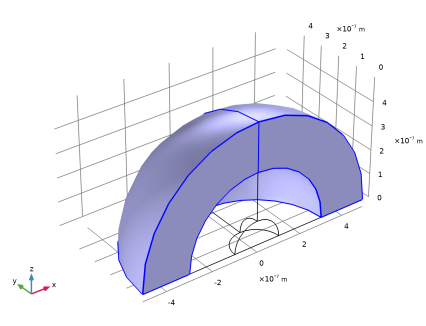
This model demonstrates the calculation of the scattering of a plane wave of light off a gold nanosphere. The scattering is computed for the optical frequency range, over which gold can be modeled as a material with negative complex-valued permittivity. The far-field pattern and the losses are computed.
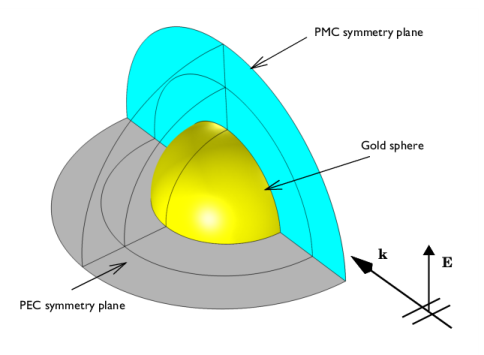
Figure 1: A gold sphere illuminated by a plane wave. Due to symmetry, only one-quarter of the sphere has to be modeled.
Model Definition
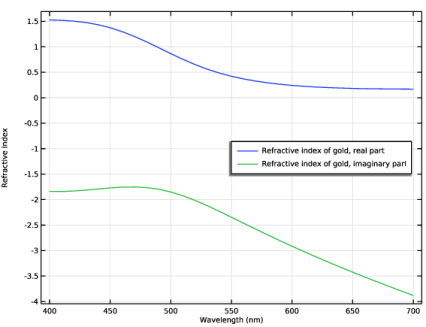
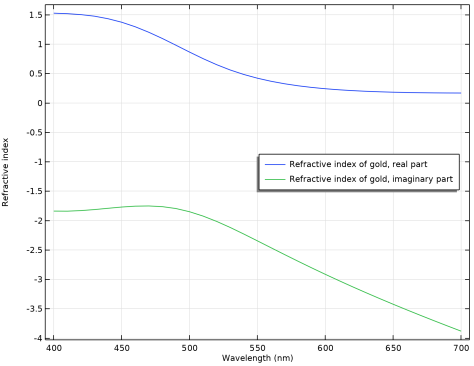
A gold sphere of radius r = 100 nm is illuminated by a plane wave, as shown in Figure 1. The free space wavelength range from 400 nm to 700 nm is simulated. The complex refractive index of gold is taken from the Optical Material Library, where interpolation functions for a large number of commonly used optical materials are found. Figure 2 shows the real and the imaginary parts of the refractive index for gold, for the wavelength range used in the simulation.
Figure 2: The real and the imaginary parts of the refractive index for gold.
From the refractive index, the relative permittivity is found from the relation
,
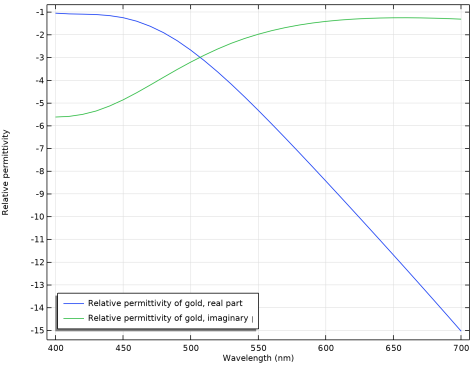
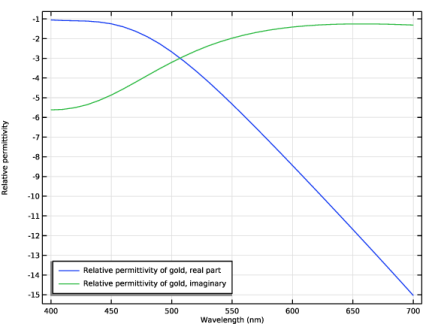
where the real parts of the relative permittivity and the refractive index are denoted with primes and, similarly, the imaginary parts are denoted with bis. Figure 3 shows the relative permittivity, corresponding to the refractive index plotted in Figure 2. Notice that the real part of the relative permittivity is negative for this wavelength range.
Figure 3: The real and the imaginary parts of the relative permittivity of gold.
Over the wavelength range of interest, it is possible to compute the skin depth via
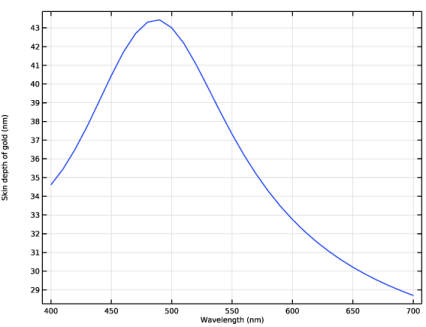
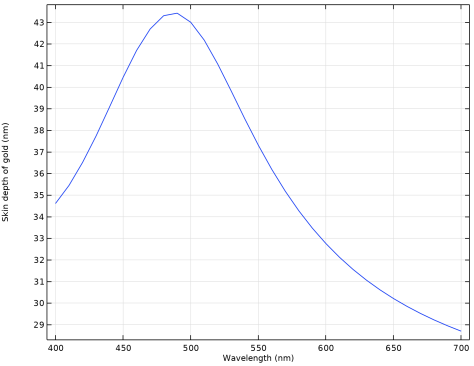
where k0 is the free space wave number, and εr is the complex-valued relative permittivity. The skin depth is shown in Figure 4, and ranges from 28 nm to 44 nm. The skin depth is evaluated with assumption of plane wave incidence over flat surface, so it is not directly applicable on the gold sphere in the model.
Figure 4: The skin depth of gold.
Due to the symmetry of the problem, only one-quarter of the sphere is modeled. A region of air around the sphere is also modeled, of width equal to half the wavelength in free space. A perfectly matched layer (PML) domain is outside of the air domain and acts as an absorber of the scattered field. The PML should not be within the reactive near-field of the scatterer, placing it a half-wavelength away is usually sufficient. The far-field radiation pattern and the heat losses are computed.
Results and Discussion
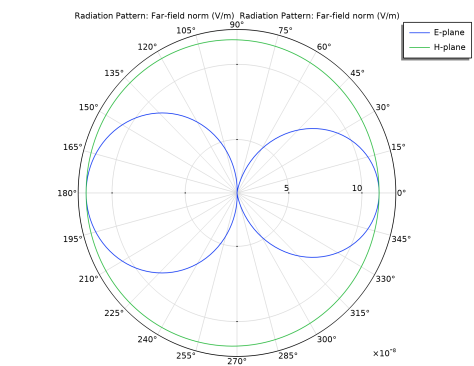
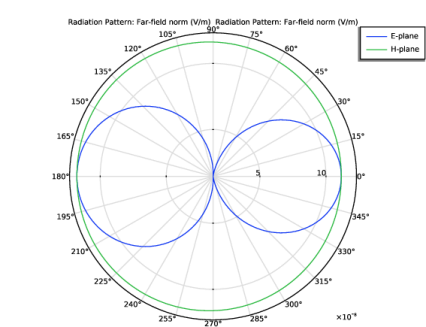
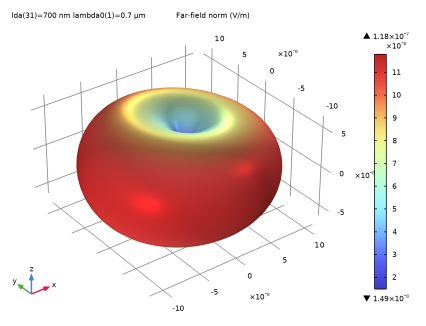
The far-field patterns show that, at short wavelengths, a single gold sphere scatters light forward, in the direction of propagation of the incident light. At longer wavelengths, the scattered fields from the sphere look more as the radiation pattern of a dipole antenna. The far-field radiation pattern for a wavelength of 700 nm is plotted in Figure 5. The E-plane and H-plane notation originates from antenna theory, where the E-plane denotes the plane containing the electric field polarization and the direction of maximum radiation, whereas the H-plane denotes the plane containing the magnetic field and the direction of maximum radiation. In this case, the E-plane denotes the xz-plane and the H-plane denotes the xy-plane.
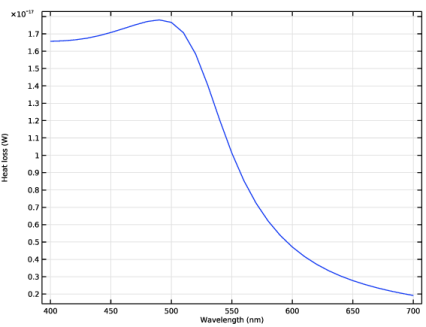
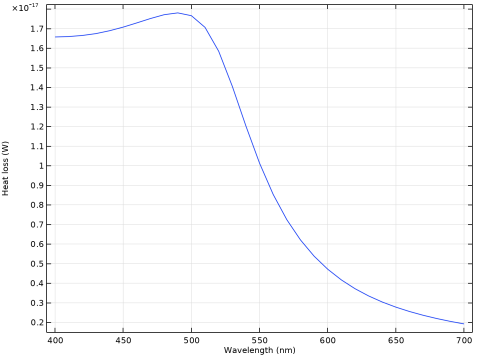
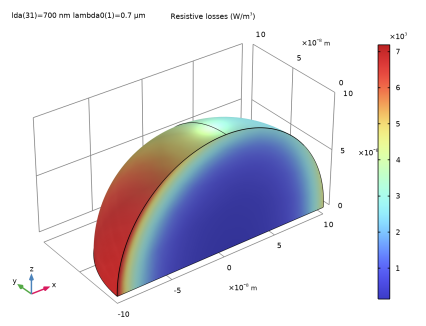
The heat losses, plotted in Figure 6, show that the particle preferentially absorbs the shorter wavelengths. The radius of the sphere can also be varied to see how the absorption depends upon the geometry.
Figure 5: The far-field radiation pattern in the E-plane (blue) and H-plane (green) when wavelength is 700 nm.
Figure 6: The resistive heating losses in the gold sphere.
Application Library path: Wave_Optics_Module/Optical_Scattering/scattering_nanosphere
Modeling Instructions
From the File menu, choose New.
New
In the New window, click  Model Wizard.
Model Wizard
1
In the Model Wizard window, click  3D.
2
In the Select Physics tree, select Optics > Wave Optics > Electromagnetic Waves, Frequency Domain (ewfd).
3
Click Add.
4
Click  Study.
5
In the Select Study tree, select Preset Studies for Selected Physics Interfaces > Wavelength Domain.
6
Global Definitions
Define some parameters that are useful for setting up the geometry and the study.
Parameters 1
1
In the Model Builder window, under Global Definitions click Parameters 1.
2
In the Settings window for Parameters, locate the Parameters section.
3
Here, c_const is a predefined COMSOL constant for the speed of light.
Geometry 1
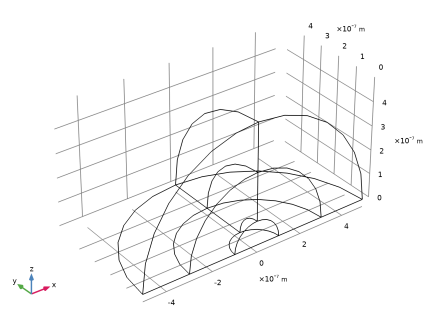
Create a sphere with layers. The outermost layer represents the PMLs and the core represents the gold sphere. The middle layer is the air domain.
Sphere 1 (sph1)
1
In the Geometry toolbar, click  Sphere.
2
In the Settings window for Sphere, locate the Size section.
3
In the Radius text field, type r0+t_air+t_pml.
4
Click to expand the Layers section. In the table, enter the following settings:
5
Click  Build Selected.
Choose wireframe rendering to get a better view of the interior parts.
6
Click the  Wireframe Rendering button in the Graphics toolbar.
7
In the Model Builder window, click Geometry 1.
8
In the Settings window for Geometry, locate the Reduction for Symmetry Boundaries section.
9
Select the xy-plane: remove z<0 checkbox.
10
Select the zx-plane: remove y<0 checkbox.
11
In the Geometry toolbar, click  Build All.
12
Click the  Zoom Extents button in the Graphics toolbar.
Definitions
First, add an average operator for the gold sphere to compute a global value for the refractive index of the gold.
Average 1 (aveop1)
1
In the Definitions toolbar, click  Nonlocal Couplings and choose Average.
2
In the Settings window for Average, type ave_Au in the Operator name text field.
3
Variables 1
1
In the Definitions toolbar, click  Local Variables.
Add variables representing the refractive index, the relative permittivity, and the skin depth of gold.
2
In the Settings window for Variables, locate the Variables section.
3
Here, the ewfd. prefix gives the correct physics-interface scope for variables. By calculating the average refractive index for the gold sphere, this averaged variable can later be evaluated in a global plot.
Materials
Assign air as the material for all domains, except for the gold sphere.
Add Material
1
In the Materials toolbar, click  Add Material to open the Add Material window.
2
Go to the Add Material window.
3
In the tree, select Built-in > Air.
4
Click the Add to Component button in the window toolbar.
5
In the tree, select Optical > Inorganic Materials > Au - Gold > Models and simulations > Au (Gold) (Rakic et al. 1998: Brendel-Bormann model; n,k 0.248-6.20 um).
6
Click the Add to Component button in the window toolbar.
7
In the Materials toolbar, click  Add Material to close the Add Material window.
Materials
Au (Gold) (Rakic et al. 1998: Brendel-Bormann model; n,k 0.248-6.20 um) (mat2)
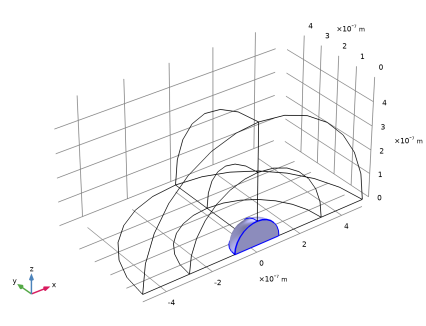
Select Domain 3 only.
Electromagnetic Waves, Frequency Domain (ewfd)
Now set up the physics. You solve the model for the scattered field, so it needs background electric field (E-field) information. The background plane wave is traveling in the positive x direction, with the electric field polarized along the z-axis. The default boundary condition is perfect electric conductor, which applies to all exterior boundaries including the boundaries perpendicular to the background E-field polarization.
1
In the Model Builder window, under Component 1 (comp1) click Electromagnetic Waves, Frequency Domain (ewfd).
2
In the Settings window for Electromagnetic Waves, Frequency Domain, locate the Formulation section.
3
From the list, choose Scattered field.
4
Specify the Eb vector as
Scattering Boundary Condition 1
1
In the Physics toolbar, click  Boundaries and choose Scattering Boundary Condition.
2
Definitions
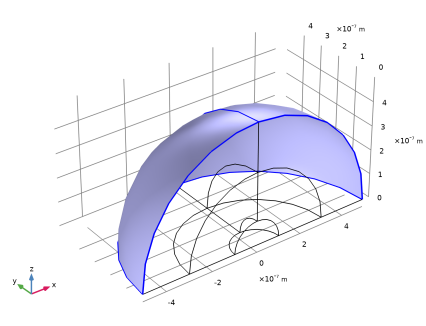
The outermost domains from the center of the sphere are the PMLs.
Perfectly Matched Layer 1 (pml1)
1
In the Definitions toolbar, click  Perfectly Matched Layer.
2
3
In the Settings window for Perfectly Matched Layer, locate the Geometry section.
4
From the Type list, choose Spherical.
Electromagnetic Waves, Frequency Domain (ewfd)
Set PEC symmetry plane on the boundaries normal to the background E-field and PMC symmetry plane on the boundaries parallel to the background E-field polarization.
Symmetry Plane, PEC
1
In the Physics toolbar, click  Boundaries and choose Symmetry Plane.
2
In the Settings window for Symmetry Plane, type Symmetry Plane, PEC in the Label text field.
3
4
Locate the Symmetry Plane section. From the Symmetry type list, choose Zero tangential electric field (PEC).
Symmetry Plane, PMC
1
In the Physics toolbar, click  Boundaries and choose Symmetry Plane.
2
In the Settings window for Symmetry Plane, type Symmetry Plane, PMC in the Label text field.
3
Far-Field Domain 1
In the Physics toolbar, click  Domains and choose Far-Field Domain.
Far-Field Calculation 1
1
In the Model Builder window, expand the Far-Field Domain 1 node, then click Far-Field Calculation 1.
2
In the Settings window for Far-Field Calculation, locate the Far-Field Calculation section.
3
From the Symmetry settings list, choose From symmetry plane(s).
Cross Section Calculation 1
Finally, add a Cross Section Calculation node to automatically generate cross section variables.
1
In the Physics toolbar, click  Domains and choose Cross Section Calculation.
2
3
In the Settings window for Cross Section Calculation, locate the Cross Section Calculation section.
4
In the I0 text field, type 0.5*(1[V/m])^2/Z0_const.
Mesh 1
Automatically define the mesh from the specified wavelength and the material parameters.
1
In the Model Builder window, under Component 1 (comp1) click Mesh 1.
2
In the Settings window for Mesh, locate the Electromagnetic Waves, Frequency Domain (ewfd) section.
3
From the Maximum mesh element size control parameter list, choose Wavelength.
4
In the Minimum vacuum wavelength text field, type lda.
5
Select the Resolve wave in lossy media checkbox, to resolve the field down to the skin depth in the gold sphere.
Study 1
Add a parametric sweep to create a new mesh for each wavelength in the sweep.
Parametric Sweep
1
In the Study toolbar, click  Parametric Sweep.
2
In the Settings window for Parametric Sweep, locate the Study Settings section.
3
4
Step 1: Wavelength Domain
1
In the Model Builder window, click Step 1: Wavelength Domain.
2
In the Settings window for Wavelength Domain, locate the Study Settings section.
3
In the Wavelengths text field, type lda.
4
In the Study toolbar, click  Compute.
Results
Electric Field (ewfd)
1
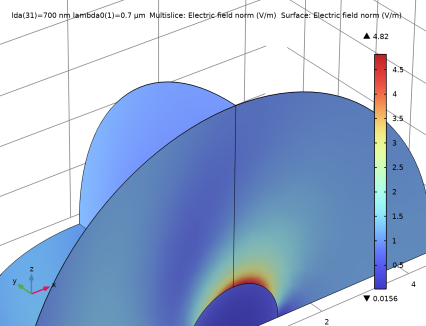
In the Electric Field (ewfd) toolbar, click  Plot. Compare the resulting plot with the plot shown below.
Electric Field, Background (ewfd)
1
In the Model Builder window, click Electric Field, Background (ewfd).
2
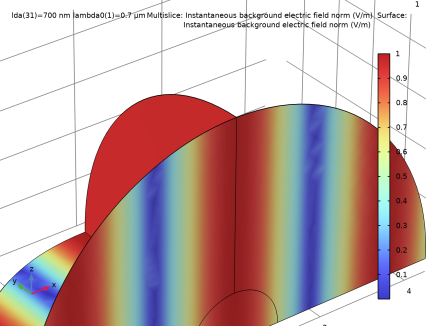
In the Electric Field, Background (ewfd) toolbar, click  Plot. The resulting plot shows the instantaneous background electric field norm.
2D Far Field (ewfd)
1
In the Model Builder window, click 2D Far Field (ewfd).
2
In the Settings window for Polar Plot Group, locate the Data section.
3
From the Parameter selection (lda) list, choose Last.
Radiation Pattern 1
1
In the Model Builder window, expand the 2D Far Field (ewfd) node, then click Radiation Pattern 1.
2
In the Settings window for Radiation Pattern, locate the Evaluation section.
3
Find the Normal vector subsection. In the y text field, type 1.
4
In the z text field, type 0.
5
Click to expand the Legends section. From the Legends list, choose Manual.
6
7
In the 2D Far Field (ewfd) toolbar, click  Plot.
2D Far Field (ewfd)
In the Model Builder window, click 2D Far Field (ewfd).
Radiation Pattern 2
1
In the 2D Far Field (ewfd) toolbar, click  More Plots and choose Radiation Pattern.
2
In the Settings window for Radiation Pattern, locate the Evaluation section.
3
Find the Angles subsection. In the Number of angles text field, type 180.
4
Locate the Legends section. From the Legends list, choose Manual.
5
Select the Show legends checkbox.
6
Export Expressions 1
1
Right-click Radiation Pattern 2 and choose Export Expressions.
2
In the Settings window for Export Expressions, locate the Expressions section.
3
4
In the 2D Far Field (ewfd) toolbar, click  Plot. This plot shows the far field radiation pattern in the E-plane and H-plane.
3D Far Field (ewfd)
1
In the Model Builder window, under Results click 3D Far Field (ewfd).
2
In the 3D Far Field (ewfd) toolbar, click  Plot. This illustrates the 3D far-field radiation pattern.
Cross Sections (csc1)
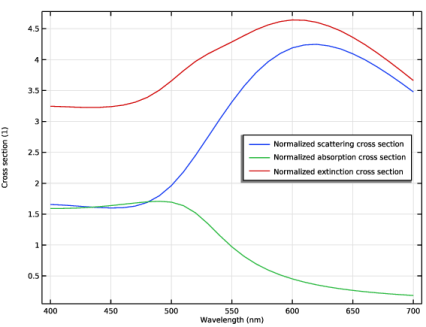
Now, update the Cross Sections plot group to plot the normalized cross sections.
Global 1
1
In the Model Builder window, expand the Results > Cross Sections (csc1) node, then click Global 1.
2
In the Settings window for Global, locate the y-Axis Data section.
3
Cross Sections (csc1)
1
In the Model Builder window, click Cross Sections (csc1).
2
In the Settings window for 1D Plot Group, locate the Plot Settings section.
3
Select the x-axis label checkbox. In the associated text field, type Wavelength (nm).
4
In the y-axis label text field, type Cross section (1).
5
Locate the Legend section. From the Position list, choose Middle right.
6
In the Cross Sections (csc1) toolbar, click  Plot.
It is clear that the absorption cross section decreases for longer wavelengths. However, the scattering and extinction cross section has a maximum at longer wavelengths.
Resistive Losses
1
In the Home toolbar, click  Add Plot Group and choose 3D Plot Group.
2
In the Settings window for 3D Plot Group, type Resistive Losses in the Label text field.
3
Locate the Data section. From the Dataset list, choose Study 1/Parametric Solutions 1 (sol2).
Add a selection to see the resistive losses only inside the gold sphere.
4
Click to expand the Selection section. From the Geometric entity level list, choose Domain.
5
6
Select the Apply to dataset edges checkbox.
Volume 1
1
Right-click Resistive Losses and choose Volume.
2
In the Settings window for Volume, click Replace Expression in the upper-right corner of the Expression section. From the menu, choose Component 1 (comp1) > Electromagnetic Waves, Frequency Domain > Heating and losses > ewfd.Qrh - Resistive losses - W/m³.
3
In the Resistive Losses toolbar, click  Plot.
4
Click the  Zoom Extents button in the Graphics toolbar. The resulting plot shows the resistive losses in the gold sphere.
Cross Sections (csc1)
The following instructions create a plot of the heat losses inside the gold sphere.
Heat Losses
1
In the Model Builder window, right-click Cross Sections (csc1) and choose Duplicate.
2
In the Settings window for 1D Plot Group, type Heat Losses in the Label text field.
Global 1
1
In the Model Builder window, expand the Heat Losses node, then click Global 1.
2
In the Settings window for Global, locate the y-Axis Data section.
3
Click  Clear Table.
4
Click Replace Expression in the upper-right corner of the y-Axis Data section. From the menu, choose Component 1 (comp1) > Electromagnetic Waves, Frequency Domain > Heating and losses > ewfd.Ploss - Power loss - W. This variable represents the total integrated loss in the physics.
5
Click to expand the Legends section. Clear the Show legends checkbox.
Heat Losses
1
In the Model Builder window, click Heat Losses.
2
In the Settings window for 1D Plot Group, click to expand the Title section.
3
From the Title type list, choose None.
4
Locate the Plot Settings section. In the y-axis label text field, type Heat loss (W).
5
In the Heat Losses toolbar, click  Plot.
Refractive Index of Gold
Finally, add plots showing the real and the imaginary parts of the refractive index and the relative permittivity of gold, as well as the skin depth.
1
Right-click Heat Losses and choose Duplicate.
2
In the Settings window for 1D Plot Group, type Refractive Index of Gold in the Label text field.
3
Locate the Plot Settings section.
4
Select the y-axis label checkbox. In the associated text field, type Refractive index.
Global 1
1
In the Model Builder window, expand the Refractive Index of Gold node, then click Global 1.
2
In the Settings window for Global, click Replace Expression in the upper-right corner of the y-Axis Data section. From the menu, choose Component 1 (comp1) > Definitions > Variables > n_gold - Refractive index of gold - 1.
3
Locate the y-Axis Data section. In the table, enter the following settings:
4
Locate the Legends section. Select the Show legends checkbox.
5
From the Legends list, choose Manual.
6
7
In the Refractive Index of Gold toolbar, click  Plot.
Relative Permittivity of Gold
1
In the Model Builder window, right-click Refractive Index of Gold and choose Duplicate.
2
In the Settings window for 1D Plot Group, type Relative Permittivity of Gold in the Label text field.
Global 1
1
In the Model Builder window, expand the Relative Permittivity of Gold node, then click Global 1.
2
In the Settings window for Global, click Replace Expression in the upper-right corner of the y-Axis Data section. From the menu, choose Component 1 (comp1) > Definitions > Variables > epsilonr_gold - Relative permittivity of gold - 1.
3
Locate the y-Axis Data section. In the table, enter the following settings:
4
Locate the Legends section. In the table, enter the following settings:
Relative Permittivity of Gold
1
In the Model Builder window, click Relative Permittivity of Gold.
2
In the Settings window for 1D Plot Group, locate the Plot Settings section.
3
In the y-axis label text field, type Relative permittivity.
4
Locate the Legend section. From the Position list, choose Lower left.
5
In the Relative Permittivity of Gold toolbar, click  Plot. Notice that the real part of the relative permittivity is negative in this wavelength range.
Skin Depth of Gold
1
In the Model Builder window, right-click Heat Losses and choose Duplicate.
2
In the Settings window for 1D Plot Group, type Skin Depth of Gold in the Label text field.
3
Locate the Plot Settings section. Clear the y-axis label checkbox.
Global 1
1
In the Model Builder window, expand the Skin Depth of Gold node, then click Global 1.
2
In the Settings window for Global, click Replace Expression in the upper-right corner of the y-Axis Data section. From the menu, choose Component 1 (comp1) > Definitions > Variables > deltaS_gold - Skin depth of gold - m.
3
Locate the y-Axis Data section. In the table, enter the following settings:
4
In the Skin Depth of Gold toolbar, click  Plot.