





PDF

Plasmonic Wire Grating
Introduction
A plane electromagnetic wave is incident on a wire grating on a dielectric substrate. The model computes transmission and reflection coefficients for the refraction, specular reflection, and first order diffraction.
Model Definition
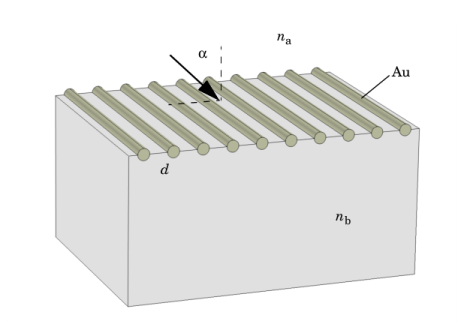
Figure 1 shows the considered grating, with a gold wire on a dielectric material with refractive index nb. The grating constant, or the distance between the wires, is d. A plane-polarized wave traveling through a medium with refractive index na is incident on the grating, at an angle α in a plane perpendicular to the grating.
Figure 1: The modeled grating. The model considers a unit cell of a slice through this geometry. The grating is assumed to consist of an infinite number of infinitely long wires.
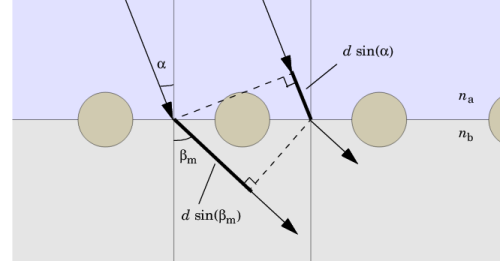
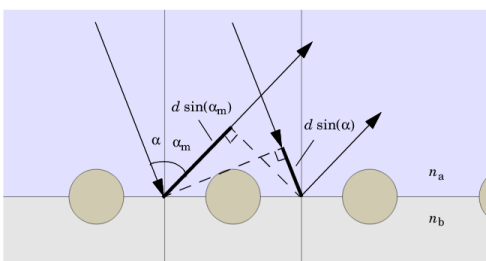
If the wavelengths involved in the model are sufficiently shorter than the grating constant, one or several diffraction orders can be present. The diagram in Figure 2 shows two transmissive paths taken by light incident on adjacent cells of the grating, exactly one grating constant apart.
Figure 2: The geometric path lengths of two transmitted parallel beams. The optical path length is the geometric path length multiplied by the local refractive index.
The criterion for positive interference is that the difference in optical path length along the two paths equals an integer number of vacuum wavelengths, or:
(1)
with m = 0, ±1,± 2,..., λ0 the vacuum wavelength, and βm the transmitted diffracted beam of order m. For m = 0, this reduces to refraction, as described by Snell’s law:
Because the sine functions can only vary between 1 and 1, the existence of higher diffraction order requires that
The model instructions cover only first order diffraction, and are hence only valid under the condition
(2)
Note that for the special cases of perpendicular and grazing incidence, the right-hand side of the inequality evaluates to dnb and d(na + nb), respectively.
Figure 3 shows the corresponding paths of the reflected light.
Figure 3: The geometric path lengths of two parallel reflected beams.
For positive interference we get
(3)
where αm is the reflected beam of diffraction order m. Setting m = 0 in this equation renders
or specular reflection. The condition for no reflected diffracted beams of order 2 or greater being present is
(4)
The model uses na = 1 for air and nb = 1.2 for the dielectric substrate. Allowing for arbitrary angles of incidence and with a grating constant d = 400 nm, Equation 2 sets the validity limit to vacuum wavelengths greater than 440 nm. The model uses λ0 = 441 nm. For the wire, a complex-valued permittivity of 1.75 − 5.4i approximates that of gold at the corresponding frequency.
The performance of the grating depends on the polarization of the incident wave. Therefore both a transverse electric (TE) (also called s-polarization) and a transverse magnetic (TM) (or p-polarization) case are considered. The TE wave has the electric field component in the z direction, out of the modeling xy-plane. For the TM wave, the electric field vector is pointing in the xy-plane and perpendicular to the direction of propagation, whereas the magnetic field has only a component in the z direction. The angle of incidence is for both cases swept from 0 to π/2, with a pitch of π/40.
Results and Discussion
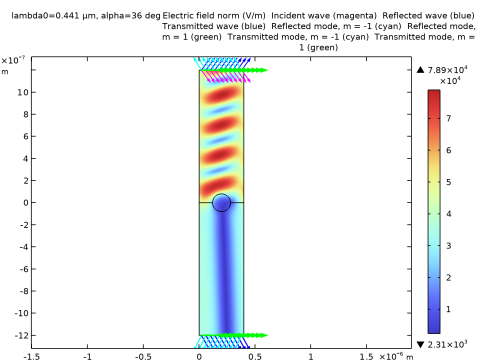
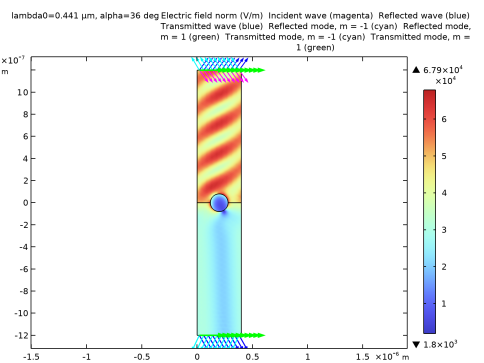
As an example of the output from the model, Figure 4 and Figure 5 show the electric field norm for an angle of incidence equal to π/5, for the TE and TM case respectively.
Figure 4: Electric field norm for TE incidence at π/5.
Figure 5: Electric field norm for TM incidence at π/5.
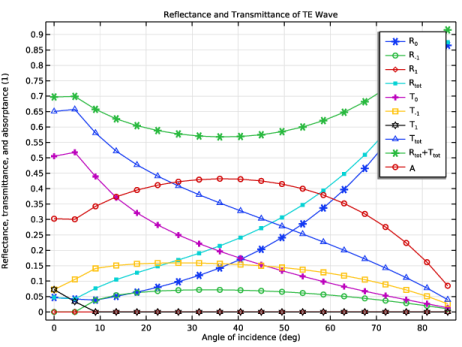
All the computed transmission and reflection coefficients for TE incidence are plotted in Figure 6. R0, the coefficient for specular reflection, increases rather steadily with the angle of incidence. This is both because of reflection in the material interface and because the wave “sees” the wire as increasingly wider at greater angles — the same effect as achieved by a Venetian blind. T0, the refracted but not diffracted transmission, decreases accordingly. For the considered wavelength to period length ratio, the transmitted diffracted beam T1 is propagating only for nearly perpendicular incidence. The reflected diffraction order R1 would need a shorter wavelength or a larger grating period to show up. Instead, the most prominent diffraction orders are R1 and T-1.
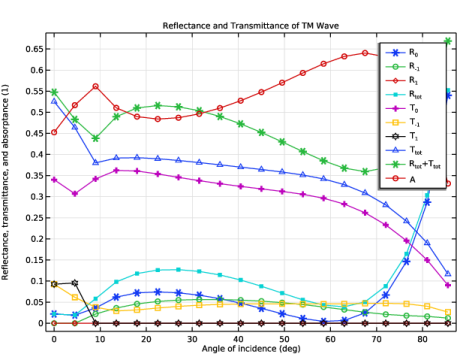
The sum of all coefficients is consistently less than 1 due to the dielectric losses in the wire. This is even more apparent for TM incidence, as Figure 7 shows. Here, approximately half of the wave is absorbed in the wire. Another important feature of the TM case is that there is very little specular reflection (R0) around 60 degrees.
Figure 6: Transmission and reflection coefficients for TE incidence.
Figure 7: Transmission and reflection coefficients for TM incidence.
Notes About the COMSOL Implementation
The model is set up for one unit cell of the grating, flanked by Floquet boundary conditions describing the periodicity. As applied, this condition states that the solution on one side of the unit equals the solution on the other side multiplied by a complex-valued phase factor. The phase shift between the boundaries is evaluated from the perpendicular component of the wave vector. Due to the continuity of the field, the phase factor for the refracted and reflected beams is the same as for the incident wave.
Port conditions are used for specifying the incident wave and also for letting the resulting solution leave the model without any unphysical reflections. In order to achieve perfect transmission through the port boundaries, one port for each mode (m = 0, m = −1, m = 1) in each direction must be present. This gives a total of 6 ports.
To add the port and periodic conditions, a Periodic Structure node is added. It automatically adds and configures its subnodes — the ports and the periodic conditions.
The table below lists the parameters names used in the model.
na
nb
α
Application Library path: Wave_Optics_Module/Gratings_and_Metamaterials/plasmonic_wire_grating
Modeling Instructions
From the File menu, choose New.
New
In the New window, click  Model Wizard.
Model Wizard
1
In the Model Wizard window, click  2D.
2
In the Select Physics tree, select Optics > Wave Optics > Electromagnetic Waves, Frequency Domain (ewfd).
3
Click Add.
4
Click  Study.
5
In the Select Study tree, select Preset Studies for Selected Physics Interfaces > Wavelength Domain.
6
Global Definitions
Parameters 1
1
In the Model Builder window, under Global Definitions click Parameters 1.
2
In the Settings window for Parameters, locate the Parameters section.
3
Although the angle of incidence will not remain constant at 0, it needs to be specified as a parameter to be accessible to the parametric solver.
Study 1
Step 1: Wavelength Domain
1
In the Model Builder window, under Study 1 click Step 1: Wavelength Domain.
2
In the Settings window for Wavelength Domain, locate the Study Settings section.
3
In the Wavelengths text field, type lam0.
Geometry 1
Create the geometry entirely in terms of the grating constant, for easy scalability.
Rectangle 1 (r1)
1
In the Geometry toolbar, click  Rectangle.
2
In the Settings window for Rectangle, locate the Size and Shape section.
3
In the Width text field, type d.
4
In the Height text field, type 3*d.
5
Click  Build Selected.
Rectangle 2 (r2)
1
In the Geometry toolbar, click  Rectangle.
2
In the Settings window for Rectangle, locate the Size and Shape section.
3
In the Width text field, type d.
4
In the Height text field, type 3*d.
5
Locate the Position section. In the y text field, type -3*d.
6
Click  Build Selected.
Circle 1 (c1)
1
In the Geometry toolbar, click  Circle.
2
In the Settings window for Circle, locate the Size and Shape section.
3
In the Radius text field, type d/5.
4
Locate the Position section. In the x text field, type d/2.
5
Click  Build Selected.
6
Click the  Zoom Extents button in the Graphics toolbar.
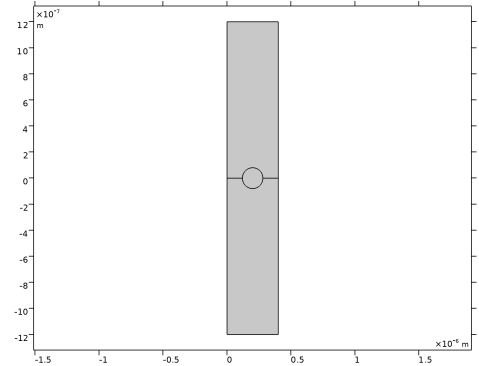
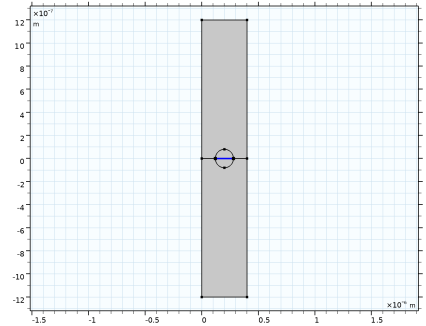
The geometry now consists of two rectangular domains for the air and the dielectric, and a circle centered on their intersection. You can remove the line through the circle if you first create a union of the objects.
Union 1 (uni1)
1
In the Geometry toolbar, click  Booleans and Partitions and choose Union.
2
Click in the Graphics window and then press Ctrl+A to select all objects.
3
In the Settings window for Union, click  Build Selected.
Delete Entities 1 (del1)
1
In the Model Builder window, right-click Geometry 1 and choose Delete Entities.
2
On the object uni1, select Boundary 6 only. This is the horizontal diameter of the circle in the center of the geometry.
3
In the Settings window for Delete Entities, click  Build Selected.
Form Union (fin)
1
In the Model Builder window, click Form Union (fin).
2
In the Settings window for Form Union/Assembly, click  Build Selected.
Materials
Air
1
In the Model Builder window, under Component 1 (comp1) right-click Materials and choose Blank Material.
2
In the Settings window for Material, type Air in the Label text field.
3
Locate the Material Contents section. In the table, enter the following settings:
Dielectric
1
Right-click Materials and choose Blank Material.
2
In the Settings window for Material, type Dielectric in the Label text field.
3
4
Locate the Material Contents section. In the table, enter the following settings:
Add Material
1
In the Materials toolbar, click  Add Material to open the Add Material window.
2
Go to the Add Material window.
3
In the tree, select Optical > Inorganic Materials > Au - Gold > Models and simulations > Au (Gold) (Rakic et al. 1998: Brendel-Bormann model; n,k 0.248-6.20 um), to select gold from the Optical material library.
4
Click the Add to Component button in the window toolbar.
5
In the Materials toolbar, click  Add Material to close the Add Material window.
Materials
Au (Gold) (Rakic et al. 1998: Brendel-Bormann model; n,k 0.248-6.20 um) (mat3)
Select Domain 3 only.
Electromagnetic Waves, Frequency Domain (ewfd)
In the first version of this model, you will assume a TE-polarized wave. This means that Ex and Ey will be zero throughout the geometry, and that you consequently only need to solve for Ez.
1
In the Model Builder window, under Component 1 (comp1) click Electromagnetic Waves, Frequency Domain (ewfd).
2
In the Settings window for Electromagnetic Waves, Frequency Domain, locate the Components section.
3
From the Electric field components solved for list, choose Out-of-plane vector.
Periodic Structure 1
Now, add the periodic structure node that contains the ports and the periodic boundary condition.
1
In the Physics toolbar, click  Domains and choose Periodic Structure.
2
In the Settings window for Periodic Structure, locate the Port Mode Settings section.
3
In the α text field, type alpha.
4
Locate the Port Handling section. Click Add Diffraction Orders, to add Diffraction Order ports for the higher diffraction orders.
Study 1
To set up the study to sweep for the angle of incidence, some modifications of the study step is required.
Step 1: Wavelength Domain
1
In the Model Builder window, under Study 1 click Step 1: Wavelength Domain.
2
In the Settings window for Wavelength Domain, click to expand the Study Extensions section.
3
Select the Auxiliary sweep checkbox.
4
5
6
Click  Range.
7
In the Range dialog, type 0[rad] in the Start text field.
8
In the Step text field, type pi/40[rad].
9
In the Stop text field, type (pi/2-pi/40)[rad].
10
Click Replace.
11
In the Settings window for Wavelength Domain, locate the Study Extensions section.
12
13
In the Study toolbar, click  Compute.
Results
Add arrow plots for the incident wave vector of the excitation port and the mode wave vector of each diffraction order.
Arrow Line 1
1
Right-click Electric Field (ewfd) and choose Arrow Line.
2
In the Settings window for Arrow Line, click Replace Expression in the upper-right corner of the Expression section. From the menu, choose Component 1 (comp1) > Electromagnetic Waves, Frequency Domain > Ports > Wave vectors > ewfd.kIncx_1,ewfd.kIncy_1 - Incident wave vector.
3
Locate the Coloring and Style section. From the Color list, choose Magenta.
4
Locate the Expression section.
5
Select the Description checkbox. In the associated text field, type Incident wave (magenta).
6
Locate the Arrow Positioning section. In the Number of arrows text field, type 10.
7
Locate the Coloring and Style section.
8
Select the Scale factor checkbox. In the associated text field, type 1e-14.
Selection 1
1
Right-click Arrow Line 1 and choose Selection.
2
Arrow Line 2
1
In the Model Builder window, under Results > Electric Field (ewfd) right-click Arrow Line 1 and choose Duplicate.
2
In the Settings window for Arrow Line, click Replace Expression in the upper-right corner of the Expression section. From the menu, choose Component 1 (comp1) > Electromagnetic Waves, Frequency Domain > Ports > Wave vectors > ewfd.kModex_1,ewfd.kModey_1 - Port mode wave vector, port 1.
3
Locate the Coloring and Style section. From the Color list, choose Blue.
4
Locate the Expression section.
5
Select the Description checkbox. In the associated text field, type Reflected wave (blue).
Arrow Line 3
1
Right-click Arrow Line 1 and choose Duplicate.
2
In the Settings window for Arrow Line, click Replace Expression in the upper-right corner of the Expression section. From the menu, choose Component 1 (comp1) > Electromagnetic Waves, Frequency Domain > Ports > Wave vectors > ewfd.kModex_2,ewfd.kModey_2 - Port mode wave vector, port 2.
3
Locate the Coloring and Style section. From the Color list, choose Blue.
4
Locate the Expression section.
5
Select the Description checkbox. In the associated text field, type Transmitted wave (blue).
Selection 1
1
In the Model Builder window, expand the Arrow Line 3 node, then click Selection 1.
2
In the Settings window for Selection, locate the Selection section.
3
Click  Clear Selection.
4
Arrow Line 4
1
In the Model Builder window, under Results > Electric Field (ewfd) right-click Arrow Line 1 and choose Duplicate.
2
In the Settings window for Arrow Line, click Replace Expression in the upper-right corner of the Expression section. From the menu, choose Component 1 (comp1) > Electromagnetic Waves, Frequency Domain > Ports > Wave vectors > ewfd.kModex_3,ewfd.kModey_3 - Port mode wave vector, port 3.
3
Locate the Coloring and Style section. From the Color list, choose Cyan.
4
Locate the Expression section.
5
Select the Description checkbox. In the associated text field, type Reflected mode, m = -1 (cyan).
Arrow Line 5
1
Right-click Arrow Line 4 and choose Duplicate.
2
In the Settings window for Arrow Line, click Replace Expression in the upper-right corner of the Expression section. From the menu, choose Component 1 (comp1) > Electromagnetic Waves, Frequency Domain > Ports > Wave vectors > ewfd.kModex_4,ewfd.kModey_4 - Port mode wave vector, port 4.
3
Locate the Coloring and Style section. From the Color list, choose Green.
4
Locate the Expression section. In the Description text field, type Reflected mode, m = 1 (green).
Arrow Line 6
1
In the Model Builder window, under Results > Electric Field (ewfd) right-click Arrow Line 3 and choose Duplicate.
2
In the Settings window for Arrow Line, locate the Expression section.
3
In the X-component text field, type ewfd.kModex_5.
4
In the Y-component text field, type ewfd.kModey_5.
5
In the Description text field, type Transmitted mode, m = -1 (cyan).
6
Locate the Coloring and Style section. From the Color list, choose Cyan.
Arrow Line 7
1
In the Model Builder window, right-click Arrow Line 6 and choose Duplicate.
2
In the Settings window for Arrow Line, locate the Expression section.
3
In the X-component text field, type ewfd.kModex_6.
4
In the Y-component text field, type ewfd.kModey_6.
5
In the Description text field, type Transmitted mode, m = 1 (green).
6
Locate the Coloring and Style section. From the Color list, choose Green.
TE Electric Field
1
In the Model Builder window, under Results click Electric Field (ewfd).
2
In the Settings window for 2D Plot Group, type TE Electric Field in the Label text field.
The default plot shows the electric field norm for the last solution, almost tangential incidence. Look at a more interesting angle of incidence.
3
Locate the Data section. From the Parameter value (alpha (deg)) list, choose 36.
Make the title slightly shorter.
4
Click to expand the Title section. From the Title type list, choose Custom.
5
Find the Type and data subsection. Clear the Type checkbox.
6
In the TE Electric Field toolbar, click  Plot.
7
Click the  Zoom Extents button in the Graphics toolbar. The plot should now look like Figure 4.
TE Reflectance, Transmittance, and Absorptance
Modify the generated 1D plot of the diffraction efficiencies for the different orders versus the angle of incidence.
1
In the Model Builder window, under Results click Reflectance, Transmittance, and Absorptance (ewfd).
2
In the Settings window for 1D Plot Group, type TE Reflectance, Transmittance, and Absorptance in the Label text field.
3
Click to expand the Title section. From the Title type list, choose Manual.
4
In the Title text area, type Reflectance and Transmittance of TE Wave.
Global 1
1
In the Model Builder window, expand the TE Reflectance, Transmittance, and Absorptance node, then click Global 1.
2
In the Settings window for Global, click to expand the Coloring and Style section.
3
Find the Line markers subsection. From the Marker list, choose Cycle.
Since it is possible to use subscript notation in the legends and the polarization is known, the legends can be shortened.
4
Click to expand the Legends section. From the Legends list, choose Manual.
5
6
In the TE Reflectance, Transmittance, and Absorptance toolbar, click  Plot. The plot should now look like Figure 6.
Electromagnetic Waves, Frequency Domain (ewfd)
The remaining instructions show how to alter the physics so that you solve for an incident TM wave.
1
In the Model Builder window, under Component 1 (comp1) click Electromagnetic Waves, Frequency Domain (ewfd).
2
In the Settings window for Electromagnetic Waves, Frequency Domain, locate the Components section.
3
From the Electric field components solved for list, choose In-plane vector.
You will now solve for Ex and Ey instead of Ez; for a TM wave, Ez is zero.
Note that the Components parameter in the Settings for the Diffraction Order nodes is automatically updated, when you change the parameter Electric field components solved for in the Settings for the physics.
Root
Add a new study in order not to overwrite the TE solution.
Add Study
1
In the Home toolbar, click  Add Study to open the Add Study window.
2
Go to the Add Study window.
3
Find the Studies subsection. In the Select Study tree, select Preset Studies for Selected Physics Interfaces > Wavelength Domain.
4
Click the Add Study button in the window toolbar.
5
In the Home toolbar, click  Add Study to close the Add Study window.
Study 2
Step 1: Wavelength Domain
1
In the Settings window for Wavelength Domain, locate the Study Settings section.
2
In the Wavelengths text field, type lam0.
3
Locate the Study Extensions section. Select the Auxiliary sweep checkbox.
4
5
6
Click  Range.
7
In the Range dialog, type 0[rad] in the Start text field.
8
In the Step text field, type pi/40[rad].
9
In the Stop text field, type (pi/2-pi/40)[rad].
10
Click Replace.
11
In the Settings window for Wavelength Domain, locate the Study Extensions section.
12
13
In the Study toolbar, click  Compute.
Results
Arrow Line 1
1
Right-click Electric Field (ewfd) and choose Arrow Line.
2
In the Settings window for Arrow Line, click Replace Expression in the upper-right corner of the Expression section. From the menu, choose Component 1 (comp1) > Electromagnetic Waves, Frequency Domain > Ports > Wave vectors > ewfd.kIncx_1,ewfd.kIncy_1 - Incident wave vector.
3
Locate the Coloring and Style section. From the Color list, choose Magenta.
4
Locate the Expression section.
5
Select the Description checkbox. In the associated text field, type Incident wave (magenta).
6
Locate the Arrow Positioning section. In the Number of arrows text field, type 10.
7
Locate the Coloring and Style section.
8
Select the Scale factor checkbox. In the associated text field, type 1e-14.
Selection 1
1
Right-click Arrow Line 1 and choose Selection.
2
Arrow Line 2
1
In the Model Builder window, under Results > Electric Field (ewfd) right-click Arrow Line 1 and choose Duplicate.
2
In the Settings window for Arrow Line, click Replace Expression in the upper-right corner of the Expression section. From the menu, choose Component 1 (comp1) > Electromagnetic Waves, Frequency Domain > Ports > Wave vectors > ewfd.kModex_1,ewfd.kModey_1 - Port mode wave vector, port 1.
3
Locate the Coloring and Style section. From the Color list, choose Blue.
4
Locate the Expression section.
5
Select the Description checkbox. In the associated text field, type Reflected wave (blue).
Arrow Line 3
1
Right-click Arrow Line 2 and choose Duplicate.
2
In the Settings window for Arrow Line, click Replace Expression in the upper-right corner of the Expression section. From the menu, choose Component 1 (comp1) > Electromagnetic Waves, Frequency Domain > Ports > Wave vectors > ewfd.kModex_2,ewfd.kModey_2 - Port mode wave vector, port 2.
3
Locate the Coloring and Style section. From the Color list, choose Blue.
4
Locate the Expression section.
5
Select the Description checkbox. In the associated text field, type Transmitted wave (blue).
Selection 1
1
In the Model Builder window, expand the Arrow Line 3 node, then click Selection 1.
2
In the Settings window for Selection, locate the Selection section.
3
Click  Clear Selection.
4
Arrow Line 4
1
In the Model Builder window, under Results > Electric Field (ewfd) right-click Arrow Line 1 and choose Duplicate.
2
In the Settings window for Arrow Line, click Replace Expression in the upper-right corner of the Expression section. From the menu, choose Component 1 (comp1) > Electromagnetic Waves, Frequency Domain > Ports > Wave vectors > ewfd.kModex_3,ewfd.kModey_3 - Port mode wave vector, port 3.
3
Locate the Coloring and Style section. From the Color list, choose Cyan.
4
Locate the Expression section.
5
Select the Description checkbox. In the associated text field, type Reflected mode, m = -1 (cyan).
Arrow Line 5
1
Right-click Arrow Line 4 and choose Duplicate.
2
In the Settings window for Arrow Line, click Replace Expression in the upper-right corner of the Expression section. From the menu, choose Component 1 (comp1) > Electromagnetic Waves, Frequency Domain > Ports > Wave vectors > ewfd.kModex_4,ewfd.kModey_4 - Port mode wave vector, port 4.
3
Locate the Coloring and Style section. From the Color list, choose Green.
4
Locate the Expression section. In the Description text field, type Reflected mode, m = 1 (green).
Arrow Line 6
1
In the Model Builder window, under Results > Electric Field (ewfd) right-click Arrow Line 3 and choose Duplicate.
2
In the Settings window for Arrow Line, locate the Expression section.
3
In the X-component text field, type ewfd.kModex_5.
4
In the Y-component text field, type ewfd.kModey_5.
5
In the Description text field, type Transmitted mode, m = -1 (cyan).
6
Locate the Coloring and Style section. From the Color list, choose Cyan.
Arrow Line 7
1
In the Model Builder window, right-click Arrow Line 6 and choose Duplicate.
2
In the Settings window for Arrow Line, locate the Expression section.
3
In the X-component text field, type ewfd.kModex_6.
4
In the Y-component text field, type ewfd.kModey_6.
5
In the Description text field, type Transmitted mode, m = 1 (green).
6
Locate the Coloring and Style section. From the Color list, choose Green.
TM Electric Field
1
In the Model Builder window, under Results click Electric Field (ewfd).
2
In the Settings window for 2D Plot Group, type TM Electric Field in the Label text field.
3
Locate the Data section. From the Parameter value (alpha (deg)) list, choose 36.
4
Locate the Title section. From the Title type list, choose Custom.
5
Find the Type and data subsection. Clear the Type checkbox.
6
In the TM Electric Field toolbar, click  Plot.
7
Click the  Zoom Extents button in the Graphics toolbar. You have now reproduced Figure 5.
TM Reflectance, Transmittance, and Absorptance
1
In the Model Builder window, under Results click Reflectance, Transmittance, and Absorptance (ewfd).
2
In the Settings window for 1D Plot Group, type TM Reflectance, Transmittance, and Absorptance in the Label text field.
3
Locate the Title section. From the Title type list, choose Manual.
4
In the Title text area, type Reflectance and Transmittance of TM Wave.
Global 1
1
In the Model Builder window, expand the TM Reflectance, Transmittance, and Absorptance node, then click Global 1.
2
In the Settings window for Global, locate the Coloring and Style section.
3
Find the Line markers subsection. From the Marker list, choose Cycle.
Also for this plot, shorten the legends.
4
Locate the Legends section. From the Legends list, choose Manual.
5
6
In the TM Reflectance, Transmittance, and Absorptance toolbar, click  Plot. Compare the resulting plot with that in Figure 7.