PDF

Hexagonal Grating
Introduction
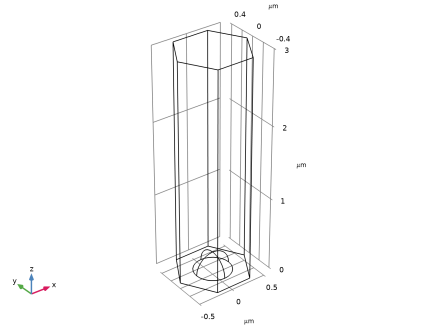
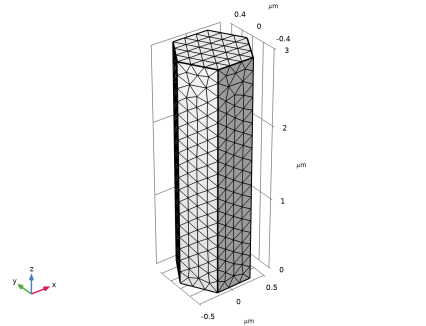
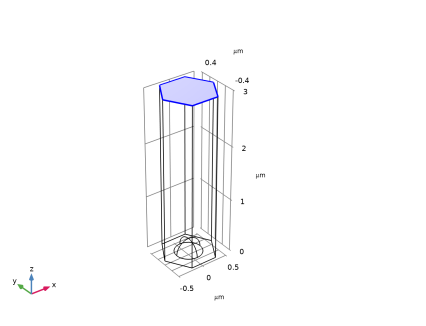
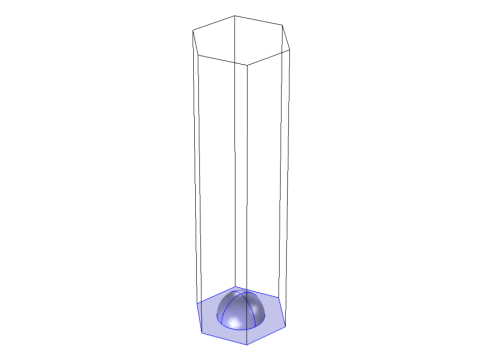
A hexagonal grating is an infinite structure that is periodic with hexagonal (or rhomboid unit) cells. Figure 1 shows the hexagonal domain used for this model. The reflecting perfectly conducting surface consists of regularly spaced protruding hemispheres.
Figure 1: The hexagonal domain, used for computing the diffraction from the hexagonal grating.
As shown in Figure 2, for a hexagonal cell of side length a, the corresponding unit cell is a rhomboid with side length . In Figure 2, the side vectors for the hexagonal cell starts from the point P and are denoted a1 and a2. The angle between a1 and a2 is 120 degrees. Similarly, for the rhomboid unit cell, the primitive vectors are denoted u1 and u2 and starts from the hexagon center point Q. The angle between the two primitive vectors is also 120 degrees.
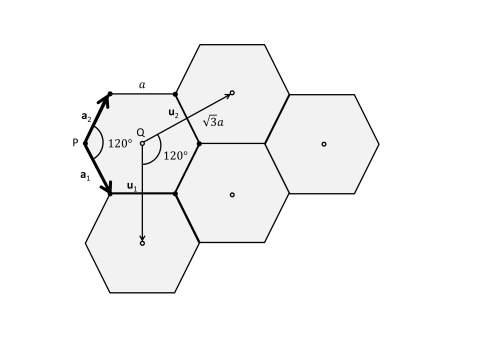
Figure 2: Schematic showing the hexagonal cells with side length a and side vectors a1 and a2. The primitive cells are defined by the primitive vectors u1 and u2.
If the incident plane wave have a wave vector defined by
(1),
where k|| is the wave vector component parallel to the periodic boundary and k is the component orthogonal to the periodic boundary, the in-plane wave vector component for diffraction order mn is given by
(2),
where the reciprocal lattice vectors G1 and G2 are defined from the primitive vectors u1 and u2 as
(3)
and
(4),
where n is the normal vector (length 1) to the periodic boundary.
Since the out-of-plane wave vector component for mode mn is defined by
(5),
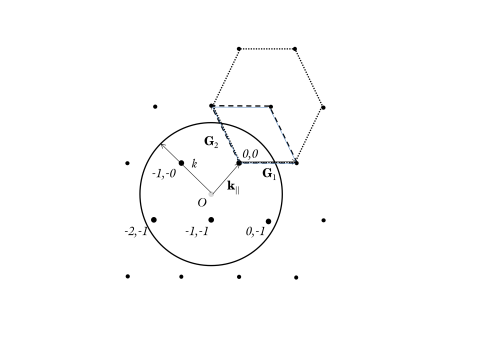
it is clear that for propagating modes, where the out-of-plane wave vector component above must be real, the length of the in-plane wave vector component must be smaller than the material wave number k. Figure 3 shows that it is only the modes inside the circle with radius k that will be propagating. In the example shown in Figure 3, there are five modes that will be propagating, in this case the modes m = n = 0 (the reflected wave), m = -1, n = 0, m = 0, n = -1, m = -1, n = -1, and m = -2, n = -1. All other modes will be evanescent and damped out.
Figure 3: The reciprocal lattice, showing the reciprocal lattice vectors G1 and G2, the in-plane wave vector component k||, and the circle with radius k (the material wave number) enclosing the propagating mode points (larger dots. The dotted hexagon indicates that also the reciprocal lattice is a hexagonal point lattice. The dashed rhomboid indicates the unit cell spanned by the reciprocal lattice vectors.
Model Definition
In this model, the unit cell is small compared to the wavelength, so there will only be two modes that are propagating, the modes m = 0, n = -1 and m = -1, n = -1. For wavelengths longer than approximately 1.01 μm (the critical wavelength), the mode m = 0, n = -1 will be evanescent.
First a wavelength sweep will be made for an incident field having the polarization perpendicular to the plane of incidence (spanned by the wave vector for the incident wave and the normal to the periodic boundary) (so called s-polarization). Thereafter another wavelength sweep is made, but now with the polarization in the plane of incidence (p-polarization).
Results and Discussion
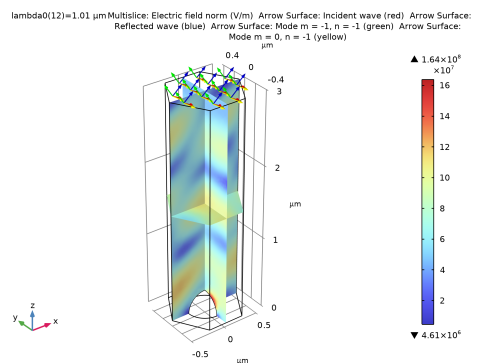
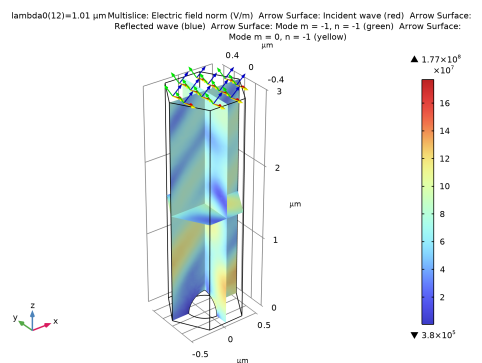
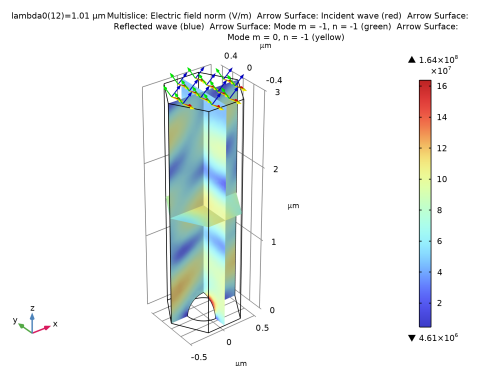
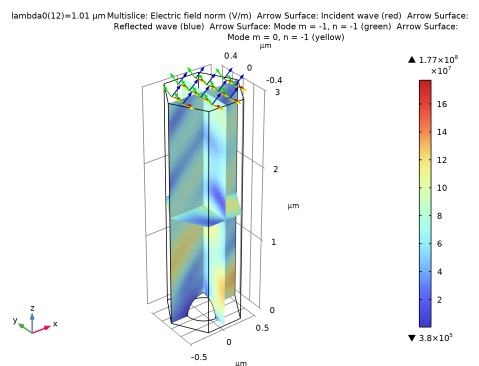
Figure 4 shows the electric field norm and the propagation directions for the incident, the reflected and the diffracted waves. Notice that the diffracted waves come in pairs (both have the same mode numbers), one wave having the polarization in the plane-of-diffraction and the other wave have orthogonal polarization to the plane-of-diffraction. The plane-of-diffraction is spanned by the wave vector for the diffracted wave and the normal to the periodic boundary. The wavelength is close the critical wavelength for the m = 0, n = -1 mode. This is evident from the plot, as the wave vector for that mode (the yellow arrows) is almost parallel to the periodic boundary.
Figure 4: The electric field norm and the propagation directions for the incident wave (red arrows), the reflected wave (blue arrows) and the two diffraction orders (green and yellow arrows). The wavelength is 1.01 μm, which is close to the critical wavelength for the mode m = 0, n = -1, and the polarization of the incident wave is perpendicular to the plane of incidence.
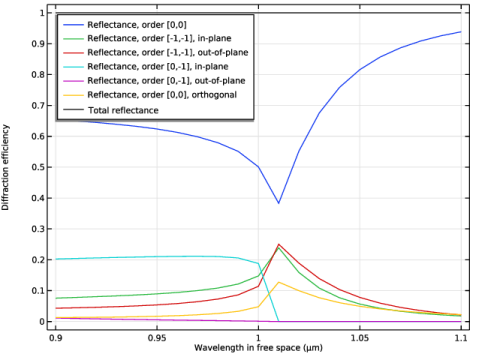
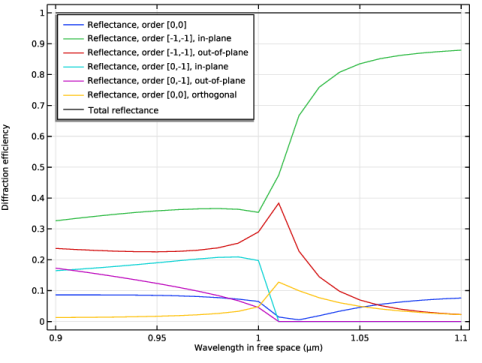
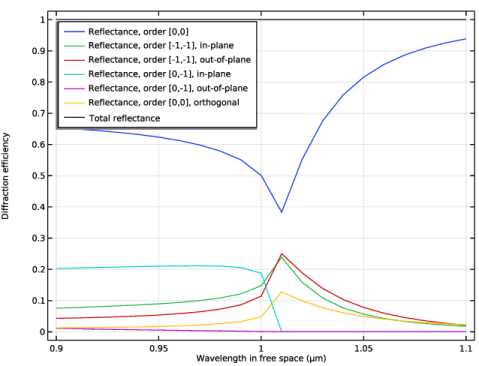
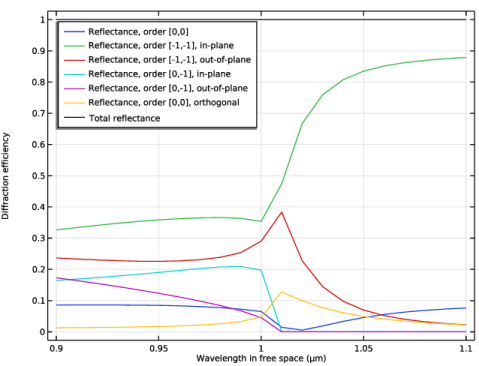
Figure 5 shows the reflectance (for mode m = n = 0) and the diffraction efficiencies for the diffracted waves. Notice that both the reflectance and the diffraction efficiency for the in-plane-polarized m = -1, n = -1 mode show resonances (peaks or dips) close to the critical wavelength for the m = 0, n = -1 modes.
Figure 5: Diffraction efficiencies for the reflected wave and the diffracted waves. The polarization of the incident wave is perpendicular to the plane of incidence.
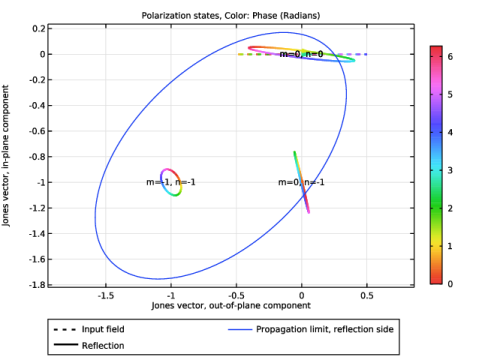
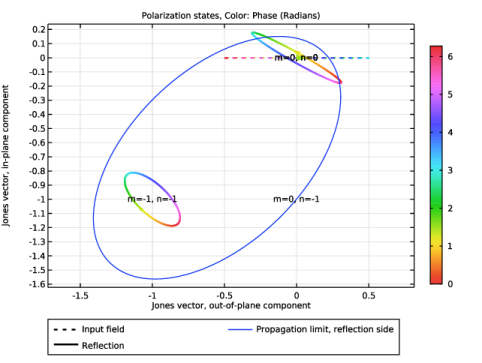
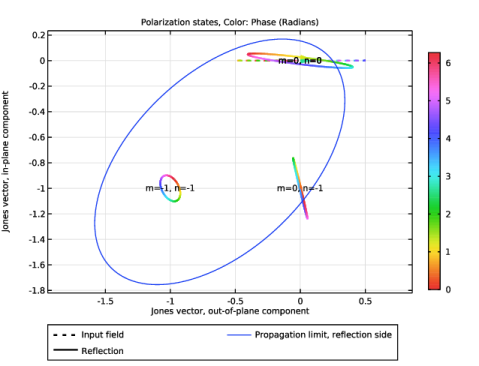
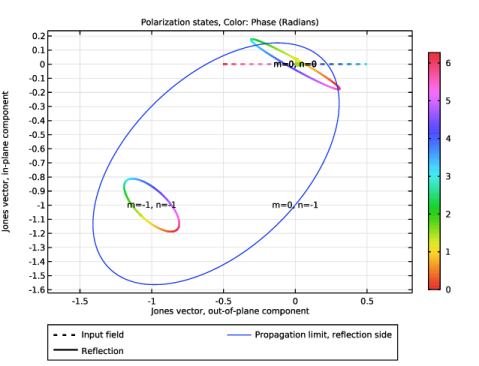
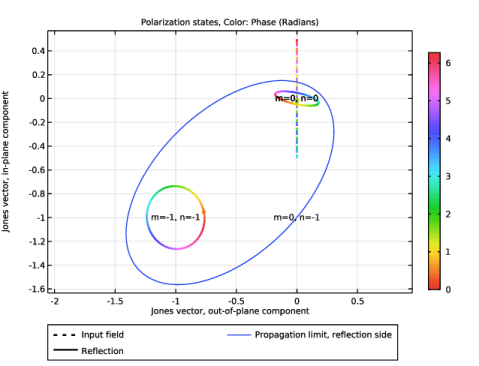
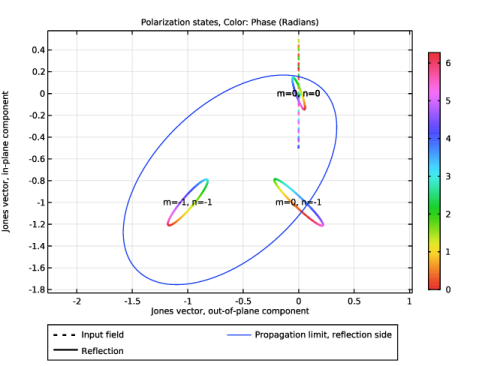
Figure 6 and Figure 7 show polarization plots for the same case as Figure 4 and Figure 5. It is clear that even though the polarization for the incident wave (the dotted horizontal line) is linear, the polarization for the reflected diffraction orders are elliptical. The size of the polarization ellipses indicates the diffraction efficiency. So, the zeroth diffraction order is the strongest and the m = -1, n = -1 order is the weakest one. The blue solid line indicates the area in the m-n-plane where there can be diffraction orders for propagating waves. As there does not exist any other mode numbers in this area, this is a verification that the automatically added diffraction orders are the correct ones to include in the simulation.
Figure 6: Polarization plot showing the polarization ellipses for the three diffraction orders that are not evanescent at the first wavelength, 0.9 µm. The linearly polarized input field is indicated by the dotted line. The solid blue line encircles the area in which there can be diffraction orders representing propagating plane waves.
In Figure 7, at a slightly longer wavelength than in Figure 6, the m = 0, n = -1 mode is evanescent. Thereby there is no polarization ellipse for that mode and the mode number (coordinate) appears outside of the solid blue line.
Figure 7: Polarization plot for the same case as Figure 6, but at a wavelength of 1.01 µm where only two diffraction orders are propagating.
Figure 8 shows a similar plot as Figure 4, but here the polarization of the incident wave is parallel to the plane of incidence.
Figure 8: Similar plot as in Figure 4, but here the polarization of the incident wave is parallel to the plane of incidence.
Figure 9 shows that for p-polarization both the reflected wave and the two m = -1, n = -1 modes show resonances close to the critical wavelength for the m = 0, n = -1 mode.
Figure 9: Similar plot as in Figure 5, but here the polarization of the incident wave is parallel to the plane of incidence.
Notes About the COMSOL Implementation
To define the periodic unit cell, a Periodic Structure node is added. This node automatically adds and configures its subnodes — the periodic port and the three Floquet periodic conditions.
Application Library path: Wave_Optics_Module/Gratings_and_Metamaterials/hexagonal_grating
Modeling Instructions
From the File menu, choose New.
New
In the New window, click  Model Wizard.
Model Wizard
1
In the Model Wizard window, click  3D.
2
In the Select Physics tree, select Optics > Wave Optics > Electromagnetic Waves, Frequency Domain (ewfd).
3
Click Add.
4
Click  Study.
5
In the Select Study tree, select Preset Studies for Selected Physics Interfaces > Wavelength Domain.
6
Global Definitions
First add some parameters that defines the geometry and the incident electric field.
Parameters 1
1
In the Model Builder window, under Global Definitions click Parameters 1.
2
In the Settings window for Parameters, locate the Parameters section.
3
Notice that the azimuth angle phi above measures the angle for the wave vector of the incident wave from the x-axis.
Study 1
Step 1: Wavelength Domain
1
In the Model Builder window, under Study 1 click Step 1: Wavelength Domain.
2
In the Settings window for Wavelength Domain, locate the Study Settings section.
3
Click  Range.
4
In the Range dialog, type 0.9[um] in the Start text field.
5
In the Step text field, type 0.01[um].
6
In the Stop text field, type 1.1[um].
7
Click Replace.
Geometry 1
1
In the Model Builder window, under Component 1 (comp1) click Geometry 1.
2
In the Settings window for Geometry, locate the Units section.
3
From the Length unit list, choose µm.
The geometry consists of an extruded hexagon, with a semisphere removed from it at the bottom.
Work Plane 1 (wp1)
1
In the Geometry toolbar, click  Work Plane.
2
In the Settings window for Work Plane, click  Go to Plane Geometry.
Work Plane 1 (wp1) > Plane Geometry
In the Model Builder window, click Plane Geometry.
Work Plane 1 (wp1) > Polygon 1 (pol1)
1
In the Work Plane toolbar, click  Polygon.
2
In the Settings window for Polygon, locate the Coordinates section.
3
Extrude 1 (ext1)
1
In the Model Builder window, right-click Geometry 1 and choose Extrude.
2
In the Settings window for Extrude, locate the Distances section.
3
Sphere 1 (sph1)
1
In the Geometry toolbar, click  Sphere.
2
In the Settings window for Sphere, locate the Size section.
3
In the Radius text field, type a1.
Difference 1 (dif1)
1
In the Geometry toolbar, click  Booleans and Partitions and choose Difference.
2
3
In the Settings window for Difference, locate the Difference section.
4
Click to select the  Activate Selection toggle button for Objects to subtract.
5
6
Click  Build All Objects.
7
Click the  Go to Default View button in the Graphics toolbar.
8
Click the  Wireframe Rendering button in the Graphics toolbar.
Add Material
1
In the Materials toolbar, click  Add Material to open the Add Material window.
2
Go to the Add Material window.
3
In the tree, select Built-in > Air.
4
Click the Add to Component button in the window toolbar.
5
In the Materials toolbar, click  Add Material to close the Add Material window.
Electromagnetic Waves, Frequency Domain (ewfd)
Periodic Structure 1
1
In the Physics toolbar, click  Domains and choose Periodic Structure.
2
In the Settings window for Periodic Structure, locate the Port Handling section.
3
Clear the Add listener port checkbox, as the bottom boundary should use the default Perfect Electric Conductor 1 node.
4
Locate the Port Mode Settings section. In the α1 text field, type theta.
5
In the α2 text field, type phi, as this angle is measured from the Reference Direction subnode of the Periodic Structure.
6
In the Model Builder window, click Periodic Structure 1.
7
Locate the Port Handling section. From the Diffraction order specification list, choose From current parameters, as no angle sweep will be done in this example model.
8
Click Add Diffraction Orders.
Mesh 1
In the Model Builder window, under Component 1 (comp1) right-click Mesh 1 and choose Build All.
Study 1
In the Study toolbar, click  Compute.
Results
Add Arrow Surface plots showing the wave vector directions for the incident field, the reflected field and the diffracted fields. Notice that the diffracted fields come in pairs, where each pair have the same wave vector. Thus, only two wave vectors for the diffraction orders need to be added in this case.
Arrow Surface 1
1
Right-click Electric Field (ewfd) and choose Arrow Surface.
2
In the Settings window for Arrow Surface, click Replace Expression in the upper-right corner of the Expression section. From the menu, choose Component 1 (comp1) > Electromagnetic Waves, Frequency Domain > Ports > Wave vectors > ewfd.kIncx_1,...,ewfd.kIncz_1 - Incident wave vector.
3
Locate the Expression section.
4
Select the Description checkbox. In the associated text field, type Incident wave (red).
5
Locate the Arrow Positioning section. In the Number of arrows text field, type 12.
6
Locate the Coloring and Style section.
7
Select the Scale factor checkbox. In the associated text field, type 3e-8.
Selection 1
1
Right-click Arrow Surface 1 and choose Selection.
2
Arrow Surface 2
1
In the Model Builder window, under Results > Electric Field (ewfd) right-click Arrow Surface 1 and choose Duplicate.
2
In the Settings window for Arrow Surface, click Replace Expression in the upper-right corner of the Expression section. From the menu, choose Component 1 (comp1) > Electromagnetic Waves, Frequency Domain > Ports > Wave vectors > ewfd.kModex_1,...,ewfd.kModez_1 - Port mode wave vector, port 1.
3
Locate the Coloring and Style section. From the Color list, choose Blue.
4
Locate the Expression section. In the Description text field, type Reflected wave (blue).
Arrow Surface 3
1
Right-click Arrow Surface 2 and choose Duplicate.
2
In the Settings window for Arrow Surface, click Replace Expression in the upper-right corner of the Expression section. From the menu, choose Component 1 (comp1) > Electromagnetic Waves, Frequency Domain > Ports > Wave vectors > ewfd.kModex_3,...,ewfd.kModez_3 - Port mode wave vector, port 3.
3
Locate the Coloring and Style section. From the Color list, choose Green.
4
Locate the Expression section. In the Description text field, type Mode m = -1, n = -1 (green).
Arrow Surface 4
1
Right-click Arrow Surface 3 and choose Duplicate.
2
In the Settings window for Arrow Surface, click Replace Expression in the upper-right corner of the Expression section. From the menu, choose Component 1 (comp1) > Electromagnetic Waves, Frequency Domain > Ports > Wave vectors > ewfd.kModex_5,...,ewfd.kModez_5 - Port mode wave vector, port 5.
3
Locate the Coloring and Style section. From the Color list, choose Yellow.
4
Locate the Expression section. In the Description text field, type Mode m = 0, n = -1 (yellow).
Electric Field (ewfd)
Select the wavelength closest to the critical wavelength for the mode m = 0, n = -1.
1
In the Model Builder window, click Electric Field (ewfd).
2
In the Settings window for 3D Plot Group, locate the Data section.
3
From the Parameter value (lambda0 (µm)) list, choose 1.01.
4
In the Electric Field (ewfd) toolbar, click  Plot.
5
Click the  Zoom Extents button in the Graphics toolbar.
Your plot should look the same as Figure 4.
Reflectance (ewfd)
The reflectance and the diffraction efficiencies for the diffracted waves are plotted by default.
1
In the Model Builder window, click Reflectance (ewfd).
2
In the Settings window for 1D Plot Group, click to expand the Title section.
3
From the Title type list, choose None.
4
Locate the Plot Settings section. In the y-axis label text field, type Diffraction efficiency.
5
Locate the Legend section. From the Position list, choose Upper left.
6
In the Reflectance (ewfd) toolbar, click  Plot.
Your plot should look like Figure 5.
Polarization Plot (ewfd)
1
In the Model Builder window, click Polarization Plot (ewfd).
2
In the Settings window for 1D Plot Group, locate the Legend section.
3
From the Layout list, choose Outside graph axis area.
4
From the Position list, choose Bottom.
5
In the Number of rows text field, type 2.
6
In the Polarization Plot (ewfd) toolbar, click  Plot.
The polarization plot shows that all three modes are elliptically polarized, but with different orientations for the polarization ellipse.
7
Locate the Data section. In the Parameter values (lambda0 (µm)) list box, select 1.01.
8
In the Polarization Plot (ewfd) toolbar, click  Plot.
At this wavelength, mode m = 0, n = -1 is evanescent, so there is no polarization ellipse for that mode.
To really understand the polarization direction, you can also plot the Jones base vectors. First create a view zoomed in on the port boundary and then use the view in the created plot.
9
Click the  Show More Options button in the Model Builder toolbar.
10
In the Show More Options dialog, select Results > Views in the tree.
11
12
View 3D 3
1
In the Model Builder window, under Results right-click Views and choose View 3D.
2
Click the Zoom Box button in the Graphics toolbar and then use the mouse to zoom in on the port boundary.
Polarization Base Vectors
1
In the Results toolbar, click  3D Plot Group.
2
In the Settings window for 3D Plot Group, type Polarization Base Vectors in the Label text field.
3
Click to expand the Title section. From the Title type list, choose None.
4
Locate the Plot Settings section. From the View list, choose View 3D 3.
Out-of-Plane Base Vector
1
Right-click Polarization Base Vectors and choose Arrow Surface.
2
In the Settings window for Arrow Surface, type Out-of-Plane Base Vector in the Label text field.
3
Click Replace Expression in the upper-right corner of the Expression section. From the menu, choose Component 1 (comp1) > Electromagnetic Waves, Frequency Domain > Ports > Polarization state > Jones base vectors > ewfd.eJROOPx_0_0,...,ewfd.eJROOPz_0_0 - Jones base vector on reflection side, out-of-plane direction, order [0,0].
4
Locate the Arrow Positioning section. In the Number of arrows text field, type 1.
In-Plane Base Vector
1
Right-click Out-of-Plane Base Vector and choose Duplicate.
2
In the Settings window for Arrow Surface, type In-Plane Base Vector in the Label text field.
3
Click Replace Expression in the upper-right corner of the Expression section. From the menu, choose Component 1 (comp1) > Electromagnetic Waves, Frequency Domain > Ports > Polarization state > Jones base vectors > ewfd.eJRIPx_0_0,...,ewfd.eJRIPz_0_0 - Jones base vector on reflection side, in-plane direction, order [0,0].
4
Locate the Coloring and Style section. From the Color list, choose Green.
5
Click to expand the Inherit Style section. From the Plot list, choose Out-of-Plane Base Vector.
6
Clear the Color checkbox.
Normalized Mode Wave Vector
1
Right-click In-Plane Base Vector and choose Duplicate.
2
In the Settings window for Arrow Surface, type Normalized Mode Wave Vector in the Label text field.
3
Locate the Expression section. In the X-component text field, type ewfd.kModex_1/ewfd.k.
4
In the Y-component text field, type ewfd.kModey_1/ewfd.k.
5
In the Z-component text field, type ewfd.kModez_1/ewfd.k.
6
Locate the Coloring and Style section. From the Color list, choose Blue.
Selection 1
1
Right-click Normalized Mode Wave Vector and choose Selection, to only show the wave vector on the port boundary.
2
Boundary Normal
1
In the Model Builder window, right-click Normalized Mode Wave Vector and choose Duplicate.
2
In the Settings window for Arrow Surface, type Boundary Normal in the Label text field.
3
In the Model Builder window, click Boundary Normal.
4
Click Replace Expression in the upper-right corner of the Expression section. From the menu, choose Component 1 (comp1) > Electromagnetic Waves, Frequency Domain > Geometry and mesh > ewfd.nx,ewfd.ny,ewfd.nz - Normal vector.
5
Locate the Coloring and Style section. From the Color list, choose Black.
6
In the Polarization Base Vectors toolbar, click  Plot.
7
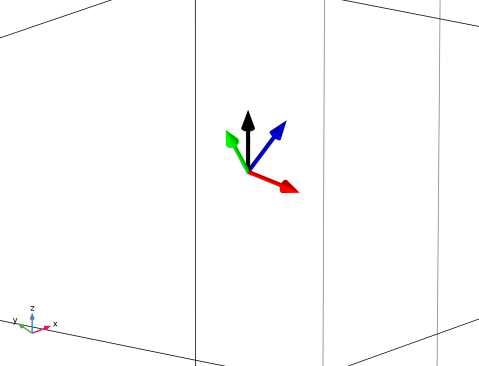
As shown, the out-of-plane base vector (red) is orthogonal to the plane spanned by the port normal (black) and the mode’s wave vector (blue). The in-plane base vector (green) is parallel to the plane spanned by the port normal and the mode’s wave vector.
Out-of-Plane Base Vector
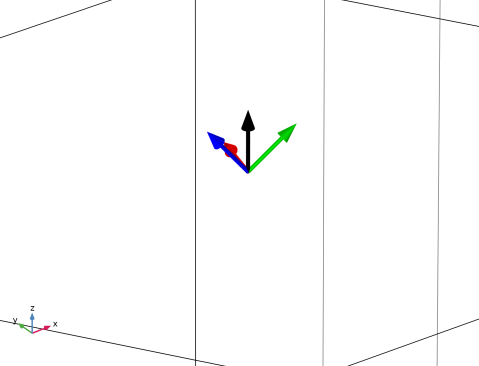
Change the arrow expressions to visualize the behavior for mode m = -1, n = -1 to demonstrate that the base vectors are different for the different modes.
1
In the Model Builder window, click Out-of-Plane Base Vector.
2
In the Settings window for Arrow Surface, locate the Expression section.
3
In the X-component text field, type ewfd.eJROOPx_n1_n1.
4
In the Y-component text field, type ewfd.eJROOPy_n1_n1.
5
In the Z-component text field, type ewfd.eJROOPz_n1_n1.
Here, the variable suffix n1_n1 represents the mode number m = -1, n = -1.
In-Plane Base Vector
1
In the Model Builder window, click In-Plane Base Vector.
2
In the Settings window for Arrow Surface, locate the Expression section.
3
In the X-component text field, type ewfd.eJRIPx_n1_n1.
4
In the Y-component text field, type ewfd.eJRIPy_n1_n1.
5
In the Z-component text field, type ewfd.eJRIPz_n1_n1.
Normalized Mode Wave Vector
1
In the Model Builder window, click Normalized Mode Wave Vector.
2
In the Settings window for Arrow Surface, locate the Expression section.
3
In the X-component text field, type ewfd.kModex_3/ewfd.k.
4
In the Y-component text field, type ewfd.kModey_3/ewfd.k.
5
In the Z-component text field, type ewfd.kModez_3/ewfd.k.
Here, the variable suffix is the port name, not the mode number.
6
In the Polarization Base Vectors toolbar, click  Plot.
As shown, the wave vector and the polarization vectors are different for this mode, compared to the vectors for the zero order mode.
Electromagnetic Waves, Frequency Domain (ewfd)
Periodic Structure 1
Now, repeat the simulation for an incoming wave with p-polarization (the electric field polarized in the plane of incidence).
1
In the Model Builder window, under Component 1 (comp1) > Electromagnetic Waves, Frequency Domain (ewfd) click Periodic Structure 1.
2
In the Settings window for Periodic Structure, locate the Port Mode Settings section.
3
4
In the Home toolbar, click  Compute.
Results
Electric Field (ewfd)
1
Click the  Zoom Extents button in the Graphics toolbar, and verify that your plot look the same as Figure 8.
Reflectance (ewfd)
1
In the Model Builder window, click Reflectance (ewfd).
2
In the Reflectance (ewfd) toolbar, click  Plot, and verify that your plot look the same as Figure 9.
Polarization Plot (ewfd)
Finally, take a look at the polarization states when the input wave is p-polarized.
1
In the Model Builder window, click Polarization Plot (ewfd).
2
In the Settings window for 1D Plot Group, click  Plot First.
Also in this case, the polarization is elliptical for the different modes.
3
Locate the Data section. In the Parameter values (lambda0 (µm)) list box, select 1.01.
4
In the Polarization Plot (ewfd) toolbar, click  Plot.
At this wavelength, close the resonance, the polarization for the m = 0, n = 0 mode switches to almost out-of-plane polarization, whereas the m = -1, n = -1 mode has almost circular polarization. The relative magnitude of the Jones vector elements is also reflected in the diffraction efficiency plot above.
Preferred Units 1
1
In the Results toolbar, click  Configurations and choose Preferred Units.
2
In the Settings window for Preferred Units, locate the Units section.
3
Click  Add Physical Quantity.
4
In the Physical Quantity dialog, type plane in the text field.
5
In the tree, select General > Plane angle (rad).
6
7
In the Settings window for Preferred Units, locate the Units section.
8
Diffraction Angles (ewfd)
1
In the Results toolbar, click  1D Plot Group.
2
In the Settings window for 1D Plot Group, type Diffraction Angles (ewfd) in the Label text field.
Global 1
1
Right-click Diffraction Angles (ewfd) and choose Global.
2
In the Settings window for Global, click Replace Expression in the upper-right corner of the y-Axis Data section. From the menu, choose Component 1 (comp1) > Electromagnetic Waves, Frequency Domain > Ports > Elevation angle, by order > All expressions in this group.
3
Locate the x-Axis Data section. From the Parameter list, choose Expression.
4
In the Expression text field, type ewfd.lambda0.
5
Click to expand the Legends section. Find the Include subsection. Clear the Solution checkbox.
Global 2
1
Right-click Global 1 and choose Duplicate.
2
In the Settings window for Global, click Replace Expression in the upper-right corner of the y-Axis Data section. From the menu, choose Component 1 (comp1) > Electromagnetic Waves, Frequency Domain > Ports > Azimuth angle, by order > All expressions in this group.
3
Click to expand the Coloring and Style section. Find the Line style subsection. From the Line list, choose None.
4
From the Color list, choose Cycle (reset).
5
Find the Line markers subsection. From the Marker list, choose Cycle.
6
In the Diffraction Angles (ewfd) toolbar, click  Plot.
Diffraction Angles (ewfd)
1
In the Model Builder window, click Diffraction Angles (ewfd).
2
In the Settings window for 1D Plot Group, click to expand the Title section.
3
From the Title type list, choose None.
4
Locate the Plot Settings section.
5
Select the y-axis label checkbox. In the associated text field, type Diffraction angles (degrees).
6
Locate the Legend section. From the Layout list, choose Outside graph axis area.
7
From the Position list, choose Bottom.
8
In the Number of rows text field, type 3.
9
In the Diffraction Angles (ewfd) toolbar, click  Plot.
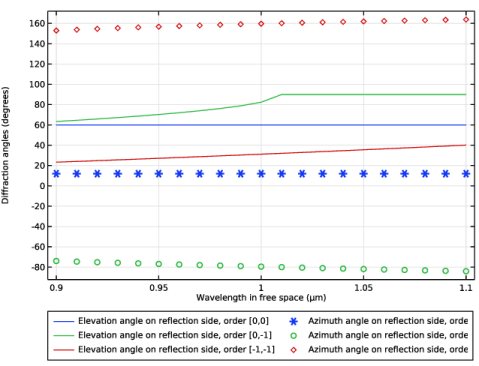
Notice that the wavelength dependence for the elevation and azimuth angles is very small for m = n = 0, whereas there is some wavelength dependence for the higher-order modes.