
PDF

Silicon on Insulator Optical Grating Coupler
Introduction
Silicon photonics combine low-cost and high-performance functionalities into the state-of-the-art optical systems, while maintaining a compact footprint. The high packing density allows for the integration of different photonic components like lasers, waveguides, and detectors on a single chip. However, there is a challenge when interfacing the chip with external systems. This is because the large size mismatch between the on-chip and the off-chip optical modes (that is, a single-mode optical fiber) might cause problems with the coupling efficiency and the overall device footprint. One solution to this problem is the use of optical grating couplers, which offer compact footprints, flexible placement anywhere on the die, relaxed alignment and packaging, and straightforward wafer-level testing. These advantages are especially attractive in large-scale photonic integrated circuits.
This model analyzes the performance of an optical surface grating coupler on a silicon-on-insulator (SOI) platform operating at 1550 nm wavelength. The device consists of a one-dimensional periodic grating patterned on the top of a silicon layer. The coupling efficiency and the radiation losses for different incident angles of a free space laser beam, to couple into the guided mode of the waveguide, is evaluated to characterize the coupler.
Model Definition
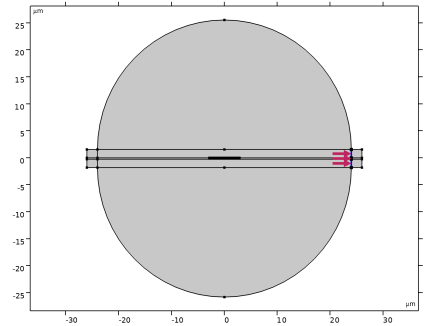
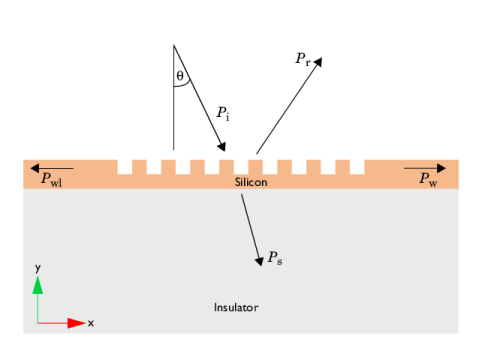
Figure 1 shows the schematic of a grating coupler on a SOI platform. A one-dimensional grating is patterned on top of a silicon layer, along the x direction, and the silicon layer is supported by an SiO2 insulator substrate. A paraxial Gaussian beam is focused on the grating surface. The angle between the beam axis and the normal axis to the grating coupler is θ.
The fundamental operation of a grating coupler is based on the Bragg condition or the phase-matching condition. The gratings create a periodic variation of refractive index of the waveguide that enables to couple external light into the waveguide mode upon satisfying the phase-matching condition. For coupling between the incident light and the fundamental mode of the waveguide, the phase-matching condition is expressed as
(1).
In Equation 1, β is the propagation constant of the guided mode, k is the wavenumber in the incident medium, neff is the effective index of the guided mode, Λ is the periodicity of the gratings, and m is the grating diffraction order.
Figure 1: The modeled SOI grating coupler. The model considers a one-dimensional periodic grating patterned on top of a silicon layer that is supported by an SiO2 insulator.
To estimate the coupling efficiency, the power loss through the major channels should be considered. Firstly, some uncoupled power Ps will propagate downward and leak in to the insulator substrate. Secondly, some portion Pr will be reflected from the grating coupler surface back to the incident medium. Thirdly, some portion Pwl is coupled to the waveguide, but propagates in the opposite direction, especially when the incident beam axis is near the normal axis to the grating coupler surface. The final coupled power into the waveguide is expressed as
(2)
The performance of the grating coupler depends on the incident angle of the beam. This is because the incident angle determines how well the in-plane momentum of the incident wave matches the momentum of the guided mode.
Results and Discussion
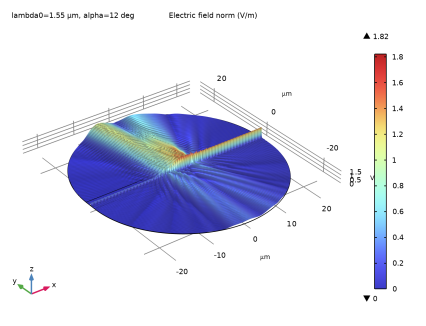
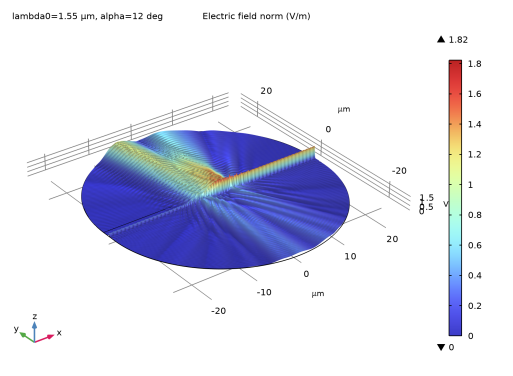
Figure 2 shows the electric field norm of the total field for an incident angle θ = 12°. The incident beam is coupled as a fundamental mode into the waveguide through the grating coupler and propagates dominantly in the +x direction. Some of the incident waves are reflected back from the grating coupler while others are transmitted to the transmission side insulator domain.
Figure 2: Total electric field norm for incident angle θ = π/15.
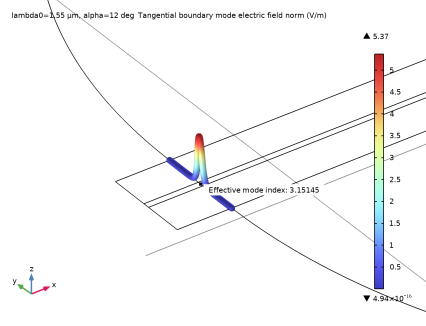
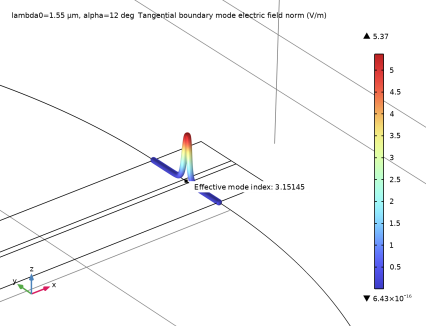
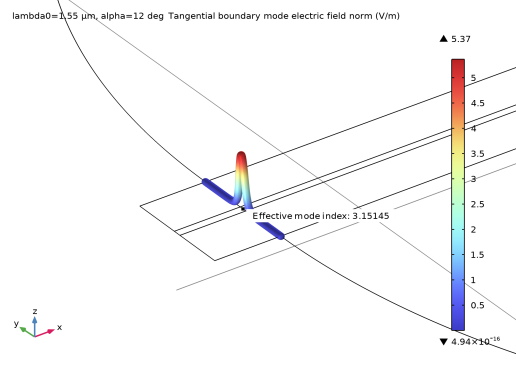
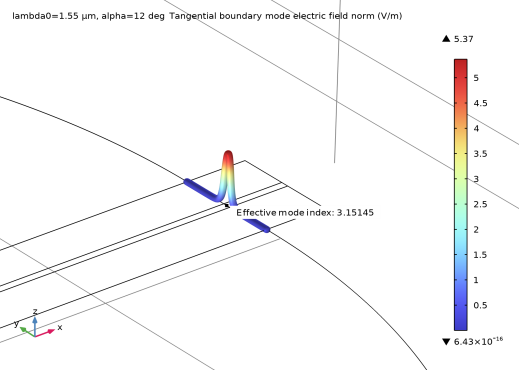
Figure 3 and Figure 4 show the norm of the electric field of the fundamental guided mode at the cross sections of Port 1 and Port 2, respectively.
Figure 3: The norm of the electric mode field for Port 1.
Figure 4: The norm of the electric mode field for Port 2.
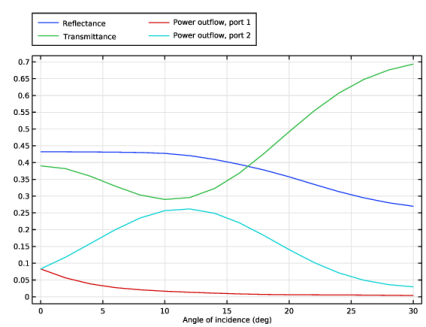
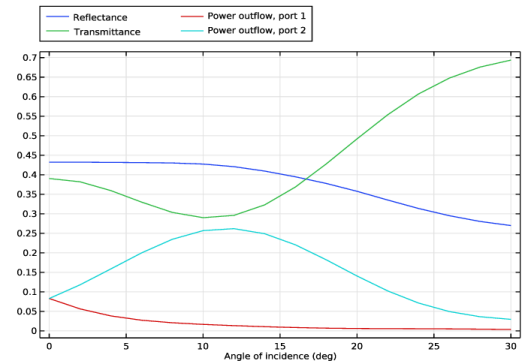
Figure 5 shows the calculated reflectance and transmittance for the Gaussian beam, as well as the power of the guided mode flowing through Port 1 and Port 2 versus the incident angles. Optimal coupling occurs for the incident angle θ = 12°, where the power of the fundamental mode flowing through Port 2 is at its maximum.
Figure 5: A plot of the reflectance, transmittance, and power outflow of the guided mode through Port 1 and Port 2 versus incident angles.
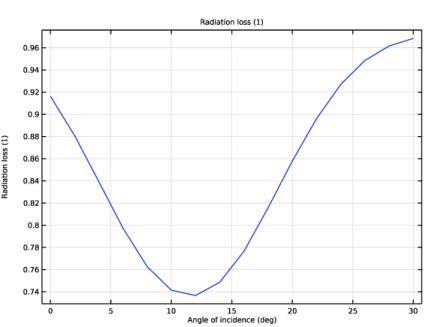
The radiation loss plot in Figure 6 shows that the loss is minimum for the incident angle , where the coupling efficiency is maximum.
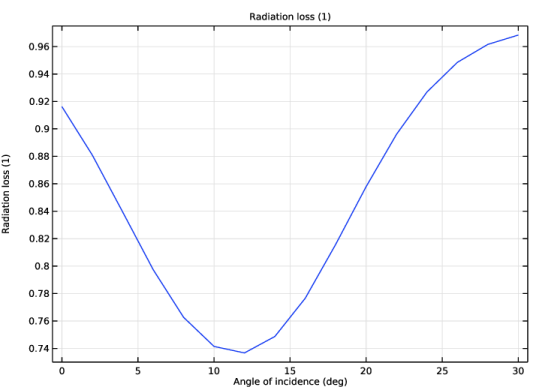
Figure 6: Radiation loss versus incident angles.
Notes About the COMSOL Implementation
The Electromagnetic Waves, Frequency Domain interface is used to perform full-wave simulation at the specified excitation wavelength of 1550 nm. Two Scattering Boundary Condition nodes and two Port nodes are used to handle the free space and the guided modes, and to analyze the coupling efficiency of the incident beam into both sides of the waveguide as well as the general reflection and the transmission characteristics.
The incident wave is an s-polarized free space paraxial Gaussian beam and is defined using a Scattering Boundary Condition (SBC) node. The Reference Point subnode of this SBC is used to ensure that the incident beam is focused on the center of the grating for all incident angles. Another Scattering Boundary Condition is used to absorb the wave transmitted through the waveguide in the transmission side. A numeric-type Port in combination with a Boundary Mode Analysis study step is used to compute the fundamental lowest-order mode of the waveguide. Since modes may exit at both sides of the waveguide, each side has its own numeric Port and associated Boundary Mode Analysis study steps. To ensure that any higher-order modes in the waveguide are not reflected by the Port conditions, they are backed by Perfectly Matched Layer domains with the slit condition being used. A Wavelength Domain study step with Auxiliary sweep is used to perform a sweep over the incident angle of the beam.
Application Library path: Wave_Optics_Module/Gratings_and_Metamaterials/grating_coupler
Modeling Instructions
From the File menu, choose New.
New
In the New window, click  Model Wizard.
Model Wizard
1
In the Model Wizard window, click  2D.
2
In the Select Physics tree, select Optics > Wave Optics > Electromagnetic Waves, Frequency Domain (ewfd).
3
Click Add.
4
Click  Study.
5
In the Select Study tree, select Preset Studies for Selected Physics Interfaces > Wavelength Domain.
6
Geometry 1
1
In the Model Builder window, under Component 1 (comp1) click Geometry 1.
2
In the Settings window for Geometry, locate the Units section.
3
From the Length unit list, choose µm.
Global Definitions
Create a list of parameters to define the wave properties.
Parameters: Wave Properties
1
In the Model Builder window, under Global Definitions click Parameters 1.
2
In the Settings window for Parameters, type Parameters: Wave Properties in the Label text field.
3
Locate the Parameters section. In the table, enter the following settings:
Parameters: Geometric Properties
Now, create a list of parameters that will be used to draw the geometry.
1
In the Home toolbar, click  Parameters and choose Add > Parameters.
2
In the Settings window for Parameters, type Parameters: Geometric Properties in the Label text field.
3
Locate the Parameters section. In the table, enter the following settings:
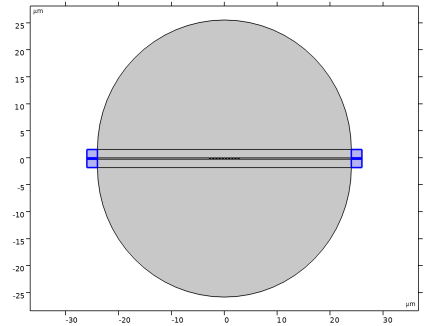
Parameters: Material Properties
Finally, create a list of parameters to define the material properties.
1
In the Home toolbar, click  Parameters and choose Add > Parameters.
2
In the Settings window for Parameters, type Parameters: Material Properties in the Label text field.
3
Locate the Parameters section. In the table, enter the following settings:
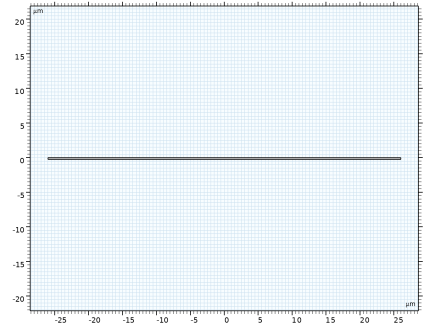
Geometry 1
Rectangle 1 (r1)
1
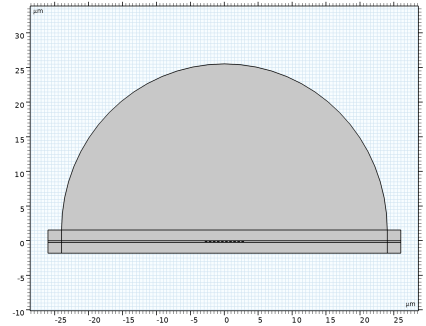
In the Geometry toolbar, click  Rectangle.
2
In the Settings window for Rectangle, locate the Size and Shape section.
3
In the Width text field, type 2*R+2*t_PML.
4
In the Height text field, type si_d.
5
Locate the Position section. In the x text field, type -R-t_PML.
6
In the y text field, type -si_d.
7
Click  Build Selected.
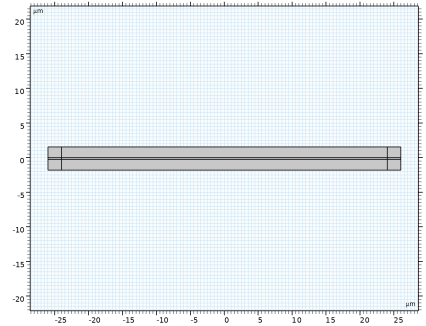
Rectangle 2 (r2)
1
Right-click Rectangle 1 (r1) and choose Duplicate.
2
In the Settings window for Rectangle, locate the Size and Shape section.
3
In the Height text field, type wg_top+wg_bottom+si_d.
4
Locate the Position section. In the y text field, type -wg_bottom-si_d.
5
Click to expand the Layers section. Select the Layers to the left checkbox.
6
Select the Layers to the right checkbox.
7
Clear the Layers on bottom checkbox.
8
9
Click  Build Selected.
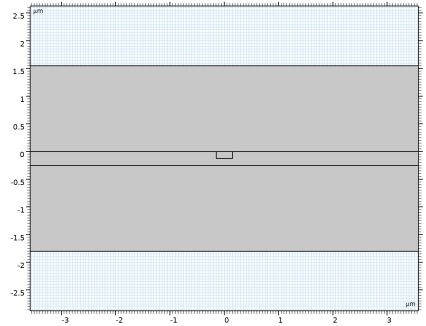
Rectangle 3 (r3)
1
In the Geometry toolbar, click  Rectangle.
2
In the Settings window for Rectangle, locate the Size and Shape section.
3
In the Width text field, type ridge_w.
4
In the Height text field, type ridge_d.
5
Locate the Position section. In the x text field, type -ridge_w/2.
6
In the y text field, type -ridge_d.
7
Click  Build Selected.
8
Click the  Zoom In button in the Graphics toolbar, 3 times for better visualization.
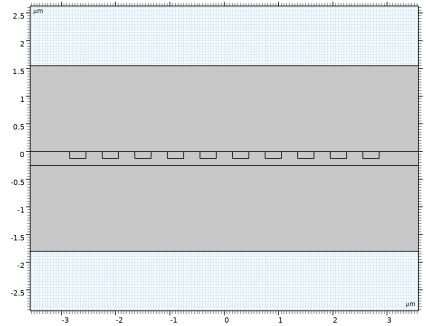
Move 1 (mov1)
1
In the Geometry toolbar, click  Transforms and choose Move.
2
3
In the Settings window for Move, locate the Displacement section.
4
In the x text field, type range(-N/2,1,N/2)*a.
5
Click  Build Selected.
6
Click the  Zoom Extents button in the Graphics toolbar.
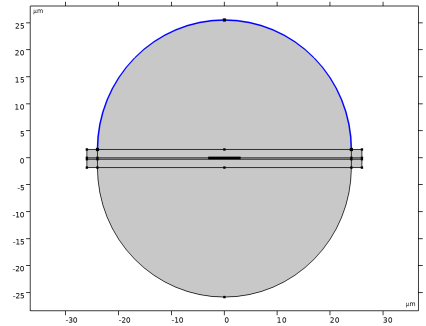
Circle 1 (c1)
Add a circle to draw the top air domain.
1
In the Geometry toolbar, click  Circle.
2
In the Settings window for Circle, locate the Size and Shape section.
3
In the Radius text field, type R.
4
In the Sector angle text field, type 180.
5
Locate the Position section. In the y text field, type wg_top.
6
Click  Build Selected.
7
Click the  Zoom Extents button in the Graphics toolbar.
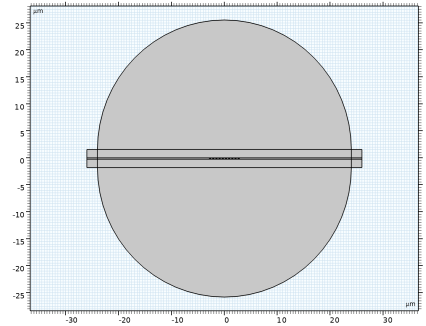
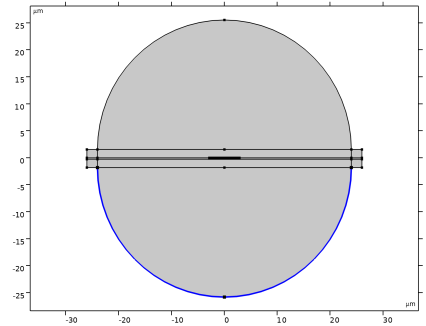
Circle 2 (c2)
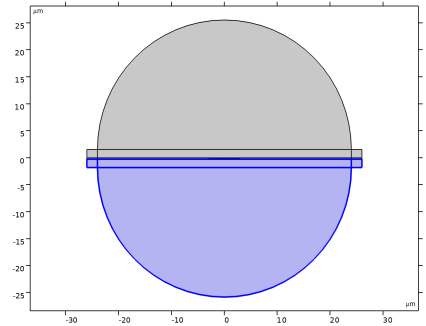
Add another circle to draw the bottom insulator domain.
1
In the Geometry toolbar, click  Circle.
2
In the Settings window for Circle, locate the Size and Shape section.
3
In the Radius text field, type R.
4
In the Sector angle text field, type 180.
5
Locate the Position section. In the y text field, type -wg_bottom-si_d.
6
Locate the Rotation Angle section. In the Rotation text field, type 180.
7
Click  Build Selected.
8
Click the  Zoom Extents button in the Graphics toolbar.
Materials
Air
1
In the Model Builder window, under Component 1 (comp1) right-click Materials and choose Blank Material.
2
In the Settings window for Material, type Air in the Label text field.
3
Locate the Material Contents section. In the table, enter the following settings:
SiO2
1
Right-click Materials and choose Blank Material.
2
In the Settings window for Material, type SiO2 in the Label text field.
3
4
Locate the Material Contents section. In the table, enter the following settings:
Si
1
Right-click Materials and choose Blank Material.
2
In the Settings window for Material, type Si in the Label text field.
3
4
Locate the Material Contents section. In the table, enter the following settings:
Definitions
Perfectly Matched Layer 1 (pml1)
1
In the Definitions toolbar, click  Perfectly Matched Layer.
2
Electromagnetic Waves, Frequency Domain (ewfd)
Scattering Boundary Condition 1
1
In the Physics toolbar, click  Boundaries and choose Scattering Boundary Condition.
2
3
In the Settings window for Scattering Boundary Condition, locate the Scattering Boundary Condition section.
4
From the Incident field list, choose Gaussian beam.
5
In the w0 text field, type beam_d/2.
6
From the Input quantity list, choose Power.
7
In the P text field, type P0.
8
Specify the Eg0 vector as
9
Specify the kdir vector as
10
From the Scattered wave type list, choose Cylindrical wave.
11
Specify the r0 vector as
Reference Point 1
1
In the Physics toolbar, click  Attributes and choose Reference Point.
2
In the Settings window for Reference Point, locate the Reference Point section.
3
From the Definition list, choose User defined.
4
Specify the r0 vector as
Scattering Boundary Condition 2
1
In the Physics toolbar, click  Boundaries and choose Scattering Boundary Condition.
2
3
In the Settings window for Scattering Boundary Condition, locate the Scattering Boundary Condition section.
4
From the Scattered wave type list, choose Cylindrical wave.
5
Specify the r0 vector as
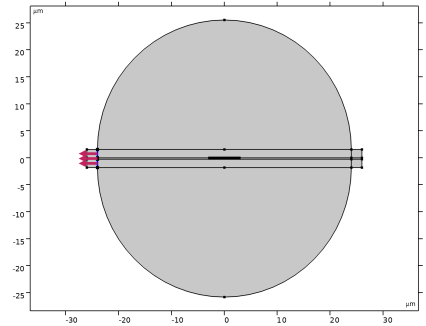
Port 1
1
In the Physics toolbar, click  Boundaries and choose Port.
2
3
In the Settings window for Port, locate the Port Properties section.
4
From the Type of port list, choose Numeric.
5
From the Wave excitation at this port list, choose Off.
6
Select the Activate slit condition on interior port checkbox.
7
Click Toggle Power Flow Direction.
Port 2
1
Right-click Port 1 and choose Duplicate.
2
In the Settings window for Port, locate the Boundary Selection section.
3
Click  Clear Selection.
4
5
Locate the Port Properties section. Click Toggle Power Flow Direction.
Study 1
Step 1: Wavelength Domain
1
In the Model Builder window, under Study 1 click Step 1: Wavelength Domain.
2
In the Settings window for Wavelength Domain, locate the Study Settings section.
3
In the Wavelengths text field, type lda0.
4
Click to expand the Study Extensions section. Select the Auxiliary sweep checkbox.
5
6
Step 2: Boundary Mode Analysis
1
In the Study toolbar, click  More Study Steps and choose Other > Boundary Mode Analysis.
2
In the Settings window for Boundary Mode Analysis, locate the Study Settings section.
3
In the Mode analysis frequency text field, type f0.
4
Select the Desired number of modes checkbox.
5
In the Search for modes around shift text field, type n_Si.
Step 3: Boundary Mode Analysis 1
1
Right-click Step 2: Boundary Mode Analysis and choose Duplicate.
2
In the Settings window for Boundary Mode Analysis, locate the Study Settings section.
3
In the Port name text field, type 2.
Step 2: Boundary Mode Analysis, Step 3: Boundary Mode Analysis 1
In the Model Builder window, under Study 1, Ctrl-click to select Step 2: Boundary Mode Analysis and Step 3: Boundary Mode Analysis 1.
Step 1: Boundary Mode Analysis
1
Drag and drop above Step 3: Wavelength Domain.
2
In the Study toolbar, click  Compute.
Results
Electric Field (ewfd)
1
In the Settings window for 2D Plot Group, locate the Data section.
2
From the Parameter value (alpha (deg)) list, choose 12, to visualize the field plot at which maximum coupling occurs.
Height Expression 1
1
In the Model Builder window, expand the Electric Field (ewfd) node.
2
Right-click Surface 1 and choose Height Expression.
3
In the Settings window for Height Expression, locate the Axis section.
4
Select the Scale factor checkbox. In the associated text field, type 2, to better visualize the field plot.
5
In the Electric Field (ewfd) toolbar, click  Plot.
6
Click the  Zoom Extents button in the Graphics toolbar.
Electric Mode Field, Port 1 (ewfd)
1
In the Model Builder window, under Results click Electric Mode Field, Port 1 (ewfd).
2
In the Settings window for 2D Plot Group, locate the Data section.
3
From the Parameter value (alpha (deg)) list, choose 12.
Line 1
1
In the Model Builder window, expand the Electric Mode Field, Port 1 (ewfd) node, then click Line 1.
2
In the Settings window for Line, locate the Coloring and Style section.
3
Select the Radius scale factor checkbox. In the associated text field, type 0.1.
Height Expression 1
1
In the Model Builder window, expand the Line 1 node, then click Height Expression 1.
2
In the Settings window for Height Expression, click to expand the View section.
3
Click  Go to Source, to adjust the camera settings and properly visualize the field plot.
Camera
1
In the Model Builder window, expand the View 3D 3 node, then click Camera.
2
In the Settings window for Camera, locate the Camera section.
3
In the Zoom angle text field, type 2.
4
Locate the Center of Rotation section. In the x text field, type -16.
5
In the y text field, type -0.2.
6
In the z text field, type 0.
7
Locate the View Offset section. In the x text field, type 1.45.
8
In the y text field, type 0.77.
9
Click  Update.
Electric Mode Field, Port 2 (ewfd)
1
In the Model Builder window, under Results click Electric Mode Field, Port 2 (ewfd).
2
In the Settings window for 2D Plot Group, locate the Data section.
3
From the Parameter value (alpha (deg)) list, choose 12.
Line 1
1
In the Model Builder window, expand the Electric Mode Field, Port 2 (ewfd) node, then click Line 1.
2
In the Settings window for Line, locate the Coloring and Style section.
3
Select the Radius scale factor checkbox. In the associated text field, type 0.1.
Height Expression 1
1
In the Model Builder window, expand the Line 1 node, then click Height Expression 1.
2
In the Settings window for Height Expression, click to expand the View section.
3
Click  Go to Source, to adjust the camera settings.
Camera
1
In the Model Builder window, expand the View 3D 4 node, then click Camera.
2
In the Settings window for Camera, locate the Camera section.
3
In the Zoom angle text field, type 2.
4
Locate the Center of Rotation section. In the x text field, type 22.7.
5
In the y text field, type -1.8.
6
In the z text field, type 0.
7
Locate the View Offset section. In the x text field, type -1.45.
8
In the y text field, type -0.7.
9
Click  Update.
Coupling Efficiency
Now, plot the reflectance, transmittance, and the power of the guided mode flowing through the ports versus the incident angles to analyze the coupling efficiency.
1
In the Results toolbar, click  1D Plot Group.
2
In the Settings window for 1D Plot Group, type Coupling Efficiency in the Label text field.
Global 1
1
Right-click Coupling Efficiency and choose Global.
2
In the Settings window for Global, click Add Expression in the upper-right corner of the y-Axis Data section. From the menu, choose Component 1 (comp1) > Electromagnetic Waves, Frequency Domain > Global > ewfd.sctr1.etaOut - Outcoupling efficiency - 1.
3
Locate the y-Axis Data section. In the table, enter the following settings:
4
Click Add Expression in the upper-right corner of the y-Axis Data section. From the menu, choose Component 1 (comp1) > Electromagnetic Waves, Frequency Domain > Global > ewfd.sctr2.etaOut - Outcoupling efficiency - 1.
5
Locate the y-Axis Data section. In the table, enter the following settings:
6
Click Add Expression in the upper-right corner of the y-Axis Data section. From the menu, choose Component 1 (comp1) > Electromagnetic Waves, Frequency Domain > Global > ewfd.port1.etaOut - Outcoupling efficiency, port 1 - 1.
7
Locate the y-Axis Data section. In the table, enter the following settings:
8
Click Add Expression in the upper-right corner of the y-Axis Data section. From the menu, choose Component 1 (comp1) > Electromagnetic Waves, Frequency Domain > Global > ewfd.port2.etaOut - Outcoupling efficiency, port 2 - 1.
9
Locate the y-Axis Data section. In the table, enter the following settings:
10
Click to expand the Legends section. Find the Include subsection. Clear the Solution checkbox.
Coupling Efficiency
1
In the Model Builder window, click Coupling Efficiency.
2
In the Settings window for 1D Plot Group, locate the Plot Settings section.
3
Select the x-axis label checkbox. In the associated text field, type Angle of incidence (deg).
4
Locate the Legend section. From the Layout list, choose Outside graph axis area.
5
From the Position list, choose Top.
6
In the Number of rows text field, type 2.
7
In the Coupling Efficiency toolbar, click  Plot.
Radiation Loss
Finally, plot the radiation loss versus the incident angles.
1
In the Results toolbar, click  1D Plot Group.
2
In the Settings window for 1D Plot Group, type Radiation Loss in the Label text field.
Global 1
1
Right-click Radiation Loss and choose Global.
2
In the Settings window for Global, locate the y-Axis Data section.
3
4
Locate the Legends section. Clear the Show legends checkbox.
Radiation Loss
1
In the Model Builder window, click Radiation Loss.
2
In the Settings window for 1D Plot Group, locate the Plot Settings section.
3
Select the x-axis label checkbox. In the associated text field, type Angle of incidence (deg).
4
In the Radiation Loss toolbar, click  Plot.