

PDF

Graphene Metamaterial Perfect Absorber
Introduction
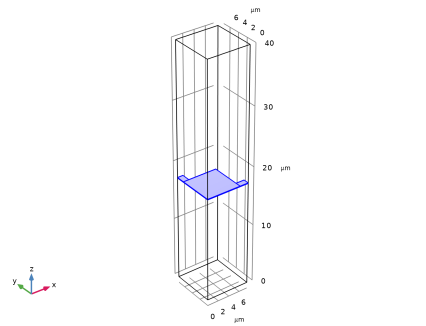
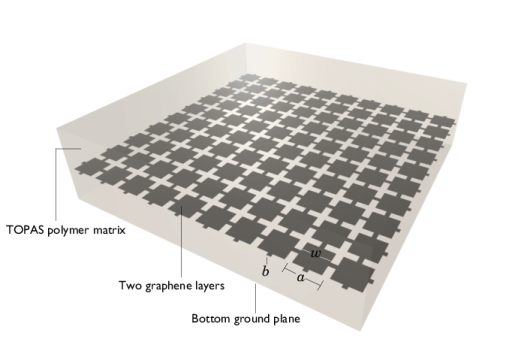
Graphene, carbon atoms arranged in a two-dimensional hexagonal lattice, has sparked tremendous research and application interests since its experimental discovery about two decades ago. Besides being ultra-thin, this magical material exhibits a plethora of interesting properties, including high electrical and thermal conductivities, high elasticity, high mechanical strength, and so on. Among various applications, a promising field is graphene-based electro-optical devices, such as photodetectors, photodiodes, and metamaterials. An additional desirable trait of graphene is that its optical response can be actively controlled by changing its Fermi energy via electrical gating. In this model, we first demonstrate how to compute the optical conductivity of graphene using the Kubo formula. The computed conductivity is then used to model a graphene-based THz metamaterial absorber (Figure 1). Due to the atomic thickness of graphene, explicit volumetric modeling of it would be computationally expensive. We show that this can easily be avoided by using the Transition Boundary Condition (TBC) to consider graphene as a 2D surface.
Figure 1: Schematic of the graphene-based THz metamaterial absorber.
Model Definition
Both the electronic intraband transitions and interband transitions contribute to the conductivity of graphene. Using the Kubo formula, it has been shown that the intraband and interband contributions are given by
(1),
(2),
where kB is the Boltzmann constant, is the reduced Planck constant, e is the electron charge, T is the temperature, eF is the Fermi energy, τ is the relaxation time, and ω = 2πf is the angular frequency. The function H(Ω) is given by

(3).
Finally, the total 2D sheet conductivity of graphene is given by σ = σintra + σinter. In this model, we consider = 300 K and τ = 1013 s. The integral in σinter can be performed using the built-in integrate() operator. Note that compared to Ref. 1, j in the above equations is replaced with j due to the phase convention in COMSOL.
For low frequencies, in the THz regime, for example, σ is dominated by the intraband transitions. For higher optical frequencies such as mid- and near-infrared, the interband contribution is important. Although in this model we aim to demonstrate a THz metamaterial, for completeness we still include both the intraband and interband contributions in the conductivity calculation.
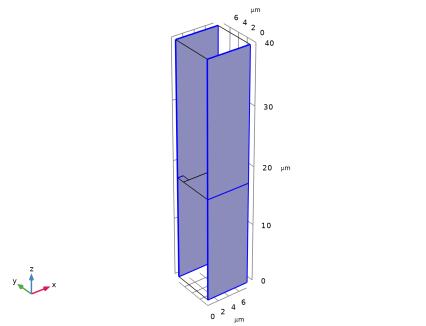
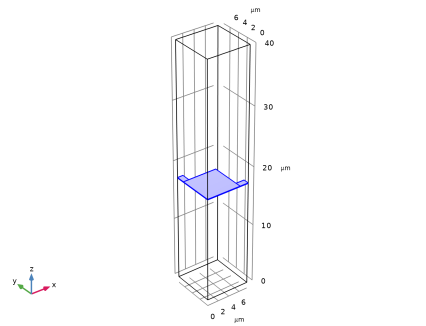
Next, we model the graphene-based THz metamaterial absorber, which is two graphene layers patterned into a periodic fishnet structure (Figure 1) embedded in a polymer material TOPAS. The bottom plane is a metal ground plane. The refractive index of TOPAS is 1.53 in THz domain. The geometric parameters for the patterned graphene can be found in Ref. 1. The common approach to model a periodic structure like this is to use periodic boundary condition. However, in this particular case, the unit cell has mirror symmetry. Consequently, in cases where we only consider normal incidence, Perfect Electric Conductor (PEC) and Perfect Magnetic Conductor (PMC) conditions can be used as symmetry planes such that only a quarter of the unit cell needs to be modeled, which greatly reduces the simulation time. In addition, we will not model the thickness of graphene explicitly but use the TBC. This further improves the efficiency of the simulation.
Results and Discussion
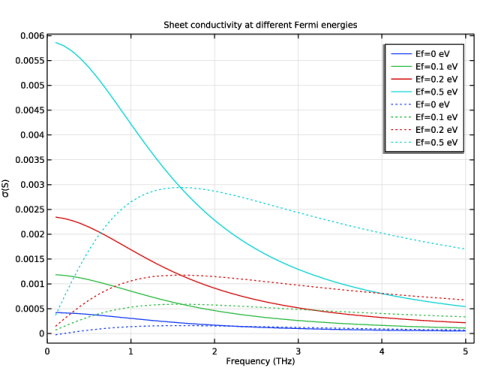
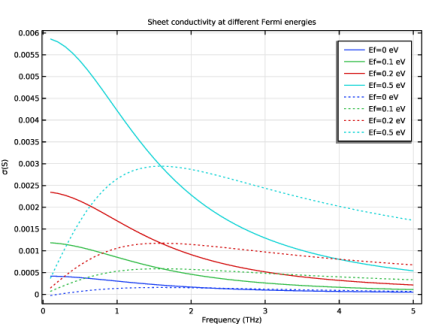
The calculated graphene sheet conductivity is shown in Figure 2. It shows the real and imaginary parts of σ for a few different Fermi energies. The intraband transition leads to a Drude-like response similar to a typical metal.
Figure 2: Calculated sheet conductivity of graphene at different Fermi energies. The solid curves are the real parts and the dashed curves are the corresponding (negative) imaginary parts.
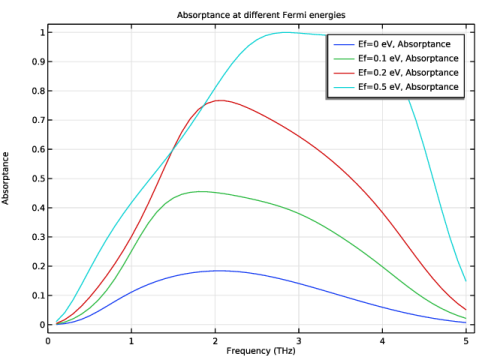
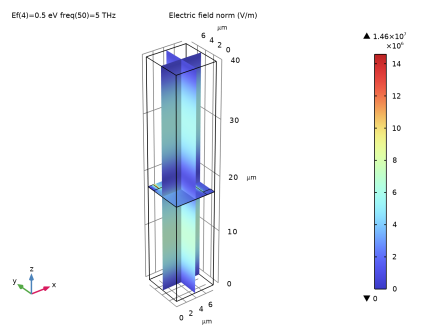
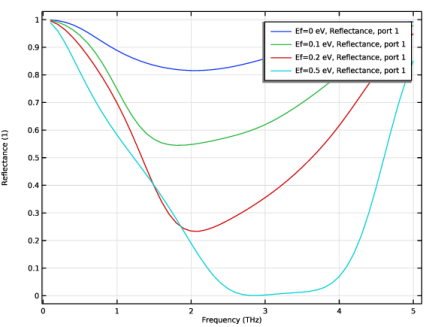
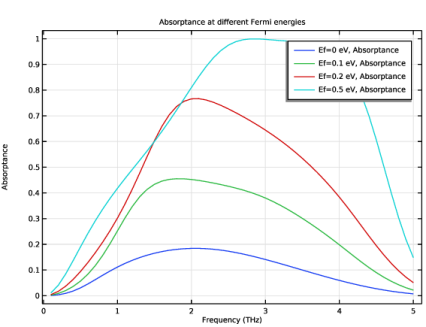
The simulated absorption spectra at different Fermi energies are shown in Figure 3. Even though the polymer matrix has no absorption, the Fabry–Perot resonator formed by the graphene and the ground plane leads to perfect absorption around 3 THz at 0.5 eV Fermi energy.
Figure 3: Absorption spectra of the graphene-based metamaterial at different Fermi energies.
Notes About the COMSOL Implementation
COMSOL provides two convenient features that make calculating the optical conductivity of graphene much easier. First of all, for complicated equations like Equation 1 and Equation 2, usually it is very important to make sure all the quantities are used with the correct and consistent unit system. In COMSOL this is not required since the unit conversion will be done automatically. Secondly, COMSOL provides a list of built-in constants. We do not need to look up the values of physical constants such as the reduced Planck constant, the Boltzmann constant, the speed of light, and the electron charge. They can be directly referred to as hbar_const, k_B_const, c_const, and e_const.
In the current model, we use the TBC to model graphene. Alternatively, graphene can be modeled as 2D surface current or a 3D layer with an effective thickness, as discussed in the blog posts: www.comsol.com/blogs/modeling-graphene-in-high-frequency-electromagnetics and www.comsol.com/blogs/should-we-model-graphene-as-a-2d-sheet-or-thin-3d-volume.
Reference
1. A. Andryieuski and A.V. Lavrinenko, “Graphene metamaterials based tunable terahertz absorber: effective surface conductivity approach,” Opt. Express, vol. 21, pp. 9144–9155, 2013.
Application Library path: Wave_Optics_Module/Gratings_and_Metamaterials/graphene_metamaterial_perfect_absorber
Modeling Instructions
From the File menu, choose New.
New
In the New window, click  Model Wizard.
Model Wizard
1
In the Model Wizard window, click  3D.
2
In the Select Physics tree, select Optics > Wave Optics > Electromagnetic Waves, Frequency Domain (ewfd).
3
Click Add.
4
Click  Study.
5
In the Select Study tree, select General Studies > Frequency Domain.
6
Global Definitions
Parameters 1
1
In the Model Builder window, under Global Definitions click Parameters 1.
2
In the Settings window for Parameters, locate the Parameters section.
3
Definitions
H
1
In the Model Builder window, expand the Component 1 (comp1) > Definitions node.
2
Right-click Definitions and choose Functions > Analytic.
3
In the Settings window for Analytic, type H in the Label text field.
4
In the Function name text field, type H.
5
Locate the Definition section. In the Expression text field, type sinh(hbar_const*x/(k_B_const*T))/(cosh(hbar_const*x/(k_B_const*T))+cosh(Ef/(k_B_const*T))).
6
Locate the Units section. In the table, enter the following settings:
7
Locate the Plot Parameters section. In the table, enter the following settings:
Variables 1
1
Right-click Definitions and choose Variables.
2
In the Settings window for Variables, locate the Variables section.
3
Here, the integrate operator is used to perform the numerical integration.
Geometry 1
1
In the Model Builder window, expand the Component 1 (comp1) > Geometry 1 node, then click Geometry 1.
2
In the Settings window for Geometry, locate the Units section.
3
From the Length unit list, choose µm.
Block 1 (blk1)
1
In the Geometry toolbar, click  Block.
2
In the Settings window for Block, locate the Size and Shape section.
3
In the Width text field, type a/2.
4
In the Depth text field, type a/2.
5
In the Height text field, type d_domain.
Work Plane 1 (wp1)
1
In the Geometry toolbar, click  Work Plane.
2
In the Settings window for Work Plane, locate the Plane Definition section.
3
In the z-coordinate text field, type d_sub.
Work Plane 1 (wp1) > Plane Geometry
In the Model Builder window, click Plane Geometry.
Work Plane 1 (wp1) > Square 1 (sq1)
1
In the Work Plane toolbar, click  Square.
2
In the Settings window for Square, locate the Size section.
3
In the Side length text field, type w/2.
Work Plane 1 (wp1) > Rectangle 1 (r1)
1
In the Work Plane toolbar, click  Rectangle.
2
In the Settings window for Rectangle, locate the Size and Shape section.
3
In the Width text field, type b/2.
4
In the Height text field, type (a-w)/2.
5
Locate the Position section. In the yw text field, type w/2.
Work Plane 1 (wp1) > Rectangle 2 (r2)
1
In the Work Plane toolbar, click  Rectangle.
2
In the Settings window for Rectangle, locate the Size and Shape section.
3
In the Width text field, type (a-w)/2.
4
In the Height text field, type b/2.
5
Locate the Position section. In the xw text field, type w/2.
6
In the Work Plane toolbar, click  Build All.
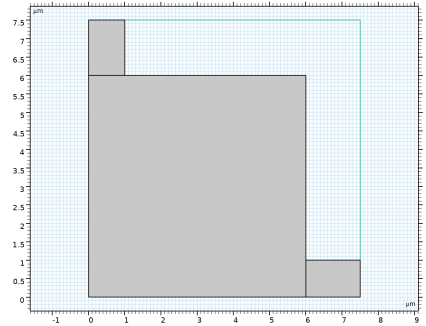
Due to the mirror symmetry of the unit cell, it is sufficient to model a quarter of the structure, which greatly improves the simulation efficiency.
Materials
Background
1
In the Model Builder window, under Component 1 (comp1) right-click Materials and choose Blank Material.
2
In the Settings window for Material, type Background in the Label text field.
3
Locate the Material Contents section. In the table, enter the following settings:
Graphene
1
Right-click Materials and choose Blank Material.
2
In the Settings window for Material, type Graphene in the Label text field.
3
Click to expand the Material Properties section. In the Material properties tree, select Basic Properties > Electric Conductivity.
4
Click  Add to Material.
5
Locate the Material Contents section. In the table, enter the following settings:
The 3D conductivity is the 2D sheet conductivity divided by the effective thickness.
6
Locate the Geometric Entity Selection section. From the Geometric entity level list, choose Boundary.
7
Click the  Wireframe Rendering button in the Graphics toolbar.
8
Electromagnetic Waves, Frequency Domain (ewfd)
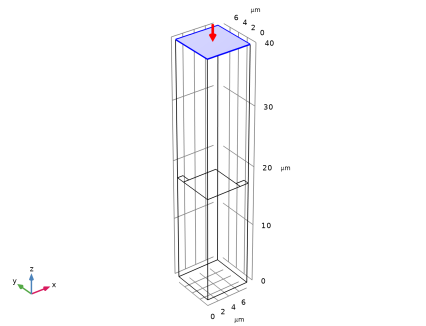
By default, a PEC condition is applied to all exterior boundaries. We consider a plane wave polarized in the x direction that is incident on the unit cell in the normal direction. Therefore, PEC conditions apply on the surfaces perpendicular to the polarization direction, while PMC conditions are used on the surfaces parallel to the polarization direction.
Perfect Magnetic Conductor 1
1
In the Physics toolbar, click  Boundaries and choose Perfect Magnetic Conductor.
2
Port 1
1
In the Physics toolbar, click  Boundaries and choose Port.
2
Transition Boundary Condition 1
1
In the Physics toolbar, click  Boundaries and choose Transition Boundary Condition.
2
3
In the Settings window for Transition Boundary Condition, locate the Transition Boundary Condition section.
4
From the Electric displacement field model list, choose Relative permittivity.
5
From the εr list, choose User defined. From the μr list, choose User defined. In the d text field, type 2*d_eff.
Since there are two graphene layers adjacent to each other, the thickness is twice the effective thickness of a single layer.
Mesh 1
1
In the Model Builder window, under Component 1 (comp1) click Mesh 1.
2
In the Settings window for Mesh, locate the Physics-Controlled Mesh section.
3
From the Element size list, choose Extremely fine.
Because of the use of symmetry planes and the TBC, it is possible to use a fine mesh to get accurate results and still finish the simulation in just a few minutes.
Study 1
Parametric Sweep
1
In the Study toolbar, click  Parametric Sweep.
2
In the Settings window for Parametric Sweep, locate the Study Settings section.
3
4
Step 1: Frequency Domain
1
In the Model Builder window, click Step 1: Frequency Domain.
2
In the Settings window for Frequency Domain, locate the Study Settings section.
3
In the Frequencies text field, type range(0.1,0.1,5).
4
In the Study toolbar, click  Compute.
Results
Multislice 1
1
In the Model Builder window, expand the Results > Electric Field (ewfd) node, then click Multislice 1.
2
In the Settings window for Multislice, locate the Multiplane Data section.
3
Find the Z-planes subsection. From the Entry method list, choose Coordinates.
4
In the Coordinates text field, type d_sub.
5
In the Electric Field (ewfd) toolbar, click  Plot.
Global 1
1
In the Model Builder window, expand the Results > Reflectance (ewfd) node, then click Global 1.
2
In the Settings window for Global, locate the x-Axis Data section.
3
From the Axis source data list, choose freq.
4
In the Reflectance (ewfd) toolbar, click  Plot.
Absorptance
1
In the Home toolbar, click  Add Plot Group and choose 1D Plot Group.
2
In the Settings window for 1D Plot Group, type Absorptance in the Label text field.
3
Locate the Data section. From the Dataset list, choose Study 1/Parametric Solutions 1 (sol2).
4
Locate the Plot Settings section.
5
Select the x-axis label checkbox. In the associated text field, type Frequency (THz).
6
Select the y-axis label checkbox. In the associated text field, type Absorptance.
7
Click to expand the Title section. From the Title type list, choose Manual.
8
In the Title text area, type Absorptance at different Fermi energies.
Global 1
1
Right-click Absorptance and choose Global.
2
In the Settings window for Global, click Replace Expression in the upper-right corner of the y-Axis Data section. From the menu, choose Component 1 (comp1) > Electromagnetic Waves, Frequency Domain > Heating and losses > ewfd.Atotal - Absorptance - 1.
3
In the Absorptance toolbar, click  Plot.
Conductivity
1
In the Results toolbar, click  1D Plot Group.
2
In the Settings window for 1D Plot Group, type Conductivity in the Label text field.
3
Locate the Data section. From the Dataset list, choose Study 1/Parametric Solutions 1 (sol2).
4
Locate the Plot Settings section.
5
Select the x-axis label checkbox. In the associated text field, type Frequency (THz).
6
Select the y-axis label checkbox. In the associated text field, type \sigma (S).
7
Locate the Title section. From the Title type list, choose Manual.
8
In the Title text area, type Sheet conductivity at different Fermi energies.
Global 1
1
Right-click Conductivity and choose Global.
2
In the Settings window for Global, locate the y-Axis Data section.
3
Global 2
1
In the Model Builder window, right-click Conductivity and choose Global.
2
In the Settings window for Global, locate the y-Axis Data section.
3
4
Click to expand the Coloring and Style section. Find the Line style subsection. From the Line list, choose Dotted.
5
From the Color list, choose Cycle (reset).
6
In the Conductivity toolbar, click  Plot.