
|
|
|


|
1
|
|
2
|
|
1
|
|
2
|
|
3
|
Locate the Parameters section. In the table, enter the following settings:
|
|
1
|
|
2
|
|
3
|
|
1
|
|
2
|
|
3
|
|
1
|
|
2
|
|
3
|
|
4
|
|
5
|
Click
 Build Selected. Build Selected. |
|
1
|
|
2
|
|
3
|
|
4
|
|
5
|
|
6
|
Click
 Build Selected. Build Selected. |
|
7
|
|
1
|
|
2
|
|
3
|
|
4
|
|
5
|
|
6
|
|
7
|
|
8
|
|
9
|
Click
 Build Selected. Build Selected. |
|
1
|
|
2
|
|
3
|
|
4
|
Locate the Selections of Resulting Entities section. Select the Resulting objects selection checkbox.
|
|
5
|
Click
 Build Selected. Build Selected. |
|
1
|
|
2
|
|
3
|
|
4
|
Clear the Keep interior boundaries checkbox.
|
|
5
|
|
6
|
Click
 Build Selected. Build Selected. |
|
1
|
|
2
|
Go to the Add Physics window.
|
|
3
|
|
4
|
Click the Add to Component 1 button in the window toolbar.
|
|
5
|
|
1
|
In the Model Builder window, under Component 1 (comp1) right-click Materials and choose Blank Material.
|
|
2
|
|
1
|
|
1
|
|
1
|
|
2
|
|
3
|
|
1
|
In the Model Builder window, expand the Domain Point Probe 1 node, then click Point Probe Expression 1 (ppb1).
|
|
2
|
|
3
|
|
4
|
|
5
|
|
1
|
|
2
|
|
3
|
|
4
|
|
6
|
|
1
|
|
2
|
|
3
|
|
4
|
Click OK.
|
|
5
|
|
6
|
|
7
|
|
1
|
In the Model Builder window, under Component 1 (comp1) > Solid Mechanics (solid) click Prescribed Displacement 1.
|
|
2
|
|
3
|
|
4
|
|
1
|
|
2
|
Go to the Add Study window.
|
|
3
|
|
4
|
Click the Add Study button in the window toolbar.
|
|
1
|
|
2
|
Select the Include geometric nonlinearity checkbox.
|
|
3
|
|
4
|
Click
 Add. Add. |
|
6
|
|
1
|
|
2
|
|
4
|
Click
 Evaluate. Evaluate. |
|
1
|
Go to the Add Study window.
|
|
2
|
|
3
|
Click the Add Study button in the window toolbar.
|
|
4
|
|
1
|
|
2
|
Select the Include geometric nonlinearity checkbox.
|
|
1
|
|
2
|
In the Settings window for Uncertainty Quantification, locate the Uncertainty Quantification Settings section.
|
|
3
|
|
4
|
|
6
|
Click
 Add. Add. |
|
8
|
Locate the Uncertainty Quantification Settings section. Find the Surrogate model settings subsection. From the Surrogate model list, choose Adaptive sparse polynomial chaos expansion.
|
|
9
|
|
11
|
|
12
|
|
13
|
|
14
|
Click
 Add. Add. |
|
16
|
|
17
|
|
18
|
Click
 Add. Add. |
|
20
|
|
21
|
|
22
|
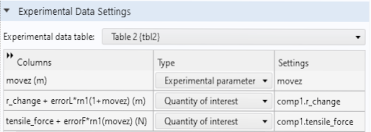
Locate the Experimental Data Settings section. From the Experimental data table list, choose Table 2.
|
|
24
|
|
26
|
|
28
|
|
29
|


