|
|
|
|
-
|

|
1
|
|
2
|
|
3
|
Click Add.
|
|
4
|
Click
 Study. Study. |
|
5
|
|
6
|
Click
 Done. Done. |
|
1
|
|
2
|
|
3
|
From the Geometry representation list, choose CAD kernel. This is necessary because the prepared geometry sequence contains a Fillet feature.
|
|
4
|
|
5
|
Browse to the model’s Application Libraries folder and double-click the file bracket_uncertainty_quantification_fillet_geom_sequence.mph.
|
|
6
|
|
1
|
|
2
|
|
1
|
|
2
|
Go to the Add Material window.
|
|
3
|
|
4
|
Click the Add to Component button in the window toolbar.
|
|
5
|
|
1
|
|
2
|
|
3
|
|
4
|
|
5
|
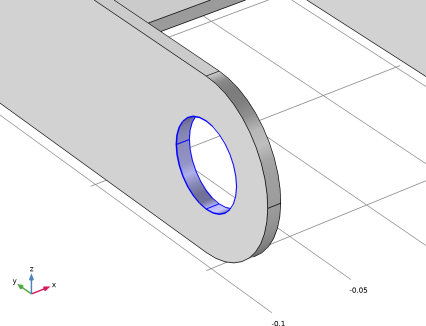
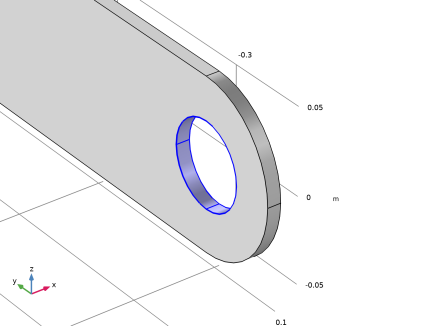
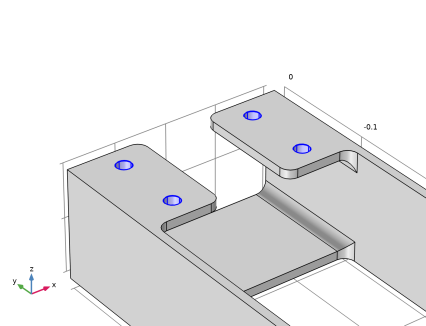
Select the Group by continuous tangent checkbox. This setting greatly facilitates the selection of curved surfaces. In this case use it to select the four bolt holes. It is sufficient to select one boundary per hole; the three other boundaries will be selected automatically.
 |
|
6
|
|
1
|
|
2
|
|
3
|
|
4
|
Select the Group by continuous tangent checkbox.
|
|
6
|
|
1
|
|
2
|
|
3
|
|
4
|
Select the Group by continuous tangent checkbox.
|
|
6
|
|
1
|
|
2
|
|
3
|
|
4
|
|
5
|
|
6
|
Click OK.
|
|
7
|
|
1
|
|
2
|
|
3
|
|
4
|
|
1
|
|
2
|
|
3
|
|
4
|
|
1
|
|
2
|
|
1
|
|
2
|
|
3
|
|
4
|
|
5
|
|
1
|
|
2
|
|
3
|
From the list, choose User-controlled mesh.
|
|
1
|
|
2
|
|
3
|
Click the Custom button.
|
|
4
|
|
5
|
|
6
|
Click
 Build All. Build All. |
|
1
|
|
2
|
|
3
|
|
1
|
|
2
|
|
3
|
|
4
|
|
5
|
|
1
|
|
2
|
|
3
|
|
1
|
|
2
|
|
3
|
|
4
|
|
5
|
|
6
|
|
7
|
|
8
|
|
1
|
|
2
|
|
3
|
Click
 Add. Add. |
|
5
|
|
8
|
|
9
|
|
10
|
|
11
|
|
12
|
|
13
|
|
14
|
|
15
|
|
17
|
|
18
|
|
19
|
|
20
|
|
21
|
|
22
|
|
23
|
|
24
|
|
26
|
|
27
|
|
28
|
|
29
|
|
30
|
|
31
|
|
32
|
|
33
|
|
35
|
|
36
|
|
37
|
|
38
|
|
39
|
|
40
|
|
41
|
|
42
|
|
44
|
|
45
|
|
46
|
|
47
|
|
48
|
|
49
|
|
50
|
|
51
|
|
53
|
|
54
|
|
55
|
|
56
|
|
57
|
|
58
|
|
59
|
|
60
|
|
62
|
|
63
|
|
64
|
|
65
|
|
66
|
|
67
|
|
68
|
|
69
|
|
71
|
|
72
|
|
73
|
|
74
|
|
75
|
|
76
|
|
77
|
|
78
|
|
79
|
|
1
|
|
1
|
|
2
|
|
1
|
|
2
|
In the Settings window for Uncertainty Quantification, locate the Uncertainty Quantification Settings section.
|
|
3
|
|
4
|
|
1
|
|
2
|
|
1
|
|
2
|
|
3
|
|
4
|
Click
 Delete. Delete. |
|
5
|
Locate the Uncertainty Quantification Settings section. From the Compute action list, choose Compute and analyze. The default Compute action is Improve and analyze. This will reuse the previously computed uncertainty quantification results in order to speed up the computation. However, we are changing to Compute and analyze, which is slower, but gives a higher-fidelity result.
|
|
1
|
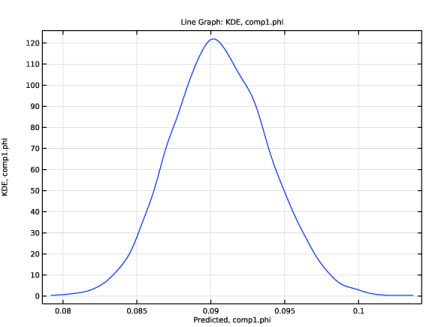
In the Model Builder window, under Results > Uncertainty Quantification Graph 2 click Kernel Density Estimation, QoI1.
 |
|
1
|
|
2
|
|
1
|
|
2
|
|
1
|
|
1
|
|
2
|
Locate the Surrogate-Based Response Surface section. Click Response Surface in the upper-right corner of the section.
|
|
1
|
|
2
|