





PDF

Pesticide Transport and Reaction in Soil
Introduction
Aldicarb is a commercial pesticide, used on a variety of crops, including cotton, sugar beet, citrus fruits, potatoes, and beans. The general population may be exposed to aldicarb primarily through the ingestion of contaminated water and foods.
This example looks at the degradation kinetics of aldicarb and its toxic by-products, investigating both the degradation time-scale as well as the spatial concentration distribution of toxic components. In the first model the chemicals are contained in a water pond, treated as a perfectly mixed system. The second model tracks the detailed distribution of chemicals in soil as the pesticide leaches out of the pond and is transported in water through the ground.
Model Definition
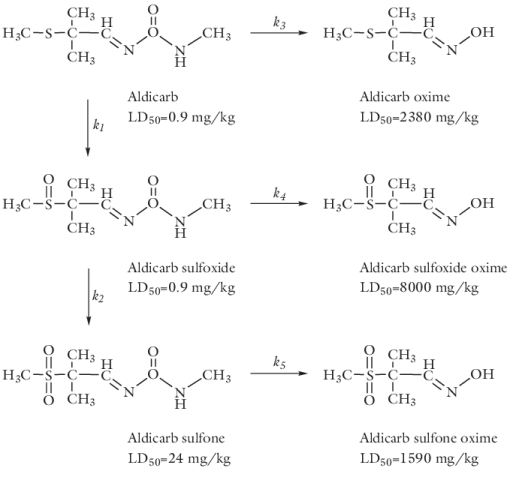
Aldicarb degrades by transformation to the corresponding sulfoxide and the sulfone (both of which are toxic), and is detoxified by hydrolysis to oximes and nitriles. The chain of reactions is illustrated in Figure 1. The toxicity of a chemical species is indicated by its LD50 value, signifying the median lethal dose (mg/kg) to half of a test population of rats. As indicated, both the sulfoxide and sulfone analogues of aldicarb are also relatively toxic.
Figure 1: Reaction pathways of aldicarb degradation.
Each of the j  unimolecular reactions outlined above has a rate expression of the form
Note that in this example the concentration unit is mol/m3 and the rate constants are expressed in 1/day.
Perfectly Mixed System
The first model solves for the decomposition kinetics of aldicarb occurring in a water pond. The pond is treated as a closed and perfectly mixed system. The reaction mechanism illustrated in Figure 1 translates into the following mass balance equations:
Solving this set of coupled ODEs provides information on the time scales of the degradation processes.
Space- and Time-Dependent System
In a more detailed model, assume that aldicarb moves from the pond into relatively dry soil. In the soil, the aldicarb decomposes according to the mechanism illustrated in Figure 1. In addition, the pesticide and its decay products are transported by convection, dispersion, sorption, and volatilization.
Geometry
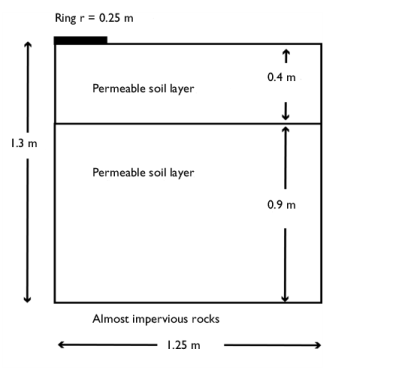
Water is ponded by a ring sitting on the ground. The soil is layered and rests on rocks, with the top layer slightly less permeable than the bottom one. Water moves through the bottom of the ring into the soil. The water level in the ring is known, as is the initial distribution of pressure heads in the soil. There is no flow through the vertical walls or the surface outside of the ring.
Figure 2: Geometry of the infiltration ring and soil column.
Aldicarb moves with water from the pond into the soil at a constant concentration. In the soil, the chemicals react and also adsorb onto soil particles. Aldicarb and the aldicarb sulfone volatilize to the atmosphere. The sorption, biodegradation, and volatilization proceed in linear proportion to the aqueous concentrations. The soil is initially pristine with zero concentration of the involved chemicals. At the ground surface outside the ring there is volatilization to the atmosphere for ca and casn. Model the problem with 2D axisymmetry and track the solute transport for 10 days. The vertical axis to the left is the symmetry axis. Add infinite elements to the right axis such that the solutes can freely leave the soil column with the fluid flow.
Fluid Flow
Richards’ equation governs the saturated-unsaturated flow of water in the soil. The soil pores are connected to the atmosphere, so you can assume that pressure changes in the air do not affect the flow and use Richards’ equation for single-phase flow. Given by Ref. 1, Richards’ equation in pressure head reads
where Cm denotes specific moisture capacity (m1); Se is the effective saturation of the soil (dimensionless); Sp is a storage coefficient (m1); Hp is the pressure head (m), which is proportional to the dependent variable, p (Pa); t is time; K equals the hydraulic conductivity (m/s); D is the direction (typically, the z direction) that represents vertical elevation (m).
To be able to combine boundary conditions and sources with the Darcy’s Law formulation, COMSOL Multiphysics converts Richards’ equation to SI units and solves for the pressure (SI unit: Pa). Hydraulic head, H, pressure head, Hp, and elevation D are related to pressure p as
Also, the permeability κ (SI unit: 1/m2) and hydraulic conductivity K (SI unit: m/s) are related to the viscosity μ (SI unit: Pa·s) and density ρ (SI unit: kg/m3) of the fluid, and the acceleration of gravity g (SI unit: m/s2) by
In this problem, Sp = (θs − θr)/(1 m·ρg) where θs and θr denote the volume fraction of fluid at saturation and after drainage, respectively. For more details see The Richards’ Equation Interface in the Subsurface Flow Module User’s Guide.
Mass Transport
The governing equation for solute transport describes advection and dispersion of a sorbing, volatilizing, and decaying solute in variably saturated soil.
(1)
The Transport of Diluted Species in Porous Media interface implements Equation 1. It describes the time rate of change in two terms: c denotes dissolved concentration (mol/m3) and cP is the mass of adsorbed contaminant per dry unit weight of solid (mg/kg). Further, θ denotes the volume fraction of fluid (porosity), and ρb is the bulk density (kg/m3). Because ρb amounts to the dried solid mass per bulk volume of the solids and pores together, the term ρbcP gives solute mass attached to the soil as the concentration changes with time.
Solute spreading now includes mechanical dispersion in water plus molecular diffusion for water and air. These three processes appear in the liquid-gas dispersion tensor, whose entries are
In these equations, DLGii are the principal components of the liquid-gas dispersion tensor; DLGij and DLGji are the cross terms; α is the dispersivity (m) where the subscripts “1” and “2” denote longitudinal and transverse dispersivities, respectively; Dm and DG (m2/d) are molecular diffusion coefficients; and τL and τG give the tortuosity factors for liquid (water) and gas (air), respectively.
The three solutes — aldicarb, aldicarb sulfoxide, and aldicarb sulfone — have different decay terms, RLi, partition coefficients, kPi, and volatilization constants, kGi. All of the solutes adsorb to soil particles, but only two of the solutes volatilize; sulfoxide does not.
Model Data
The following table provides data for the fluid-flow model:
Ks
θs
θr
α
m-1
 Hp,init
The inputs needed for the solute-transport model are:
ρb
kp
m3/kg
Dm
m2/d
αr
αz
d-1
d-1
c0
Results and Discussion
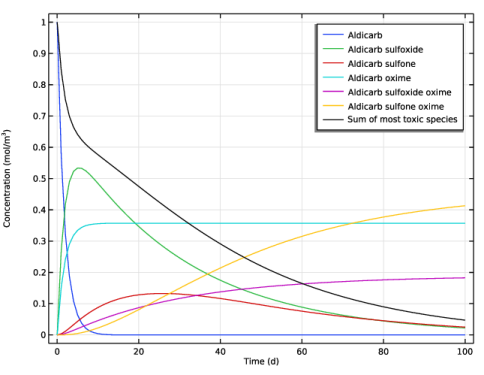
First, review the results of the perfectly mixed reactor model. Figure 3 shows the concentration profiles of aldicarb and all of its decay products as well as the sum of the three most toxic species — aldicarb, aldicarb sulfoxide, and aldicarb sulfone (see Figure 1 for LD50 values). Only small amounts of aldicarb remain after 10 days. Considering the summed-up contributions, contamination levels clearly remain high even after several months.
Figure 3: Concentration profiles as reactions occur during a 100 day time period.
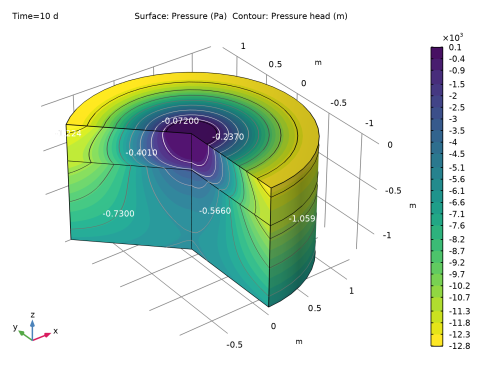
The following results come from the space- and time-dependent model setup. Figure 4 shows the Pressure Head distribution after 10 days
Figure 4: Pressure head after 10 days.
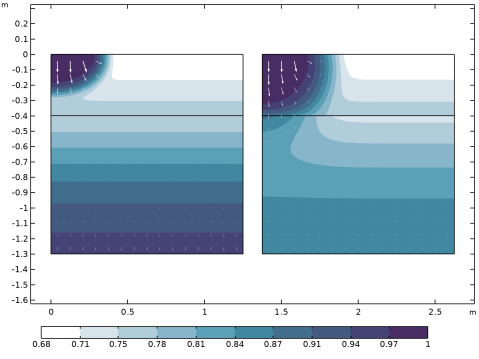
Figure 5 shows the fluid flow in soil after 0.3 days (left) and 1.0 day (right). The plots illustrate the wetting of the soil with time. As indicated by the arrows, the fluid velocities are relatively high beneath the ponded water.
Figure 5: The effective saturation (surface plot), and flow velocity (arrows) in a variably saturated soil after 0.3 days (left) and 1 day (right).
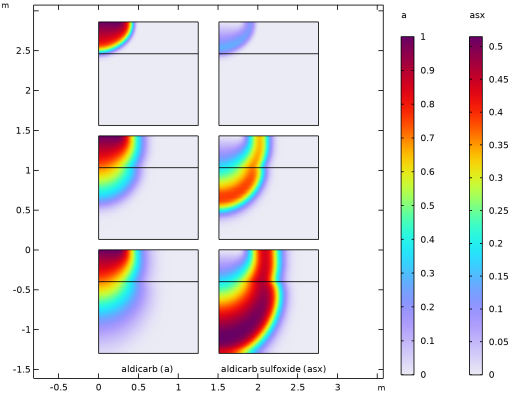
Figure 6 shows the concentration distributions of aldicarb and the equally toxic aldicarb sulfoxide after 1, 5, and 10 days of infiltration. Consistent with the evolving flow field, the main direction of transport is in the vertical direction.
Figure 6: Concentration of aldicarb (left) and aldicarb sulfoxide (right) after 1, 5, and 10 days (note the differing color ranges).
The distribution of aldicarb has clearly reached steady-state conditions after 10 days, a time frame that was also predicted by the ideal reactor model (see Figure 3). Results also show that the soil contamination is rather local with respect to the aldicarb source. The aldicarb sulfoxide, on the other hand, can be expected to affect a considerably larger soil volume for a significantly longer time.
Notes About the COMSOL Implementation
This model makes use of the Infinite Element Domain feature. It performs a coordinate scaling to the selected domain such that boundary conditions on the outside of the infinite element layer are effectively applied at a very large distance. Therefore unwanted effects of artificial boundary conditions on the region of interest are suppressed. This allows to model details in an area which is actually very large or infinite.
References
1. J. Bear, Hydraulics of Groundwater, McGraw Hill, 1978.
2. M.Th. van Genuchten, “A closed-form equation for predicting the hydraulic of conductivity of unsaturated soils,” Soil Sci. Soc. Am. J., vol. 44, pp. 892–898, 1980.
Application Library path: Subsurface_Flow_Module/Solute_Transport/pesticide_transport
Modeling Instructions
From the File menu, choose New.
New
In the New window, click  Model Wizard.
Model Wizard
1
In the Model Wizard window, click  2D Axisymmetric.
2
In the Select Physics tree, select Mathematics > ODE and DAE Interfaces > Global ODEs and DAEs (ge).
3
Click Add.
4
Click  Study.
5
In the Select Study tree, select General Studies > Time Dependent.
6
Global Definitions
Load the rate constants from file.
Rate constants
1
In the Model Builder window, under Global Definitions click Parameters 1.
2
In the Settings window for Parameters, locate the Parameters section.
3
Click  Load from File.
4
5
In the Label text field, type Rate constants.
First consider the aldicarb decomposition kinetics in the water pond treated as a perfectly mixed system.
Global ODEs and DAEs (ge)
Global Equations 1 (ODE1)
Read in a set of the equations defining the reactions.
1
In the Model Builder window, under Component 1 (comp1) > Global ODEs and DAEs (ge) click Global Equations 1 (ODE1).
2
In the Settings window for Global Equations, locate the Global Equations section.
3
Click  Load from File.
4
5
Locate the Units section. Click  Select Dependent Variable Quantity.
6
In the Physical Quantity dialog, type concentration in the text field.
7
In the tree, select General > Concentration (mol/m^3).
8
9
In the Settings window for Global Equations, locate the Units section.
10
Click  Select Source Term Quantity.
11
In the Physical Quantity dialog, type reactionrate in the text field.
12
In the tree, select Transport > Reaction rate (mol/(m^3*s)).
13
Study 1
Step 1: Time Dependent
1
In the Model Builder window, under Study 1 click Step 1: Time Dependent.
2
In the Settings window for Time Dependent, locate the Study Settings section.
3
From the Time unit list, choose d.
4
In the Output times text field, type range(0,1,100).
5
In the Study toolbar, click  Compute.
Results
Concentration of species (100 days)
A plot showing the time dependent concentration is added automatically. Edit this plot to reproduce Figure 3 with the following steps:
1
In the Settings window for 1D Plot Group, type Concentration of species (100 days) in the Label text field.
2
Click to expand the Title section. From the Title type list, choose None.
3
Locate the Plot Settings section.
4
Select the y-axis label checkbox. In the associated text field, type Concentration (mol/m<sup>3</sup>).
Global 1
1
In the Model Builder window, expand the Concentration of species (100 days) node, then click Global 1.
2
In the Settings window for Global, locate the x-Axis Data section.
3
From the Parameter list, choose Expression.
4
In the Expression text field, type t.
5
From the Unit list, choose d.
The concentration for all species is added automatically. Add the expression for the sum of the three most toxic species to the table.
6
Locate the y-Axis Data section. In the table, enter the following settings:
7
In the Concentration of species (100 days) toolbar, click  Plot.
Now solve the time- and space-dependent transport and reaction problem in the soil.
Add Physics
1
In the Home toolbar, click  Add Physics to open the Add Physics window.
2
Go to the Add Physics window.
3
In the tree, select Fluid Flow > Porous Media and Subsurface Flow > Richards’ Equation (dl).
4
Find the Physics interfaces in study subsection. In the table, clear the Solve checkbox for Study 1.
5
Click the Add to Component 1 button in the window toolbar.
6
In the tree, select Chemical Species Transport > Transport of Diluted Species in Porous Media (tds).
7
Click to expand the Dependent Variables section. In the Number of species text field, type 3.
8
In the Concentrations (mol/m³) table, enter the following settings:
9
In the table, clear the Solve checkbox for Study 1.
10
Click the Add to Component 1 button in the window toolbar.
11
In the Home toolbar, click  Add Physics to close the Add Physics window.
Add Study
1
In the Home toolbar, click  Add Study to open the Add Study window.
2
Go to the Add Study window.
3
Find the Physics interfaces in study subsection. In the table, clear the Solve checkbox for Global ODEs and DAEs (ge).
4
Find the Studies subsection. In the Select Study tree, select General Studies > Time Dependent.
5
Click the Add Study button in the window toolbar.
6
In the Home toolbar, click  Add Study to close the Add Study window.
Study 2
Step 1: Time Dependent
Load the parameters defining the material properties and the geometry from file.
Global Definitions
Transport parameters
1
In the Home toolbar, click  Parameters and choose Add > Parameters.
2
In the Settings window for Parameters, locate the Parameters section.
3
Click  Load from File.
4
5
In the Label text field, type Transport parameters.
Geometry 1
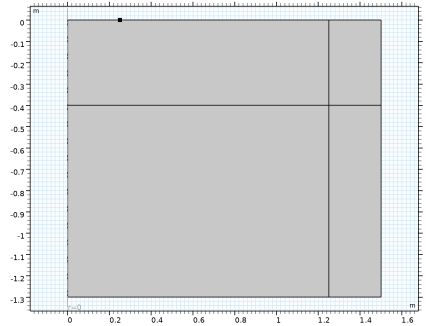
The modeling domain is made up of the two permeable soil layers, each of which is represented by a rectangular domain in 2D axisymmetry.
Rectangle 1 (r1)
1
In the Geometry toolbar, click  Rectangle.
2
In the Settings window for Rectangle, locate the Size and Shape section.
3
In the Width text field, type 1.5.
4
In the Height text field, type 0.9.
5
Locate the Position section. In the z text field, type -1.3.
6
Click to expand the Layers section. Select the Layers to the right checkbox.
7
Clear the Layers on bottom checkbox.
8
This additional layer to the right will later be used to define an Infinite Element Domain. Read more about it in the Notes About the COMSOL Implementation section. Proceed with the second soil layer.
Rectangle 2 (r2)
1
Right-click Rectangle 1 (r1) and choose Duplicate.
2
In the Settings window for Rectangle, locate the Size and Shape section.
3
In the Height text field, type 0.4.
4
Locate the Position section. In the z text field, type -0.4.
To finish the model geometry, add a point on the top boundary marking the pond’s outer rim.
Point 1 (pt1)
1
In the Geometry toolbar, click  Point.
2
In the Settings window for Point, locate the Point section.
3
In the r text field, type 0.25.
4
Click  Build All Objects.
5
Click the  Zoom Extents button in the Graphics toolbar.
Now, define the Infinite Element Domain.
Definitions
Infinite Element Domain 1 (ie1)
1
In the Definitions toolbar, click  Infinite Element Domain.
2
3
In the Settings window for Infinite Element Domain, locate the Geometry section.
4
From the Type list, choose Cylindrical.
Variables 1
1
In the Definitions toolbar, click  Local Variables.
Load the rate expressions from file.
2
In the Settings window for Variables, locate the Variables section.
3
Click  Load from File.
4
Richards’ Equation (dl)
Begin by specifying the properties for the bottom soil layer in the default Unsaturated Porous Medium node, then duplicate this node and modify the domain selection and properties to match the top layer.
Unsaturated Porous Medium 1
1
In the Model Builder window, under Component 1 (comp1) > Richards’ Equation (dl) click Unsaturated Porous Medium 1.
2
In the Settings window for Unsaturated Porous Medium, locate the Porous Medium section.
3
From the Storage model list, choose User defined. In the Sp text field, type Sp_1.
Porous Matrix 1
1
In the Model Builder window, click Porous Matrix 1.
2
In the Settings window for Porous Matrix, locate the Matrix Properties section.
3
From the Permeability model list, choose Hydraulic conductivity.
4
In the Ks text field, type Ks_1.
5
Locate the Retention Model section. In the α text field, type alpha_1.
6
In the n text field, type n_1.
7
In the θr text field, type thetar_1.
Unsaturated Porous Medium 2
1
In the Model Builder window, under Component 1 (comp1) > Richards’ Equation (dl) right-click Unsaturated Porous Medium 1 and choose Duplicate.
2
3
In the Settings window for Unsaturated Porous Medium, locate the Porous Medium section.
4
In the Sp text field, type Sp_2.
Porous Matrix 1
1
In the Model Builder window, expand the Unsaturated Porous Medium 2 node, then click Porous Matrix 1.
2
In the Settings window for Porous Matrix, locate the Matrix Properties section.
3
In the Ks text field, type Ks_2.
4
Locate the Retention Model section. In the α text field, type alpha_2.
5
In the n text field, type n_2.
6
In the θr text field, type thetar_2.
Gravity 1
1
In the Model Builder window, under Component 1 (comp1) > Richards’ Equation (dl) click Gravity 1.
2
In the Settings window for Gravity, locate the Gravity section.
3
From the Specify list, choose Elevation.
Initial Values 1
1
In the Model Builder window, click Initial Values 1.
2
In the Settings window for Initial Values, locate the Initial Values section.
3
Click the Pressure head button.
4
In the Hp text field, type -(z+1.2).
Initial Values 2
1
Right-click Component 1 (comp1) > Richards’ Equation (dl) > Initial Values 1 and choose Duplicate.
2
3
In the Settings window for Initial Values, locate the Initial Values section.
4
In the Hp text field, type -(z+1.2)-0.2*(z+0.4).
Pressure Head 1
1
In the Physics toolbar, click  Boundaries and choose Pressure Head.
2
3
In the Settings window for Pressure Head, locate the Pressure Head section.
4
In the Hp0 text field, type Hp0.
Pervious Layer 1
1
In the Physics toolbar, click  Boundaries and choose Pervious Layer.
2
3
In the Settings window for Pervious Layer, locate the Pervious Layer section.
4
In the Hb text field, type -2.
5
In the Rb text field, type 1/5[d].
Transport of Diluted Species in Porous Media (tds)
Unsaturated Porous Medium 1
Now, set up the transport equation for an unsaturated porous medium, accounting for adsorption, dispersion and volatilization.
1
In the Physics toolbar, click  Domains and choose Unsaturated Porous Medium.
2
In the Settings window for Unsaturated Porous Medium, locate the Domain Selection section.
3
From the Selection list, choose All domains.
Liquid 1
1
In the Model Builder window, click Liquid 1.
2
In the Settings window for Liquid, locate the Saturation section.
3
From the list, choose Liquid volume fraction.
4
In the θl text field, type dl.theta_l.
This corresponds to the liquid volume fraction.
5
From the Liquid fraction time change list, choose Time change in pressure head.
6
From the dHp/dt list, choose Time change in pressure head (dl).
7
In the Cm text field, type dl.Cm.
8
Locate the Convection section. From the u list, choose Total Darcy velocity field (dl).
The diffusion coefficients are the same for all species.
9
Locate the Diffusion section. In the DL,ca text field, type Dl. Also type Dl in the text fields for the liquid diffusion coefficients of aldicarb sulfoxide and aldicarb sulfone.
Gas 1
Again, the diffusion coefficients are the same for all species.
1
In the Model Builder window, click Gas 1.
2
In the Settings window for Gas, locate the Diffusion section.
3
In the DG,ca text field, type Dg. Also type Dg in the text fields for the gas diffusion coefficients of aldicarb sulfoxide and aldicarb sulfone.
4
Locate the Volatilization section. In the kG,ca text field, type kg_a.
5
In the kG,casn text field, type kg_asn.
Unsaturated Porous Medium 1
In the Model Builder window, click Unsaturated Porous Medium 1.
Adsorption 1
1
In the Physics toolbar, click  Attributes and choose Adsorption.
2
In the Settings window for Adsorption, locate the Adsorption section.
3
From the Adsorption isotherm list, choose User defined.
4
Select the Species c_a checkbox.
5
In the cP,ca text field, type kp_a*c_a.
6
Select the Species c_asx checkbox.
7
In the cP,casx text field, type kp_asx*c_asx.
8
Select the Species c_asn checkbox.
9
In the cP,casn text field, type kp_asn*c_asn.
Unsaturated Porous Medium 1
In the Model Builder window, click Unsaturated Porous Medium 1.
Dispersion 1
1
In the Physics toolbar, click  Attributes and choose Dispersion.
2
In the Settings window for Dispersion, locate the Dispersion section.
3
From the Dispersion tensor list, choose Dispersivity.
4
From the Dispersivity model list, choose Transverse isotropic.
5
Specify the α matrix as
Reactions 1
1
In the Physics toolbar, click  Domains and choose Reactions.
2
In the Settings window for Reactions, locate the Domain Selection section.
3
From the Selection list, choose All domains.
4
Locate the Reaction Rates section. In the Rca text field, type dl.theta_l*(-r_1-r_3).
5
In the Rcasx text field, type dl.theta_l*(r_1-r_2-r_4).
6
In the Rcasn text field, type dl.theta_l*(r_2-r_5).
Outflow 1
1
In the Physics toolbar, click  Boundaries and choose Outflow.
2
Concentration 1
1
In the Physics toolbar, click  Boundaries and choose Concentration.
2
3
In the Settings window for Concentration, locate the Concentration section.
4
Select the Species c_a checkbox.
5
In the c0,ca text field, type c0.
6
Select the Species c_asx checkbox.
7
Select the Species c_asn checkbox.
Volatilization 1
1
In the Physics toolbar, click  Boundaries and choose Volatilization.
2
3
In the Settings window for Volatilization, locate the Volatilization section.
4
In the hc text field, type Dg/d_s.
5
Select the Species c_a checkbox.
6
Select the Species c_asn checkbox.
Materials
Some required material properties have not yet been defined. This is indicated by a small red cross at the material node. Continue as follows to add the missing properties.
Porous Material: Lower Layer
1
In the Model Builder window, under Component 1 (comp1) right-click Materials and choose More Materials > Porous Material.
2
In the Settings window for Porous Material, type Porous Material: Lower Layer in the Label text field.
3
Locate the Phase-Specific Properties section. Click  Add Required Phase Nodes.
Fluid 1 (pmat1.fluid1)
1
In the Model Builder window, click Fluid 1 (pmat1.fluid1).
2
In the Settings window for Fluid, locate the Material Contents section.
3
Solid 1 (pmat1.solid1)
1
In the Model Builder window, click Solid 1 (pmat1.solid1).
2
In the Settings window for Solid, locate the Solid Properties section.
3
In the θs text field, type 1-poro_1.
4
Locate the Material Contents section. In the table, enter the following settings:
Porous Material: Upper Layer
1
In the Model Builder window, under Component 1 (comp1) > Materials right-click Porous Material: Lower Layer (pmat1) and choose Duplicate.
2
In the Settings window for Porous Material, type Porous Material: Upper Layer in the Label text field.
3
Solid 1 (pmat2.solid1)
1
In the Model Builder window, expand the Component 1 (comp1) > Materials > Porous Material: Upper Layer (pmat2) node, then click Solid 1 (pmat2.solid1).
2
In the Settings window for Solid, locate the Solid Properties section.
3
In the θs text field, type 1-poro_2.
Mesh 1
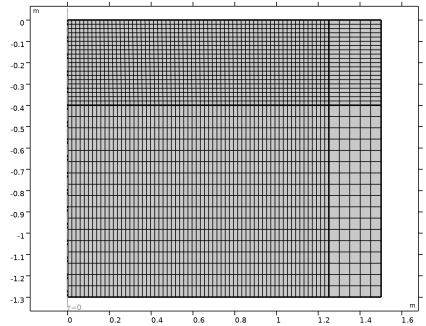
Using a mapped mesh is a good idea for this geometry. It uses less mesh elements while keeping the accuracy compared to using a triangular mesh with the same mesh size.
1
In the Model Builder window, under Component 1 (comp1) click Mesh 1.
2
In the Settings window for Mesh, locate the Physics-Controlled Mesh section.
3
From the Element size list, choose Finer.
Mapped 1
In the Mesh toolbar, click  Mapped.
Size 1
1
Right-click Mapped 1 and choose Size.
2
In the Settings window for Size, locate the Geometric Entity Selection section.
3
From the Geometric entity level list, choose Domain.
4
5
Locate the Element Size section. Click the Custom button.
6
Locate the Element Size Parameters section.
7
Select the Maximum element size checkbox. In the associated text field, type 0.02.
8
In the Model Builder window, right-click Mesh 1 and choose Build All.
Study 2
Step 1: Time Dependent
1
In the Model Builder window, under Study 2 click Step 1: Time Dependent.
2
In the Settings window for Time Dependent, locate the Study Settings section.
3
From the Time unit list, choose d.
4
In the Output times text field, type range(0,0.1,0.9) range(1,1,10).
5
In the Model Builder window, click Study 2.
6
In the Settings window for Study, locate the Study Settings section.
7
Clear the Generate default plots checkbox, to disable the automatic generation of default plots. Instead, choose the relevant plots from the Result Templates after computation.
8
In the Study toolbar, click  Compute.
Result Templates
First, visualize the pressure head in the revolved geometry. Start with the Pressure, 3D result template.
1
In the Results toolbar, click  Result Templates to open the Result Templates window.
2
Go to the Result Templates window.
3
In the tree, select Study 2/Solution 2 (sol2) > Richards’ Equation > Pressure, 3D (dl).
4
Click the Add Result Template button in the window toolbar.
5
In the Results toolbar, click  Result Templates to close the Result Templates window.
Results
Visualizing the results on the infinite element domains does not add value to the plots. Focus on the region close to the source and therefore hide the infinite element domains from the plots with the following steps.
Study 2/Solution 2 (sol2)
In the Model Builder window, expand the Results > Datasets node, then click Study 2/Solution 2 (sol2).
Selection
1
In the Results toolbar, click  Attributes and choose Selection.
2
In the Settings window for Selection, locate the Geometric Entity Selection section.
3
From the Geometric entity level list, choose Domain.
4
Pressure Head, 3D (dl)
1
In the Model Builder window, under Results click Pressure, 3D (dl).
2
In the Settings window for 3D Plot Group, type Pressure Head, 3D (dl) in the Label text field.
Surface
1
In the Model Builder window, expand the Pressure Head, 3D (dl) node, then click Surface.
2
In the Settings window for Surface, locate the Coloring and Style section.
3
From the Color table list, choose Viridis.
4
From the Color table transformation list, choose Reverse.
Contour 1
1
In the Model Builder window, right-click Pressure Head, 3D (dl) and choose Contour.
2
In the Settings window for Contour, click Replace Expression in the upper-right corner of the Expression section. From the menu, choose Component 1 (comp1) > Richards’ Equation > Velocity and pressure > dl.Hp - Pressure head - m.
3
Locate the Levels section. In the Total levels text field, type 8.
4
Locate the Coloring and Style section. From the Color table list, choose GrayScale.
5
Select the Level labels checkbox.
6
From the Label color list, choose White.
7
Clear the Color legend checkbox.
8
In the Pressure Head, 3D (dl) toolbar, click  Plot.
Next, add the result template for the effective saturation.
Result Templates
1
In the Results toolbar, click  Result Templates to open the Result Templates window.
2
Go to the Result Templates window.
3
In the tree, select Study 2/Solution 2 (sol2) > Richards’ Equation > Effective Saturation (dl).
4
Click the Add Result Template button in the window toolbar.
5
In the Results toolbar, click  Result Templates to close the Result Templates window.
Results
Surface 1
1
In the Model Builder window, expand the Effective Saturation (dl) node, then click Surface 1.
2
In the Settings window for Surface, locate the Coloring and Style section.
3
From the Color table type list, choose Discrete.
Solution Array 1
1
Right-click Surface 1 and choose Solution Array. This subnode allows to plot the solution at several output times in one plot group.
2
In the Settings window for Solution Array, locate the Data section.
3
From the Time selection list, choose From list.
4
In the Times (d) list, choose 0.3 and 1.
Effective Saturation (dl)
1
In the Model Builder window, under Results click Effective Saturation (dl).
2
In the Settings window for 2D Plot Group, locate the Color Legend section.
3
From the Position list, choose Bottom.
4
Click to expand the Plot Array section. In the Relative padding text field, type 0.1.
Arrow Surface 1
1
Right-click Effective Saturation (dl) and choose Arrow Surface.
2
In the Settings window for Arrow Surface, locate the Coloring and Style section.
3
From the Color list, choose White.
4
Select the Scale factor checkbox. In the associated text field, type 20000.
5
Click to expand the Plot Array section. Select the Manual indexing checkbox.
Solution Array 1
1
Right-click Arrow Surface 1 and choose Solution Array.
2
In the Settings window for Solution Array, locate the Data section.
3
From the Time selection list, choose From list.
4
In the Times (d) list, choose 0.3 and 1.
Effective Saturation (dl)
1
In the Model Builder window, under Results click Effective Saturation (dl).
2
In the Settings window for 2D Plot Group, click to expand the Title section.
3
From the Title type list, choose None.
4
In the Effective Saturation (dl) toolbar, click  Plot.
5
Click the  Zoom Extents button in the Graphics toolbar.
Compare the plot in the Graphics window with Figure 5.
Continue with adding the plot for the concentration of aldicarb and aldicarb sulfoxide to reproduce Figure 6.
Result Templates
1
In the Results toolbar, click  Result Templates to open the Result Templates window.
2
Go to the Result Templates window.
3
In the tree, select Study 2/Solution 2 (sol2) > Transport of Diluted Species in Porous Media > Concentration, a (tds).
4
Click the Add Result Template button in the window toolbar.
5
In the Results toolbar, click  Result Templates to close the Result Templates window.
Results
Comparison of a and asx concentrations
1
In the Model Builder window, expand the Results > Concentration, a (tds) node, then click Concentration, a (tds).
2
In the Settings window for 2D Plot Group, type Comparison of a and asx concentrations in the Label text field.
3
Locate the Color Legend section. Select the Show titles checkbox.
4
Locate the Plot Array section. From the Array type list, choose Square.
5
In the Relative row padding text field, type 0.1.
6
In the Relative column padding text field, type 0.2.
Arrow Surface 1
In the Model Builder window, right-click Arrow Surface 1 and choose Delete.
Surface 1
1
In the Settings window for Surface, locate the Coloring and Style section.
2
In the Color legend title text field, type a.
Solution Array 1
1
Right-click Surface 1 and choose Solution Array.
2
In the Settings window for Solution Array, locate the Data section.
3
From the Time selection list, choose Manual.
4
In the Time indices (1-20) text field, type 19 14 10 to force the images to appear in the right order (earliest output time on the top)
5
Locate the Plot Array section. From the Array axis list, choose y.
Surface 1
1
In the Model Builder window, click Surface 1.
2
In the Settings window for Surface, click to expand the Plot Array section.
3
Select the Manual indexing checkbox.
Now set up the concentration plots for aldicarb sulfoxide (asx). You can start from the settings for aldicarb (a).
Surface 2
1
Right-click Results > Comparison of a and asx concentrations > Surface 1 and choose Duplicate.
2
In the Settings window for Surface, locate the Expression section.
3
In the Expression text field, type c_asx.
4
Locate the Coloring and Style section. In the Color legend title text field, type asx.
5
Locate the Plot Array section. In the Column index text field, type 1.
6
In the Comparison of a and asx concentrations toolbar, click  Plot.
7
Click the  Zoom Extents button in the Graphics toolbar.
Comparison of a and asx concentrations
1
In the Model Builder window, click Comparison of a and asx concentrations.
2
In the Settings window for 2D Plot Group, locate the Title section.
3
From the Title type list, choose None.
Table Annotation 1
1
In the Comparison of a and asx concentrations toolbar, click  More Plots and choose Table Annotation.
2
In the Settings window for Table Annotation, locate the Data section.
3
From the Source list, choose Local table.
4
5
Locate the Coloring and Style section. Clear the Show point checkbox.
6
In the Comparison of a and asx concentrations toolbar, click  Plot.
7
Click the  Zoom Extents button in the Graphics toolbar.