PDF

Flow in a Fractured Reservoir
Introduction
This model shows how to set up a simulation of flow through a fractured reservoir. The reservoir includes a discrete fracture network (DFN), where the fractures have a randomized distribution of position, size, orientation, and aperture. The model uses the Discrete Fracture Network add-in to create randomized fractures in an existing geometry.
Model Definition
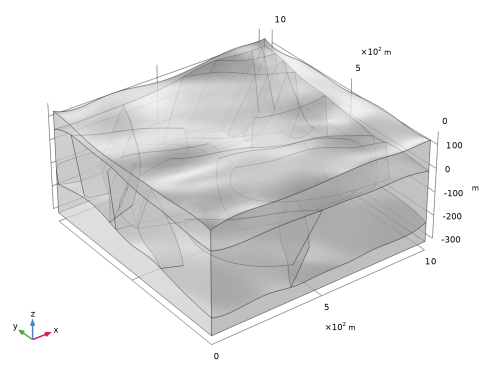
The model geometry is depicted in Figure 1.
Figure 1: Model geometry.
The fracture network in the middle layer is created using the Discrete Fracture Network — 3D add-in. It serves as an example of how to use the add-in. The fracture positions follow a uniform random distribution function, their sizes follow a power-law distribution function, and their orientations follow a Fisher distribution. Details about these distribution functions can be found in the documentation of the add-in. The model is designed in such a way that the results are always identical provided that you follow the instructions. The DFN is reproducible because the same random seed is used for all distributions. The individual steps can nevertheless be applied to basically any DFN. Since the add-in can be used to create fracture networks of any complexity, which places high demands on the processing of the geometry, it is recommended to use the CAD kernel.
Beside the geometry, the add-in also generates variables for the aperture df (m) of the fractures and uses them in a fracture flow feature according to the cubic law. It defines the fracture permeability as
with ff being the fracture’s friction factor. The flow is driven by the gradient of the pressure (Pa) only, which is described by Darcy’s law
together with mass conservation
with κ (m2) being the porous matrix permeability, and μ (Pa·s) and ρ (kg/m3) the dynamic viscosity and density of water, respectively. In the fractures, the tangential form of Darcy’s Law is the governing equation.
From above, the reservoir is fed by a precipitation rate and in the lower layer there is a slow flow through a slight gradient in the hydraulic head.
Results and Discussion
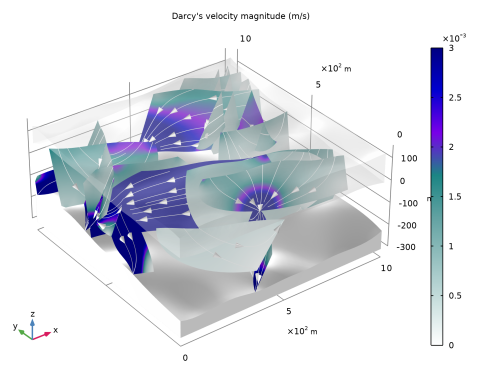
The resulting velocity distribution is shown in Figure 2. Comparing the velocity inside the porous matrix with the velocity field inside the fractures shows that the flow mainly occurs through the fractures.
Figure 2: Velocity distribution in the reservoir.
Application Library path: Subsurface_Flow_Module/Fluid_Flow/fractured_reservoir_flow
Modeling Instructions
From the File menu, choose New.
New
In the New window, click  Model Wizard.
Model Wizard
1
In the Model Wizard window, click  3D.
2
In the Select Physics tree, select Fluid Flow > Porous Media and Subsurface Flow > Darcy’s Law (dl).
3
Click Add.
4
Click  Study.
5
In the Select Study tree, select General Studies > Stationary.
6
Geometry 1
Using the CAD kernel is recommended for modeling 3D discrete fracture networks, especially with increasing complexity of the network. A note appears at the bottom of the add-in’s settings window if it is not activated.
1
In the Geometry toolbar, click Insert Sequence and choose Insert Sequence.
2
3
In the Geometry toolbar, click  Build All.
For generating a fracture network consisting of fractures that use randomized distribution functions for size, position and orientation, import the Discrete Fracture Network - 3D add-in.
In the Home toolbar, click  Windows and choose Add-in Libraries.
Add-in Libraries
1
In the Model Builder window, under Component 1 (comp1) click Geometry 1.
2
In the Add-in Libraries window, select Subsurface Flow Module > discrete_fracture_network_3d in the tree.
3
In the tree, select the checkbox for the node Subsurface Flow Module > discrete_fracture_network_3d (if it is not already selected).
4
Click  Done to load the add-in and close the Add-in Libraries window.
5
In the Developer toolbar, click  Add-ins and choose Discrete Fracture Network — 3D > Discrete Fracture Network — 3D.
Global Definitions
Discrete Fracture Network — 3D 1
1
In the Model Builder window, under Global Definitions click Discrete Fracture Network — 3D 1.
2
In the Settings window for Discrete Fracture Network - 3D, locate the General section.
3
In the Number of Fractures text field type 10.
Because a geometry is present, the add-in determines the bounding box of this geometry and also detects if domain selections are available.
4
From the Selection menu choose Middle which is a selection already defined in the geometry sequence.
5
In the Settings window for Discrete Fracture Network - 3D, locate the Size section.
6
7
Click the Use random seed checkbox to get a reproducible size distribution. Whenever the add-in uses these size parameters and this random seed the size distribution and position is identical.
8
In the Settings window for Discrete Fracture Network - 3D, locate the Orientation section.
9
The dispersion coefficient determines the variance around the strike and dip angle. The larger the value, the smaller the deviation from the given angles.
10
Click the Use random seed checkbox to get a reproducible orientation distribution.
11
In the Settings window for Discrete Fracture Network - 3D, locate the Properties section.
12
In the Proportionality factor text field enter 1e-5.
13
In the Settings window for Discrete Fracture Network — 3D, click the Add Fracture Network to Selected Component and Interface button in the window toolbar.
Geometry 1
Click the  Wireframe Rendering button in the Graphics toolbar to get a better view.
Add another fracture set with different values.
Global Definitions
1
In the Model Builder window, under Global Definitions click Discrete Fracture Network — 3D 1.
2
In the Settings window for Discrete Fracture Network - 3D, locate the General section.
3
In the Number of Fractures text field type 6.
4
In the Settings window for Discrete Fracture Network - 3D, locate the Size section.
5
6
In the Settings window for Discrete Fracture Network - 3D, locate the Orientation section.
7
8
9
In the Settings window for Discrete Fracture Network — 3D, click the Add Fracture Network to Selected Component and Interface button in the window toolbar to add a second fracture set.
Geometry 1
In the Geometry toolbar, click  Build All.
All Fractures
Now create a selection that contains all fractures.
1
In the Geometry toolbar, click  Selections and choose Union Selection.
2
In the Settings window for Union Selection, locate the Geometric Entity Level section.
3
From the Level list, choose Boundary.
4
Locate the Input Entities section. Click  Add.
5
In the Add dialog, in the Selections to add list, choose Fracture network (3D Fracture Network 1 1) and Fracture network (3D Fracture Network 2 1).
6
7
In the Settings window for Union Selection, type All Fractures in the Label text field.
Disable the auto-analysis of the geometry as the remaining small geometric details should be kept.
8
In the Model Builder window, click Geometry 1.
9
In the Settings window for Geometry, locate the Cleanup section.
10
Clear the Automatic detection of small details checkbox.
11
In the Geometry toolbar, click  Build All.
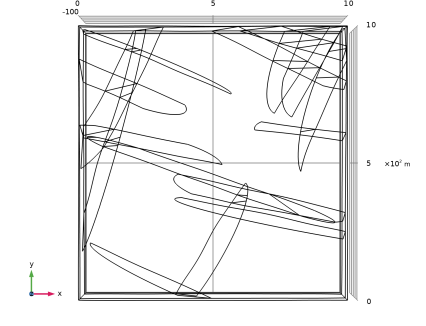
12
Click the  Go to XY View button in the Graphics toolbar and compare with the image below.
13
Click the  Go to Default View button in the Graphics toolbar to return to the default view.
Next, add the materials. The top and bottom layers consist of a permeable material, whereas the center layer has a comparatively low permeability. The values are specified later after the physics is set up.
Add Material
1
In the Materials toolbar, click  Add Material to open the Add Material window.
2
Go to the Add Material window.
3
In the tree, select Built-in > Water, liquid.
4
Click the Add to Global Materials button in the window toolbar.
5
In the Materials toolbar, click  Add Material to close the Add Material window.
Definitions
The surface is exposed to the environment. Create ambient conditions and define a precipitation rate.
Ambient Properties 1 (ampr1)
1
In the Model Builder window, expand the Component 1 (comp1) > Definitions node.
2
Right-click Definitions and choose Shared Properties > Ambient Properties.
3
In the Settings window for Ambient Properties, locate the Ambient Conditions section.
4
In the P0,amb text field, type 550[mm/a].
Darcy’s Law (dl)
Next, set up the physics. Start with activating gravity. Define the reference position as the lowest point of the reservoir.
1
In the Model Builder window, under Component 1 (comp1) click Darcy’s Law (dl).
2
In the Settings window for Darcy’s Law, locate the Gravity Effects section.
3
Select the Include gravity checkbox.
Gravity 1
1
In the Model Builder window, under Component 1 (comp1) > Darcy’s Law (dl) click Gravity 1.
2
In the Settings window for Gravity, locate the Gravity section.
3
Select the Specify reference position checkbox.
4
Specify the rref vector as
The add-in automatically created aperture variables under the Definitions node, which are used by the cubic law.
Materials
It remains to set up the missing material properties.
Highly permeable
1
In the Model Builder window, under Component 1 (comp1) right-click Materials and choose More Materials > Porous Material.
2
In the Settings window for Porous Material, type Highly permeable in the Label text field.
3
Locate the Porosity section. In the εp text field, type 0.25.
4
Locate the Homogenized Properties section. In the table, enter the following settings:
5
Locate the Phase-Specific Properties section. Click  Add Required Phase Nodes.
Weakly permeable
1
Right-click Materials and choose More Materials > Porous Material.
2
3
In the Settings window for Porous Material, locate the Geometric Entity Selection section.
4
From the Selection list, choose Middle.
5
In the Label text field, type Weakly permeable.
6
Locate the Porosity section. In the εp text field, type 0.1.
7
Locate the Homogenized Properties section. In the table, enter the following settings:
8
Locate the Phase-Specific Properties section. Click  Add Required Phase Nodes.
Material Link 1 (matlnk1)
1
Right-click Materials and choose More Materials > Material Link.
2
In the Settings window for Material Link, locate the Geometric Entity Selection section.
3
From the Geometric entity level list, choose Boundary.
4
From the Selection list, choose All Fractures.
Darcy’s Law (dl)
Next, define the boundary conditions.
Precipitation 1
1
In the Physics toolbar, click  Boundaries and choose Precipitation.
2
3
In the Settings window for Precipitation, locate the Precipitation section.
4
From the P0 list, choose Ambient precipitation rate (ampr1).
5
Select the Slope correction checkbox.
Hydraulic Head 1
1
In the Physics toolbar, click  Boundaries and choose Hydraulic Head.
2
3
In the Settings window for Hydraulic Head, locate the Hydraulic Head section.
4
In the H0 text field, type 0.5[m/km]*x.
Mesh 1
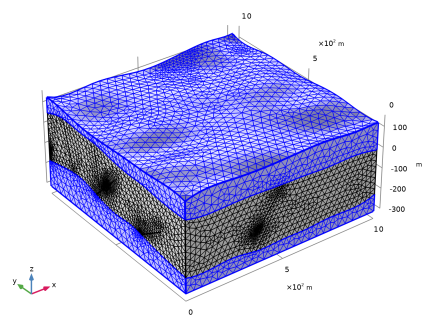
Next, set up the mesh. For discrete fracture networks the mesh may require manual modifications due to the complexity of the geometry. Start by meshing the domain where the fractures are located.
1
In the Model Builder window, under Component 1 (comp1) click Mesh 1.
2
In the Settings window for Mesh, locate the Physics-Controlled Mesh section.
3
From the Element size list, choose Finer.
4
Locate the Sequence Type section. From the list, choose User-controlled mesh.
Size
1
In the Model Builder window, under Component 1 (comp1) > Mesh 1 click Size.
2
In the Settings window for Size, locate the Element Size Parameters section.
3
In the Maximum element size text field, type 40.
Free Tetrahedral 1
1
In the Model Builder window, click Free Tetrahedral 1.
2
In the Settings window for Free Tetrahedral, locate the Domain Selection section.
3
From the Geometric entity level list, choose Domain.
4
From the Selection list, choose Middle.
Size 1
1
Right-click Free Tetrahedral 1 and choose Size.
2
In the Settings window for Size, locate the Element Size section.
3
From the Predefined list, choose Extra fine.
4
Click the Custom button.
5
Locate the Element Size Parameters section.
6
Select the Maximum element size checkbox. In the associated text field, type 30.
Free Tetrahedral 2
1
In the Mesh toolbar, click  Free Tetrahedral.
2
In the Settings window for Free Tetrahedral, click  Build All.
The fractures create fine details in the geometry that are difficult to handle for the mesh. Where these details are located is indicated in an information node below the feature. With a mesh fine enough, you can resolve these details well, but for the overall model, such a fine mesh is not necessary.
The mesh is relatively fine to capture the geometric details properly. For the pressure field, higher-order elements do not significantly improve accuracy because the underlying physics is relatively smooth. Therefore, use linear discretization for pressure.
Darcy’s Law (dl)
1
In the Model Builder window, under Component 1 (comp1) click Darcy’s Law (dl).
2
In the Settings window for Darcy’s Law, click to expand the Discretization section.
3
From the Pressure list, choose Linear.
Study 1
1
In the Model Builder window, click Study 1.
2
In the Settings window for Study, locate the Study Settings section.
3
Clear the Generate default plots checkbox.
4
In the Study toolbar, click  Compute.
Results
Volume Average 1
1
In the Model Builder window, expand the Results node.
2
Right-click Results > Derived Values and choose Average > Volume Average.
3
In the Settings window for Volume Average, locate the Selection section.
4
From the Selection list, choose Middle.
Locate the Expressions section. In the table, enter dl.U. The unit m/s and the description Total Darcy velocity magnitude are then added automatically.
5
Click  Evaluate.
Table 1
1
Go to the Table 1 window.
The velocity is around 1e-9 m/s.
Results
Surface Average 2
1
In the Results toolbar, click  More Derived Values and choose Average > Surface Average.
2
In the Settings window for Surface Average, locate the Selection section.
3
From the Selection list, choose All Fractures.
4
Locate the Expressions section. In the table, enter the following settings:
5
Clicknext to  Evaluate, then choose Table 1 - Volume Average 1.
Table 1
1
Go to the Table 1 window.
The velocity in the fractures is around 1.7mm/s and thus orders of magnitudes larger than in the matrix.
Results
Create the plot of the Darcy velocity field (Figure 2).
Velocity
1
In the Results toolbar, click  3D Plot Group.
2
In the Settings window for 3D Plot Group, type Velocity in the Label text field.
3
Locate the Plot Settings section. Clear the Plot dataset edges checkbox.
4
Click to expand the Title section. From the Title type list, choose Manual.
5
In the Title text area, type Darcy's velocity magnitude (m/s).
Surface 1
1
Right-click Velocity and choose Surface.
2
In the Settings window for Surface, locate the Expression section.
3
In the Expression text field, type dl.U.
4
Locate the Coloring and Style section. From the Color table list, choose AuroraAustralis.
5
Click to expand the Range section. Select the Manual color range checkbox.
6
In the Maximum text field, type 3e-3.
Selection 1
1
Right-click Surface 1 and choose Selection.
2
In the Settings window for Selection, locate the Selection section.
3
From the Selection list, choose All Fractures.
Volume 1
1
In the Model Builder window, right-click Velocity and choose Volume.
2
In the Settings window for Volume, locate the Expression section.
3
In the Expression text field, type dl.U.
4
Click to expand the Inherit Style section. From the Plot list, choose Surface 1.
Selection 1
1
Right-click Volume 1 and choose Selection.
2
In the Settings window for Selection, locate the Selection section.
3
From the Selection list, choose Bottom.
Volume 2
In the Model Builder window, under Results > Velocity right-click Volume 1 and choose Duplicate.
Selection 1
1
In the Model Builder window, expand the Volume 2 node, then click Selection 1.
2
In the Settings window for Selection, locate the Selection section.
3
From the Selection list, choose Top.
Transparency 1
1
In the Model Builder window, right-click Volume 2 and choose Transparency.
2
In the Settings window for Transparency, locate the Transparency section.
3
Find the Transparency subsection. In the Transparency text field, type 0.8.
Velocity
In the Model Builder window, under Results click Velocity.
Streamline Surface 1
1
In the Velocity toolbar, click  More Plots and choose Streamline Surface.
2
In the Settings window for Streamline Surface, locate the Surface Selection section.
3
From the Selection list, choose All Fractures.
4
Locate the Streamline Positioning section. From the Positioning list, choose Magnitude controlled.
5
Locate the Coloring and Style section. Find the Point style subsection. From the Type list, choose Arrow.
6
From the Color list, choose White.
7
In the Velocity toolbar, click  Plot.