
PDF

Two-Phase Flow in a Porous Medium: Buckley–Leverett Model
Introduction
This example uses the Multiphase Flow in Porous Media multiphysics interface to model an immiscible displacement process in a porous medium. You can think of the displacement of oil by water in a reservoir. In a one-dimensional setting and under certain assumptions, the equations for the saturations and pressures of the two phases reduce to a single conservation equation for the saturation of one of the phases, the Buckley–Leverett equation. In the model setup described below this equation allows for an analytical solution, and as such, this example also serves as a benchmark model.
Model Definition
A 1D porous medium with a length of 1 meter is considered. It is assumed that both phases present are incompressible, that there are no sources or sinks, and that gravity plays no role. Furthermore, zero capillary pressure and (relative) permeabilities and porosity independent of time and space are assumed.
Initially the porous medium is completely filled with phase 1. At x = 0 phase 2 enters the porous medium with a volumetric flux of 0.001 m/s and displaces phase 1, which is allowed to flow out of the porous domain at x = 1. The volumetric flux of phase 1 is equal to 0 at x = 0. The pressure at x = 1 is set to be equal to 0 Pa. Table 1 collects the relevant material properties. The process in simulated for a time interval of 300 seconds.
From the assumptions and boundary conditions mentioned above it follows that the total volumetric flux u = u1 + u2 is constant in time and space, and that the two-phase flow equations implemented in the Multiphase Flow in Porous Media interface for the saturations and pressures reduce to a single equation for the saturation s1:
(1)
where εp denotes the porosity and λi = κrii, with κri and μi the relative permeability and dynamic viscosity of phase i, respectively. This equation allows for an analytical solution (see Ref. 1 for the construction of the analytical solution to this Buckley–Leverett equation). In the Results and Discussion section below, the analytical solution of the Buckley–Leverett equation is compared to the solution obtained with the Multiphase Flow in Porous Media interface.
Table 1: Model Data.
ρ1 = ρ2
μ1 = μ2
εp
κ
10-9 m2
κr1
s12
κr2
s22
Results and Discussion
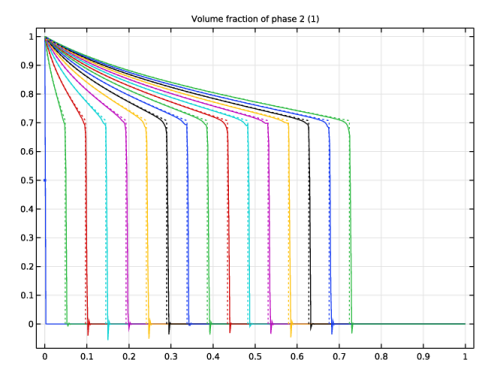
In Figure 1, the profiles of the saturation s2 are shown for different instances in time (20 seconds intervals). Phase 1 is displaced by phase 2, and the solution exhibits a shock traveling through the porous domain. The solution of the two-phase flow equations (solid lines) shows a good agreement with the analytical solution of the Buckley–Leverett equation in Equation 1(dotted lines).
Figure 1: Saturation profiles for phase 2 shown at intervals of 20 seconds, as computed using the Multiphase Flow in Porous Media interface (solid lines), and as obtained analytically as solution of the Buckley–Leverett equation.
Reference
1. R. Helmig, Multiphase Flow and Transport Processes in the Subsurface – A Contribution to the Modeling of Hydrosystems, Springer–Verlag, 1997.
Application Library path: Subsurface_Flow_Module/Verification_Examples/buckley_leverett_model
Modeling Instructions
From the File menu, choose New.
New
In the New window, click  Model Wizard.
Model Wizard
1
In the Model Wizard window, click  1D.
2
In the Select Physics tree, select Fluid Flow > Porous Media and Subsurface Flow > Multiphase Flow in Porous Media.
3
Click Add.
4
Click  Study.
5
In the Select Study tree, select General Studies > Time Dependent.
6
Geometry 1
Interval 1 (i1)
1
In the Model Builder window, under Component 1 (comp1) right-click Geometry 1 and choose Interval.
2
In the Settings window for Interval, click  Build All Objects.
Definitions
Add a piecewise analytic function to visualize the analytic solution of the Buckley–Leverett equation and to compare it to the solution computed using the Multiphase Flow in Porous Media interface.
Piecewise 1 (pw1)
1
In the Definitions toolbar, click  Piecewise.
2
In the Settings window for Piecewise, locate the Definition section.
3
Find the Intervals subsection. In the table, enter the following settings:
Phase Transport in Porous Media (phtr)
Fluid 1
1
In the Model Builder window, under Component 1 (comp1) > Phase Transport in Porous Media (phtr) > Porous Medium 1 click Fluid 1.
2
In the Settings window for Fluid, locate the Phase 1 Properties section.
3
From the ρs1 list, choose User defined. From the μs1 list, choose User defined. Locate the Phase 2 Properties section. From the ρs2 list, choose User defined. From the μs2 list, choose User defined. This sets the density and dynamic viscosity of both phases to the default values ρ = 1000 kg/m3 and μ = 103 Pa·s.
Volume Fraction 1
1
In the Physics toolbar, click  Boundaries and choose Volume Fraction.
2
3
In the Settings window for Volume Fraction, locate the Volume Fraction section.
4
Select the Phase s2 checkbox.
5
In the s0,s2 text field, type 1.
Outflow 1
1
In the Physics toolbar, click  Boundaries and choose Outflow.
2
Darcy’s Law (dl)
1
In the Model Builder window, under Component 1 (comp1) click Darcy’s Law (dl).
2
In the Settings window for Darcy’s Law, click to expand the Discretization section.
3
From the Pressure list, choose Quadratic.
Porous Matrix 1
1
In the Model Builder window, under Component 1 (comp1) > Darcy’s Law (dl) > Porous Medium 1 click Porous Matrix 1.
2
In the Settings window for Porous Matrix, locate the Matrix Properties section.
3
From the εp list, choose User defined. In the associated text field, type 0.5.
4
From the κ list, choose User defined. In the associated text field, type 1e-9[m^2].
Inlet 1
1
In the Physics toolbar, click  Boundaries and choose Inlet.
2
3
In the Settings window for Inlet, locate the Velocity section.
4
In the U0 text field, type 0.001.
Pressure 1
1
In the Physics toolbar, click  Boundaries and choose Pressure.
2
Mesh 1
Edge 1
In the Mesh toolbar, click  Edge.
Distribution 1
1
Right-click Edge 1 and choose Distribution.
2
In the Settings window for Distribution, locate the Distribution section.
3
In the Number of elements text field, type 400.
Study 1
Step 1: Time Dependent
1
In the Model Builder window, under Study 1 click Step 1: Time Dependent.
2
In the Settings window for Time Dependent, locate the Study Settings section.
3
In the Output times text field, type range(0,20,300).
Solution 1 (sol1)
1
In the Study toolbar, click  Show Default Solver.
2
In the Model Builder window, expand the Solution 1 (sol1) node.
3
In the Model Builder window, under Study 1 > Solver Configurations > Solution 1 (sol1) click Time-Dependent Solver 1.
4
In the Settings window for Time-Dependent Solver, click to expand the Time Stepping section.
5
From the Steps taken by solver list, choose Strict.
6
Find the Algebraic variable settings subsection. From the Error estimation list, choose Exclude algebraic.
7
Results
Volume Fraction (phtr)
Two default plots are created automatically — one for the volume fraction and one for the pressure distribution. Add a plot of the analytical solution to the volume fraction plot as follows.
1
In the Settings window for 1D Plot Group, click to expand the Title section.
2
From the Title type list, choose Manual.
3
In the Title text area, type Volume fraction of phase 2 (1).
Line Graph 2
1
Right-click Volume Fraction (phtr) and choose Line Graph.
2
3
In the Settings window for Line Graph, locate the y-Axis Data section.
4
In the Expression text field, type x.
5
Locate the x-Axis Data section. From the Parameter list, choose Expression.
6
In the Expression text field, type pw1(x)*(0.001*t)/0.5.
7
Click to expand the Coloring and Style section. Find the Line style subsection. From the Line list, choose Dotted.
8
From the Color list, choose Cycle (reset).
9
In the Volume Fraction (phtr) toolbar, click  Plot and compare with Figure 1.