PDF

Vibrating String
Introduction
In the following example you compute the natural frequencies of a pretensioned string using the 2D Wire interface. This is an example of so-called stress stiffening. The transverse stiffness of the wire is directly proportional to the axial tensile force.
Strings made of piano wire have an extremely high yield limit, thus enabling a wide range of pretension forces.
The results are compared with the analytical solution.
Model Definition
The wire is modeled as a single line. The wire diameter is irrelevant for the solution of this particular problem, but it must still be given. The model properties are summarized below:
GEOMETRY
String length, 0.5 m
Cross section diameter, 1.0 mm; 0.785 mm2
Material
Young’s modulus, E = 210 GPa
Mass density, ρ = 7850 kg/m3
Constraints
Both ends of the wire are fixed.
Load
The wire is pretensioned to σni = 1520 MPa.
Results and Discussion
The analytic solution for the natural frequencies of the vibrating string (Ref. 1) is
(1)
The pretensioning stress, σni, in this example is tuned so that the first natural frequency is Concert A; 440 Hz.
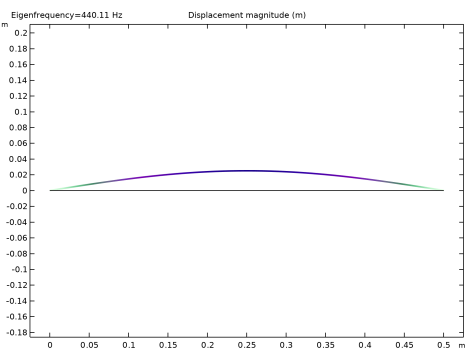
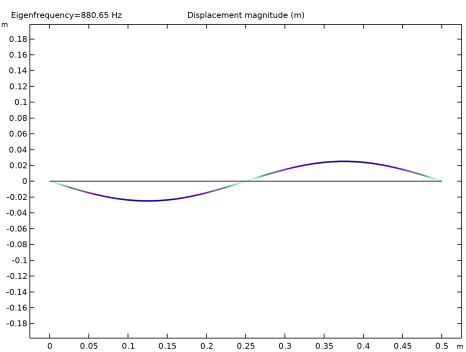
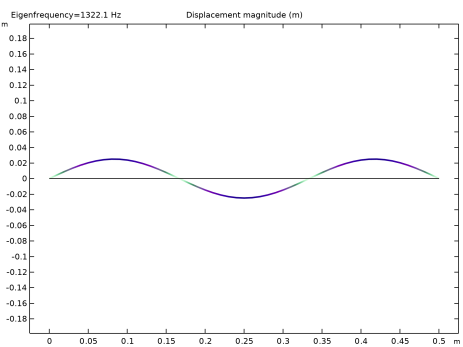
Table 1 compares the computed results with the analytic values given by Equation 1. The agreement is very good. The accuracy decreases with increasing complexity of the mode shape. The relatively coarse mesh is one limiting factor as it cannot resolve the more complex mode shapes with high accuracy. The mode shapes for the first three modes are shown in Figure 1 through Figure 3.
Figure 1: First eigenmode.
Figure 2: Second eigenmode.
Figure 3: Third eigenmode.
Notes About the COMSOL Implementation
Wires have no compressive strength making them inherently unstable without any initial deformation or pretension. In this example, the stresses are known in advance, so it is most straightforward to use an initial stress condition. This is shown in the first study.
In general, the prestress is given by some external loading. The structural response to this loading needs to be calculated and incorporated into the structure before the eigenfrequencies can be computed. Such a study therefore consists of two steps: One stationary step for computing the prestressed state, and one step for the eigenfrequencies. The special study type Prestressed Analysis, Eigenfrequency can be used to set up such a sequence. This is shown in the second study in this example.
Since an unstressed string has no stiffness in the transverse direction, it is generally difficult to get an analysis to converge without taking special measures. One such method is shown in the second study: A spring foundation is added during initial loading, and is then removed.
You must switch on geometrical nonlinearity in the study in order to capture effects of prestress. This is done automatically when the Wire interface is used.
Reference
1. R. Knobel, An Introduction to the Mathematical Theory of Waves, The American Mathematical Society, 2000.
Application Library path: Structural_Mechanics_Module/Verification_Examples/vibrating_string
Modeling Instructions
From the File menu, choose New.
New
In the New window, click  Model Wizard.
Model Wizard
1
In the Model Wizard window, click  2D.
2
In the Select Physics tree, select Structural Mechanics > Wire (wire).
3
Click Add.
4
Click  Study.
5
In the Select Study tree, select General Studies > Eigenfrequency.
6
Global Definitions
Parameters 1
1
In the Model Builder window, under Global Definitions click Parameters 1.
2
In the Settings window for Parameters, locate the Parameters section.
3
Geometry 1
Polygon 1 (pol1)
1
In the Geometry toolbar, click  Polygon.
2
In the Settings window for Polygon, locate the Coordinates section.
3
4
Click  Build All Objects.
Materials
Material 1 (mat1)
1
In the Model Builder window, under Component 1 (comp1) right-click Materials and choose Blank Material.
2
In the Settings window for Material, locate the Material Contents section.
3
Wire (wire)
Elastic Wire 1
1
In the Model Builder window, under Component 1 (comp1) > Wire (wire) click Elastic Wire 1.
2
In the Settings window for Elastic Wire, locate the Cross-Section Data section.
3
In the A text field, type A.
Pinned 1
1
In the Physics toolbar, click  Points and choose Pinned.
2
In the Settings window for Pinned, locate the Point Selection section.
3
From the Selection list, choose All points.
Elastic Wire 1
In the Model Builder window, click Elastic Wire 1.
Initial Stress and Strain 1
1
In the Physics toolbar, click  Attributes and choose Initial Stress and Strain.
2
In the Settings window for Initial Stress and Strain, locate the Initial Stress and Strain section.
3
In the Ni text field, type S0*A.
Mesh 1
Edge 1
1
In the Mesh toolbar, click  More Generators and choose Edge.
2
In the Settings window for Edge, locate the Boundary Selection section.
3
From the Selection list, choose All boundaries.
Size
1
In the Model Builder window, click Size.
2
In the Settings window for Size, locate the Element Size section.
3
Click the Custom button.
4
Locate the Element Size Parameters section. In the Maximum element size text field, type 0.01.
This setting results in a mesh with 50 elements, which COMSOL Multiphysics generates when you solve the model.
The stiffness caused by the prestress is a nonlinear effect, so geometric nonlinearity must be switched on. This is done automatically.
Study 1
In the Study toolbar, click  Compute.
Results
Mode Shape (wire)
1
Click the  Zoom Extents button in the Graphics toolbar.
The default plot shows the displacement for the first eigenmode.
Line 1
1
In the Model Builder window, expand the Mode Shape (wire) node, then click Line 1.
2
In the Settings window for Line, locate the Coloring and Style section.
3
In the Radius scale factor text field, type 2.
Mode Shape (wire)
1
Click the  Zoom Extents button in the Graphics toolbar.
2
In the Model Builder window, click Mode Shape (wire).
3
In the Settings window for 2D Plot Group, locate the Data section.
4
From the Eigenfrequency (Hz) list, choose 880.65.
This corresponds to the second eigenmode.
5
In the Mode Shape (wire) toolbar, click  Plot.
6
Click the  Zoom Extents button in the Graphics toolbar.
7
From the Eigenfrequency (Hz) list, choose 1322.1.
This is the third eigenmode.
8
In the Mode Shape (wire) toolbar, click  Plot.
9
Click the  Zoom Extents button in the Graphics toolbar.
Now, prepare a second study where the prestress is instead computed from an external load. The pinned condition at the right end must then be replaced by a force.
Wire (wire)
Pinned 2
1
In the Physics toolbar, click  Points and choose Pinned.
2
Prescribed Displacement 1
1
In the Physics toolbar, click  Points and choose Prescribed Displacement.
2
3
In the Settings window for Prescribed Displacement, locate the Prescribed Displacement section.
4
From the Displacement in y direction list, choose Prescribed.
Point Load 1
1
In the Physics toolbar, click  Points and choose Point Load.
2
3
In the Settings window for Point Load, locate the Force section.
4
Specify the FP vector as
Add a spring with an arbitrary, small stiffness in order to suppress the out-of-plane singularity of the unstressed wire.
Spring Foundation 1
1
In the Physics toolbar, click  Boundaries and choose Spring Foundation.
2
3
In the Settings window for Spring Foundation, locate the Spring section.
4
5
Specify the kL matrix as
Add Study
1
In the Home toolbar, click  Add Study to open the Add Study window.
2
Go to the Add Study window.
3
Find the Studies subsection. In the Select Study tree, select Preset Studies for Selected Physics Interfaces > Eigenfrequency, Prestressed.
4
Click the Add Study button in the window toolbar.
5
In the Home toolbar, click  Add Study to close the Add Study window.
Study 2
Step 1: Stationary
Switch off the initial stress and double-sided pinned condition, which should not be part of the second study. In the eigenfrequency step, the stabilizing spring support must also be removed.
1
In the Settings window for Stationary, locate the Physics and Variables Selection section.
2
Select the Modify model configuration for study step checkbox.
3
In the tree, select Component 1 (comp1) > Wire (wire) > Elastic Wire 1 > Initial Stress and Strain 1 and Component 1 (comp1) > Wire (wire) > Pinned 1.
4
Click  Disable.
Step 2: Eigenfrequency
1
In the Model Builder window, click Step 2: Eigenfrequency.
2
In the Settings window for Eigenfrequency, locate the Physics and Variables Selection section.
3
Select the Modify model configuration for study step checkbox.
4
In the tree, select Component 1 (comp1) > Wire (wire) > Elastic Wire 1 > Initial Stress and Strain 1, Component 1 (comp1) > Wire (wire) > Pinned 1, and Component 1 (comp1) > Wire (wire) > Spring Foundation 1.
5
Click  Disable.
6
In the Study toolbar, click  Compute.
Results
Mode Shape (wire) 1
The eigenfrequencies computed using this more general approach are close to those computed in the previous step.
Line 1
1
In the Model Builder window, expand the Mode Shape (wire) 1 node, then click Line 1.
2
In the Settings window for Line, locate the Coloring and Style section.
3
In the Radius scale factor text field, type 2.
To make Study 1 behave as when it was first created, the features added for Study 2 must be disabled.
Study 1
Step 1: Eigenfrequency
1
In the Model Builder window, under Study 1 click Step 1: Eigenfrequency.
2
In the Settings window for Eigenfrequency, locate the Physics and Variables Selection section.
3
Select the Modify model configuration for study step checkbox.
4
In the tree, select Component 1 (comp1) > Wire (wire) > Pinned 2, Component 1 (comp1) > Wire (wire) > Prescribed Displacement 1, Component 1 (comp1) > Wire (wire) > Point Load 1, and Component 1 (comp1) > Wire (wire) > Spring Foundation 1.
5
Click  Disable.