
|
|
|
|
•
|
|
•
|
|
•
|
|
•
|
|
•
|
|
1
|
|
2
|
|
3
|
Click Add.
|
|
4
|
Click
 Study. Study. |
|
5
|
|
6
|
Click
 Done. Done. |
|
1
|
|
2
|
|
1
|
|
2
|
|
1
|
|
2
|
|
1
|
In the Model Builder window, under Component 1 (comp1) right-click Materials and choose Blank Material.
|
|
2
|
|
1
|
|
2
|
|
3
|
From the list, choose Timoshenko.
|
|
1
|
|
2
|
|
3
|
|
4
|
|
5
|
|
1
|
|
2
|
|
3
|
|
4
|
Specify the V vector as
|
|
1
|
|
3
|
In the Settings window for Prescribed Displacement/Rotation, locate the Prescribed Displacement section.
|
|
4
|
|
5
|
|
6
|
|
7
|
|
8
|
Select the Free rotation around y direction checkbox.
|
|
9
|
Select the Free rotation around z direction checkbox.
|
|
1
|
|
3
|
In the Settings window for Prescribed Displacement/Rotation, locate the Prescribed Displacement section.
|
|
4
|
|
5
|
|
1
|
|
2
|
|
3
|
|
1
|
|
2
|
|
1
|
|
2
|
|
1
|
|
2
|
|
3
|
|
4
|
|
1
|
|
2
|
|
3
|
|
4
|
|
5
|
Click
 Run to Selected. Run to Selected. |
|
1
|
|
2
|
|
3
|
Click
 Add Physical Quantity. Add Physical Quantity. |
|
4
|
|
5
|
Click OK.
|
|
6
|
|
8
|
Click
 Add Physical Quantity. Add Physical Quantity. |
|
9
|
|
10
|
Click OK.
|
|
11
|
|
13
|
Click
 Apply. Apply. |
|
1
|
|
2
|
|
3
|
|
1
|
|
2
|
|
3
|
|
4
|
|
5
|
|
1
|
|
2
|
|
3
|
|
4
|
|
5
|
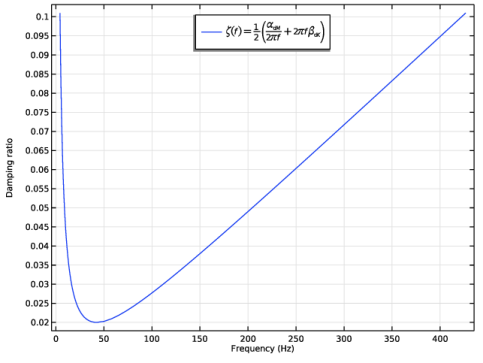
Click Damping Ratio Preview in the upper-right corner of the Damping Settings section. From the menu, choose Create Damping Ratio Plot.
|
|
1
|
|
2
|
|
1
|
|
2
|
Go to the Add Study window.
|
|
3
|
Find the Studies subsection. In the Select Study tree, select Preset Studies for Selected Physics Interfaces > Frequency Domain, Modal.
|
|
4
|
Click the Add Study button in the window toolbar.
|
|
5
|
|
1
|
|
2
|
|
1
|
|
2
|
|
3
|
|
4
|
|
1
|
|
2
|
|
3
|
|
4
|
|
5
|
|
6
|
|
1
|
|
2
|
|
3
|
|
4
|
|
1
|
|
2
|
|
3
|
|
4
|
|
1
|
|
2
|
|
1
|
|
2
|
|
3
|
|
4
|
|
1
|
|
2
|
|
3
|
|
4
|
|
5
|
|
7
|
Locate the Expressions section. In the table, enter the following settings:
|
|
8
|
Click
 Evaluate. Evaluate. |
|
1
|
|
2
|
|
3
|
Locate the Expressions section. In the table, enter the following settings:
|
|
4
|
|
1
|
|
2
|
|
3
|
|
5
|
Locate the Interpolation and Extrapolation section. From the Interpolation list, choose Nearest neighbor.
|
|
6
|
|
7
|
In the Function table, enter the following settings:
|
|
1
|
|
3
|
|
4
|
|
1
|
|
2
|
|
3
|
Specify the ϕ vector as
|
|
1
|
|
2
|
Go to the Add Study window.
|
|
3
|
|
4
|
Right-click and choose Add Study.
|
|
5
|
|
1
|
|
2
|
|
3
|
Locate the Physics and Variables Selection section. Select the Modify model configuration for study step checkbox.
|
|
4
|
|
5
|
Right-click and choose Disable.
|
|
1
|
|
2
|
|
3
|
|
4
|
|
5
|
Locate the Physics and Variables Selection section. Select the Modify model configuration for study step checkbox.
|
|
6
|
|
1
|
|
2
|
|
3
|
|
4
|
|
5
|
|
6
|
|
7
|
|
8
|
|
1
|
|
2
|
|
3
|
|
4
|
|
5
|
|
6
|
|
1
|
|
2
|
|
3
|
|
4
|
|
1
|
|
2
|
|
3
|
|
4
|
|
1
|
|
2
|
|
1
|
|
2
|
|
3
|
|
4
|
|
1
|
|
2
|
|
3
|
|
5
|
Locate the Expressions section. In the table, enter the following settings:
|
|
6
|
|
7
|
Click
 Evaluate. Evaluate. |
|
1
|
|
2
|
|
3
|
Locate the Expressions section. In the table, enter the following settings:
|
|
4
|
|
1
|
|
2
|
|
3
|
|
4
|
|
1
|
|
2
|
Go to the Add Study window.
|
|
3
|
|
4
|
Click the Add Study button in the window toolbar.
|
|
5
|
|
1
|
|
2
|
|
3
|
Locate the Physics and Variables Selection section. Select the Modify model configuration for study step checkbox.
|
|
4
|
|
5
|
Click
 Disable. Disable. |
|
6
|
|
7
|
Click
 Disable. Disable. |
|
8
|
|
9
|
|
10
|
|
1
|
|
2
|
|
3
|
In the Model Builder window, expand the Transient Forced Vibration > Solver Configurations > Solution 6 (sol6) > Dependent Variables 1 node, then click Displacement Field (comp1.u).
|
|
4
|
|
5
|
|
6
|
In the Model Builder window, under Transient Forced Vibration > Solver Configurations > Solution 6 (sol6) click Time-Dependent Solver 1.
|
|
7
|
|
8
|
|
9
|
Click
 Run. Run. |
|
1
|
|
2
|
|
3
|
|
4
|
|
5
|
|
6
|
|
1
|
|
2
|
|
3
|
|
4
|
|
5
|
Locate the Plot Settings section.
|
|
6
|
|
7
|
|
8
|
|
9
|
|
10
|
|
11
|
|
12
|
|
1
|
|
2
|
|
3
|
|
4
|
|
5
|
Click
 Plot. Plot. |
|
1
|
|
2
|
In the Settings window for Line Maximum, type Transient Forced Vibration - Max Displacement in the Label text field.
|
|
3
|
Locate the Data section. From the Dataset list, choose Transient Forced Vibration/Solution 6 (sol6).
|
|
4
|
|
5
|
|
7
|
Locate the Expressions section. In the table, enter the following settings:
|
|
8
|
|
9
|
Click
 Evaluate. Evaluate. |
|
1
|
|
2
|
In the Settings window for Line Maximum, type Transient Forced Vibration - Max Stress in the Label text field.
|
|
3
|
Locate the Expressions section. In the table, enter the following settings:
|
|
4
|
|
1
|
In the Model Builder window, right-click Transient Forced Vibration - Max Displacement and choose Duplicate.
|
|
2
|
In the Settings window for Line Maximum, type Transient Forced Vibration - Static Displacement in the Label text field.
|
|
3
|
|
4
|
|
5
|
Locate the Expressions section. In the table, enter the following settings:
|
|
6
|
|
7
|
|
1
|
Go to the Table 8 window.
|
|
1
|
|
2
|
|
3
|
Select the Modify model configuration for study step checkbox.
|
|
4
|
|
5
|
Right-click and choose Disable.
|
|
1
|
|
2
|
In the Settings window for Frequency Domain, Modal, locate the Physics and Variables Selection section.
|
|
3
|
Select the Modify model configuration for study step checkbox.
|
|
4
|
|
5
|
Click
 Disable. Disable. |
|
6
|
|
7
|
Click
 Disable. Disable. |
|
1
|
|
2
|
|
3
|
|
4
|
Click
 Disable. Disable. |
|
1
|
|
2
|
In the Settings window for Frequency to Time FFT, locate the Physics and Variables Selection section.
|
|
3
|
|
4
|
Click
 Disable. Disable. |
 ,
, 


 next to


 next to


 next to
 next to