PDF

Prestressed Bolts in a Tube Connection
Introduction
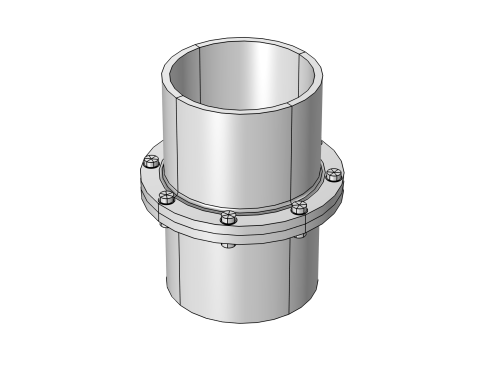
A tube connection consisting of a flange with eight prestressed bolts as shown Figure 1 is subjected to a set of loads consisting of an internal pressure, an axial force, and an external bending moment.
In this example, you will apply the preload to the bolts in an initial study step. You will then study how the stress state in the tube and the bolts varies with the applied load.
You will also create a number of stress classification lines, along which a stress linearization is performed.
Figure 1: Geometry of the tube connection.
Model Definition
The tube is made of steel and has an inner diameter of 360 mm and a thickness of 20 mm. The flange has an outer diameter of 520 mm and a thickness of 26 mm. At the transition from the pipe to the flange there is a fillet with radius 12 mm.
Eight M24 bolts are used to connect the flanges. Each bolt is prestressed by 150 kN.
The load consists of:
Because of the symmetry in both load and geometry, you only need to analyze one half of one of the flanges. As symmetry conditions cannot be applied on the contacting surfaces, the lower half of the model is replaced by a rigid plane.
Two contact regions are modeled. One contact pair acts between the bottom surface of the flange and the rigid plane which supplies the symmetry condition with respect to contact. The other contact pair acts between the washers under the bolt heads and the flange. The possibility to automatically detect potential contact surfaces is used when creating the contact pairs. To improve the accuracy of the contact between the washers and the flange, the augmented Lagrangian contact method is used; the first contact uses the default penalty method.
Results and Discussion
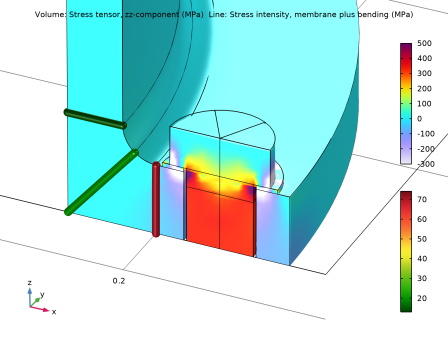
After the pretension step, there is a tensile stress in the bolt, and compressive stress in the flange under the bolt. This is illustrated in Figure 2. Additionally, the stress intensity is shown along the tube lines within the transition from the pipe to the flange.
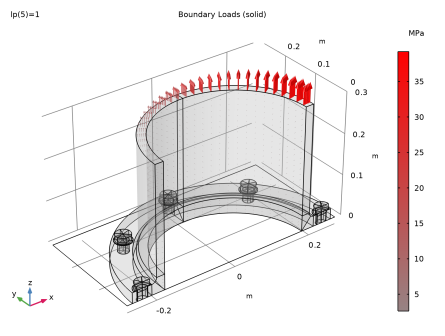
The external loads applied in the second step are shown in Figure 3.
Figure 2: Axial stress (upper color bar) and stress intensity (lower color bar) after the pretension step.
Figure 3: Applied external loads.
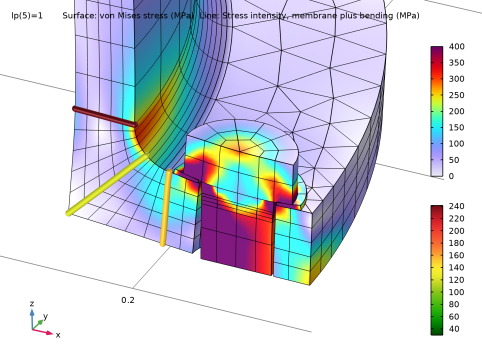
The von Mises stress at maximum external load is shown in Figure 4. The stress state on the inner side of the bolt has increased significantly, and the stress is no longer uniform. Furthermore, a stress on the order of 300 MPa has developed in the fillet between the tube and the flange. This stress is caused by local bending, since the flange no longer is in contact with the mating surface on the tensile side.
Figure 4: Equivalent stress at the maximum external load.
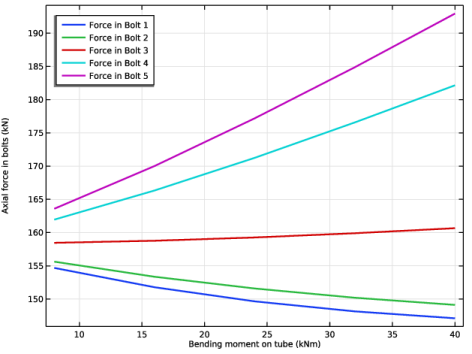
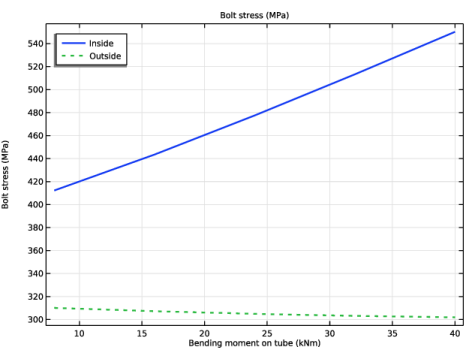
The applied external load in this example makes the bolted joint excessively loaded. This is displayed in Figure 5 in which the bolt forces are shown for the different external load. It can be see that bolt forces become significantly uneven with increasing external load. Actually, the conditions are even worse than what the average force indicates. The bolt is subjected to bending with a nonuniform stress distribution over the cross section. The maximum stress has increased from the prestress value and the progression is fast. The development of the axial stress in two points on opposite sides of the bolt is displayed in Figure 6. The points are located in the xz-symmetry plane. One point is as close to the tube centerline as possible and the other is as far out as possible.
Figure 5: The bolt force as a function of the applied bending moment.
Figure 6: The development of the bolt stress at two different positions in the cross section.
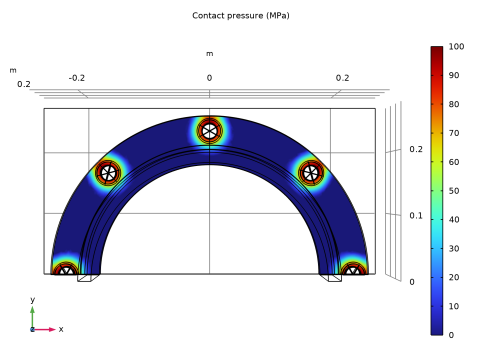
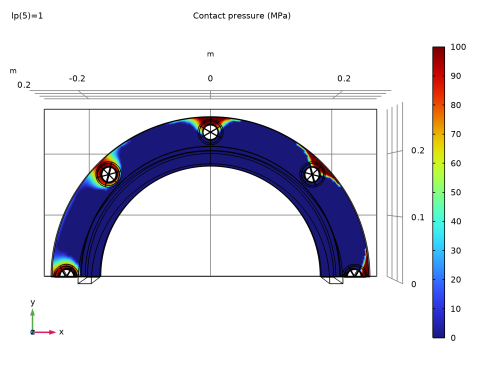
The plots of the contact pressure between the mating flanges are shown in Figure 7 after the pretensioning and in Figure 8 at maximum external load. By comparing these two figures, it is clear that the contact pressure shifts away from the initially prestressed area, which at the peak load becomes almost stress free. This observation indicates that there are too few bolts that connect the two parts with each other.
Figure 7: Contact pressure between the flanges after pretensioning the bolts.
Figure 8: Contact pressure between the flanges at maximum external load.
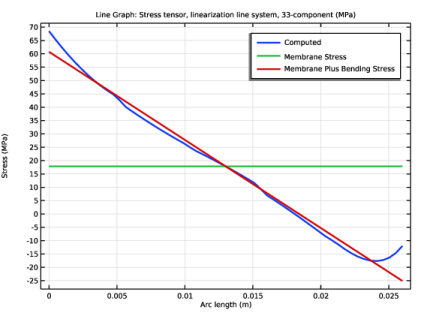
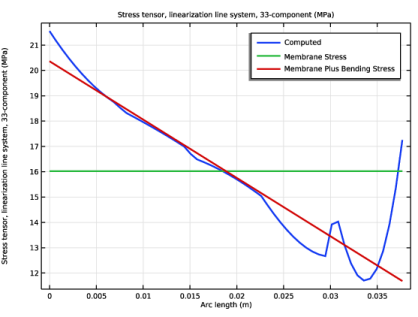
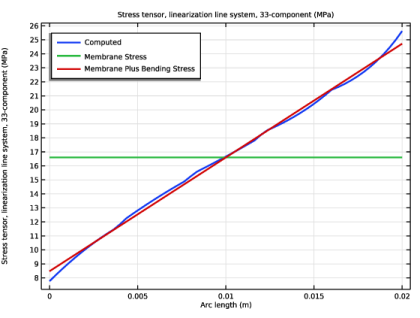
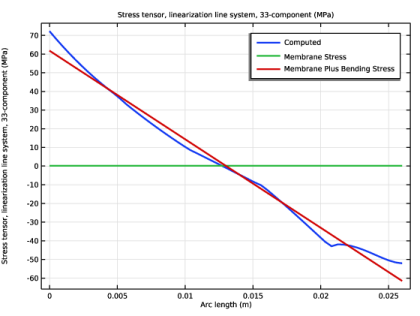
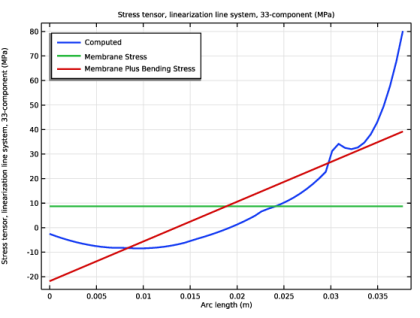
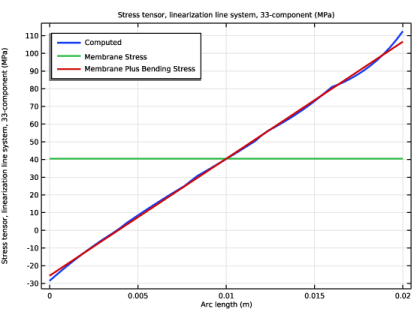
The linearized stresses along the six stress classification lines together with the computed spatially resolved stresses are shown in Figure 9 to Figure 14. In the local coordinate system chosen for the stress linearization lines, the 22 component is the direct stress in the x2 direction, which lies in the xz-plane and is perpendicular to the stress linearization line. The hoop stress is component 33.
Figure 9: Linearized and computed stresses (hoop direction) along stress classification line 1.
Figure 10: Linearized and computed stresses (hoop direction) along stress classification line 2.
Figure 11: Linearized and computed stresses (hoop direction) along stress classification line 3.
Figure 12: Linearized and computed stresses (hoop direction) along stress classification line 4.
Figure 13: Linearized and computed stresses (hoop direction) along stress classification line 5.
Figure 14: Linearized and computed stresses (hoop direction) along stress classification line 6.
Notes About the COMSOL Implementation
The analysis is performed in two steps. In the first step, the effects of pretensioning the bolts are computed; in the second step, the external load on the tube is applied as a parametric sweep.
The prestress in the bolts is introduced using the built-in Bolt Pretension node. This feature creates one degree of freedom for each bolt, which can be interpreted as the elongation of the bolt caused by the prestress. This degree of freedom is then kept fixed when the service loads are applied.
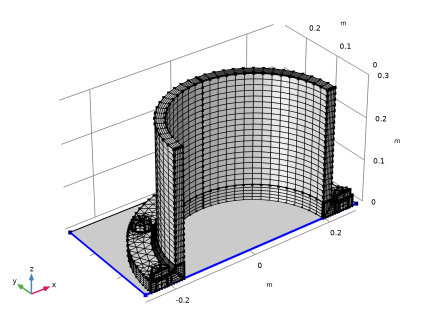
In order to keep the solution time down, a coarse mesh is used; a mesh refinement study is required if quantitative stress results are of interest.
Application Library path: Structural_Mechanics_Module/Contact_and_Friction/tube_connection
Modeling Instructions
From the File menu, choose New.
New
In the New window, click  Model Wizard.
Model Wizard
1
In the Model Wizard window, click  3D.
2
In the Select Physics tree, select Structural Mechanics > Solid Mechanics (solid).
3
Click Add.
4
Click  Study.
5
In the Select Study tree, select General Studies > Stationary.
6
Global Definitions
Parameters 1
1
In the Model Builder window, under Global Definitions click Parameters 1.
2
In the Settings window for Parameters, locate the Parameters section.
3
Click  Load from File.
4
Geometry 1
Insert the geometry sequence from the tube_connection_geom_sequence.mph file.
1
In the Geometry toolbar, click Insert Sequence and choose Insert Sequence.
2
Form Union (fin)
1
In the Model Builder window, under Component 1 (comp1) > Geometry 1 click Form Union (fin).
2
In the Settings window for Form Union/Assembly, locate the Form Union/Assembly section.
3
From the Action list, choose Form an assembly.
4
From the Pair type list, choose Contact pair.
5
From the Frame for identity pairs list, choose Material  (X, Y, Z).
6
Click  Build Selected.
7
Click the  Zoom Extents button in the Graphics toolbar.
Inspect the contact pair selections and adjust them if necessary. One of the automatically generated contact pairs is not used.
Definitions
Contact Pair 1 (ap1)
Small sliding is expected so you can speed up the computation by changing the mapping method.
1
In the Model Builder window, expand the Component 1 (comp1) > Definitions node, then click Contact Pair 1 (ap1).
2
In the Settings window for Pair, locate the Advanced section.
3
From the Mapping method list, choose Initial configuration.
Contact Pair 2 (ap2)
This contact pair is only used to collect the bolt boundaries at the symmetry plane, which correspond to the destination boundaries. Create a new selection, then delete the pair.
1
In the Model Builder window, click Contact Pair 2 (ap2).
2
In the Settings window for Pair, locate the Destination Boundaries section.
3
Click  Create Selection.
4
In the Create Selection dialog, type Bolts Symmetry in the Selection name text field.
5
6
Right-click Contact Pair 2 (ap2) and choose Delete.
Contact Pair 3 (ap3)
1
In the Settings window for Pair, locate the Advanced section.
2
From the Mapping method list, choose Initial configuration.
3
Click the  Swap Source and Destination button.
Contact Pair 4 (ap4)
Assume a bonded contact between the washers and the bolt heads.
1
In the Model Builder window, click Contact Pair 4 (ap4).
2
In the Settings window for Pair, locate the Pair Type section.
3
Select the Manual control of selections and pair type checkbox.
4
From the Pair type list, choose Identity pair.
Component 1 (comp1)
Make sure that well defined boundary tangents are available for the contact with friction.
Definitions
Boundary System 1 (sys1)
1
In the Model Builder window, under Component 1 (comp1) > Definitions click Boundary System 1 (sys1).
2
In the Settings window for Boundary System, locate the Settings section.
3
Find the Coordinate names subsection. From the Axis list, choose x.
Define selections to use later in the modeling.
Symmetry Boundaries (xz-plane)
1
In the Definitions toolbar, click  Box.
2
In the Settings window for Box, type Symmetry Boundaries (xz-plane) in the Label text field.
3
Locate the Geometric Entity Level section. From the Level list, choose Boundary.
4
Locate the Box Limits section. In the y maximum text field, type 0.
5
In the z minimum text field, type 0.
6
Locate the Output Entities section. From the Include entity if list, choose Entity inside box.
Symmetry
1
In the Definitions toolbar, click  Union.
2
In the Settings window for Union, locate the Geometric Entity Level section.
3
From the Level list, choose Boundary.
4
Locate the Input Entities section. Under Selections to add, click  Add.
5
In the Add dialog, in the Selections to add list, choose Bolts Symmetry and Symmetry Boundaries (xz-plane).
6
7
In the Settings window for Union, type Symmetry in the Label text field.
Now create a selection for each bolt pretension cut.
Bolt Pretension, Cut 1
1
In the Definitions toolbar, click  Explicit.
2
In the Settings window for Explicit, type Bolt Pretension, Cut 1 in the Label text field.
3
Locate the Input Entities section. From the Geometric entity level list, choose Boundary.
4
5
Select the Group by continuous tangent checkbox.
Bolt Pretension, Cut 2
1
In the Definitions toolbar, click  Explicit.
2
In the Settings window for Explicit, type Bolt Pretension, Cut 2 in the Label text field.
3
Locate the Input Entities section. From the Geometric entity level list, choose Boundary.
4
5
Select the Group by continuous tangent checkbox.
Bolt Pretension, Cut 3
1
In the Definitions toolbar, click  Explicit.
2
In the Settings window for Explicit, type Bolt Pretension, Cut 3 in the Label text field.
3
Locate the Input Entities section. From the Geometric entity level list, choose Boundary.
4
5
Select the Group by continuous tangent checkbox.
Bolt Pretension, Cut 4
1
In the Definitions toolbar, click  Explicit.
2
In the Settings window for Explicit, type Bolt Pretension, Cut 4 in the Label text field.
3
Locate the Input Entities section. From the Geometric entity level list, choose Boundary.
4
5
Select the Group by continuous tangent checkbox.
Bolt Pretension, Cut 5
1
In the Definitions toolbar, click  Explicit.
2
In the Settings window for Explicit, type Bolt Pretension, Cut 5 in the Label text field.
3
Locate the Input Entities section. From the Geometric entity level list, choose Boundary.
4
5
Select the Group by continuous tangent checkbox.
Add Material
1
In the Materials toolbar, click  Add Material to open the Add Material window.
2
Go to the Add Material window.
3
In the tree, select Built-in > Structural steel.
4
Click the Add to Component button in the window toolbar.
5
In the Materials toolbar, click  Add Material to close the Add Material window.
Solid Mechanics (solid)
Pressure
1
In the Physics toolbar, click  Boundaries and choose Boundary Load.
2
In the Settings window for Boundary Load, type Pressure in the Label text field.
3
4
Locate the Force section. From the Load type list, choose Pressure.
5
In the p text field, type pressure.
Bending Moment and Axial Force
1
In the Physics toolbar, click  Boundaries and choose Boundary Load.
2
In the Settings window for Boundary Load, type Bending Moment and Axial Force in the Label text field.
3
4
Locate the Force section. From the Load type list, choose Resultant.
5
Specify the F vector as
6
Specify the M vector as
7
Click to expand the Symmetry section. From the list, choose Symmetry.
8
Specify the nsym vector as
Bolt Pretension 1
1
In the Physics toolbar, click  Global and choose Bolt Pretension.
2
In the Settings window for Bolt Pretension, locate the Bolt Pretension section.
3
In the Fp text field, type boltPrestressForce.
Bolt Selection 1
1
In the Model Builder window, click Bolt Selection 1.
2
In the Settings window for Bolt Selection, locate the Boundary Selection section.
3
From the Selection list, choose Bolt Pretension, Cut 1.
Bolt Pretension 1
In the Model Builder window, click Bolt Pretension 1.
Bolt Selection 2
1
In the Physics toolbar, click  Attributes and choose Bolt Selection.
2
In the Settings window for Bolt Selection, locate the Boundary Selection section.
3
From the Selection list, choose Bolt Pretension, Cut 2.
Bolt Pretension 1
In the Model Builder window, click Bolt Pretension 1.
Bolt Selection 3
1
In the Physics toolbar, click  Attributes and choose Bolt Selection.
2
In the Settings window for Bolt Selection, locate the Boundary Selection section.
3
From the Selection list, choose Bolt Pretension, Cut 3.
Bolt Pretension 1
In the Model Builder window, click Bolt Pretension 1.
Bolt Selection 4
1
In the Physics toolbar, click  Attributes and choose Bolt Selection.
2
In the Settings window for Bolt Selection, locate the Boundary Selection section.
3
From the Selection list, choose Bolt Pretension, Cut 4.
Bolt Pretension 1
In the Model Builder window, click Bolt Pretension 1.
Bolt Selection 5
1
In the Physics toolbar, click  Attributes and choose Bolt Selection.
2
In the Settings window for Bolt Selection, locate the Boundary Selection section.
3
From the Selection list, choose Bolt Pretension, Cut 5.
Contact 1a
1
In the Physics toolbar, click  Pairs and choose Contact.
2
In the Settings window for Contact, locate the Pair Selection section.
3
4
In the Add dialog, select Contact Pair 3 (ap3) in the Pairs list.
5
Use the augmented Lagrangian method to improve the accuracy of the contact forces from the bolts.
6
In the Settings window for Contact, locate the Contact Method section.
7
From the list, choose Augmented Lagrangian.
8
Locate the Contact Pressure Penalty Factor section. From the Tuned for list, choose Speed.
Friction 1
1
In the Physics toolbar, click  Attributes and choose Friction.
2
In the Settings window for Friction, locate the Friction Parameters section.
3
In the μ text field, type 0.15.
Contact 1a
In the Model Builder window, click Contact 1a.
Stabilization 1
1
In the Physics toolbar, click  Attributes and choose Stabilization.
The bolts are initially in contact. It is therefore enough to add stabilization in the first iteration.
2
In the Settings window for Stabilization, locate the Quasistatic Stabilization section.
3
From the Method list, choose Manual.
Symmetry 1
1
In the Physics toolbar, click  Boundaries and choose Symmetry.
2
In the Settings window for Symmetry, locate the Boundary Selection section.
3
From the Selection list, choose Symmetry.
Add a constraint to suppress the rigid body motion in the x direction.
Prescribed Displacement 1
1
In the Physics toolbar, click  Points and choose Prescribed Displacement.
2
3
In the Settings window for Prescribed Displacement, locate the Prescribed Displacement section.
4
From the Displacement in x direction list, choose Prescribed.
Add Stress Linearization nodes to describe the stress classification lines.
Stress Linearization 1
1
In the Physics toolbar, click  Global and choose Stress Linearization.
2
3
In the Settings window for Stress Linearization, locate the Second Axis Orientation Reference Point section.
4
Click to select the  Activate Selection toggle button.
5
6
Repeat the previous steps to add Stress Linearization node for the edges 33, 36, 107, 110 and 115.
Add a Section Forces node to compute the integrated section forces for the cross section near the fillet.
Section Forces 1
1
In the Physics toolbar, click  Global and choose Section Forces.
2
Click the  Wireframe Rendering button in the Graphics toolbar.
3
4
Click the  Wireframe Rendering button in the Graphics toolbar.
5
In the Settings window for Section Forces, locate the Cut Plane section.
6
Select the Symmetry plane checkbox.
7
Locate the Symmetry Plane Selection section. Click to select the  Activate Selection toggle button.
8
Mesh 1
Swept 1
1
In the Mesh toolbar, click  Swept.
2
In the Settings window for Swept, locate the Domain Selection section.
3
From the Geometric entity level list, choose Domain.
4
From the Selection list, choose Washers.
The generation of the swept mesh for the half washer domains is not unique. Specify the source boundaries to control the sweep direction.
5
Click to expand the Source Faces section. Select Boundaries 59, 63, 67, 145, 149, and 153 only.
Size 1
1
Right-click Swept 1 and choose Size.
2
In the Settings window for Size, locate the Element Size section.
3
From the Predefined list, choose Finer.
4
Click  Build Selected.
Swept 2
1
In the Mesh toolbar, click  Swept.
2
In the Settings window for Swept, locate the Domain Selection section.
3
From the Geometric entity level list, choose Domain.
4
From the Selection list, choose Bolts.
Size 1
1
Right-click Swept 2 and choose Size.
2
In the Settings window for Size, locate the Element Size section.
3
From the Predefined list, choose Fine.
Distribution 1
1
In the Model Builder window, right-click Swept 2 and choose Distribution.
2
In the Settings window for Distribution, locate the Distribution section.
3
In the Number of elements text field, type 2.
4
Click  Build Selected.
Mapped 1
1
In the Mesh toolbar, click  More Generators and choose Mapped.
2
Click the  Go to Default View button in the Graphics toolbar.
3
Distribution 1
1
Right-click Mapped 1 and choose Distribution.
2
Distribution 2
1
In the Model Builder window, right-click Mapped 1 and choose Distribution.
2
3
In the Settings window for Distribution, locate the Distribution section.
4
In the Number of elements text field, type 20.
5
Click  Build Selected.
Swept 3
1
In the Mesh toolbar, click  Swept.
2
In the Settings window for Swept, locate the Domain Selection section.
3
From the Geometric entity level list, choose Domain.
4
Distribution 1
1
Right-click Swept 3 and choose Distribution.
2
In the Settings window for Distribution, locate the Distribution section.
3
In the Number of elements text field, type 30.
4
Click  Build Selected.
Free Triangular 1
1
In the Mesh toolbar, click  More Generators and choose Free Triangular.
2
Size 1
1
Right-click Free Triangular 1 and choose Size.
2
In the Settings window for Size, locate the Element Size section.
3
From the Predefined list, choose Extra fine.
4
Click  Build Selected.
Swept 4
1
In the Mesh toolbar, click  Swept.
2
In the Settings window for Swept, click  Build All.
Mapped 2
1
In the Mesh toolbar, click  More Generators and choose Mapped.
2
Distribution 1
1
Right-click Mapped 2 and choose Distribution.
2
3
In the Settings window for Distribution, locate the Distribution section.
4
In the Number of elements text field, type 1.
5
Click  Build All.
The mesh should now look as in the figure below.
Study 1
The bolt pretension has to be computed first in a separate study step.
Step 2: Bolt Pretension
1
In the Study toolbar, click  More Study Steps and choose Stationary > Bolt Pretension.
2
Right-click Step 2: Bolt Pretension and choose Move Up.
3
In the Settings window for Bolt Pretension, click to expand the Study Extensions section.
Disable the external loads during the prestress load step.
4
Locate the Physics and Variables Selection section. Select the Modify model configuration for study step checkbox.
5
In the tree, select Component 1 (comp1) > Solid Mechanics (solid), Controls spatial frame > Pressure.
6
Click  Disable.
7
In the tree, select Component 1 (comp1) > Solid Mechanics (solid), Controls spatial frame > Bending Moment and Axial Force.
8
Click  Disable.
Step 2: Stationary
1
In the Model Builder window, click Step 2: Stationary.
2
In the Settings window for Stationary, click to expand the Study Extensions section.
3
Select the Auxiliary sweep checkbox.
4
5
Solution 1 (sol1)
1
In the Study toolbar, click  Show Default Solver.
2
In the Model Builder window, expand the Solution 1 (sol1) node.
3
In the Model Builder window, expand the Study 1 > Solver Configurations > Solution 1 (sol1) > Dependent Variables 1 node, then click Displacement Field (comp1.u).
4
In the Settings window for Field, locate the Scaling section.
5
In the Scale text field, type 1e-4.
The default scale for the displacements is 1% of the model size. This is significantly more than can be expected here.
6
In the Model Builder window, expand the Study 1 > Solver Configurations > Solution 1 (sol1) > Dependent Variables 2 node, then click Displacement Field (comp1.u).
7
In the Settings window for Field, locate the Scaling section.
8
In the Scale text field, type 1e-4.
9
In the Study toolbar, click  Compute.
Results
Stress, Bolt Pretension
Reproduce the plot in Figure 2 with the following steps:
1
In the Settings window for 3D Plot Group, type Stress, Bolt Pretension in the Label text field.
2
Locate the Data section. From the Dataset list, choose Study 1/Solution Store 1 (sol2).
Volume 1
1
In the Model Builder window, expand the Stress, Bolt Pretension node, then click Volume 1.
2
In the Settings window for Volume, click Replace Expression in the upper-right corner of the Expression section. From the menu, choose Component 1 (comp1) > Solid Mechanics > Stress > Stress tensor (spatial frame) - N/m² > solid.sGpzz - Stress tensor, zz-component.
3
Click to expand the Range section. Select the Manual color range checkbox.
4
In the Minimum text field, type -3e8.
5
In the Maximum text field, type 5e8.
Deformation
1
In the Model Builder window, expand the Volume 1 node, then click Deformation.
2
In the Settings window for Deformation, locate the Scale section.
3
In the Scale factor text field, type 20.
Preferred Units 1
1
In the Results toolbar, click  Configurations and choose Preferred Units.
2
In the Settings window for Preferred Units, locate the Units section.
3
Click  Add Physical Quantity.
4
In the Physical Quantity dialog, type stress in the text field.
5
In the tree, select Solid Mechanics > Stress tensor (N/m^2).
6
7
In the Settings window for Preferred Units, locate the Units section.
8
9
Select the Apply conversions to expressions with the same dimensions checkbox.
10
Click  Apply.
Volume 1
1
In the Model Builder window, under Results > Stress, Bolt Pretension click Volume 1.
2
In the Stress, Bolt Pretension toolbar, click  Plot.
Use the mouse buttons to rotate the geometry and zoom in on one of the bolts.
Graph Plot Style 1
1
In the Results toolbar, click  Configurations and choose Graph Plot Style.
2
In the Settings window for Graph Plot Style, locate the Coloring and Style section.
3
Find the Line style subsection. From the Width list, choose 2.
4
Locate the Legends section. Find the Include in automatic mode subsection. Clear the Solution checkbox.
5
Select the Label checkbox.
6
Clear the Point checkbox.
Stress Linearization 1 (solid)
The default plot group for stress linearization shows the 22-component of the linearized stress. Here, the local x2 direction is in the xz-plane and perpendicular to the SCL chosen. The x3 direction will be the hoop direction.
1
In the Model Builder window, under Results click Stress Linearization 1 (solid).
2
In the Settings window for 1D Plot Group, click to expand the Title section.
3
From the Title type list, choose Manual.
4
In the Title text area, type Line Graph: Stress tensor, linearization line system, 33-component (MPa).
5
Locate the Plot Settings section. Select the x-axis label checkbox.
6
Select the y-axis label checkbox. In the associated text field, type Stress (MPa).
7
Click to expand the Style Configuration section. From the Configuration list, choose Graph Plot Style 1.
8
Locate the Legend section. From the Position list, choose Upper right.
Find and Replace
1
The Find and Replace operation with specified filters is used to replace the 22-component by the 33-component in the stress tensors in all 1D Plot Groups.
2
Go to the Find and Replace window.
3
Clicknext to  Add Filter, then choose Node Filter.
4
In the Node Filter dialog, choose Node types from the Filter list.
5
In the Find text field, type 1D Plot Group.
6
7
Go to the Find and Replace window.
8
Clicknext to  Add Filter, then choose Settings.
9
In the Settings dialog, type Expression in the Name text field.
10
Select the Case sensitive checkbox.
11
12
Go to the Find and Replace window.
13
In the Contains text field, type 22.
14
In the Replace with text field, type 33.
15
Click  Search.
16
Clicknext to  Replace, then choose Replace All.
Results
Section Forces (secf1)
The Section Forces node generates plots to visualize the resultant moment and force but also an evaluation group to evaluate the resultants at each load parameter.
1
In the Model Builder window, click Section Forces (secf1).
2
In the Section Forces (secf1) toolbar, click  Evaluate.
Result Templates
1
In the Results toolbar, click  Result Templates to open the Result Templates window.
2
Go to the Result Templates window.
3
In the tree, select Study 1/Solution 1 (sol1) > Solid Mechanics > Section Forces (secf1) and Study 1/Solution 1 (sol1) > Solid Mechanics > Section Moments (secf1).
4
Click the Add Result Template button in the window toolbar.
5
In the Results toolbar, click  Result Templates to close the Result Templates window.
Results
Annotation 1
1
In the Model Builder window, expand the Results > Section Moments (secf1) node, then click Annotation 1.
2
In the Settings window for Annotation, locate the Coloring and Style section.
3
From the Anchor point list, choose Lower right.
4
In the Section Moments (secf1) toolbar, click  Plot.
The following steps reproduce the plot in Figure 4 :
Stress
1
In the Results toolbar, click  3D Plot Group.
2
In the Settings window for 3D Plot Group, locate the Plot Settings section.
3
Clear the Plot dataset edges checkbox.
4
In the Label text field, type Stress.
5
Locate the Color Legend section. From the Position list, choose Right double.
Surface 1
1
Right-click Stress and choose Surface.
2
In the Settings window for Surface, locate the Expression section.
3
In the Expression text field, type solid.misesGp.
4
Click to expand the Range section. Select the Manual color range checkbox.
5
In the Maximum text field, type 400.
6
Locate the Coloring and Style section. From the Color table list, choose Prism.
Deformation 1
1
Right-click Surface 1 and choose Deformation.
2
In the Settings window for Deformation, locate the Scale section.
3
Select the Scale factor checkbox. In the associated text field, type 30.
Line 1
1
In the Model Builder window, right-click Stress and choose Line.
2
In the Settings window for Line, click to expand the Inherit Style section.
3
From the Plot list, choose Surface 1.
4
Clear the Color checkbox.
5
Clear the Color and data range checkbox.
6
Click Replace Expression in the upper-right corner of the Expression section. From the menu, choose Component 1 (comp1) > Solid Mechanics > Stress linearization > solid.SImb - Stress intensity, membrane plus bending - N/m².
7
Locate the Coloring and Style section. From the Line type list, choose Tube.
8
Select the Radius scale factor checkbox. In the associated text field, type 0.001.
9
From the Color table list, choose Traffic.
Deformation 1
Right-click Line 1 and choose Deformation.
Surface 2
1
In the Model Builder window, right-click Stress and choose Surface.
2
In the Settings window for Surface, click to expand the Title section.
3
From the Title type list, choose None.
4
Locate the Coloring and Style section. From the Coloring list, choose Uniform.
5
From the Color list, choose Black.
6
Select the Wireframe checkbox.
7
Click to expand the Inherit Style section. From the Plot list, choose Surface 1.
8
Clear the Color checkbox.
9
Clear the Color and data range checkbox.
Deformation 1
1
Right-click Surface 2 and choose Deformation.
2
In the Stress toolbar, click  Plot.
Proceed to plot the bolt forces as a function of the applied moment as in Figure 5.
Bolt Force
1
In the Results toolbar, click  1D Plot Group.
2
In the Settings window for 1D Plot Group, type Bolt Force in the Label text field.
Global 1
1
Right-click Bolt Force and choose Global.
2
In the Settings window for Global, click Replace Expression in the upper-right corner of the y-Axis Data section. From the menu, choose Component 1 (comp1) > Solid Mechanics > Bolts > Bolt_1 > solid.pblt1.sblt1.F_bolt - Bolt force - N.
3
Locate the y-Axis Data section. In the table, enter the following settings:
4
Click to expand the Legends section. Clear the Show legends checkbox.
5
Click to expand the Coloring and Style section. From the Width list, choose 2.
6
Locate the x-Axis Data section. From the Parameter list, choose Expression.
7
In the Expression text field, type bendingMoment*lp/1000.
Bolt Force
1
In the Model Builder window, click Bolt Force.
2
In the Settings window for 1D Plot Group, locate the Plot Settings section.
3
Select the x-axis label checkbox. In the associated text field, type Bending moment on tube (kNm).
4
Select the y-axis label checkbox. In the associated text field, type Axial force in bolts (kN).
Global 1
1
In the Model Builder window, click Global 1.
2
In the Settings window for Global, locate the Legends section.
3
Select the Show legends checkbox.
4
Click to collapse the Coloring and Style section.
Bolt Force
1
In the Model Builder window, click Bolt Force.
2
In the Settings window for 1D Plot Group, locate the Title section.
3
From the Title type list, choose None.
4
Locate the Legend section. From the Position list, choose Upper left.
The following steps create the plot in Figure 6:
Bolt Stress
1
In the Results toolbar, click  1D Plot Group.
2
In the Settings window for 1D Plot Group, type Bolt Stress in the Label text field.
Point Graph 1
1
Right-click Bolt Stress and choose Point Graph.
2
3
In the Settings window for Point Graph, click Replace Expression in the upper-right corner of the y-Axis Data section. From the menu, choose Component 1 (comp1) > Solid Mechanics > Stress > Stress tensor (spatial frame) - N/m² > solid.sGpzz - Stress tensor, zz-component.
4
Locate the y-Axis Data section.
5
Select the Description checkbox. In the associated text field, type Bolt stress.
6
Locate the x-Axis Data section. From the Parameter list, choose Expression.
7
In the Expression text field, type bendingMoment*lp.
8
From the Unit list, choose kN*m.
9
Click to expand the Coloring and Style section. Find the Line style subsection. From the Line list, choose Cycle.
10
From the Width list, choose 2.
11
Click to expand the Legends section. Select the Show legends checkbox.
12
From the Legends list, choose Manual.
13
Bolt Stress
1
In the Model Builder window, click Bolt Stress.
2
In the Settings window for 1D Plot Group, locate the Plot Settings section.
3
Select the x-axis label checkbox. In the associated text field, type Bending moment on tube (kNm).
4
Locate the Legend section. From the Position list, choose Upper left.
Next, reproduce the contact pressure plots shown in Figure 7 and Figure 8 :
Contact Pressure
1
In the Results toolbar, click  3D Plot Group.
2
In the Settings window for 3D Plot Group, type Contact Pressure in the Label text field.
3
Locate the Data section. From the Dataset list, choose Study 1/Solution Store 1 (sol2).
Surface 1
1
In the Contact Pressure toolbar, click  Surface.
2
In the Settings window for Surface, click Replace Expression in the upper-right corner of the Expression section. From the menu, choose Component 1 (comp1) > Solid Mechanics > Contact > Contact 1 > solid.dcnt1.Tn - Contact pressure - N/m².
3
Locate the Range section. Select the Manual color range checkbox.
4
In the Maximum text field, type 100.
5
Click the  Go to XY View button in the Graphics toolbar.
6
In the Contact Pressure toolbar, click  Plot.
7
Click the  Zoom Extents button in the Graphics toolbar.
Contact Pressure
1
In the Model Builder window, click Contact Pressure.
2
In the Settings window for 3D Plot Group, locate the Data section.
3
From the Dataset list, choose Study 1/Solution 1 (sol1).
4
In the Contact Pressure toolbar, click  Plot.
Finally, add Boundary Loads (solid) from Result Templates to visualize the applied loads.
Result Templates
1
In the Results toolbar, click  Result Templates to open the Result Templates window.
2
Go to the Result Templates window.
3
In the tree, select Study 1/Solution 1 (sol1) > Solid Mechanics > Applied Loads (solid) > Boundary Loads (solid).
4
Click the Add Result Template button in the window toolbar.
5
In the Results toolbar, click  Result Templates to close the Result Templates window.
Results
Boundary Loads (solid)
1
In the Boundary Loads (solid) toolbar, click  Plot.
2
Click the  Go to Default View button in the Graphics toolbar.