
PDF

Transient Rolling Contact
Introduction
This conceptual example shows how to handle a transient contact problem with stick–slip friction transition. A soft hollow pipe subjected to a gravity load is released at the top of a half-pipe. The motion varies between sliding and rolling, depending on the position in the half-pipe and the velocity of the pipe. The pipe deforms such that its cross-section becomes oval due to the contact and the inertial forces. An analysis of the energy balance validates the accuracy of the solution.
Model Definition
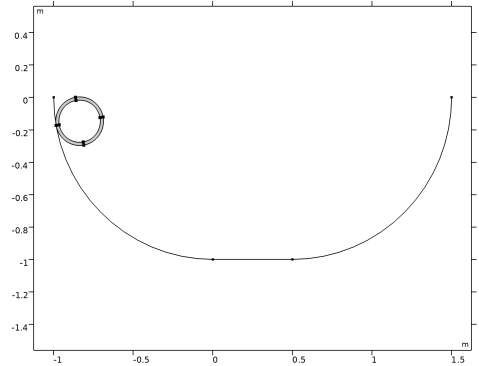
As illustrated in Figure 1, the geometry consists of a section cut from a hollow pipe and a half-pipe. The pipe radius is 15 cm and the thickness is 2 cm. The half-pipe radius is about 1 m and has a transition length of 50 cm.
Figure 1: Model geometry.
The half-pipe is rigid, so it is modeled only by a meshed edge without any physics defined. The hollow pipe is subjected to gravity and dropped in the half-pipe with its centroid at a height of 75 cm above the horizontal plane. The pipe is always in contact with the half-pipe.
The friction coefficient is defined as a function of the slip velocity through the exponential dynamic Coulomb friction model:
(1)
Here, μdyn = 0.3 is the dynamic friction coefficient, and μstat = 0.5 is the static friction coefficient. The friction decay coefficient α = 1, and v is the slip velocity.
The solution is computed for 4 s. The pipe displacement and the energy balance are the quantities of interest.
Results and Discussion
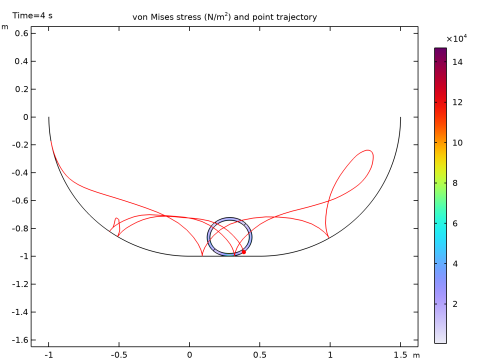
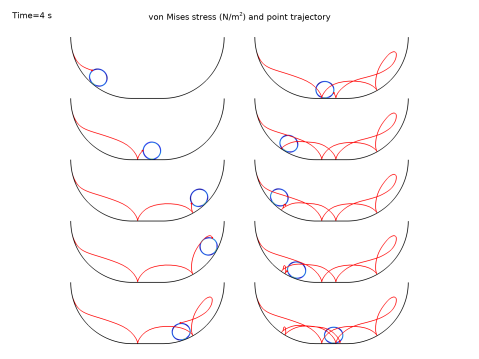
Figure 2 shows the von Mises stress distribution in the pipe at the final step together with the trajectory of a point located on the outer surface of the pipe. You can notice the deformation of the pipe due to gravity, and that the trajectory path clearly shows a transition between the stick and slip friction stages. In the former, the trajectory is smoothly following the rotation of the pipe, while in the latter stage the trajectory has a slightly more elongated path. Figure 3 below shows the position of the pipe at every 0.4 s.
Figure 2: Stress distribution and point trajectory of the pipe.
Figure 3: Position of the pipe at every 0.4 s.
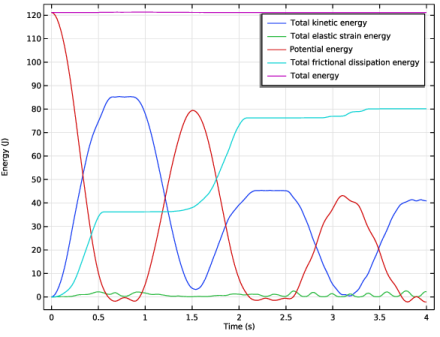
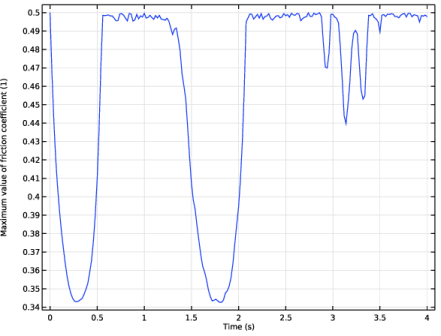
In Figure 4, you can see the energy balance. As expected, the potential energy decreases as the kinetic energy increases. Because of frictional dissipation, the pipe never reaches its original height in the half-pipe. Most of the energy is lost due to friction when the pipe reaches the steeper slope region of the half-pipe. After 2 s, the pipe remains in the region with lower slope and will roll rather than slide. Note also that part of the total energy is stored as elastic strain energy, due to the deformation of the pipe. Lastly, Figure 5 shows the friction coefficient as function of time.
Figure 4: Energy balance versus time.
Figure 5: Friction coefficient versus time.
Notes About the COMSOL Implementation
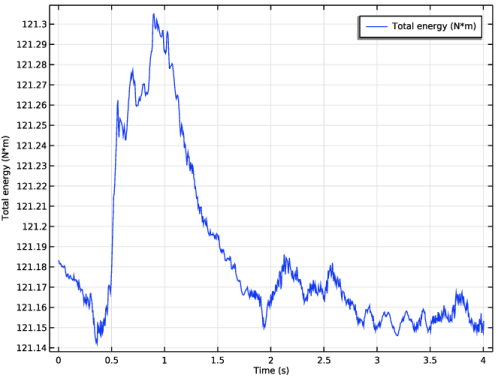
To speed up the computation, manual time stepping is used to solve the model. Note, however, that for manual time stepping there is no error control, so it is good practice to inspect the total energy in a probe plot to verify the energy balance. In Figure 6 you can see that the conservation of the total energy is fulfilled for all time steps taken by the solver.
Figure 6: Total energy versus time probe plot. Note the scale on the y-axis.
Application Library path: Structural_Mechanics_Module/Contact_and_Friction/transient_rolling_contact
Modeling Instructions
From the File menu, choose New.
New
In the New window, click  Model Wizard.
Model Wizard
1
In the Model Wizard window, click  2D.
2
In the Select Physics tree, select Structural Mechanics > Solid Mechanics (solid).
3
Click Add.
4
Click  Study.
5
In the Select Study tree, select General Studies > Time Dependent.
6
Global Definitions
Parameters 1
1
In the Model Builder window, under Global Definitions click Parameters 1.
2
In the Settings window for Parameters, locate the Parameters section.
3
Geometry 1
Circular Arc 1 (ca1)
1
In the Geometry toolbar, click  More Primitives and choose Circular Arc.
2
In the Settings window for Circular Arc, locate the Properties section.
3
From the Specify list, choose Endpoints and start angle.
4
Locate the Starting Point section. In the x text field, type -1.
5
Locate the Endpoint section. In the y text field, type -1.
6
Locate the Angles section. In the Start angle text field, type 180.
Circular Arc 2 (ca2)
1
In the Geometry toolbar, click  More Primitives and choose Circular Arc.
2
In the Settings window for Circular Arc, locate the Properties section.
3
From the Specify list, choose Endpoints and start angle.
4
Locate the Starting Point section. In the x text field, type 0.5.
5
In the y text field, type -1.
6
Locate the Endpoint section. In the x text field, type 1.5.
7
In the y text field, type 0.
8
Locate the Angles section. In the Start angle text field, type 270.
9
Click  Build All Objects.
Line Segment 1 (ls1)
1
In the Geometry toolbar, click  More Primitives and choose Line Segment.
2
On the object ca1, select Point 2 only.
3
In the Settings window for Line Segment, locate the Endpoint section.
4
Click to select the  Activate Selection toggle button for End vertex.
5
On the object ca2, select Point 1 only.
Convert to Curve 1 (ccur1)
1
In the Geometry toolbar, click  Conversions and choose Convert to Curve.
2
Click in the Graphics window and then press Ctrl+A to select all objects.
3
In the Settings window for Convert to Curve, locate the Selections of Resulting Entities section.
4
Find the Cumulative selection subsection. Click New.
5
In the New Cumulative Selection dialog, type Contact Source in the Name text field.
6
7
In the Settings window for Convert to Curve, click  Build Selected.
Circle 1 (c1)
1
In the Geometry toolbar, click  Circle.
2
In the Settings window for Circle, locate the Size and Shape section.
3
In the Radius text field, type rp.
4
Locate the Position section. In the x text field, type -1+rp.
5
Click to expand the Layers section. In the table, enter the following settings:
Delete Entities 1 (del1)
1
In the Model Builder window, right-click Geometry 1 and choose Delete Entities.
2
In the Settings window for Delete Entities, locate the Entities or Objects to Delete section.
3
From the Geometric entity level list, choose Domain.
4
On the object c1, select Domain 5 only.
Rotate 1 (rot1)
1
In the Geometry toolbar, click  Transforms and choose Rotate.
2
3
In the Settings window for Rotate, locate the Rotation section.
4
In the Angle text field, type theta.
Form Union (fin)
1
In the Model Builder window, under Component 1 (comp1) > Geometry 1 click Form Union (fin).
2
In the Settings window for Form Union/Assembly, locate the Form Union/Assembly section.
3
From the Action list, choose Form an assembly.
4
Clear the Create pairs checkbox.
5
Click  Build Selected.
Materials
Material 1 (mat1)
1
In the Model Builder window, under Component 1 (comp1) right-click Materials and choose Blank Material.
2
In the Settings window for Material, locate the Material Contents section.
3
Solid Mechanics (solid)
Gravity 1
In the Physics toolbar, click  Global and choose Gravity.
Definitions
Contact Destination
1
In the Definitions toolbar, click  Explicit.
2
In the Settings window for Explicit, type Contact Destination in the Label text field.
3
Locate the Input Entities section. From the Geometric entity level list, choose Boundary.
4
Select the Group by continuous tangent checkbox.
5
Contact Pair 1 (p1)
1
In the Definitions toolbar, click  Pairs and choose Contact Pair.
2
In the Settings window for Pair, locate the Source Boundaries section.
3
From the Selection list, choose Contact Source.
4
Locate the Destination Boundaries section. Click to select the  Activate Selection toggle button.
5
From the Selection list, choose Contact Destination.
Solid Mechanics (solid)
Contact 1
The stick-slip friction is better resolved using the Augmented Lagrangian method.
1
In the Model Builder window, under Component 1 (comp1) > Solid Mechanics (solid) click Contact 1.
2
In the Settings window for Contact, locate the Contact Method section.
3
From the list, choose Augmented Lagrangian.
4
Locate the Contact Pressure Penalty Factor section. From the Penalty factor control list, choose Manual tuning.
5
From the Use relaxation list, choose Never.
Friction 1
1
In the Physics toolbar, click  Attributes and choose Friction.
2
In the Settings window for Friction, locate the Friction Parameters section.
3
From the Friction model list, choose Exponential dynamic Coulomb.
4
In the μstat text field, type 0.5.
5
In the μdyn text field, type 0.3.
6
In the αdcf text field, type 1.
7
Click the  Show More Options button in the Model Builder toolbar.
8
In the Show More Options dialog, in the tree, select the checkbox for the node Physics > Advanced Physics Options.
9
10
In the Settings window for Friction, click to expand the Advanced section.
11
Select the Compute frictional dissipation checkbox.
Definitions
Integration 1 (intop1)
1
In the Definitions toolbar, click  Nonlocal Couplings and choose Integration.
2
In the Settings window for Integration, locate the Source Selection section.
3
From the Selection list, choose All domains.
Variables 1
1
In the Model Builder window, right-click Definitions and choose Variables.
2
In the Settings window for Variables, locate the Variables section.
3
Maximum 1 (maxop1)
1
In the Definitions toolbar, click  Nonlocal Couplings and choose Maximum.
2
In the Settings window for Maximum, locate the Source Selection section.
3
From the Geometric entity level list, choose Boundary.
4
From the Selection list, choose Contact Destination.
5
Locate the Advanced section. From the Point type list, choose Integration points.
Variables 1
1
In the Model Builder window, click Variables 1.
2
In the Settings window for Variables, locate the Variables section.
3
Mesh 1
Edge 1
1
In the Mesh toolbar, click  More Generators and choose Edge.
2
In the Settings window for Edge, locate the Boundary Selection section.
3
From the Selection list, choose Contact Source.
Size 1
1
Right-click Edge 1 and choose Size.
2
In the Settings window for Size, locate the Element Size section.
3
Click the Custom button.
4
Locate the Element Size Parameters section.
5
Select the Maximum element size checkbox. In the associated text field, type 0.005.
Mapped 1
In the Mesh toolbar, click  Mapped.
Distribution 1
1
Right-click Mapped 1 and choose Distribution.
2
3
In the Settings window for Distribution, locate the Distribution section.
4
In the Number of elements text field, type 3.
Distribution 2
1
In the Model Builder window, right-click Mapped 1 and choose Distribution.
2
In the Settings window for Distribution, locate the Boundary Selection section.
3
From the Selection list, choose Contact Destination.
4
Locate the Distribution section. In the Number of elements text field, type 20.
Study 1
Step 1: Time Dependent
1
In the Model Builder window, under Study 1 click Step 1: Time Dependent.
2
In the Settings window for Time Dependent, locate the Study Settings section.
3
In the Output times text field, type range(0,2e-2,4).
Solution 1 (sol1)
1
In the Study toolbar, click  Show Default Solver.
2
In the Model Builder window, expand the Solution 1 (sol1) node.
3
In the Model Builder window, expand the Study 1 > Solver Configurations > Solution 1 (sol1) > Dependent Variables 1 node, then click Contact Pressure (comp1.solid.Tn_p1).
4
In the Settings window for Field, locate the Scaling section.
5
In the Scale text field, type 5e4.
6
7
In the Model Builder window, under Study 1 > Solver Configurations > Solution 1 (sol1) click Time-Dependent Solver 1.
8
In the Settings window for Time-Dependent Solver, click to expand the Time Stepping section.
9
From the Steps taken by solver list, choose Manual.
10
In the Time step text field, type 5e-3.
11
In the Model Builder window, expand the Study 1 > Solver Configurations > Solution 1 (sol1) > Time-Dependent Solver 1 node, then click Segregated 1.
12
In the Settings window for Segregated, locate the General section.
13
In the Tolerance factor text field, type 0.1.
14
In the Model Builder window, expand the Study 1 > Solver Configurations > Solution 1 (sol1) > Time-Dependent Solver 1 > Segregated 1 node, then click Solid Mechanics.
15
In the Settings window for Segregated Step, click to expand the Method and Termination section.
16
From the Nonlinear method list, choose Constant (Newton).
17
From the Jacobian update list, choose On every iteration.
18
From the Termination technique list, choose Iterations or tolerance.
Definitions
Variables 1
1
In the Model Builder window, under Component 1 (comp1) > Definitions click Variables 1.
2
In the Settings window for Variables, locate the Variables section.
3
Global Variable Probe 1 (var1)
1
In the Definitions toolbar, click  Probes and choose Global Variable Probe.
2
In the Settings window for Global Variable Probe, locate the Expression section.
3
In the Expression text field, type W_tot.
Study 1
In the Study toolbar, click  Compute.
Results
Stress (solid)
1
In the Settings window for 2D Plot Group, click to expand the Title section.
2
From the Title type list, choose Manual.
3
In the Title text area, type von Mises stress (N/m<sup>2</sup>) and point trajectory.
4
Locate the Plot Settings section. From the Frame list, choose Spatial  (x, y, z).
Point Trajectories 1
1
In the Stress (solid) toolbar, click  More Plots and choose Point Trajectories.
2
In the Settings window for Point Trajectories, locate the Trajectory Data section.
3
From the Plot data list, choose Points.
4
In the X-expression text field, type u-cos(theta).
5
In the Y-expression text field, type v-sin(theta).
6
7
Locate the Coloring and Style section. Find the Line style subsection. From the Color list, choose Red.
8
Find the Point style subsection. From the Type list, choose Point.
9
Select the Radius scale factor checkbox. In the associated text field, type 15.
10
In the Stress (solid) toolbar, click  Plot.
11
Click the  Zoom Extents button in the Graphics toolbar.
Animation 1
1
In the Results toolbar, click  Animation and choose Player.
2
In the Settings window for Animation, locate the Scene section.
3
From the Subject list, choose Stress (solid).
Surface 1
1
In the Model Builder window, under Results > Stress (solid) click Surface 1.
2
In the Settings window for Surface, locate the Coloring and Style section.
3
From the Color table list, choose Rainbow.
Animation 1
1
In the Model Builder window, under Results > Export click Animation 1.
2
In the Settings window for Animation, locate the Frames section.
3
From the Frame selection list, choose All.
4
Locate the Playing section. In the Display each frame for text field, type 1e-1.
5
Click the  Play button in the Graphics toolbar.
Energy
1
In the Results toolbar, click  1D Plot Group.
2
In the Settings window for 1D Plot Group, type Energy in the Label text field.
3
Click to expand the Title section. From the Title type list, choose None.
4
Locate the Plot Settings section.
5
Select the y-axis label checkbox. In the associated text field, type Energy (J).
Global 1
1
Right-click Energy and choose Global.
2
In the Settings window for Global, locate the y-Axis Data section.
3
4
In the Energy toolbar, click  Plot.
Friction Coefficient
1
In the Results toolbar, click  1D Plot Group.
2
In the Settings window for 1D Plot Group, type Friction Coefficient in the Label text field.
3
Locate the Title section. From the Title type list, choose None.
4
Locate the Legend section. Clear the Show legends checkbox.
Global 1
1
Right-click Friction Coefficient and choose Global.
2
In the Settings window for Global, locate the y-Axis Data section.
3
4
In the Friction Coefficient toolbar, click  Plot.