
|
|
|
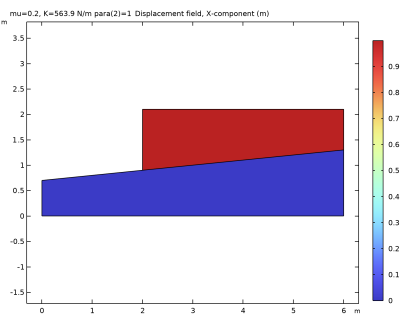
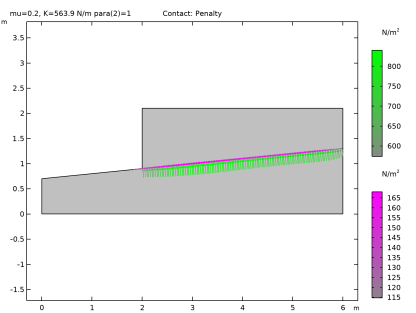
|
1
|
|
2
|
|
3
|
Click Add.
|
|
4
|
Click
 Study. Study. |
|
5
|
|
6
|
Click
 Done. Done. |
|
1
|
|
2
|
|
1
|
|
2
|
|
4
|
Click
 Build All Objects. Build All Objects. |
|
1
|
|
2
|
|
3
|
|
4
|
|
5
|
|
6
|
|
1
|
|
2
|
Select the object pol1 only.
|
|
3
|
|
1
|
|
2
|
Select the object r1 only.
|
|
3
|
|
4
|
|
5
|
Select the object copy1 only.
|
|
6
|
Click
 Build Selected. Build Selected. |
|
1
|
|
2
|
|
3
|
|
4
|
|
5
|
Click
 Build Selected. Build Selected. |
|
6
|
|
1
|
In the Model Builder window, under Component 1 (comp1) right-click Materials and choose Blank Material.
|
|
2
|
|
1
|
|
2
|
|
3
|
|
1
|
|
3
|
|
4
|
|
5
|
|
1
|
|
3
|
|
4
|
|
5
|
From the list, choose Diagonal.
|
|
6
|
|
1
|
|
3
|
|
4
|
|
5
|
|
1
|
|
1
|
|
3
|
|
4
|
|
1
|
|
3
|
|
4
|
|
1
|
|
3
|
|
4
|
|
5
|
Click
 Build All. Build All. |
|
1
|
|
2
|
|
3
|
Click
 Add. Add. |
|
5
|
Click
 Add. Add. |
|
1
|
|
2
|
|
3
|
Select the Auxiliary sweep checkbox.
|
|
4
|
Click
 Add. Add. |
|
6
|
|
7
|
|
1
|
|
2
|
|
3
|
In the Model Builder window, expand the Study 1 > Solver Configurations > Solution 1 (sol1) > Stationary Solver 1 node, then click Parametric 1.
|
|
4
|
|
5
|
Select the Tuning of step size checkbox.
|
|
6
|
|
7
|
|
8
|
|
9
|
In the Model Builder window, under Study 1 > Solver Configurations > Solution 1 (sol1) > Stationary Solver 1 click Fully Coupled 1.
|
|
10
|
|
11
|
|
12
|
|
13
|
|
14
|
|
1
|
|
2
|
In the Settings window for Surface, click Replace Expression in the upper-right corner of the Expression section. From the menu, choose Component 1 (comp1) > Solid Mechanics > Displacement > Displacement field - m > u - Displacement field, X-component.
|
|
3
|
|
4
|
|
5
|
|
1
|
|
2
|
Go to the Result Templates window.
|
|
3
|
In the tree, select Study 1: Penalty/Parametric Solutions 1 (sol2) > Solid Mechanics > Contact Forces (solid) and Study 1: Penalty/Parametric Solutions 1 (sol2) > Solid Mechanics > Applied Loads (solid).
|
|
4
|
Click the Add Result Template button in the window toolbar.
|
|
5
|
|
1
|
|
2
|
|
3
|
|
1
|
|
2
|
In the Settings window for Point Evaluation, type Point Evaluation: Penalty in the Label text field.
|
|
3
|
Locate the Data section. From the Dataset list, choose Study 1: Penalty/Parametric Solutions 1 (sol2).
|
|
4
|
|
5
|
|
7
|
Click Replace Expression in the upper-right corner of the Expressions section. From the menu, choose Component 1 (comp1) > Solid Mechanics > Displacement > Displacement field - m > u - Displacement field, X-component.
|
|
8
|
Click
 Evaluate. Evaluate. |
|
1
|
In the Model Builder window, under Component 1 (comp1) > Solid Mechanics (solid) right-click Contact 1 and choose Duplicate.
|
|
2
|
|
3
|
|
4
|
Click
 Add. Add. |
|
5
|
|
6
|
Click OK.
|
|
7
|
|
8
|
From the list, choose Augmented Lagrangian.
|
|
1
|
|
2
|
|
3
|
|
1
|
|
2
|
Go to the Add Study window.
|
|
3
|
|
4
|
Right-click and choose Add Study.
|
|
5
|
|
1
|
|
2
|
|
3
|
Click
 Add. Add. |
|
5
|
Click
 Add. Add. |
|
1
|
|
2
|
|
3
|
Select the Modify model configuration for study step checkbox.
|
|
4
|
In the tree, select Component 1 (comp1) > Solid Mechanics (solid), Controls spatial frame > Contact 3.
|
|
5
|
Right-click and choose Disable.
|
|
6
|
|
7
|
Click
 Add. Add. |
|
9
|
|
10
|
In the Settings window for Study, type Study 2: Augmented Lagrangian, Segregated in the Label text field.
|
|
1
|
|
2
|
|
3
|
In the Model Builder window, expand the Study 2: Augmented Lagrangian, Segregated > Solver Configurations > Solution 6 (sol6) > Dependent Variables 1 node, then click Friction Force (Spatial Frame) (comp1.solid.Tt_ap1).
|
|
4
|
|
5
|
|
6
|
In the Model Builder window, under Study 2: Augmented Lagrangian, Segregated > Solver Configurations > Solution 6 (sol6) > Dependent Variables 1 click Contact Pressure (comp1.solid.Tn_ap1).
|
|
7
|
|
8
|
|
9
|
In the Model Builder window, expand the Study 2: Augmented Lagrangian, Segregated > Solver Configurations > Solution 6 (sol6) > Stationary Solver 1 node, then click Parametric 1.
|
|
10
|
|
11
|
Select the Tuning of step size checkbox.
|
|
12
|
|
13
|
|
14
|
|
1
|
In the Model Builder window, expand the Displacement: Augmented Lagrangian, Segregated node, then click Surface 1.
|
|
2
|
In the Settings window for Surface, click Replace Expression in the upper-right corner of the Expression section. From the menu, choose Component 1 (comp1) > Solid Mechanics > Displacement > Displacement field - m > u - Displacement field, X-component.
|
|
3
|
|
4
|
|
5
|
|
1
|
|
2
|
Go to the Result Templates window.
|
|
3
|
In the tree, select Study 2: Augmented Lagrangian, Segregated/Parametric Solutions 2 (sol7) > Solid Mechanics > Contact Forces (solid).
|
|
4
|
Click the Add Result Template button in the window toolbar.
|
|
5
|
|
1
|
In the Model Builder window, expand the Contact: Augmented Lagrangian, Segregated node, then click Gray Surfaces.
|
|
2
|
|
3
|
|
1
|
|
2
|
In the Settings window for Point Evaluation, type Point Evaluation: Augmented Lagrangian, Segregated in the Label text field.
|
|
3
|
Locate the Data section. From the Dataset list, choose Study 2: Augmented Lagrangian, Segregated/Parametric Solutions 2 (sol7).
|
|
4
|
|
1
|
In the Model Builder window, under Component 1 (comp1) > Solid Mechanics (solid) right-click Contact 3 and choose Duplicate.
|
|
2
|
|
3
|
From the list, choose Nitsche.
|
|
1
|
|
2
|
Go to the Add Study window.
|
|
3
|
|
4
|
Right-click and choose Add Study.
|
|
5
|
|
1
|
|
2
|
|
3
|
Click
 Add. Add. |
|
5
|
Click
 Add. Add. |
|
1
|
|
2
|
|
3
|
Select the Auxiliary sweep checkbox.
|
|
4
|
Click
 Add. Add. |
|
6
|
|
7
|
|
1
|
|
2
|
|
3
|
In the Model Builder window, expand the Study 4 > Solver Configurations > Solution 16 (sol16) > Stationary Solver 1 node, then click Parametric 1.
|
|
4
|
|
5
|
Select the Tuning of step size checkbox.
|
|
6
|
|
7
|
|
8
|
|
9
|
In the Model Builder window, under Study 4 > Solver Configurations > Solution 16 (sol16) > Stationary Solver 1 click Fully Coupled 1.
|
|
10
|
|
11
|
|
12
|
|
13
|
|
14
|
|
1
|
|
2
|
|
3
|
Select the Modify model configuration for study step checkbox.
|
|
4
|
In the tree, select Component 1 (comp1) > Solid Mechanics (solid), Controls spatial frame > Contact 2.
|
|
5
|
Right-click and choose Disable.
|
|
6
|
In the tree, select Component 1 (comp1) > Solid Mechanics (solid), Controls spatial frame > Contact 3.
|
|
7
|
Right-click and choose Disable.
|
|
8
|
In the tree, select Component 1 (comp1) > Solid Mechanics (solid), Controls spatial frame > Contact 4.
|
|
9
|
Right-click and choose Disable.
|
|
1
|
In the Model Builder window, under Study 2: Augmented Lagrangian, Segregated click Step 1: Stationary.
|
|
2
|
|
3
|
In the tree, select Component 1 (comp1) > Solid Mechanics (solid), Controls spatial frame > Contact 4.
|
|
4
|
Right-click and choose Disable.
|
|
1
|
|
2
|
|
3
|
Select the Modify model configuration for study step checkbox.
|
|
4
|
In the tree, select Component 1 (comp1) > Solid Mechanics (solid), Controls spatial frame > Contact 4.
|
|
5
|
Right-click and choose Disable.
|

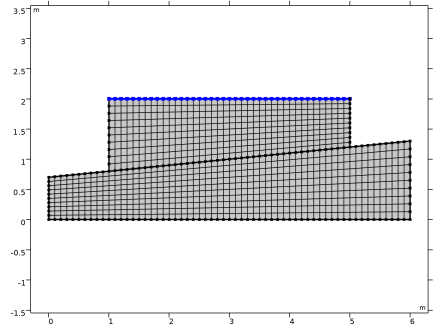


 next to


