PDF

Random Vibration Analysis of a Deep Beam
Introduction
This example studies forced random vibrations of a simply-supported deep beam. The beam is loaded by a distributed force with a uniform power spectral density (PSD). The output PSD are computed for the displacement and bending stress response. The computed values are compared with analytical results (NAFEMS test 5R from Ref. 1).
Model Definition
The model studied in this example consists of a simply supported beam with a square cross section. One end is pinned and has a constrained rotation along the beam axis. At the other end, the displacements in the plane of beam cross section are constrained.
GEOMETRY
Beam length, 10 m
With such aspect ratio of the cross section size to the beam length, shear deformations and rotational inertia effects can no longer be neglected as it is done in the Euler-Bernoulli theory. Therefore, the solution is computed using a Timoshenko beam.
Material
Young’s modulus, E = 200 GPa
Mass density, ρ = 8000 kg/m3
Rayleigh damping coefficient: α = 5.36 s-1, β = 7.46·105 m/s
The values of the damping coefficients are chosen to give a damping ratio of 2% for the first eigenmode.
Constraints
At x = 0, u = v = w =0; thx =0
At x = 10, v = w = 0
Load
For a linear system, the response in the frequency domain for a single variable V to the excitation F can be written
where f is the frequency, and H is the complex valued transfer function. It can then be shown that the corresponding spectral densities have the relation
where the asterisk denotes a complex conjugate. This type of relation is true not only for the degrees of freedom, but for any quantity that is linearly related to the input. This includes components of stress and (engineering) strain, but not nonlinear quantities such as equivalent or principal stresses.
In this example, a load of F = 106 N/m in the y direction is applied uniformly along the beam for the forced harmonic vibration study. For the random vibration analysis, the load is assumed to have a uniformly distributed PSD of 1012 (N/m)2/Hz. Thus, one should expect that results have the property
That is, the PSD response is simply the square of the standard harmonic response.
Results and Discussion
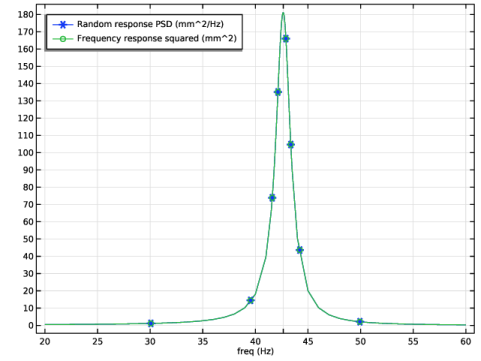
The plot below shows the computed PSD of the beam vertical displacement at the mid point. Note that is also matches the squared nonrandom frequency response at the same point.
Figure 1: The PSD of the displacement response at the midpoint of the beam.
In Table 1, the computed results are compared with the analytical results from Ref. 1. The agreement is good.
mm2/Hz
(N/mm2)2/Hz
In this benchmark, a mesh consisting of only five elements is prescribed. The stress is measured at the midpoint of the beam, that is at the midpoint of the central beam element. Since the finite element approximation in the beam elements give a linear variation of the bending moment within each element, the bending moment (and thus the stress) in the central element is constant for symmetry reasons. The true midpoint value will thus be underestimated. If six elements are used instead, there will be a node at the midpoint. The stress PSD value in that node turns out to be 60,652 (N/mm2)2/Hz.
Reference
1. J. Maguire, D.J. Dawswell, and L. Gould, Selected Benchmarks for Forced Vibration, NAFEMS, Glasgow, 1989.
Application Library path: Structural_Mechanics_Module/Verification_Examples/random_vibration_deep_beam
Modeling Instructions
From the File menu, choose New.
New
In the New window, click  Model Wizard.
Model Wizard
1
In the Model Wizard window, click  3D.
2
In the Select Physics tree, select Structural Mechanics > Beam (beam).
3
Click Add.
4
Click  Study.
5
In the Select Study tree, select Preset Studies for Selected Physics Interfaces > Random Vibration (PSD).
6
Global Definitions
Parameters 1
1
In the Model Builder window, under Global Definitions click Parameters 1.
2
In the Settings window for Parameters, locate the Parameters section.
3
Geometry 1
Line Segment 1 (ls1)
1
In the Geometry toolbar, click  More Primitives and choose Line Segment.
2
In the Settings window for Line Segment, locate the Starting Point section.
3
From the Specify list, choose Coordinates.
4
Locate the Endpoint section. From the Specify list, choose Coordinates.
5
In the x text field, type 10.
6
Click  Build All Objects.
Materials
Material 1 (mat1)
1
In the Model Builder window, under Component 1 (comp1) right-click Materials and choose Blank Material.
2
In the Settings window for Material, locate the Material Contents section.
3
Beam (beam)
1
In the Model Builder window, under Component 1 (comp1) click Beam (beam).
2
In the Settings window for Beam, locate the Beam Formulation section.
3
Cross-Section Data 1
1
In the Model Builder window, under Component 1 (comp1) > Beam (beam) click Cross-Section Data 1.
2
In the Settings window for Cross-Section Data, locate the Cross-Section Definition section.
3
From the Section type list, choose Rectangle.
4
In the hy text field, type 2.
5
In the hz text field, type 2.
Section Orientation 1
1
In the Model Builder window, click Section Orientation 1.
2
In the Settings window for Section Orientation, locate the Section Orientation section.
3
From the Orientation method list, choose Orientation vector.
4
Specify the V vector as
Linear Elastic Material 1
In the Model Builder window, under Component 1 (comp1) > Beam (beam) click Linear Elastic Material 1.
Damping 1
1
In the Physics toolbar, click  Attributes and choose Damping.
2
In the Settings window for Damping, locate the Damping Settings section.
3
In the αdM text field, type 5.36.
4
In the βdK text field, type 7.46e-5.
Prescribed Displacement/Rotation 1
1
In the Physics toolbar, click  Points and choose Prescribed Displacement/Rotation.
2
3
In the Settings window for Prescribed Displacement/Rotation, locate the Prescribed Displacement section.
4
From the Displacement in x direction list, choose Prescribed.
5
From the Displacement in y direction list, choose Prescribed.
6
From the Displacement in z direction list, choose Prescribed.
7
Locate the Prescribed Rotation section. From the list, choose Rotation.
8
Select the Free rotation around y direction checkbox.
9
Select the Free rotation around z direction checkbox.
Prescribed Displacement/Rotation 2
1
In the Physics toolbar, click  Points and choose Prescribed Displacement/Rotation.
2
3
In the Settings window for Prescribed Displacement/Rotation, locate the Prescribed Displacement section.
4
From the Displacement in y direction list, choose Prescribed.
5
From the Displacement in z direction list, choose Prescribed.
Mesh 1
Edge 1
1
In the Mesh toolbar, click  More Generators and choose Edge.
2
Distribution 1
1
Right-click Edge 1 and choose Distribution.
2
Right-click Distribution 1 and choose Build All.
Definitions
Set up an operator to evaluate variables at the beam midpoint.
General Extrusion 1 (genext1)
1
In the Definitions toolbar, click  Nonlocal Couplings and choose General Extrusion.
2
In the Settings window for General Extrusion, locate the Source Selection section.
3
From the Geometric entity level list, choose Edge.
4
5
Locate the Destination Map section. In the x-expression text field, type 5.
6
In the y-expression text field, type 0.
7
In the z-expression text field, type 0.
8
Locate the Source section. From the Source frame list, choose Material  (X, Y, Z).
Variables 1
1
In the Model Builder window, right-click Definitions and choose Variables.
2
In the Settings window for Variables, locate the Variables section.
3
Global Definitions
Set up a control parameter to be used as the edge load.
Global Reduced-Model Inputs 1
1
In the Model Builder window, expand the Global Definitions > Reduced-Order Modeling node, then click Global Reduced-Model Inputs 1.
2
In the Settings window for Global Reduced-Model Inputs, locate the Reduced-Model Inputs section.
3
Beam (beam)
Edge Load 1
1
In the Physics toolbar, click  Edges and choose Edge Load.
2
3
In the Settings window for Edge Load, locate the Force section.
4
Specify the fL vector as
Study 1
Step 1: Eigenfrequency
Set the search position close to the target value of the first natural frequency.
1
In the Model Builder window, under Study 1 click Step 1: Eigenfrequency.
2
In the Settings window for Eigenfrequency, locate the Study Settings section.
3
In the Search for eigenfrequencies around shift text field, type 40.
4
Locate the Physics and Variables Selection section. Select the Modify model configuration for study step checkbox.
5
In the tree, select Component 1 (comp1) > Beam (beam) > Linear Elastic Material 1 > Damping 1.
6
The eigenmode computation should be always performed for the undamped system. The damping will be used however in the consequent modal frequency response and random response analysis.
7
In the Study toolbar, click  Compute.
Study 2
Step 1: Model Reduction
The computation of the solution for Study 2 will find the eigenfrequencies and build a modal reduced-order model (ROM) based on the computed eigenmodes.
1
Click  Compute.
You can see all computed eigenfrequencies in the automatically generated evaluation group.
Global Definitions
Next, set up the input PSD for the random edge load.
Random Vibration 1 (rvib1)
1
In the Model Builder window, under Global Definitions > Reduced-Order Modeling click Random Vibration 1 (rvib1).
2
In the Settings window for Random Vibration, locate the Power Spectrum section.
3
Update the study to make the input change available for the solution.
Study 2
1
In the Study toolbar, click  Update Solution.
The random response computations can be performed as postprocessing steps using the updated solution.
Results
Add a plot of the PSD for the displacement responses at the midpoint. For verification, you can also plot the nonrandom frequency response result computed using ROM.
Global Evaluation Sweep 1
1
In the Results toolbar, click  More Derived Values and choose Other > Global Evaluation Sweep.
Use the frequency range to resolve well the values close to the target first natural frequency.
2
In the Settings window for Global Evaluation Sweep, locate the Parameters section.
3
4
Locate the Expressions section. In the table, enter the following settings:
5
Locate the Data section. From the Dataset list, choose Study 2/Solution 2 (sol2).
6
Click  Evaluate.
Table 1
1
Go to the Table 1 window.
2
Click the Table Graph button in the window toolbar.
Results
Table Graph 1
1
In the Settings window for Table Graph, click to expand the Legends section.
2
Locate the Coloring and Style section. Find the Line markers subsection. From the Marker list, choose Cycle.
3
From the Positioning list, choose Interpolated.
4
Locate the Legends section. Select the Show legends checkbox.
1D Plot Group 2
Indicate the target peak frequency.
1
In the Model Builder window, expand the Results > Tables node, then click Results > 1D Plot Group 2.
2
In the Settings window for 1D Plot Group, locate the Grid section.
3
In the Extra x text field, type 42.65.
4
Locate the Legend section. From the Position list, choose Upper left.
5
In the 1D Plot Group 2 toolbar, click  Plot.
The actually computed peak frequency is close to 42.66 (Hz).
Finally, calculate the maximum PSD values in the computed frequency range for both the displacement and bending stress responses.
Global Evaluation Sweep 2
1
In the Model Builder window, under Results > Derived Values right-click Global Evaluation Sweep 1 and choose Duplicate.
2
In the Settings window for Global Evaluation Sweep, locate the Parameters section.
3
4
Locate the Expressions section. In the table, enter the following settings:
5
Clicknext to  Evaluate, then choose New Table.
Compare the results with the target values.