PDF

Pinched Hemispherical Shell
Introduction
This example studies the deformation of a hemispherical shell, where the loads cause significant geometric nonlinearity. The maximum deflections are more than two magnitudes larger than the thickness of the shell. The problem is a standard benchmark, used for testing shell formulations in a case which contains membrane and bending action, as well as large rigid body rotation. It is described in Ref. 1.
Model Definition
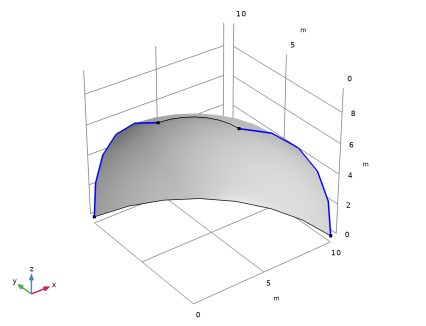
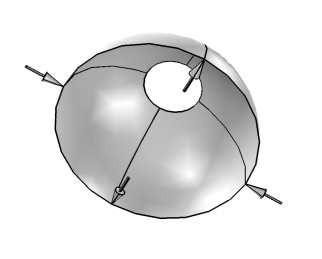
Figure 1 shows the geometry and the applied loads. Due to the double symmetry, the model only includes one quarter of the hemisphere.
Figure 1: The geometry and loads.
The material is linear elastic with 68.25 MPa and ν 0.3. The radius of the hemisphere is 10 m, and the thickness of the shell is 0.04 m. The hole at the top has a radius of 3.0902 m because 18° in the meridional direction from the top has been removed. The forces all have the value 200 N before taking symmetry into account. In the model, two forces of 100 N are applied in the symmetry planes at the lower edge of the shell.
Results and Discussion
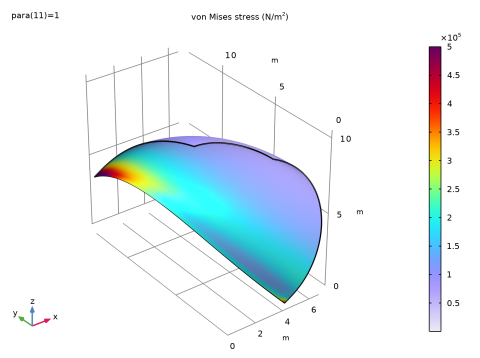
The target solution in Ref. 1 is 5.952 m under the inward acting load and 3.427 m under the outward acting load. Both target values have an error bound of ±2%. The values computed in COMSOL are 5.862 m and 3.407 m. Both values are within 2% of the target. Figure 2 shows the deformed shape of the shell together with contours for the equivalent stress.
Figure 2: von Mises stress on top surface.
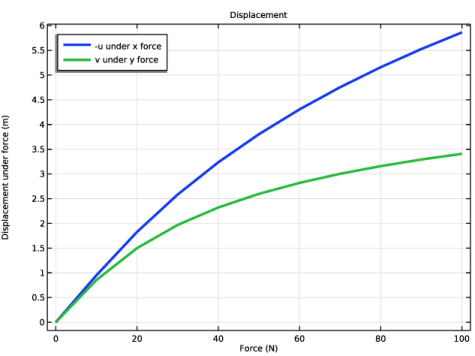
The change in the displacement as the load parameter increases is shown in Figure 3. As can be seen, the nonlinear effects are strong. The incremental stiffness with respect to the y direction force increases by one order of magnitude during the loading.
Figure 3: Displacements as functions of applied load.
Notes About the COMSOL Implementation
In a highly nonlinear problem it is a good idea to use the parametric continuation solver to track the solution instead of trying to solve at the full load. Several solver settings can be tuned to improve the convergence. Due to the large difference between the bending and the membrane stiffnesses in a thin shell, a small error in the approximated displacements during the iterations can cause large residual forces. For this reason, manual control of the damping is used in the Newton method. This will often improve solution speed for problems with severe geometrical nonlinearities.
Because the model uses point loads, the gradients are steep close to the locations where the loads are applied. For this reason you modify the distribution of the elements so that finer elements are generated toward the corners of the model. From a computational point of view, this is more effective than using a uniform refinement of the mesh.
Reference
1. N.K. Prinja and R.A. Clegg, “A Review of Benchmark Problems for Geometric Non-linear Behaviour of 3-D Beams and Shells (SUMMARY),” NAFEMS Ref: R0024, pp. F9A–F9B, 1993.
Application Library path: Structural_Mechanics_Module/Verification_Examples/pinched_hemispherical_shell
Modeling Instructions
From the File menu, choose New.
New
In the New window, click  Model Wizard.
Model Wizard
1
In the Model Wizard window, click  3D.
2
In the Select Physics tree, select Structural Mechanics > Shell (shell).
3
Click Add.
4
Click  Study.
5
In the Select Study tree, select General Studies > Stationary.
6
Geometry 1
Sphere 1 (sph1)
1
In the Geometry toolbar, click  Sphere.
2
In the Settings window for Sphere, locate the Size section.
3
In the Radius text field, type 10.
4
Click  Build Selected.
Block 1 (blk1)
1
In the Geometry toolbar, click  Block.
2
In the Settings window for Block, locate the Size and Shape section.
3
In the Width text field, type 10.
4
In the Depth text field, type 10.
5
In the Height text field, type 10.
6
Locate the Position section. In the x text field, type -5.
7
In the y text field, type -5.
8
In the z text field, type 10*cos(18*pi/180)[m].
9
Click  Build Selected.
Difference 1 (dif1)
1
In the Geometry toolbar, click  Booleans and Partitions and choose Difference.
2
3
In the Settings window for Difference, locate the Difference section.
4
Click to select the  Activate Selection toggle button for Objects to subtract.
5
6
Click  Build Selected.
Convert to Surface 1 (csur1)
1
In the Geometry toolbar, click  Conversions and choose Convert to Surface.
2
3
In the Settings window for Convert to Surface, click  Build Selected.
Delete Entities 1 (del1)
1
In the Model Builder window, right-click Geometry 1 and choose Delete Entities.
2
On the object csur1, select Boundaries 1–8 only.
You can do this by first selecting all boundaries and then removing Boundary 9.
3
In the Settings window for Delete Entities, click  Build Selected.
4
Click the  Zoom Extents button in the Graphics toolbar.
Materials
Steel
1
In the Model Builder window, under Component 1 (comp1) right-click Materials and choose Blank Material.
2
In the Settings window for Material, type Steel in the Label text field.
3
Locate the Material Contents section. In the table, enter the following settings:
Note that the density is not used for a static analysis so the value you enter has no effect on the solution.
Shell (shell)
Thickness and Offset 1
1
In the Model Builder window, under Component 1 (comp1) > Shell (shell) click Thickness and Offset 1.
2
In the Settings window for Thickness and Offset, locate the Thickness and Offset section.
3
In the d0 text field, type 0.04.
Symmetry 1
1
In the Physics toolbar, click  Edges and choose Symmetry.
2
Prescribed Displacement/Rotation 1
1
In the Physics toolbar, click  Points and choose Prescribed Displacement/Rotation.
2
It might be easier to select the correct point by using the Selection List window. To open this window, in the Home toolbar click Windows and choose Selection List. (If you are running the cross-platform desktop, you find Windows in the main menu.)
3
In the Settings window for Prescribed Displacement/Rotation, locate the Prescribed Displacement section.
4
From the Displacement in z direction list, choose Prescribed.
Point Load, X
1
In the Physics toolbar, click  Points and choose Point Load.
2
In the Settings window for Point Load, type Point Load, X in the Label text field.
3
4
Locate the Force section. Specify the FP vector as
Point Load, Y
1
In the Physics toolbar, click  Points and choose Point Load.
2
In the Settings window for Point Load, type Point Load, Y in the Label text field.
3
4
Locate the Force section. Specify the FP vector as
Mesh 1
Mapped 1
1
In the Mesh toolbar, click  More Generators and choose Mapped.
2
In the Settings window for Mapped, locate the Boundary Selection section.
3
From the Selection list, choose All boundaries.
Distribution 1
1
Right-click Mapped 1 and choose Distribution.
2
3
In the Settings window for Distribution, locate the Distribution section.
4
From the Distribution type list, choose Predefined.
5
In the Number of elements text field, type 16.
6
In the Element ratio text field, type 3.
7
From the Growth rate list, choose Exponential.
Distribution 2
1
In the Model Builder window, right-click Mapped 1 and choose Distribution.
2
3
In the Settings window for Distribution, locate the Distribution section.
4
From the Distribution type list, choose Predefined.
5
In the Number of elements text field, type 16.
6
In the Element ratio text field, type 3.
7
Select the Symmetric distribution checkbox.
8
From the Growth rate list, choose Exponential.
9
Click  Build All.
Global Definitions
Parameters 1
1
In the Model Builder window, under Global Definitions click Parameters 1.
2
In the Settings window for Parameters, locate the Parameters section.
3
Study 1
Step 1: Stationary
1
In the Model Builder window, under Study 1 click Step 1: Stationary.
2
In the Settings window for Stationary, locate the Study Settings section.
3
Select the Include geometric nonlinearity checkbox.
Set up an auxiliary continuation sweep for the para parameter.
4
Click to expand the Study Extensions section. Select the Auxiliary sweep checkbox.
5
6
7
Locate the Study Settings section. From the Tolerance list, choose User controlled.
8
In the Relative tolerance text field, type 0.0001.
Solution 1 (sol1)
1
In the Study toolbar, click  Show Default Solver.
2
In the Model Builder window, expand the Solution 1 (sol1) node.
3
In the Model Builder window, expand the Study 1 > Solver Configurations > Solution 1 (sol1) > Stationary Solver 1 node, then click Fully Coupled 1.
4
In the Settings window for Fully Coupled, click to expand the Method and Termination section.
5
From the Nonlinear method list, choose Constant (Newton).
6
In the Study toolbar, click  Compute.
Results
Surface 1
1
In the Model Builder window, expand the Results > Stress (shell) node, then click Surface 1.
2
In the Settings window for Surface, click to expand the Range section.
3
Select the Manual color range checkbox.
4
In the Maximum text field, type 5e5.
5
In the Stress (shell) toolbar, click  Plot.
1D Plot Group 2
In the Results toolbar, click  1D Plot Group.
Point Graph 1
1
Right-click 1D Plot Group 2 and choose Point Graph.
2
3
In the Settings window for Point Graph, locate the y-Axis Data section.
4
In the Expression text field, type -u.
5
Locate the x-Axis Data section. From the Parameter list, choose Expression.
6
In the Expression text field, type para*100[N].
7
Click to expand the Coloring and Style section. From the Width list, choose 3.
8
Click to expand the Legends section. Select the Show legends checkbox.
9
From the Legends list, choose Manual.
10
Point Graph 2
1
Right-click Point Graph 1 and choose Duplicate.
2
In the Settings window for Point Graph, locate the Selection section.
3
Click to select the  Activate Selection toggle button.
4
5
Click  Remove from Selection.
6
7
Locate the y-Axis Data section. In the Expression text field, type v.
8
Locate the Legends section. In the table, enter the following settings:
Displacement
1
In the Model Builder window, under Results click 1D Plot Group 2.
2
In the Settings window for 1D Plot Group, type Displacement in the Label text field.
3
Click to expand the Title section. From the Title type list, choose Label.
4
Locate the Plot Settings section.
5
Select the x-axis label checkbox. In the associated text field, type Force (N).
6
Select the y-axis label checkbox. In the associated text field, type Displacement under force (m).
7
Locate the Legend section. From the Position list, choose Upper left.
8
In the Displacement toolbar, click  Plot.
Evaluate the displacements in the points where a comparison should be made with the target.
Evaluation Group 1
1
In the Results toolbar, click  Evaluation Group.
2
In the Settings window for Evaluation Group, locate the Data section.
3
From the Parameter selection (para) list, choose Last.
4
Locate the Transformation section. Select the Transpose checkbox.
Point Evaluation 1
1
Right-click Evaluation Group 1 and choose Point Evaluation.
2
3
In the Settings window for Point Evaluation, locate the Expressions section.
4
5
In the Evaluation Group 1 toolbar, click  Evaluate.