


PDF

Moisture Transport in a Paperboard Roll
Introduction
Paperboard is made of wood fibers, which can absorb water. Water absorption changes the mechanical properties of the paperboard, and it might affect the quality of the final product due to moisture-induced deformations. This deformation is caused by the pressure acting on the pore walls. Paperboard is typically modeled as an orthotropic material since the cellulose fibers are mostly aligned along the grain direction, or so-called machine direction. The arrangement of the fibers affects also the transport properties.
This example shows how to model moisture transport in a paperboard roll when the relative humidity in the room changes during 90 days storage.
Model Definition
The model geometry consists of a hollow paperboard cylinder 70 cm long and 40 cm thick, lying on a 20 cm diameter shaft. A 2D axisymmetric geometry is used, and only half of it is modeled due to symmetry. A roller boundary condition is used on the side lying on the shaft. The temperature is held fixed at 293.15 K and the ambient relative humidity is increased from 5% to 85% in 1 day and kept constant for 90 days. The paperboard absorbs the moisture in the surrounding air, causing hygroscopic swelling. The pore pressure pf in the paperboard is computed from:
where sl is the liquid saturation, pl is the liquid pressure, sm = 1 − sl is the moist air saturation, and pmA is the moist air absolute pressure. The relation between the relative humidity, ϕw, and the water content, wc, is described by the sorption isotherm
here, A and B are fitting parameters (6.232E3 J/mol and 20.56 respectively). The moist air permeability, κm, is described using the following model
where sm is the moist air saturation, εp is the porosity, κ is the reference permeability, and the exponent a are obtained from experiments. Variables with a 0 subscript refer to their initial value.
Different properties and material parameters are used in the local directions, namely the machine direction (MD), cross-machine direction (CD), and the through-thickness direction (ZD).
The parameters are listed in the tables below:
Results and Discussion
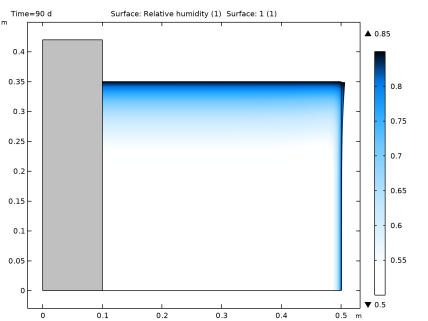
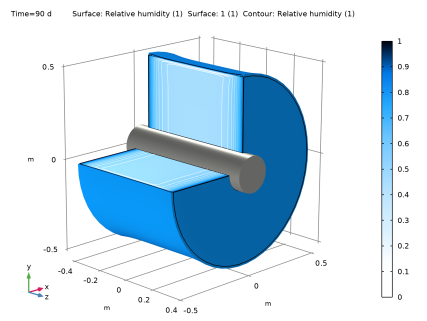
Figure 1 and Figure 2 show the relative humidity after 90 days. Due to the permeability and diffusivity anisotropy, the moisture penetrates faster in the machine direction (vertical diction) than in the through-thickness direction (radial direction).
Figure 1: Relative humidity in the deformed configuration after 90 days.
Figure 2: Relative humidity in the deformed configuration after 90 days.
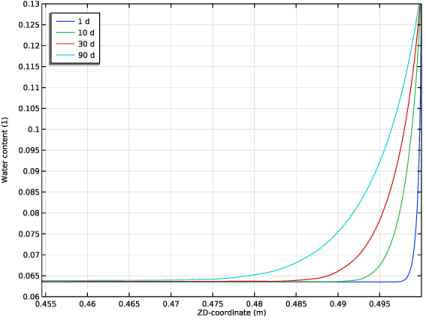
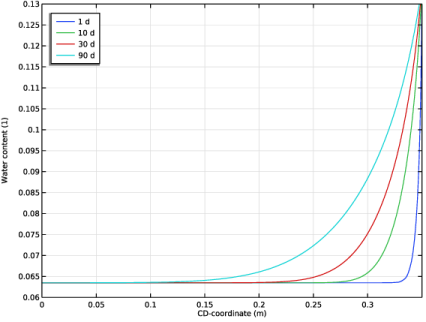
Figure 3 and Figure 4 shows the moisture content through the paperboard in the machine and through-thickness directions at various times.
Figure 3: Water content distribution in the paperboard through-thickness direction (radial direction) at various instants.
Figure 4: Water content distribution in the paperboard machine direction (vertical, or axial direction) at various instants.
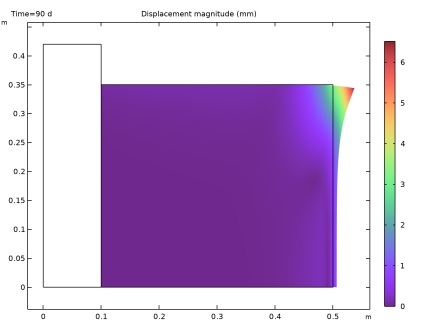
The roll expands mainly in the radial direction because of the lower stiffness of the paperboard in the radial direction.Figure 5 shows that the maximum swelling deformation reaches about 6 mm after 90 days. The corner expands more than the bulk material because of the moisture influx contribution from the top and lateral sides.
Figure 5: Displacement magnitude and deformation (amplified) after 90 days.
Notes About the COMSOL Implementation
The ambient relative humidity, pressure, and temperature are defined in the Ambient Properties node which can be linked to the boundary conditions in the Moisture Transport in Solids interface.
The sorption isotherm and the permeability can be defined using analytic functions under the Porous Material node.
The Unsaturated Poroelasticity multiphysics coupling is used to model moisture-induced swelling.
References
1. M. Alexandersson, H. Askfelt, and M. Ristinmaa, “Triphasic Model of Heat and Transport with Internal Mass Exchange in Paperboard,” Transp. Porous Med., vol. 112, pp. 381–408, 2016. doi.org/10.1007/s11242-016-0651-9.
2. J. Ran and C. Liu, “Modeling of the Stiffness of Corrugated Cardboard Considering Material Nonlinear Effect,” J. Phys.: Conf. Ser. 1187, 032069. doi.org/10.1088/1742-6596/1187/3/032069.
Application Library path: Structural_Mechanics_Module/Hygroscopic_Swelling/paperboard_roll
Modeling Instructions
From the File menu, choose New.
New
In the New window, click  Model Wizard.
Model Wizard
1
In the Model Wizard window, click  2D Axisymmetric.
2
In the Select Physics tree, select Structural Mechanics > Poroelasticity > Unsaturated Poroelasticity.
3
Click Add.
4
Click  Study.
5
In the Select Study tree, select General Studies > Time Dependent.
6
Global Definitions
Model Parameters
1
In the Model Builder window, under Global Definitions click Parameters 1.
2
In the Settings window for Parameters, locate the Parameters section.
3
Click  Load from File.
4
5
In the Label text field, type Model Parameters.
Component 1 (comp1)
You can rename the frame coordinates using the paperboard convention: machine direction (md), cross-machine direction (cd), and through-thickness direction (zd). This can be useful when inserting user-defined material properties.
1
In the Model Builder window, click Component 1 (comp1).
2
In the Settings window for Component, locate the Frames section.
3
Find the Spatial frame coordinates subsection. In the table, enter the following settings:
4
Find the Material frame coordinates subsection. In the table, enter the following settings:
Geometry 1
Paper
1
In the Geometry toolbar, click  Rectangle.
2
In the Settings window for Rectangle, locate the Size and Shape section.
3
In the Width text field, type Ro-Ri.
4
In the Height text field, type H/2.
5
Locate the Position section. In the zd text field, type Ri.
6
In the Label text field, type Paper.
Holder
1
In the Geometry toolbar, click  Rectangle.
2
In the Settings window for Rectangle, locate the Size and Shape section.
3
In the Width text field, type Ri.
4
In the Height text field, type 1.2*H/2.
5
In the Label text field, type Holder.
Form Union (fin)
1
In the Model Builder window, under Component 1 (comp1) > Geometry 1 click Form Union (fin).
2
In the Settings window for Form Union/Assembly, locate the Form Union/Assembly section.
3
From the Action list, choose Form an assembly.
4
Clear the Create pairs checkbox.
5
In the Geometry toolbar, click  Build All.
Definitions
Boundaries Facing Ambient
1
In the Definitions toolbar, click  Explicit.
2
In the Settings window for Explicit, locate the Input Entities section.
3
From the Geometric entity level list, choose Boundary.
4
5
In the Label text field, type Boundaries Facing Ambient.
Ambient Relative Humidity
1
In the Definitions toolbar, click  Piecewise.
2
In the Settings window for Piecewise, locate the Definition section.
3
Find the Intervals subsection. In the table, enter the following settings:
4
Locate the Units section. In the Arguments text field, type s.
5
In the Function text field, type 1.
6
In the Function name text field, type phiw_fun.
7
In the Label text field, type Ambient Relative Humidity.
Add Ambient Properties node to define the ambient temperature, pressure and relative humidity. Then the boundary conditions can link directly to this node.
Ambient Properties 1 (ampr1)
1
In the Physics toolbar, click  Shared Properties and choose Ambient Properties.
2
In the Settings window for Ambient Properties, locate the Ambient Conditions section.
3
In the Tamb text field, type T_amb.
4
In the ϕamb text field, type phiw_fun(t).
Materials
Porous Material 1 (pmat1)
In the Model Builder window, under Component 1 (comp1) right-click Materials and choose More Materials > Porous Material.
Water Content
1
In the Model Builder window, expand the Porous Material 1 (pmat1) node.
2
Right-click Component 1 (comp1) > Materials > Porous Material 1 (pmat1) > Basic (def) and choose Functions > Analytic.
3
In the Settings window for Analytic, locate the Definition section.
4
In the Expression text field, type -(1/B)*log(-R_const*T_amb/A*log(phi)).
5
In the Arguments text field, type phi.
6
Locate the Units section. In the Function text field, type 1.
7
8
In the Function name text field, type wc_int.
9
In the Label text field, type Water Content.
Moist Air Permeability
1
In the Home toolbar, click  Functions and choose Global > Analytic.
2
In the Settings window for Analytic, locate the Definition section.
3
In the Expression text field, type k*(epsilonp*sm/(por*0.9))^a*(1-por*0.9)/(1-epsilonp*sm).
4
In the Arguments text field, type k, a, sm, epsilonp.
5
Locate the Units section. In the Function text field, type m^2.
6
7
In the Function name text field, type kappa_fun.
8
In the Label text field, type Moist Air Permeability.
Porous Material 1 (pmat1)
1
In the Model Builder window, under Component 1 (comp1) > Materials click Porous Material 1 (pmat1).
2
3
In the Settings window for Porous Material, locate the Homogenized Properties section.
4
Solid 1 (pmat1.solid1)
Right-click Porous Material 1 (pmat1) and choose Solid.
Moisture Transport in Solids (mts)
Select Domain 2 only.
Materials
1
In the Model Builder window, under Component 1 (comp1) > Materials > Porous Material 1 (pmat1) click Solid 1 (pmat1.solid1).
2
In the Settings window for Solid, locate the Solid Properties section.
3
In the θs text field, type 1-por.
Porous Material 1 (pmat1)
1
In the Model Builder window, click Basic (def).
2
In the Settings window for Basic, locate the Model Inputs section.
3
Click  Select Quantity.
4
In the Physical Quantity dialog, type humidity in the text field.
5
In the tree, select General > Relative humidity (1).
6
Moisture Transport in Solids (mts)
Liquid Water 1
1
In the Model Builder window, under Component 1 (comp1) > Moisture Transport in Solids (mts) > Porous Medium 1 click Liquid Water 1.
2
In the Settings window for Liquid Water, locate the Liquid Water Properties section.
3
Moist Air 1
1
In the Model Builder window, click Moist Air 1.
2
In the Settings window for Moist Air, locate the Moist Air Properties section.
3
4
5
Specify the Dv matrix as
Initial Values 1
1
In the Model Builder window, under Component 1 (comp1) > Moisture Transport in Solids (mts) click Initial Values 1.
2
In the Settings window for Initial Values, locate the Initial Values section.
3
In the ϕw text field, type phi_init.
Moisture Content and Pressure 1
1
In the Physics toolbar, click  Boundaries and choose Moisture Content and Pressure.
You can link the boundaries condition directly to the Ambient Properties node defined before.
2
In the Settings window for Moisture Content and Pressure, locate the Boundary Selection section.
3
From the Selection list, choose Boundaries Facing Ambient.
4
Locate the Moisture Content and Pressure section. From the ϕw0 list, choose Ambient relative humidity (ampr1).
5
From the pm0 list, choose Ambient absolute pressure (ampr1).
Symmetry 1
1
In the Physics toolbar, click  Boundaries and choose Symmetry.
2
Solid Mechanics (solid)
1
In the Model Builder window, under Component 1 (comp1) click Solid Mechanics (solid).
2
Linear Elastic Material 1
1
In the Model Builder window, under Component 1 (comp1) > Solid Mechanics (solid) click Linear Elastic Material 1.
2
In the Settings window for Linear Elastic Material, locate the Linear Elastic Material section.
3
From the Material symmetry list, choose Orthotropic.
Roller 1
1
In the Physics toolbar, click  Boundaries and choose Roller.
2
Symmetry Plane 1
1
In the Physics toolbar, click  Boundaries and choose Symmetry Plane.
2
Materials
Porous Material 1 (pmat1)
Add the material parameters for the deformation. Note that the radial direction is the through-thickness direction and the vertical direction is the cross-machine direction.
1
In the Model Builder window, under Component 1 (comp1) > Materials click Porous Material 1 (pmat1).
2
In the Settings window for Porous Material, locate the Homogenized Properties section.
3
Multiphysics
Unsaturated Poroelasticity 1 (unporo1)
Use the pore pressure computed by the Moisture Transport in Solids interface in order to have no deformation when exposed to the initial ambient conditions.
1
In the Model Builder window, under Component 1 (comp1) > Multiphysics click Unsaturated Poroelasticity 1 (unporo1).
2
In the Settings window for Unsaturated Poroelasticity, locate the Poroelastic Coupling Properties section.
3
From the pref list, choose Initial pore pressure (mts/pms1).
Mesh 1
Mapped 1
1
In the Mesh toolbar, click  Mapped.
2
In the Settings window for Mapped, locate the Domain Selection section.
3
From the Geometric entity level list, choose Domain.
4
Distribution 1
1
Right-click Mapped 1 and choose Distribution.
2
In the Settings window for Distribution, locate the Distribution section.
3
From the Distribution type list, choose Predefined.
4
In the Number of elements text field, type 30.
5
6
In the Element ratio text field, type 8.
7
From the Growth rate list, choose Exponential.
Distribution 2
1
In the Model Builder window, right-click Mapped 1 and choose Distribution.
2
In the Settings window for Distribution, locate the Distribution section.
3
From the Distribution type list, choose Predefined.
4
In the Number of elements text field, type 30.
5
In the Element ratio text field, type 8.
6
7
Select the Reverse direction checkbox.
Boundary Layers 1
1
In the Mesh toolbar, click  Boundary Layers.
2
In the Settings window for Boundary Layers, locate the Domain Selection section.
3
From the Geometric entity level list, choose Domain.
4
Boundary Layer Properties
1
In the Model Builder window, click Boundary Layer Properties.
2
In the Settings window for Boundary Layer Properties, locate the Boundary Selection section.
3
From the Selection list, choose Boundaries Facing Ambient.
Mapped 2
1
In the Mesh toolbar, click  Mapped.
2
In the Settings window for Mapped, click  Build All.
Study 1
Step 1: Time Dependent
1
In the Model Builder window, under Study 1 click Step 1: Time Dependent.
2
In the Settings window for Time Dependent, locate the Study Settings section.
3
From the Time unit list, choose d.
4
In the Output times text field, type range(0,t_r/20,t_r) range(t_r,1[d],t_end).
5
In the Study toolbar, click  Compute.
Results
Use the Configuration node to select which time step to display in 1D Plot Group nodes.
Multiselect Solution 1
1
In the Results toolbar, click  Configurations and choose Multiselect Solution.
2
In the Settings window for Multiselect Solution, locate the Solution section.
3
From the Time selection list, choose Interpolated.
4
In the Times (d) text field, type 1[d] 10[d] 30[d] 90[d].
Relative Humidity (mts)
1
In the Model Builder window, under Results click Relative Humidity (mts).
2
In the Settings window for 2D Plot Group, locate the Color Legend section.
3
Select the Show maximum and minimum values checkbox.
Surface 2
1
Right-click Relative Humidity (mts) and choose Surface.
2
In the Settings window for Surface, locate the Expression section.
3
In the Expression text field, type 1.
4
Locate the Coloring and Style section. From the Coloring list, choose Uniform.
5
From the Color list, choose Gray.
Selection 1
1
Right-click Surface 2 and choose Selection.
2
Deformation 1
1
In the Model Builder window, right-click Surface 1 and choose Deformation.
2
In the Settings window for Deformation, locate the Scale section.
3
Select the Scale factor checkbox. In the associated text field, type 1.
4
In the Relative Humidity (mts) toolbar, click  Plot.
Water Content, Cross Machine
1
In the Results toolbar, click  1D Plot Group.
2
In the Settings window for 1D Plot Group, locate the Data section.
3
From the Solution parameters list, choose From configuration.
4
In the Label text field, type Water Content, Cross Machine.
5
Click to expand the Title section. From the Title type list, choose None.
6
Locate the Plot Settings section.
7
Select the y-axis label checkbox. In the associated text field, type Water content (1).
8
Locate the Axis section. Select the Manual axis limits checkbox.
9
In the x minimum text field, type 0.
10
In the x maximum text field, type H/2.
11
In the y minimum text field, type 0.06.
12
In the y maximum text field, type 0.13.
13
Locate the Legend section. From the Position list, choose Upper left.
Line Graph 1
1
Right-click Water Content, Cross Machine and choose Line Graph.
2
3
In the Settings window for Line Graph, locate the y-Axis Data section.
4
In the Expression text field, type mts.wc/rho_s/(1-por).
5
Locate the x-Axis Data section. From the Parameter list, choose Expression.
6
In the Expression text field, type CD.
7
Click to expand the Legends section. Select the Show legends checkbox.
8
In the Water Content, Cross Machine toolbar, click  Plot.
Water Content, Through Thickness
1
In the Model Builder window, right-click Water Content, Cross Machine and choose Duplicate.
2
In the Settings window for 1D Plot Group, type Water Content, Through Thickness in the Label text field.
3
Locate the Axis section. In the x minimum text field, type Ro/1.1.
4
In the x maximum text field, type Ro.
Line Graph 1
1
In the Model Builder window, expand the Water Content, Through Thickness node, then click Line Graph 1.
2
In the Settings window for Line Graph, locate the Selection section.
3
Click to select the  Activate Selection toggle button.
4
5
Locate the x-Axis Data section. In the Expression text field, type ZD.
6
In the Water Content, Through Thickness toolbar, click  Plot.
Result Templates
1
In the Results toolbar, click  Result Templates to open the Result Templates window.
2
Go to the Result Templates window.
3
In the tree, select Study 1/Solution 1 (sol1) > Solid Mechanics > Displacement (solid).
4
Click the Add Result Template button in the window toolbar.
5
In the Results toolbar, click  Result Templates to close the Result Templates window.
Results
Surface 1
1
In the Model Builder window, expand the Displacement (solid) node, then click Surface 1.
2
In the Settings window for Surface, locate the Expression section.
3
From the Unit list, choose mm.
4
In the Displacement (solid) toolbar, click  Plot.