|
|
|
|
1
|
|
2
|
In the Select Physics tree, select AC/DC > Electromagnetics and Mechanics > Magnetomechanics > Magnetomechanics, Shell.
|
|
3
|
Click Add.
|
|
4
|
Click
 Study. Study. |
|
5
|
|
6
|
Click
 Done. Done. |
|
1
|
|
2
|
|
4
|
|
1
|
|
2
|
|
3
|
|
4
|
|
1
|
|
2
|
|
3
|
|
4
|
|
1
|
|
2
|
|
3
|
|
4
|
|
1
|
|
2
|
|
3
|
|
4
|
|
5
|
|
6
|
|
1
|
|
2
|
|
3
|
|
4
|
|
5
|
|
6
|
|
7
|
|
1
|
|
2
|
|
3
|
|
4
|
|
5
|
|
6
|
|
7
|
Click
 Build All Objects. Build All Objects. |
|
8
|
|
1
|
|
2
|
Go to the Add Material window.
|
|
3
|
|
4
|
Click the Add to Component button in the window toolbar.
|
|
2
|
|
3
|
Click
 Clear Selection. Clear Selection. |
|
1
|
Go to the Add Material window.
|
|
2
|
|
3
|
Click Search.
|
|
4
|
|
5
|
Click the Add to Component button in the window toolbar.
|
|
1
|
In the Model Builder window, expand the Component 1 (comp1) > Materials > Low Carbon Steel Soft Iron (mat2) node, then click Low Carbon Steel Soft Iron (mat2).
|
|
1
|
|
2
|
|
3
|
|
5
|
|
6
|
Locate the Material Contents section. In the table, enter the following settings:
|
|
7
|
In the Model Builder window, expand the Component 1 (comp1) > Materials > Magnetic polymer composites (mat3) node.
|
|
1
|
|
2
|
|
3
|
|
5
|
Locate the Expressions section. In the table, enter the following settings:
|
|
6
|
Click
 Evaluate. Evaluate. |
|
1
|
In the Model Builder window, under Component 1 (comp1) > Materials click Magnetic polymer composites (mat3).
|
|
2
|
|
1
|
|
1
|
|
1
|
|
3
|
|
4
|
|
5
|
|
6
|
|
7
|
|
1
|
|
1
|
Go to the Add Material window.
|
|
2
|
|
3
|
Click Search.
|
|
4
|
In the tree, select Material Library > Epoxies, Adhesives, and Underfills > Filled epoxy resin (X238) > Filled epoxy resin (X238) [solid].
|
|
5
|
Click the Add to Component button in the window toolbar.
|
|
6
|
|
2
|
|
3
|
In the Model Builder window, expand the Component 1 (comp1) > Materials > Filled epoxy resin (X238) [solid] (mat4) > Basic (def) node, then click Filled epoxy resin (X238) [solid] (mat4).
|
|
4
|
|
1
|
|
3
|
|
4
|
|
1
|
In the Model Builder window, under Component 1 (comp1) > Materials click Low Carbon Steel Soft Iron (mat2).
|
|
2
|
|
1
|
In the Model Builder window, under Component 1 (comp1) > Magnetic Fields (mf) click Magnetic Shielding 1.
|
|
2
|
|
3
|
|
1
|
In the Model Builder window, under Component 1 (comp1) > Shell (shell) click Thickness and Offset 1.
|
|
2
|
|
3
|
|
1
|
|
3
|
In the Settings window for Prescribed Displacement/Rotation, locate the Prescribed Displacement section.
|
|
4
|
|
5
|
|
6
|
|
7
|
|
8
|
|
9
|
|
10
|
In the list box, select 1 (not applicable).
|
|
11
|
Click
 Clear Selection. Clear Selection. |
|
1
|
|
3
|
In the Settings window for Prescribed Displacement/Rotation, locate the Prescribed Displacement section.
|
|
4
|
|
5
|
|
1
|
In the Model Builder window, expand the Component 1 (comp1) > Multiphysics > Magnetomechanics, Boundary 1 (mmfb1) node, then click Magnetomechanics, Boundary 1 (mmfb1).
|
|
2
|
|
3
|
Click
 Clear Selection. Clear Selection. |
|
1
|
|
2
|
|
3
|
|
4
|
Click
 Build All. Build All. |
|
1
|
|
2
|
|
3
|
Click
 Add. Add. |
|
1
|
|
2
|
|
3
|
Select the Auxiliary sweep checkbox.
|
|
4
|
Click
 Add. Add. |
|
6
|
|
1
|
|
2
|
|
3
|
|
4
|
|
1
|
In the Model Builder window, under Component 1 (comp1) > Materials click Magnetic polymer composites (mat3).
|
|
2
|
|
3
|
|
4
|
Click
 Add to Material. Add to Material. |
|
5
|
In the Model Builder window, under Component 1 (comp1) > Materials > Magnetic polymer composites (mat3) click B-H curve (BHCurve).
|
|
6
|
|
1
|
Right-click Component 1 (comp1) > Materials > Magnetic polymer composites (mat3) > B-H curve (BHCurve) and choose Functions > Interpolation.
|
|
2
|
|
3
|
|
1
|
In the Model Builder window, expand the Results > Tables node, then click Results > Derived Values > Global Evaluation Sweep 1.
|
|
2
|
|
3
|
|
4
|
Click
 Evaluate. Evaluate. |
|
5
|
|
1
|
|
2
|
|
1
|
In the Model Builder window, under Component 1 (comp1) > Materials > Magnetic polymer composites (mat3) > B-H curve (BHCurve) click Interpolation 1 (int1).
|
|
2
|
|
3
|
Select the Define inverse function checkbox.
|
|
4
|
Select the Define primitive function checkbox.
|
|
5
|
Select the Define random function checkbox.
|
|
6
|
|
7
|
|
8
|
Clear the Define random function checkbox.
|
|
9
|
Click
 Plot. Plot. |
|
10
|
Locate the Data Column Settings section. In the table, click to select the cell at row number 1 and column number 2.
|
|
11
|
|
13
|
|
14
|
Click
 Plot. Plot. |
|
1
|
In the Model Builder window, expand the Component 1 (comp1) > Materials > Magnetic polymer composites (mat3) > B-H curve (BHCurve) node, then click Interpolation 1 (int1, BH_inv, BH_prim).
|
|
3
|
|
1
|
In the Model Builder window, under Component 1 (comp1) > Magnetic Fields (mf) click Magnetic Shielding 1.
|
|
2
|
|
3
|
|
4
|
|
5
|
|
1
|
|
2
|
|
3
|
|
4
|
|
5
|
|
6
|
|
7
|
|
1
|
|
3
|
|
4
|
|
5
|
|
6
|
|
7
|
|
8
|
|
9
|
|
10
|
|
1
|
|
2
|
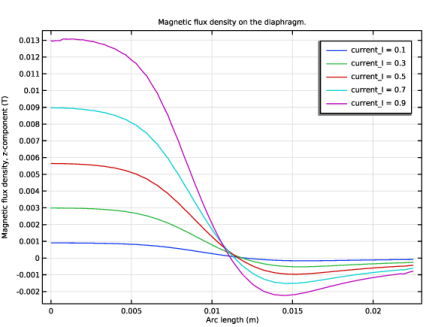
In the Settings window for 1D Plot Group, type Magnetic Flux Density on the Diaphragm in the Label text field.
|
|
3
|
|
4
|
|
5
|
|
6
|
|
1
|
|
3
|
|
4
|
|
5
|
|
6
|
|
7
|
Select the Show legends checkbox.
|
|
8
|
|
1
|
|
2
|
|
3
|
|
1
|
|
2
|
|
3
|
|
1
|
|
2
|
|
3
|
Clear the Add end caps if the revolution is not full checkbox.
|
|
1
|
In the Model Builder window, expand the Results > Magnetic Flux Density, Revolved Geometry (mf) node.
|
|
2
|
|
3
|
|
4
|
|
5
|
|
6
|
|
7
|
|
1
|
In the Model Builder window, right-click Magnetic Flux Density, Revolved Geometry (mf) and choose Surface.
|
|
2
|
|
3
|
|
4
|
|
5
|
|
6
|
|
7
|
|
8
|
|
9
|
|
10
|
|
11
|
|
1
|
|
2
|
|
3
|
|
4
|
|
5
|
|
6
|
Clear the Parameter indicator text field.
|
|
7
|
|
8
|
|
9
|
|
1
|
|
2
|
|
3
|
|
4
|
|
5
|
|
6
|
|
1
|
|
2
|
|
3
|
|
4
|
|
1
|
|
2
|
Go to the Add Study window.
|
|
3
|
|
4
|
Click the Add Study button in the window toolbar.
|
|
5
|
|
1
|
|
3
|
|
1
|
|
2
|
|
3
|
|
1
|
|
2
|
|
3
|
|
1
|
In the Model Builder window, expand the Results > Magnetic Flux Density, Revolved Geometry (mf) 1 node.
|
|
2
|
Right-click Results > Magnetic Flux Density, Revolved Geometry (mf) > Arrow Surface 1 and choose Copy.
|
|
1
|
|
2
|
|
3
|
|
4
|
|
1
|
|
2
|
|
1
|
|
2
|
|
3
|
|
1
|
|
2
|
|
3
|
|
4
|
|
5
|
|
6
|
|
7
|
|
1
|
|
2
|
|
3
|
|
4
|
|
5
|
|
6
|
|
7
|
|
8
|
|
9
|
|
10
|
 .
.


 next to