PDF

Thermal Stresses in a Layered Plate
Introduction
In this example, thermal stresses in a layered plate are analyzed. The plate consists of three layers: a coating, a substrate, and a carrier. The coating is deposited onto the substrate at a temperature of 800°C. At this temperature both the coating and the substrate are stress-free. During the first stage of the analysis, the temperature of the plate is lowered to 150°C, which induces thermal stresses in the coating/substrate assembly. At this temperature the coating/substrate assembly is epoxied to a stress-free carrier layer. During the second stage of the analysis, the temperature in the entire assembly is lowered to 20°C, and the thermal stresses are examined.
Model Definition
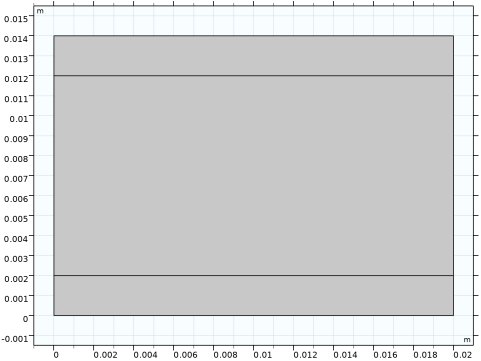
The plate is considered to be thick and therefore in a state of plane strain. It is modeled using the 2D Solid Mechanics interface. The geometry of the plate is shown in Figure 1. The bottom layer of the geometry is the carrier, the middle layer is the substrate, and the top layer is the coating.
Figure 1: The plate geometry.
Material Properties
The three layers are modeled as isotropic and linear elastic. Their coefficients of thermal expansion are constant. The material properties of the layers are shown in Table 1, Table 2, and Table 3.
ν
ρ
α
6·10-6 K-1
ν
ρ
α
3·10-6 K-1
ν
ρ
α
5·10-7 K-1
Activation of the Carrier
The carrier is only present at the second stage of the analysis. The activation of this layer is readily performed using the Activation subnode under Linear Elastic Material. Note that the carrier will be activated in a stress-free state irrespective of the volume reference temperature that is assigned to it. For clarity, a separate Thermal Expansion subnode is added, where the reference temperature is set to the temperature at activation.
Even though the choice of volume reference temperature of a domain added through activation will not affect the stresses, it will affect its deformed shape. The deformation of an added domain is not fully correct, irrespective of the choice of reference temperature.
Loading and Boundary Conditions
Loading on the plate consists of an applied homogeneous temperature field. First, the temperature of the coating and substrate is reduced from the initial temperature 800°C to 150°C. During this temperature change, the carrier is not yet present. At 150°C, the carrier is activated using the Activation subnode. One extra solution is created at 149.9°C just in order to illustrate the state after activation. Finally, the temperature of the whole assembly is reduced to 20°C.
The plate is constrained using Rigid Motion Suppression.
Results and Discussion
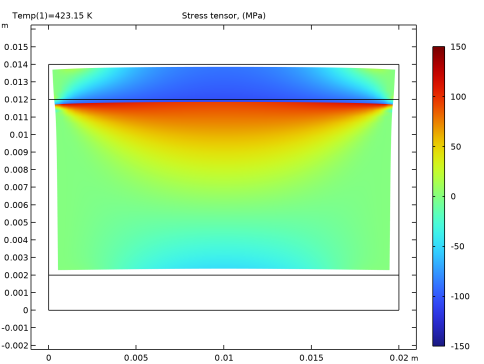
Figure 2 shows the normal stress in the x direction after the first stage of the analysis, when the temperature has been decreased to 150°C. The substrate material has a higher coefficient of thermal expansion than the coating material. This means that the substrate shrinks more than the coating, causing tensile stresses in the substrate area next to the coating and compressive stresses in the coating.
Figure 2: Normal stress in the x direction for the first stage of the analysis.
Note that during the first stage of the analysis, the carrier is inactive.
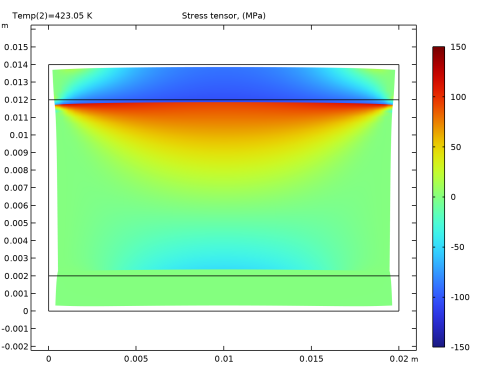
Figure 3 shows the stress state after the activation of the carrier, still at 150°C (or actually at 149.9°C). In the substrate and coating, the stresses are the same as before, while the carrier is stress-free.
Figure 3: Normal stress in the x-direction immediately after activation of the carrier.
It can be noted that the activation process causes some deformations in the carrier that will be carried along through the analysis.
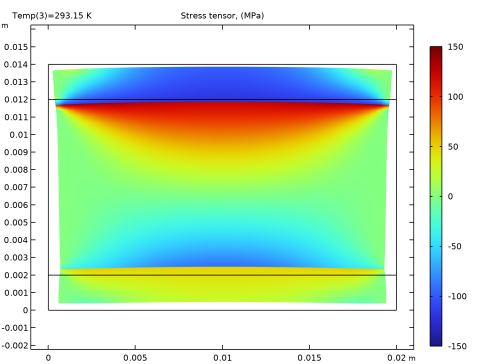
Figure 4 shows the normal stress in the x direction after the third stage of the analysis, where the temperature is lowered to 20 °C. The stress levels in the substrate have increased slightly near to the coating, as have the compressive stresses in the coating compared to after the first stage.
Figure 4: Residual thermal stress at room temperature.
The coefficient of thermal expansion is higher in the carrier than in the substrate. As the temperature is decreased, the carrier experiences tensile stresses, while the substrate near the carrier experiences compressive stresses.
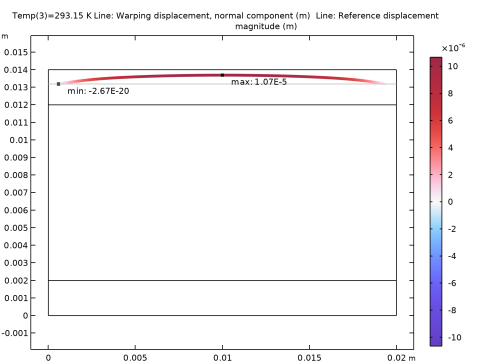
Figure 5 below shows how the top surface deviation from a planar surface.
Figure 5: Warping displacement at the bottom surface.
Application Library path: Structural_Mechanics_Module/Thermal-Structure_Interaction/layered_plate
Modeling Instructions
From the File menu, choose New.
New
In the New window, click  Model Wizard.
Model Wizard
1
In the Model Wizard window, click  2D.
2
In the Select Physics tree, select Structural Mechanics > Solid Mechanics (solid).
3
Click Add.
4
Click  Study.
5
In the Select Study tree, select General Studies > Stationary.
6
Global Definitions
Parameters 1
1
In the Model Builder window, under Global Definitions click Parameters 1.
2
In the Settings window for Parameters, locate the Parameters section.
3
Geometry 1
Rectangle 1 (r1)
1
In the Geometry toolbar, click  Rectangle.
2
In the Settings window for Rectangle, locate the Size and Shape section.
3
In the Width text field, type 0.02.
4
In the Height text field, type 0.014.
5
Click to expand the Layers section. In the table, enter the following settings:
6
Click  Build All Objects.
7
Click the  Zoom Extents button in the Graphics toolbar.
Solid Mechanics (solid)
1
In the Model Builder window, under Component 1 (comp1) click Solid Mechanics (solid).
2
Click in the Graphics window and then press Ctrl+A to select all domains.
Linear Elastic Material 1
In the Model Builder window, under Component 1 (comp1) > Solid Mechanics (solid) click Linear Elastic Material 1.
Thermal Expansion 1
1
In the Physics toolbar, click  Attributes and choose Thermal Expansion.
2
In the Settings window for Thermal Expansion, locate the Model Input section.
3
From the Tref list, choose User defined. In the associated text field, type Tdeposition.
4
From the T list, choose User defined. In the associated text field, type Temp.
Thermal Expansion 2
1
Right-click Thermal Expansion 1 and choose Duplicate.
2
In the Settings window for Thermal Expansion, locate the Model Input section.
3
In the Tref text field, type Tepoxying.
4
The carrier is only active during the second stage of the analysis. Use an Activation node for conditional activation of the domain.
Linear Elastic Material 1
In the Model Builder window, click Linear Elastic Material 1.
Activation 1
1
In the Physics toolbar, click  Attributes and choose Activation.
2
In the Settings window for Activation, locate the Domain Selection section.
3
Click  Clear Selection.
4
5
Locate the Activation section. In the Activation expression text field, type Temp<Tepoxying.
Rigid Motion Suppression 1
1
In the Physics toolbar, click  Domains and choose Rigid Motion Suppression.
2
Warpage 1
1
In the Physics toolbar, click  Boundaries and choose Warpage.
2
3
In the Settings window for Warpage, locate the Warpage section.
4
From the Reference plane list, choose From points.
5
Locate the Reference Plane, Point 1 section. Click to select the  Activate Selection toggle button.
6
7
Locate the Reference Plane, Point 2 section. Click to select the  Activate Selection toggle button.
8
Materials
Carrier
1
In the Model Builder window, under Component 1 (comp1) right-click Materials and choose Blank Material.
2
In the Settings window for Material, type Carrier in the Label text field.
3
Locate the Geometric Entity Selection section. From the Selection list, choose Manual.
4
Click  Clear Selection.
5
6
Locate the Material Contents section. In the table, enter the following settings:
Substrate
1
Right-click Materials and choose Blank Material.
2
In the Settings window for Material, type Substrate in the Label text field.
3
4
Locate the Material Contents section. In the table, enter the following settings:
Coating
1
Right-click Materials and choose Blank Material.
2
In the Settings window for Material, type Coating in the Label text field.
3
4
Locate the Material Contents section. In the table, enter the following settings:
Mesh 1
Mapped 1
In the Mesh toolbar, click  Mapped.
Size
1
In the Model Builder window, click Size.
2
In the Settings window for Size, locate the Element Size section.
3
From the Predefined list, choose Extra fine.
4
Click  Build All.
Study 1
Step 1: Stationary
1
In the Model Builder window, under Study 1 click Step 1: Stationary.
2
In the Settings window for Stationary, click to expand the Study Extensions section.
3
Select the Auxiliary sweep checkbox.
4
5
6
In the Study toolbar, click  Compute.
Results
Surface 1
1
In the Model Builder window, expand the Results > Stress (solid) node, then click Surface 1.
2
In the Settings window for Surface, locate the Expression section.
3
In the Expression text field, type solid.sGpx.
4
From the Unit list, choose MPa.
5
Locate the Coloring and Style section. From the Color table list, choose Rainbow.
6
Click to expand the Range section. Select the Manual color range checkbox.
7
In the Minimum text field, type -150.
8
In the Maximum text field, type 150.
Deformation
1
In the Model Builder window, expand the Surface 1 node, then click Deformation.
2
In the Settings window for Deformation, locate the Scale section.
3
Select the Scale factor checkbox. In the associated text field, type 20.
Stress (solid)
1
In the Model Builder window, under Results click Stress (solid).
2
In the Settings window for 2D Plot Group, locate the Data section.
3
From the Parameter value (Temp (K)) list, choose 423.15.
4
In the Stress (solid) toolbar, click  Plot.
5
From the Parameter value (Temp (K)) list, choose 423.05.
6
In the Stress (solid) toolbar, click  Plot.
7
From the Parameter value (Temp (K)) list, choose 293.15.
8
In the Stress (solid) toolbar, click  Plot.
Result Templates
1
In the Results toolbar, click  Result Templates to open the Result Templates window.
2
Go to the Result Templates window.
3
In the tree, select Study 1/Solution 1 (sol1) > Solid Mechanics > Warpage (wrp1).
4
Click the Add Result Template button in the window toolbar.
5
In the Results toolbar, click  Result Templates to close the Result Templates window.