
|
|
|
|
•
|
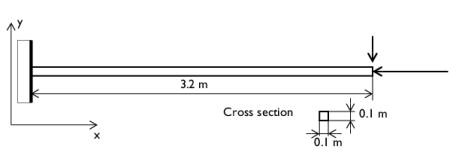
The length of the beam is 3.2 m.
|
|
•
|

|
1
|
|
2
|
|
3
|
Click Add.
|
|
4
|
|
5
|
Click Add.
|
|
6
|
Click
 Study. Study. |
|
7
|
|
8
|
Click
 Done. Done. |
|
1
|
|
2
|
|
3
|
Click
 Load from File. Load from File. |
|
4
|
Browse to the model’s Application Libraries folder and double-click the file large_deformation_beam_parameters.txt.
|
|
1
|
|
2
|
|
3
|
|
4
|
|
1
|
|
2
|
|
4
|
Click
 Build All Objects. Build All Objects. |
|
1
|
|
2
|
|
1
|
In the Model Builder window, under Global Definitions right-click Materials and choose Blank Material.
|
|
2
|
|
3
|
|
4
|
Click
 Add to Material. Add to Material. |
|
5
|
|
6
|
Click
 Add to Material. Add to Material. |
|
7
|
|
8
|
Click
 Add to Material. Add to Material. |
|
9
|
Locate the Material Contents section. In the table, enter the following settings:
|
|
1
|
|
2
|
|
3
|
|
1
|
|
2
|
|
3
|
From the list, choose Plane stress.
|
|
4
|
|
1
|
|
1
|
|
3
|
|
4
|
|
5
|
|
1
|
|
2
|
|
3
|
Click
 Clear Selection. Clear Selection. |
|
1
|
|
2
|
|
3
|
|
4
|
|
5
|
|
1
|
|
1
|
|
2
|
|
3
|
|
1
|
|
2
|
|
3
|
|
1
|
|
1
|
|
2
|
|
3
|
|
5
|
|
1
|
|
2
|
|
3
|
|
5
|
|
1
|
|
2
|
|
1
|
|
2
|
|
3
|
Select the Include geometric nonlinearity checkbox.
|
|
4
|
Locate the Physics and Variables Selection section. Select the Modify model configuration for study step checkbox.
|
|
5
|
|
6
|
Click
 Disable. Disable. |
|
7
|
|
8
|
Click
 Add. Add. |
|
10
|
|
11
|
|
12
|
|
1
|
In the Model Builder window, expand the Study 1 > Solver Configurations > Solution 1 (sol1) > Stationary Solver 1 node.
|
|
2
|
|
3
|
|
4
|
|
5
|
In the Model Builder window, expand the Study 1 > Solver Configurations > Solution 1 (sol1) > Stationary Solver 1 > Segregated 1 node, then click Segregated Step.
|
|
6
|
|
7
|
In the Variables list box, select Displacement Field (Material and Geometry Frames) (comp1.beam.uLin).
|
|
8
|
|
9
|
|
10
|
Click to expand the Method and Termination section. From the Termination technique list, choose Tolerance.
|
|
11
|
|
12
|
|
13
|
|
14
|
In the Add dialog, in the Variables list, choose Rotation Field (Material and Geometry Frames) (comp1.beam.thLin) and Displacement Field (Material and Geometry Frames) (comp1.beam.uLin).
|
|
15
|
Click OK.
|
|
16
|
|
17
|
|
18
|
|
19
|
|
1
|
|
2
|
|
3
|
Select the Plot checkbox.
|
|
5
|
|
1
|
|
2
|
|
3
|
Click
 Add Physical Quantity. Add Physical Quantity. |
|
4
|
|
5
|
|
6
|
Click OK.
|
|
7
|
|
9
|
Click
 Apply. Apply. |
|
1
|
|
2
|
|
1
|
|
2
|
|
1
|
|
2
|
|
3
|
|
4
|
Clear the Tube radius scale factor checkbox.
|
|
1
|
|
2
|
|
3
|
|
4
|
|
5
|
|
1
|
|
2
|
|
3
|
|
4
|
|
5
|
Click
 Plot. Plot. |
|
6
|
|
1
|
|
2
|
|
3
|
|
1
|
|
2
|
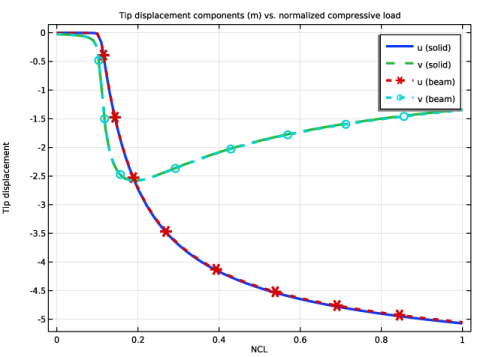
In the Settings window for Point Graph, click Replace Expression in the upper-right corner of the y-Axis Data section. From the menu, choose Component 1 (comp1) > Solid Mechanics > Displacement > Displacement field - m > u - Displacement field, X-component.
|
|
3
|
|
4
|
|
5
|
|
1
|
|
2
|
In the Settings window for Point Graph, click Replace Expression in the upper-right corner of the y-Axis Data section. From the menu, choose Component 1 (comp1) > Solid Mechanics > Displacement > Displacement field - m > v - Displacement field, Y-component.
|
|
3
|
Locate the Coloring and Style section. Find the Line style subsection. From the Line list, choose Dashed.
|
|
4
|
|
5
|
|
6
|
|
1
|
|
2
|
|
3
|
|
4
|
|
6
|
Click Replace Expression in the upper-right corner of the y-Axis Data section. From the menu, choose Component 1 (comp1) > Beam > Displacement > Displacement field - m > u2 - Displacement field, X-component.
|
|
7
|
Locate the Coloring and Style section. Find the Line style subsection. From the Line list, choose Dotted.
|
|
8
|
|
9
|
|
10
|
|
11
|
|
12
|
|
1
|
|
2
|
In the Settings window for Point Graph, click Replace Expression in the upper-right corner of the y-Axis Data section. From the menu, choose Component 1 (comp1) > Beam > Displacement > Displacement field - m > v2 - Displacement field, Y-component.
|
|
3
|
Locate the Coloring and Style section. Find the Line markers subsection. From the Marker list, choose Circle.
|
|
4
|
Locate the Legends section. In the table, enter the following settings:
|
|
5
|
|
1
|
|
2
|
|
3
|
|
4
|
|
5
|
Locate the Plot Settings section.
|
|
6
|
|
7
|
|
8
|
|
1
|
|
2
|
|
3
|
|
4
|
|
5
|
Click Replace Expression in the upper-right corner of the Expressions section. From the menu, choose Component 1 (comp1) > Solid Mechanics > Displacement > Displacement field - m > u - Displacement field, X-component.
|
|
6
|
Locate the Expressions section. In the table, enter the following settings:
|
|
7
|
Click
 Evaluate. Evaluate. |
|
1
|
|
2
|
|
3
|
|
4
|
|
6
|
Locate the Expressions section. In the table, enter the following settings:
|
|
7
|
|
1
|
In the Model Builder window, under Results > Derived Values right-click Point Evaluation 1 and choose Duplicate.
|
|
2
|
|
4
|
|
1
|
In the Model Builder window, under Results > Derived Values right-click Point Evaluation 2 and choose Duplicate.
|
|
2
|
|
4
|
|
1
|
In the Model Builder window, under Results > Derived Values right-click Point Evaluation 3 and choose Duplicate.
|
|
2
|
|
3
|
|
4
|
Locate the Expressions section. In the table, enter the following settings:
|
|
5
|
|
6
|
|
1
|
In the Model Builder window, under Results > Derived Values right-click Point Evaluation 4 and choose Duplicate.
|
|
2
|
|
3
|
|
4
|
Locate the Expressions section. In the table, enter the following settings:
|
|
5
|
|
6
|
|
1
|
|
2
|
Go to the Add Study window.
|
|
3
|
Find the Studies subsection. In the Select Study tree, select Preset Studies for Selected Physics Interfaces > Linear Buckling.
|
|
4
|
Click the Add Study button in the window toolbar.
|
|
5
|
|
1
|
|
2
|
Select the Modify model configuration for study step checkbox.
|
|
3
|
|
4
|
Click
 Disable in Model. Disable in Model. |
|
5
|
|
6
|
Click
 Disable. Disable. |
|
1
|
|
2
|
|
3
|
Select the Modify model configuration for study step checkbox.
|
|
4
|
|
5
|
Click
 Disable in Model. Disable in Model. |
|
6
|
|
7
|
Click
 Disable. Disable. |
|
8
|
|
1
|
|
2
|
|
3
|
|
5
|
Locate the Expressions section. In the table, enter the following settings:
|
|
6
|
Click
 Evaluate. Evaluate. |


 next to
 next to
 next to
 next to
 next to


