PDF

Ladder Frame
Introduction
The ladder frame, or ladder chassis, is a common structure used in some light truck and SUV designs. An advantage of this structure is its simplicity: two longitudinal members connected by multiple transverse members.
The purpose of the chassis is to connect the upper body, the engine, and the wheel system. The stiffness of the chassis is important for the stability of the vehicle under operating conditions.
In this model, an eigenfrequency analysis is first performed on the unconstrained chassis structure. This is followed by a static analysis including a simplified suspension system with loads corresponding to the engine, the upper body, and an estimated payload. For the static load case, a weld verification at a critical location is also performed.
Model Definition
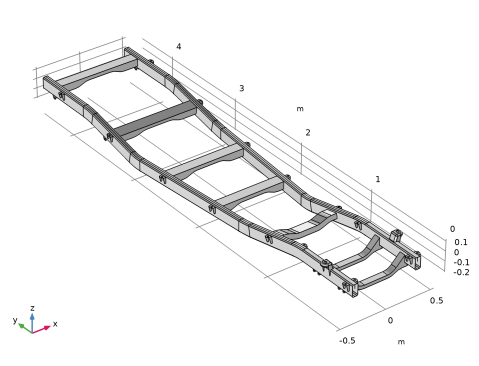
The ladder frame consists of a steel structure that is 4.5 m long and 1 m wide at maximum, as shown in Figure 1. The longitudinal members have a rectangular section with a thickness of 8 mm. The transverse members have a C-shape section of 5 mm thickness. The geometry is imported from a STEP-file as a solid object.
.
Figure 1: Shell geometry.
The nine lowest eigenfrequencies (natural frequencies) are computed. The eigenfrequency analysis is performed on the structure absent any connections to other vehicle components, and absent external constraints. This means that the six lowest eigenfrequencies correspond to rigid body modes, and are numerically zero. Higher modes correspond to deformations of the ladder frame.
For the stationary analysis, a simplified suspension component system is used to prevent over-constraint conditions when directly applying external loads to the structure.
The front suspension system is modeled using a 106 N/m spring constant, and the rear suspension system is modeled using a spring constant of 3·106 N/m.
The applied loads consist of
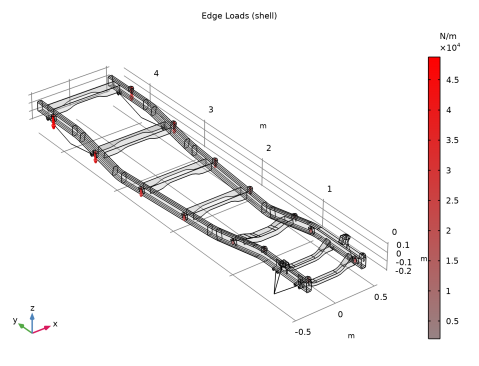
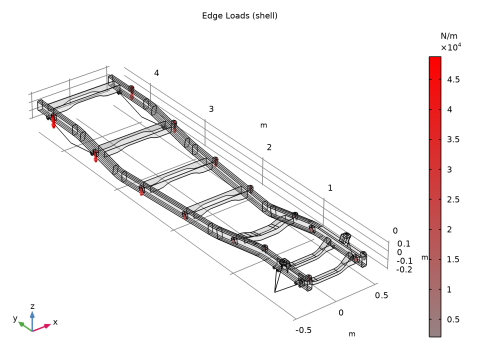
Figure 2 shows the applied load on the chassis for the static analysis.
Figure 2: Load distribution.
Results and Discussion
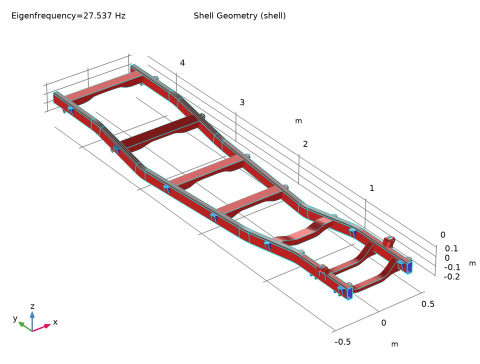
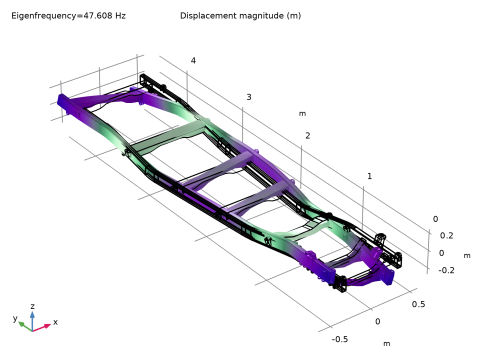
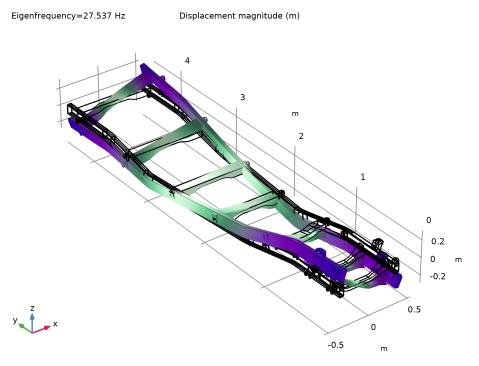
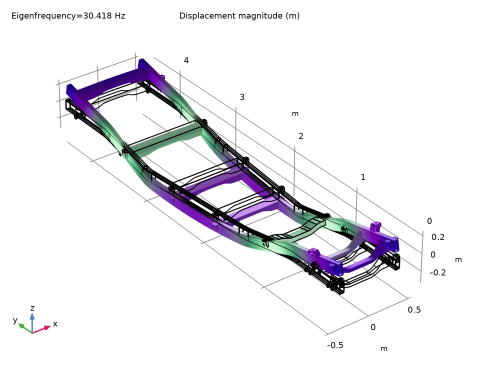
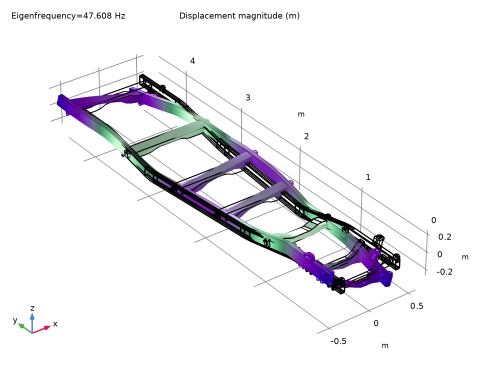
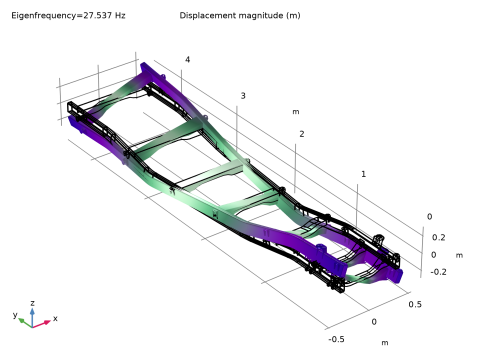
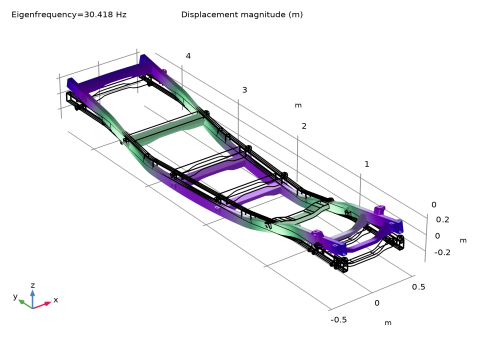
Figure 3, Figure 4, and Figure 5 show the first, second, and third natural frequencies of the chassis, respectively (disregarding the six rigid body modes). The first frequency (27.5 Hz) corresponds to a torsion mode, the second one (30.4 Hz) to a bending mode in the vertical direction, and the third one (47.6 Hz) also to a bending mode, in the lateral direction.
Figure 3: First natural frequency (torsion).
Figure 4: Second natural frequency (bending).
[
Figure 5: Third natural frequency (bending).
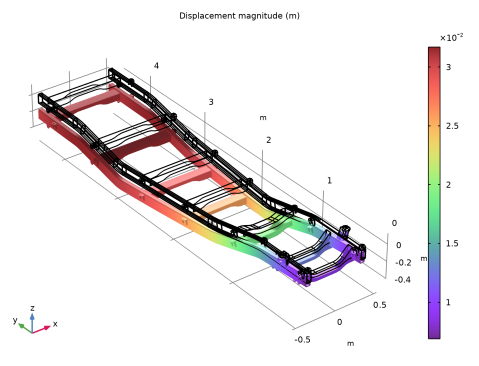
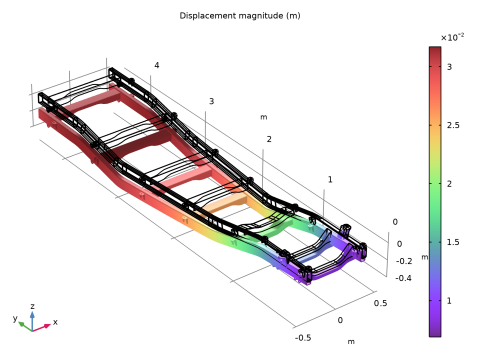
Figure 6 shows the displacement of the chassis subjected to engine and upper body weight, as well as the payload.
Figure 6: Chassis displacement.
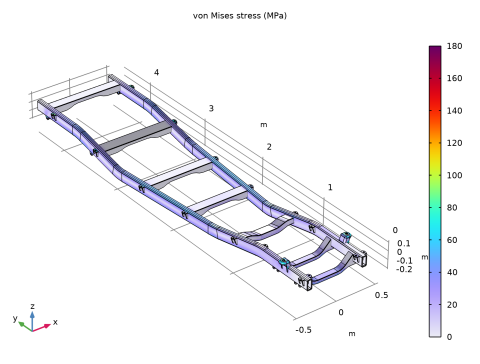
Figure 7 shows the von Mises stress distribution in the chassis. Note that there is a stress concentration where the spring suspension is connected to the bracket. To improve the visualization of the stress distribution in the chassis, the maximum range value is set to 180 MPa.
Figure 7: von Mises Stress distribution in the chassis.
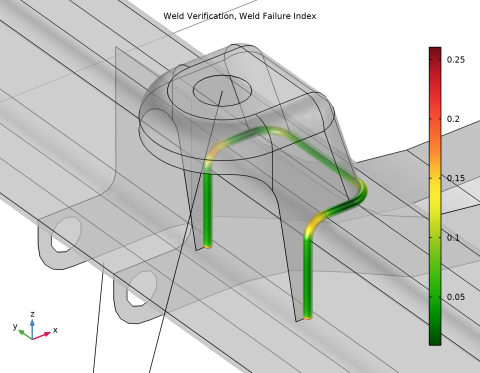
Figure 8 shows that the weld failure index between the suspension bracket and the longitudinal beam is below 1, when the ladder frame is subjected to the external loading.
Figure 8: Weld verification.
Modeling in COMSOL Multiphysics
For geometries with a high aspect ratio in one direction, shell elements are preferred compared to solid elements. Using the Design Module, you can convert a solid geometry representation to a surface object by removing its thickness. In addition, the Design Module includes geometry defeaturing and measurement tools. For instance, you can delete fillets that are not relevant to the analysis to reduce the number of elements.
Using the Resultant load type, you can specify a given force at a specific application point; the corresponding load is then distributed at the geometry location.
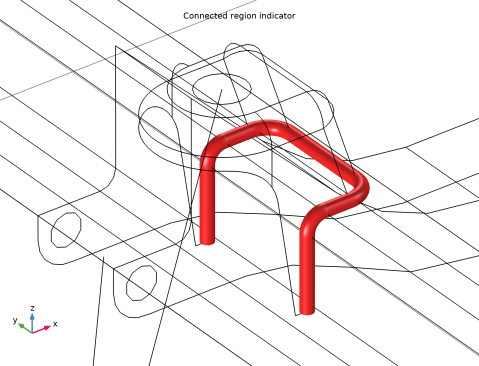
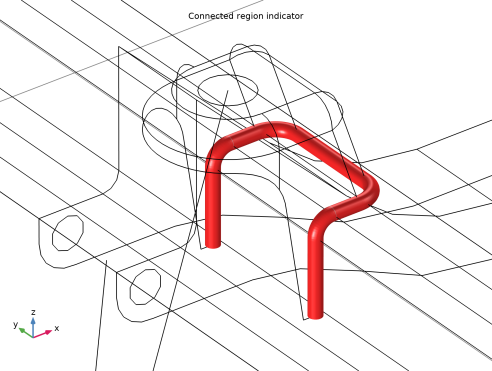
To verify that the different parts in the Shell interface are well connected to each other, you can use the connected region indicator.
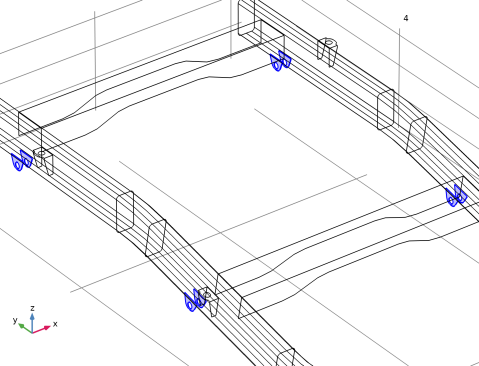
Figure 9 shows how the suspension bracket and the longitudinal members are connected to each other.
Figure 9: Connected region indicator.
Application Library path: Structural_Mechanics_Module/Beams_and_Shells/ladder_frame
Modeling Instructions
From the File menu, choose New.
New
In the New window, click  Model Wizard.
Model Wizard
1
In the Model Wizard window, click  3D.
2
In the Select Physics tree, select Structural Mechanics > Shell (shell).
3
Click Add.
4
Click  Study.
5
In the Select Study tree, select General Studies > Eigenfrequency.
6
Geometry 1
1
In the Model Builder window, under Component 1 (comp1) click Geometry 1.
2
In the Settings window for Geometry, locate the Advanced section.
3
From the Geometry representation list, choose CAD kernel.
4
Select the Design Module Boolean operations checkbox.
The geometry sequence for the model is available in a file. If you want to create it from scratch yourself, you can follow the tutorial under applications/Design_Module/Tutorial_Examples. Otherwise, insert the geometry sequence as follows:
5
In the Geometry toolbar, click Insert Sequence and choose Insert Sequence.
6
7
In the Geometry toolbar, click  Build All.
8
Click the  Zoom Extents button in the Graphics toolbar.
Add Material
1
In the Materials toolbar, click  Add Material to open the Add Material window.
2
Go to the Add Material window.
3
In the tree, select Built-in > Structural steel.
4
Right-click and choose Add to Component 1 (comp1).
5
In the Materials toolbar, click  Add Material to close the Add Material window.
Shell (shell)
Thickness and Offset 1
1
In the Settings window for Thickness and Offset, locate the Thickness and Offset section.
2
In the d0 text field, type th2.
Thickness and Offset 2
1
In the Physics toolbar, click  Boundaries and choose Thickness and Offset.
2
In the Settings window for Thickness and Offset, locate the Boundary Selection section.
3
From the Selection list, choose Longitudinal members.
4
Locate the Thickness and Offset section. In the d0 text field, type th1.
5
From the Position list, choose Top surface on boundary.
Thickness and Offset 3
1
In the Physics toolbar, click  Boundaries and choose Thickness and Offset.
2
3
In the Settings window for Thickness and Offset, locate the Thickness and Offset section.
4
In the d0 text field, type th1.
Mesh 1
1
In the Model Builder window, under Component 1 (comp1) click Mesh 1.
2
In the Settings window for Mesh, locate the Physics-Controlled Mesh section.
3
From the Element size list, choose Extra coarse.
4
Click  Build All.
Study 1
Step 1: Eigenfrequency
As there are no constraints in the model, the eigenvalue solver will also compute the rigid body motion modes. The corresponding eigenfrequencies are very small. To exclude these modes, search for eigenfrequencies with a larger real part than the shift value (1 Hz).
1
In the Model Builder window, under Study 1 click Step 1: Eigenfrequency.
2
In the Settings window for Eigenfrequency, locate the Study Settings section.
3
Select the Desired number of eigenfrequencies checkbox.
4
From the Search method around shift list, choose Larger real part.
5
In the Study toolbar, click  Compute.
Results
Mode Shape (shell)
1
In the Mode Shape (shell) toolbar, click  Plot.
2
In the Settings window for 3D Plot Group, click  Plot Next.
3
Click  Plot Next.
Add the shell geometry plot as in Figure 1.
Result Templates
1
In the Results toolbar, click  Result Templates to open the Result Templates window.
2
Go to the Result Templates window.
3
In the tree, select Study 1/Solution 1 (sol1) > Shell > Shell Geometry (shell).
4
Click the Add Result Template button in the window toolbar.
5
In the Results toolbar, click  Result Templates to close the Result Templates window.
Results
Shell Geometry (shell)
In the second part of the analysis, the suspensions are added to the model. Also, a weld verification analysis is performed for the connection between one of the suspension brackets and the longitudinal beam.
Geometry 1
Cross members (boxsel1)
1
In the Model Builder window, under Component 1 (comp1) > Geometry 1 click Cross members (boxsel1).
2
In the Settings window for Box Selection, click  Build Selected.
Suspension Bracket
1
In the Geometry toolbar, click  Selections and choose Explicit Selection.
2
In the Settings window for Explicit Selection, locate the Entities to Select section.
3
From the Geometric entity level list, choose Boundary.
4
In the Label text field, type Suspension Bracket.
5
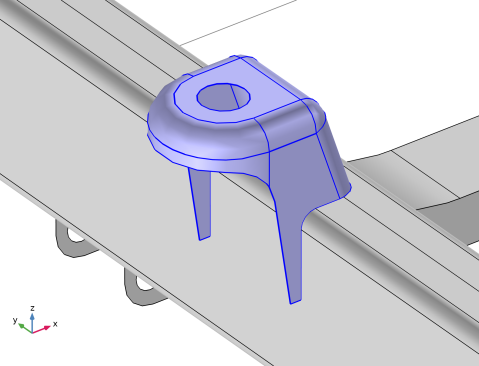
In the Graphics window, select the boundaries as in the figure below:
In the table below you can find the corresponding selected entities:
Extract 2 (extract2)
1
In the Geometry toolbar, click  Extract.
2
In the Settings window for Extract, locate the Entities or Objects to Extract section.
3
From the Selection list, choose Suspension Bracket.
4
From the Input object handling list, choose Create remainder object.
Suspension Bracket (Edge)
1
In the Geometry toolbar, click  Selections and choose Explicit Selection.
2
In the Settings window for Explicit Selection, type Suspension Bracket (Edge) in the Label text field.
3
Locate the Entities to Select section. From the Geometric entity level list, choose Edge.
4
Select the Group by continuous tangent checkbox.
5
In the Graphics window, select the edges that are adjacent to the suspension bracket and connect to the longitudinal member.
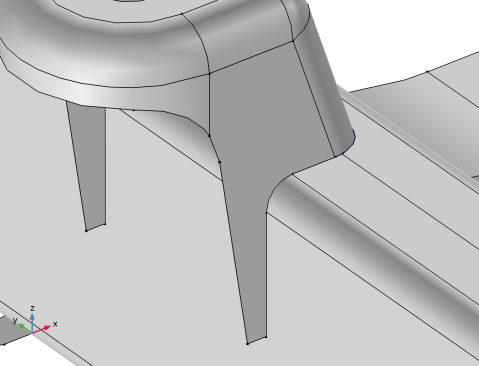
In the table below you can find the corresponding selected entities:
Long Beam (Edge)
1
In the Geometry toolbar, click  Selections and choose Explicit Selection.
2
In the Settings window for Explicit Selection, type Long Beam (Edge) in the Label text field.
3
Locate the Entities to Select section. From the Geometric entity level list, choose Edge.
4
Select the Group by continuous tangent checkbox.
5
In the Graphics window, select the edges that are adjacent to the longitudinal member and connect to the suspension bracket .
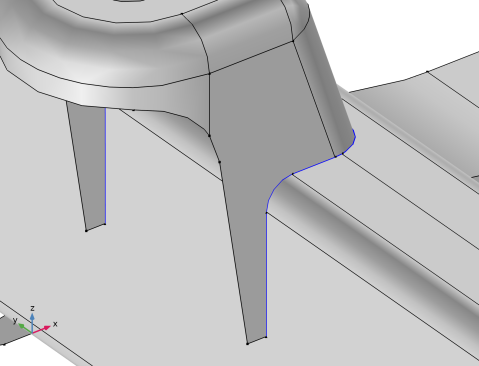
In the table below you can find the corresponding selected entities:
Global Definitions
Suspension Coordinates
1
In the Model Builder window, under Global Definitions click Parameters 1.
2
In the Settings window for Parameters, type Suspension Coordinates in the Label text field.
3
Locate the Parameters section. Click  Load from File.
4
Geometry 1
Centroid Measurement 1 (cm1)
1
In the Geometry toolbar, click  Measurements and choose Centroid Measurement.
2
On the object extract2(2), select Points 543–546 only.
Centroid Measurement 2-5
Proceed to create four additional centroid measurements with the following settings:
Line Segment 1 (ls1)
1
In the Geometry toolbar, click  More Primitives and choose Line Segment.
2
In the Settings window for Line Segment, locate the Starting Point section.
3
From the Specify list, choose Coordinates.
4
In the x text field, type geom1.cm1.x.
5
In the y text field, type geom1.cm1.y.
6
In the z text field, type geom1.cm1.z.
7
Locate the Endpoint section. From the Specify list, choose Coordinates.
8
In the x text field, type x_fwl.
9
In the y text field, type y_fwl.
10
In the z text field, type z_fwl.
Line Segment 2-5
Proceed to create four additional line segments with the following settings:
Union 2 (uni2)
1
In the Geometry toolbar, click  Booleans and Partitions and choose Union.
2
Select the objects ls1, ls2, ls3, ls4, and ls5 only.
3
In the Settings window for Union, locate the Selections of Resulting Entities section.
4
Find the Cumulative selection subsection. Click New.
5
In the New Cumulative Selection dialog, type Truss in the Name text field.
6
Mirror 1 (mir1)
1
In the Geometry toolbar, click  Transforms and choose Mirror.
2
3
In the Settings window for Mirror, locate the Input section.
4
Select the Keep input objects checkbox.
5
Locate the Normal Vector to Plane of Reflection section. In the x text field, type 1.
6
In the z text field, type 0.
7
Locate the Selections of Resulting Entities section. Find the Cumulative selection subsection. From the Contribute to list, choose Truss.
8
Click  Build Selected.
Form Union (fin)
1
In the Model Builder window, under Component 1 (comp1) > Geometry 1 click Form Union (fin).
2
In the Settings window for Form Union/Assembly, locate the Form Union/Assembly section.
3
From the Action list, choose Form an assembly.
Upper Body Bracket
1
In the Geometry toolbar, click  Selections and choose Explicit Selection.
2
In the Settings window for Explicit Selection, type Upper Body Bracket in the Label text field.
3
Locate the Entities to Select section. From the Geometric entity level list, choose Edge.
4
Select the Group by continuous tangent checkbox.
5
In the Graphics window, select the edges around the hole for all brackets which are located at the exterior of the frame. This is shown in the figure below. Note that only the four brackets at the front of the frame are shown. The full selection includes twelve brackets.
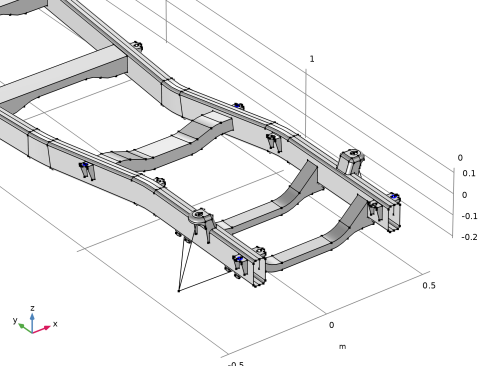
In the table below you can find the corresponding selected entities:
Engine Bracket
1
In the Geometry toolbar, click  Selections and choose Explicit Selection.
2
In the Settings window for Explicit Selection, type Engine Bracket in the Label text field.
3
Locate the Entities to Select section. From the Geometric entity level list, choose Edge.
4
Select the Group by continuous tangent checkbox.
5
In the Graphics window, select the edges around the holes for all brackets located at the interior of the frame, as in the figure below:
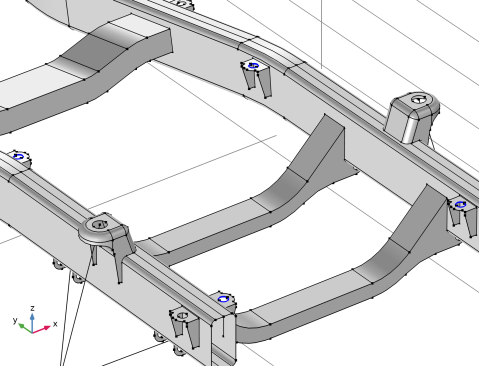
In the table below you can find the corresponding selected entities:
Shell (shell)
The geometry is formed as an assembly which means that the suspension bracket and the beam are no longer connected.
Edge to Edge 1
1
In the Physics toolbar, click  Edges and choose Edge to Edge.
2
In the Settings window for Edge to Edge, locate the Edge Selection section.
3
From the Selection list, choose Suspension Bracket (Edge).
4
Locate the Edge Selection, Destination section. From the Selection list, choose Long Beam (Edge).
5
Locate the Connection Settings section. From the Connected location, destination list, choose Top surface.
6
Select the Weld verification checkbox.
7
Click to expand the Equation section. Locate the Weld Properties section. In the a text field, type 3[mm].
8
In the σeqmax text field, type 500[MPa].
9
In the σmax text field, type 500[MPa].
Add the upper body weight and the payload, distributed over the supporting brackets. The load is defined using the resultant and the center of gravity.
Upper Body and Payload
1
In the Physics toolbar, click  Edges and choose Edge Load.
2
In the Settings window for Edge Load, type Upper Body and Payload in the Label text field.
3
Locate the Edge Selection section. From the Selection list, choose Upper Body Bracket.
4
Locate the Force section. From the Load type list, choose Resultant.
5
Specify the F vector as
6
From the Application point defined using list, choose Coordinates.
7
Specify the xa vector as
Add the load corresponding to the engine weight.
Engine
1
In the Physics toolbar, click  Edges and choose Edge Load.
2
In the Settings window for Edge Load, type Engine in the Label text field.
3
Locate the Edge Selection section. From the Selection list, choose Engine Bracket.
4
Locate the Force section. From the Load type list, choose Resultant.
5
Specify the F vector as
6
From the Application point defined using list, choose Coordinates.
7
Specify the xa vector as
Gravity 1
In the Physics toolbar, click  Global and choose Gravity.
Attachment 1
1
In the Physics toolbar, click  Edges and choose Attachment.
2
Attachment 2
Right-click Attachment 1 and choose Duplicate.
Attachment 2-10
Proceed to create nine additional attachments with the following settings:
Add Physics
1
In the Home toolbar, click  Add Physics to open the Add Physics window.
2
Go to the Add Physics window.
3
In the tree, select Structural Mechanics > Truss (truss).
4
Click the Add to Component 1 button in the window toolbar.
5
In the Home toolbar, click  Add Physics to close the Add Physics window.
Truss (truss)
1
In the Settings window for Truss, locate the Edge Selection section.
2
From the Selection list, choose Truss.
Linear Elastic Material 1
1
In the Model Builder window, under Component 1 (comp1) > Truss (truss) click Linear Elastic Material 1.
2
In the Settings window for Linear Elastic Material, locate the Linear Elastic Material section.
3
From the E list, choose User defined. In the associated text field, type 1e15.
4
From the ν list, choose User defined. From the ρ list, choose User defined.
Prescribed Displacement 1
1
In the Physics toolbar, click  Points and choose Prescribed Displacement.
2
3
In the Settings window for Prescribed Displacement, locate the Prescribed Displacement section.
4
From the Displacement in x direction list, choose Prescribed.
5
In the u0x text field, type shell.att1.u.
6
From the Displacement in y direction list, choose Prescribed.
7
In the u0y text field, type shell.att1.v.
8
From the Displacement in z direction list, choose Prescribed.
9
In the u0z text field, type shell.att1.w.
Prescribed Displacement 2
Right-click Prescribed Displacement 1 and choose Duplicate.
Prescribed Displacement 2-10
Proceed to create nine additional prescribed displacements with the following settings:
Front Suspension
1
In the Physics toolbar, click  Edges and choose Spring–Damper Material.
2
In the Settings window for Spring–Damper Material, type Front Suspension in the Label text field.
3
4
Locate the Spring–Damper section. In the k text field, type 1e6[N/m].
Rear Suspension
1
In the Physics toolbar, click  Edges and choose Spring–Damper Material.
2
In the Settings window for Spring–Damper Material, type Rear Suspension in the Label text field.
3
4
Locate the Spring–Damper section. In the k text field, type 3e6[N/m].
Prescribed Displacement 11
1
In the Physics toolbar, click  Edges and choose Prescribed Displacement.
2
3
In the Settings window for Prescribed Displacement, locate the Prescribed Displacement section.
4
From the Displacement in x direction list, choose Prescribed.
Prescribed Displacement 12
1
In the Physics toolbar, click  Points and choose Prescribed Displacement.
2
3
In the Settings window for Prescribed Displacement, locate the Prescribed Displacement section.
4
From the Displacement in y direction list, choose Prescribed.
5
From the Displacement in z direction list, choose Prescribed.
Pinned 1
1
In the Physics toolbar, click  Points and choose Pinned.
2
Mesh 2
1
In the Mesh toolbar, click Add Mesh and choose Add Mesh.
2
In the Settings window for Mesh, locate the Physics-Controlled Mesh section.
3
In the table, clear the Use checkbox for Geometric Analysis, Detail Size.
4
Click  Build All.
5
In the Settings window for Mesh, locate the Sequence Type section.
6
From the list, choose User-controlled mesh.
Size
1
In the Model Builder window, under Component 1 (comp1) > Meshes > Mesh 2 click Size.
2
In the Settings window for Size, locate the Element Size section.
3
From the Predefined list, choose Extra fine.
Size 1
1
In the Model Builder window, right-click Free Triangular 1 and choose Size.
2
In the Settings window for Size, locate the Geometric Entity Selection section.
3
From the Selection list, choose Suspension Bracket.
4
Locate the Element Size section. Click the Custom button.
5
Locate the Element Size Parameters section.
6
Select the Maximum element size checkbox. In the associated text field, type 5e-3.
Size 2
1
Right-click Free Triangular 1 and choose Size.
2
In the Settings window for Size, locate the Geometric Entity Selection section.
3
From the Geometric entity level list, choose Edge.
4
From the Selection list, choose Suspension Bracket (Edge).
5
Locate the Element Size section. Click the Custom button.
6
Locate the Element Size Parameters section.
7
Select the Maximum element size checkbox. In the associated text field, type 1e-3.
Size 3
1
Right-click Size 2 and choose Duplicate.
2
In the Settings window for Size, locate the Geometric Entity Selection section.
3
From the Selection list, choose Long Beam (Edge).
4
Click  Build All.
Add Study
1
In the Home toolbar, click  Add Study to open the Add Study window.
2
Go to the Add Study window.
3
Find the Studies subsection. In the Select Study tree, select General Studies > Stationary.
4
5
In the Home toolbar, click  Add Study to close the Add Study window.
Study 2
Step 1: Stationary
1
In the Settings window for Stationary, click to expand the Mesh Selection section.
2
In the Study toolbar, click  Compute.
Results
Stress (shell)
In the Model Builder window, expand the Stress (shell) node.
Surface 1
1
In the Model Builder window, expand the Results > Stress (shell) > Surface 1 node, then click Surface 1.
2
In the Settings window for Surface, locate the Expression section.
3
From the Unit list, choose MPa.
4
Click to expand the Range section. Select the Manual color range checkbox.
5
In the Maximum text field, type 180.
Deformation
In the Model Builder window, right-click Deformation and choose Disable.
Stress (shell)
1
In the Model Builder window, under Results click Stress (shell).
2
In the Stress (shell) toolbar, click  Plot.
Result Templates
1
In the Results toolbar, click  Result Templates to open the Result Templates window.
2
Go to the Result Templates window.
3
In the tree, select Study 2/Solution 2 (sol2) > Shell > Displacement (shell).
4
Click the Add Result Template button in the window toolbar.
5
In the Results toolbar, click  Result Templates to close the Result Templates window.
Results
Displacement (shell)
1
In the Displacement (shell) toolbar, click  Plot, to generate the displacement plot as in Figure 6.
2
In the Model Builder window, under Results click Displacement (shell).
Result Templates
1
In the Results toolbar, click  Result Templates to open the Result Templates window.
2
Go to the Result Templates window.
3
In the tree, select Study 2/Solution 2 (sol2) > Shell > Applied Loads (shell) > Edge Loads (shell).
4
Click the Add Result Template button in the window toolbar.
5
In the Results toolbar, click  Result Templates to close the Result Templates window.
Results
Edge Loads (shell)
1
In the Edge Loads (shell) toolbar, click  Plot, to generate the plot as in Figure 2.
2
In the Model Builder window, under Results click Edge Loads (shell).
The instructions below show how to generate Figure 8.
Result Templates
1
In the Results toolbar, click  Result Templates to open the Result Templates window.
2
Go to the Result Templates window.
3
In the tree, select Study 2/Solution 2 (sol2) > Shell > Weld Failure Index (shell).
4
Click the Add Result Template button in the window toolbar.
5
In the Results toolbar, click  Result Templates to close the Result Templates window.
Results
Surface 1
1
In the Model Builder window, right-click Weld Failure Index (shell) and choose Surface.
2
In the Settings window for Surface, locate the Coloring and Style section.
3
From the Coloring list, choose Uniform.
4
From the Color list, choose Gray.
Transparency 1
1
Right-click Surface 1 and choose Transparency.
Zoom in on the weld to reproduce the scene in Figure 8.
Finally, display the weld verification result as in Figure 9.
Result Templates
1
In the Results toolbar, click  Result Templates to open the Result Templates window.
2
Go to the Result Templates window.
3
In the tree, select Study 2/Solution 2 (sol2) > Shell > Connected Region Indicator (shell).
4
Click the Add Result Template button in the window toolbar.
5
In the Results toolbar, click  Result Templates to close the Result Templates window.
Results
Connected Region Indicator (shell)
1
Click the  Zoom Extents button in the Graphics toolbar to see the full geometry again.
Study 1
To run the first study again, you need to make the following settings.
Step 1: Eigenfrequency
1
In the Model Builder window, under Study 1 click Step 1: Eigenfrequency.
2
In the Settings window for Eigenfrequency, locate the Physics and Variables Selection section.
3
Select the Modify model configuration for study step checkbox.
4
Select all nodes between Upper body and payload and Attachment 10, both included. Also, select Truss (truss).
5
Click  Disable.
6
In the tree, select Component 1 (comp1) > Truss (truss).
7
Click  Disable in Model.