

PDF

Hydrogen Diffusion in Metals
Introduction
Hydrogen embrittlement refers to the degradation of metal ductility due to the absorption of hydrogen. The metal becomes more brittle and thus cracks might initiate at lower stress levels. It is important to estimate hydrogen concentration and the speed at which it diffuses into the metal in order to predict and avoid crack formation and propagation.
This model shows how to simulate the uptake and diffusion of hydrogen in a notched metal sample from an aqueous electrolyte. It uses the Transport in Solids interface to model both the concentration-driven and stress-driven diffusion in a solid.
Model Definition
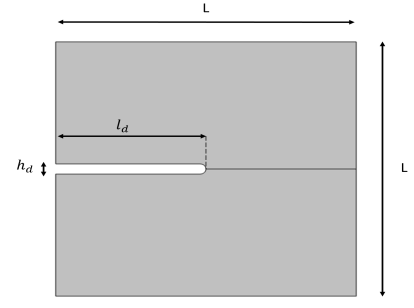
The model geometry consists of a metal part with an initial defect as depicted in Figure 1.
Figure 1: Model geometry.
The part size is L = 20 mm, and the defect is hd = 0.4 mm wide and extends for ld = 10 mm into the specimen.
The electrolyte is located on the left side of the metal part and a hydrogen influx is assigned on the boundary where the solid is in contact with it. The initial defect is also filled with electrolyte.
The solid is constrained on the bottom and right edges with a roller boundary condition. A prescribed displacement of 0.05 mm is applied on the top boundary to produce a state of tensile stress and study its effect on hydrogen diffusion. Although not considered in this example, the symmetry about the xz-plane through the defect could be exploited to reduce the computational size.
The hydrogen diffusion is studied using the mass balance equation
where c is the concentration (SI unit: mol/m3), Γ is the molar flux, and G is a source term. Following Ref. 1, hydrogen can be present both in the interstitial metal lattice and in traps,
To study the diffusion of the hydrogen in the interstitial lattice, the mass balance equation is rewritten as follows,
where only two trap types are considered. A relation between the trap and lattice concentration can be found assuming a low lattice occupancy, see Ref. 1 for details.
Both the concentration gradient (Fick’s law) and the stress gradient drive the diffusion of hydrogen in the metal,
where D is the lattice diffusion coefficient, ΩH is the partial molar volume of hydrogen, and is the hydrostatic stress. The diffusion of hydrogen in the metal induces swelling strains that are modeled as linearly dependent on the concentration


The electrolyte and the chemical reactions therein are not modeled explicitly; instead an approximation for the flux as a function of the pH and the electrolyte potential, Ve, is used (Ref. 1),
where
,
,
and
The electrolyte parameters used in the influx expression are inspired from Ref. 1 and reported in Table 1.
2E-6 m3/mol
Results and Discussion
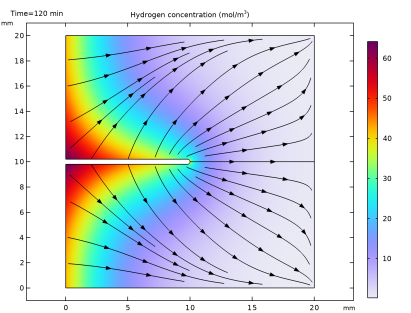
Figure 2 shows the hydrogen concentration and flux after 2 hours. The concentration is higher at the sharp corner of the crack because of the greater area exposed to the electrolyte.
Figure 2: Hydrogen concentration and hydrogen flux after 2 hours.
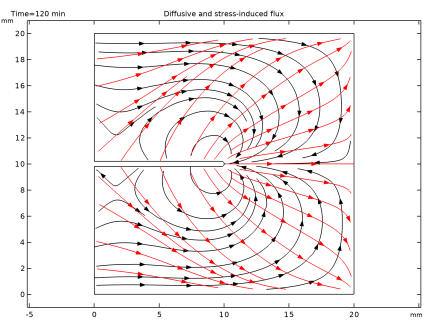
Figure 3 shows the flux direction for the concentration-driven (red) and stress-driven (black) contribution to the total flux.
Figure 3: Streamline plot of the concentration-driven (red) and stress-driven (black) hydrogen flux.
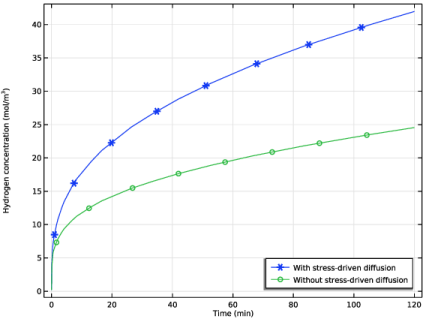
The effect of the stress on hydrogen absorption can be seen in Figure 4. The figure compares the time evolution of the hydrogen concentration at the tip of the defect with and without the stress contribution to the flux. The stress-induced flux increases the absorption of hydrogen.
Figure 4: Hydrogen concentration with and without stress contribution to the diffusion flux at the tip of the defect.
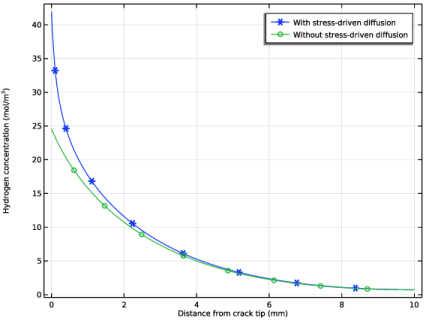
The hydrogen concentration after 2 hours along the centerline of the metal sample is shown in Figure 5 for both cases.
Figure 5: Hydrogen diffusion depth along the centerline of the specimen.
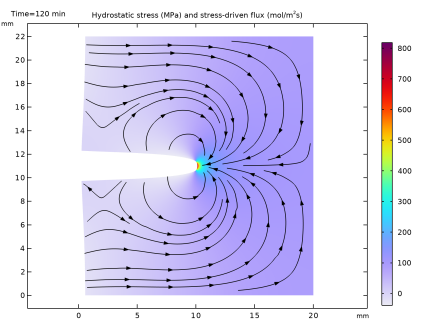
Figure 6 below shows the hydrostatic stress and stress-driven flux in the deformed configuration. There is a stress concentration at the crack tip, which enhances the hydrogen adsorption
Figure 6: Hydrostatic stress and stress-driven hydrogen flux in the deformed configuration (100 times amplified).
Notes About the COMSOL Implementation
The two-way coupling is obtained with the Shrinkage and Swelling multiphysics coupling. It takes into account both the stress-driven diffusion and the swelling deformation due to hydrogen diffusion. If only the stress-driven diffusion effect is of interest, that is, a one-way coupling, a Stress Migration or an External Flux subnode to the Solid node in the Transport in Solids interface can be used.
Reference
1. T. Hageman and E. Martinez-Paneda, An electro-chemo-mechanical framework for predicting hydrogen uptake in metals due to aqueous electrolytes, Corrosion Science, vol. 208, 110681, 2022
Application Library path: Structural_Mechanics_Module/Diffusion_in_Solids/hydrogen_diffusion
Modeling Instructions
From the File menu, choose New.
New
In the New window, click  Model Wizard.
Model Wizard
1
In the Model Wizard window, click  2D.
2
In the Select Physics tree, select Structural Mechanics > Solid Mechanics (solid).
3
Click Add.
4
In the Select Physics tree, select Chemical Species Transport > Transport in Solids (ts).
5
Click Add.
6
Click  Study.
7
In the Select Study tree, select General Studies > Time Dependent.
8
Global Definitions
Geometric Parameters
1
In the Model Builder window, under Global Definitions click Parameters 1.
2
In the Settings window for Parameters, locate the Parameters section.
3
4
In the Label text field, type Geometric Parameters.
Model Parameters
1
In the Home toolbar, click  Parameters and choose Add > Parameters.
2
In the Settings window for Parameters, locate the Parameters section.
3
Click  Load from File.
4
5
In the Label text field, type Model Parameters.
Geometry 1
1
In the Model Builder window, under Component 1 (comp1) click Geometry 1.
2
In the Settings window for Geometry, locate the Units section.
3
From the Length unit list, choose mm.
Metal Domain
1
In the Geometry toolbar, click  Square.
2
In the Settings window for Square, locate the Size section.
3
In the Side length text field, type L.
4
Click to expand the Layers section. In the table, enter the following settings:
5
In the Label text field, type Metal Domain.
Fracture
1
In the Geometry toolbar, click  Rectangle.
2
In the Settings window for Rectangle, locate the Size and Shape section.
3
In the Width text field, type Ld.
4
In the Height text field, type Hd.
5
Locate the Position section. In the y text field, type (L-Hd)/2.
6
In the Label text field, type Fracture.
Fracture Fillet
1
In the Geometry toolbar, click  Fillet.
2
On the object r1, select Points 2 and 3 only.
3
In the Settings window for Fillet, locate the Radius section.
4
In the Radius text field, type Hd/2.
5
In the Label text field, type Fracture Fillet.
Remove Fracture
1
In the Geometry toolbar, click  Booleans and Partitions and choose Difference.
2
3
In the Settings window for Difference, locate the Difference section.
4
Click to select the  Activate Selection toggle button for Objects to subtract.
5
6
In the Label text field, type Remove Fracture.
7
Click  Build All Objects.
Add Material
1
In the Materials toolbar, click  Add Material to open the Add Material window.
2
Go to the Add Material window.
3
In the tree, select Built-in > Iron.
4
Click the Add to Component button in the window toolbar.
5
In the Materials toolbar, click  Add Material to close the Add Material window.
Solid Mechanics (solid)
Prescribed Displacement: Top
1
In the Physics toolbar, click  Boundaries and choose Prescribed Displacement.
2
Click the  Zoom Extents button in the Graphics toolbar.
3
4
In the Settings window for Prescribed Displacement, locate the Prescribed Displacement section.
5
From the Displacement in y direction list, choose Prescribed.
6
In the u0y text field, type U0.
7
In the Label text field, type Prescribed Displacement: Top.
Roller 1
1
In the Physics toolbar, click  Boundaries and choose Roller.
2
Definitions
Define an Analytic function for the trap contribution, see Ref. 1 for details.
Trap Contribution
1
In the Definitions toolbar, click  Analytic.
2
In the Settings window for Analytic, locate the Definition section.
3
In the Expression text field, type (NT/N)*exp(Eb/(R_const*T0))/((1+(max(cl,0)/N)*exp(Eb/(R_const*T0)))^2).
4
In the Arguments text field, type cl, NT, Eb.
5
Locate the Units section. In the Function text field, type 1.
6
7
In the Function name text field, type trapFun.
8
In the Label text field, type Trap Contribution.
Variables 1
1
In the Model Builder window, right-click Definitions and choose Variables.
2
In the Settings window for Variables, locate the Variables section.
3
Click  Load from File.
4
Influx Boundary Selection
1
In the Definitions toolbar, click  Explicit.
2
In the Settings window for Explicit, locate the Input Entities section.
3
From the Geometric entity level list, choose Boundary.
4
5
In the Label text field, type Influx Boundary Selection.
Transport in Solids (ts)
Solid 1
1
In the Model Builder window, under Component 1 (comp1) > Transport in Solids (ts) click Solid 1.
2
In the Settings window for Solid, locate the Diffusion section.
3
In the Dc text field, type D.
Source: Hydrogen Traps
1
In the Physics toolbar, click  Domains and choose Source.
2
Click in the Graphics window and then press Ctrl+A to select both domains.
3
In the Settings window for Source, locate the Sources section.
4
In the Sc text field, type -srcCoeff*cTIME.
5
In the Label text field, type Source: Hydrogen Traps.
Flux 1
1
In the Physics toolbar, click  Boundaries and choose Flux.
2
In the Settings window for Flux, locate the Boundary Selection section.
3
From the Selection list, choose Influx Boundary Selection.
4
Locate the Inward Flux section. In the γ0,c text field, type J_influx.
Multiphysics
Shrinkage and Swelling 1 (sas1)
1
In the Physics toolbar, click  Multiphysics Couplings and choose Domain > Shrinkage and Swelling.
2
Click in the Graphics window and then press Ctrl+A to select both domains.
3
In the Settings window for Shrinkage and Swelling, locate the Shrinkage and Swelling Properties section.
4
Find the Species c subsection. In the ΩVc text field, type OmegaH.
Mesh 1
Due to symmetry, you can mesh half the geometry and use the Copy Domain node to copy the mesh to the other half.
Free Quad 1
1
In the Mesh toolbar, click  Free Quad.
2
In the Settings window for Free Quad, locate the Domain Selection section.
3
From the Geometric entity level list, choose Domain.
4
Distribution 1
1
Right-click Free Quad 1 and choose Distribution.
2
3
In the Settings window for Distribution, locate the Distribution section.
4
From the Distribution type list, choose Predefined.
5
In the Number of elements text field, type 40.
6
In the Element ratio text field, type 2.
Distribution 2
1
In the Model Builder window, right-click Free Quad 1 and choose Distribution.
2
3
In the Settings window for Distribution, locate the Distribution section.
4
From the Distribution type list, choose Predefined.
5
In the Number of elements text field, type 60.
6
In the Element ratio text field, type 10.
7
From the Growth rate list, choose Exponential.
Size
1
In the Model Builder window, under Component 1 (comp1) > Mesh 1 click Size.
2
In the Settings window for Size, locate the Element Size section.
3
From the Predefined list, choose Extra fine.
Copy Domain 1
1
In the Model Builder window, right-click Mesh 1 and choose Copying Operations > Copy Domain.
2
3
In the Settings window for Copy Domain, locate the Destination Domains section.
4
Click to select the  Activate Selection toggle button.
5
6
Click  Build All.
Study 1
Step 1: Time Dependent
1
In the Model Builder window, under Study 1 click Step 1: Time Dependent.
2
In the Settings window for Time Dependent, locate the Study Settings section.
3
From the Time unit list, choose min.
4
In the Output times text field, type 0 10^{range(log10(1/60),1/10,log10(120))} 120.
5
In the Model Builder window, click Study 1.
6
In the Settings window for Study, type Study 1, Coupled in the Label text field.
7
In the Study toolbar, click  Compute.
Component 1 (comp1)
Add another time dependent study in which you disable the chemomechanical coupling.
Add Study
1
In the Study toolbar, click  Add Study to open the Add Study window.
2
Go to the Add Study window.
3
Find the Studies subsection. In the Select Study tree, select General Studies > Time Dependent.
4
Click the Add Study button in the window toolbar.
Study 2, Uncoupled
1
In the Settings window for Study, type Study 2, Uncoupled in the Label text field.
2
Locate the Study Settings section. Clear the Generate default plots checkbox.
1
In the Model Builder window, under Study 2, Uncoupled click Step 1: Time Dependent.
2
In the Settings window for Time Dependent, locate the Study Settings section.
3
From the Time unit list, choose min.
4
In the Output times text field, type 0 10^{range(log10(1/60),1/10,log10(120))} 120.
5
Locate the Physics and Variables Selection section. In the Solve for column of the table, under Component 1 (comp1) > Multiphysics, clear the checkbox for Shrinkage and Swelling 1 (sas1).
6
In the Study toolbar, click  Compute.
Results
Modify the default stress plot to show the hydrostatic stress and the stress-driven hydrogen flux.
Hydrostatic Stress
1
In the Model Builder window, under Results click Stress (solid).
2
In the Settings window for 2D Plot Group, type Hydrostatic Stress in the Label text field.
3
Click to expand the Title section. From the Title type list, choose Manual.
4
In the Title text area, type Hydrostatic stress (MPa) and stress-driven flux (mol/m<sup>2</sup>s).
5
In the Parameter indicator text field, type Time=eval(t,min) min.
6
Locate the Plot Settings section. Clear the Plot dataset edges checkbox.
Surface 1
1
In the Model Builder window, expand the Hydrostatic Stress node, then click Surface 1.
2
In the Settings window for Surface, locate the Expression section.
3
In the Expression text field, type -solid.pm.
4
From the Unit list, choose MPa.
Deformation
1
In the Model Builder window, expand the Surface 1 node, then click Deformation.
2
In the Settings window for Deformation, locate the Scale section.
3
Select the Scale factor checkbox. In the associated text field, type 100.
Streamline 1
1
In the Model Builder window, right-click Hydrostatic Stress and choose Streamline.
2
In the Settings window for Streamline, click Replace Expression in the upper-right corner of the Expression section. From the menu, choose Component 1 (comp1) > Transport in Solids > Species c > Fluxes > sas1.sflux_cx,sas1.sflux_cy - Stress-driven flux (spatial frame).
3
In the Hydrostatic Stress toolbar, click  Plot.
4
Locate the Streamline Positioning section. From the Positioning list, choose Uniform density.
5
Locate the Coloring and Style section. Find the Point style subsection. From the Type list, choose Arrow.
6
Click to expand the Inherit Style section. From the Plot list, choose Surface 1.
Deformation 1
1
Right-click Streamline 1 and choose Deformation.
2
In the Hydrostatic Stress toolbar, click  Plot.
Concentration
1
In the Model Builder window, under Results click Transported Quantity (ts).
2
In the Settings window for 2D Plot Group, locate the Title section.
3
From the Title type list, choose Manual.
4
In the Title text area, type Hydrogen concentration (mol/m<sup>3</sup>).
5
In the Parameter indicator text field, type Time=eval(t,min) min.
6
In the Label text field, type Concentration.
Surface 1
1
In the Model Builder window, expand the Concentration node, then click Surface 1.
2
In the Settings window for Surface, locate the Coloring and Style section.
3
From the Color table list, choose Prism.
Streamline 1
The total flux is the sum of the diffusive and the stress-induced contributions.
1
In the Model Builder window, click Streamline 1.
2
In the Settings window for Streamline, locate the Expression section.
3
In the X-component text field, type ts.dflux_cx+sas1.sflux_cx.
4
In the Y-component text field, type ts.dflux_cy+sas1.sflux_cy.
5
Locate the Coloring and Style section. Find the Point style subsection. From the Color list, choose Black.
6
From the Arrow length list, choose Normalized.
7
Locate the Inherit Style section. From the Plot list, choose Surface 1.
8
In the Concentration toolbar, click  Plot.
Diffusive and Stress-Induced Flux
Add a plot to visualize the concentration-driven and stress-driven hydrogen flux.
1
In the Results toolbar, click  2D Plot Group.
2
In the Settings window for 2D Plot Group, locate the Title section.
3
From the Title type list, choose Manual.
4
In the Title text area, type Diffusive and stress-induced flux.
5
In the Parameter indicator text field, type Time=eval(t,min) min.
6
In the Label text field, type Diffusive and Stress-Induced Flux.
Streamline 1
1
Right-click Diffusive and Stress-Induced Flux and choose Streamline.
2
In the Settings window for Streamline, locate the Expression section.
3
In the X-component text field, type sas1.sflux_cx.
4
In the Y-component text field, type sas1.sflux_cy.
5
Locate the Streamline Positioning section. From the Positioning list, choose Uniform density.
6
Locate the Coloring and Style section. Find the Point style subsection. From the Type list, choose Arrow.
Streamline 2
1
Right-click Streamline 1 and choose Duplicate.
2
In the Settings window for Streamline, locate the Expression section.
3
In the X-component text field, type ts.dflux_cx.
4
In the Y-component text field, type ts.dflux_cy.
5
Locate the Coloring and Style section. Find the Point style subsection. From the Color list, choose Red.
6
In the Diffusive and Stress-Induced Flux toolbar, click  Plot.
7
Click the  Zoom Extents button in the Graphics toolbar.
Hydrogen Concentration in Metal
Add a plot to visualize the hydrogen concentration along the centerline of the solid with and without considering stress-driven diffusion.
1
In the Results toolbar, click  1D Plot Group.
2
In the Settings window for 1D Plot Group, locate the Data section.
3
From the Time selection list, choose Last.
4
Click to expand the Title section. From the Title type list, choose None.
5
Locate the Plot Settings section.
6
Select the x-axis label checkbox. In the associated text field, type Distance from crack tip (mm).
7
Select the y-axis label checkbox. In the associated text field, type Hydrogen concentration (mol/m<sup>3</sup>).
8
In the Label text field, type Hydrogen Concentration in Metal.
Line Graph 1
1
Right-click Hydrogen Concentration in Metal and choose Line Graph.
2
3
In the Settings window for Line Graph, locate the y-Axis Data section.
4
In the Expression text field, type c.
5
Click to expand the Legends section. Select the Show legends checkbox.
6
From the Legends list, choose Manual.
7
8
Click to expand the Coloring and Style section. Find the Line markers subsection. From the Marker list, choose Cycle.
9
From the Positioning list, choose Interpolated.
Line Graph 2
1
Right-click Line Graph 1 and choose Duplicate.
2
In the Settings window for Line Graph, locate the Data section.
3
From the Dataset list, choose Study 2, Uncoupled/Solution 2 (sol2).
4
From the Time selection list, choose Last.
5
Locate the Legends section. In the table, enter the following settings:
6
In the Hydrogen Concentration in Metal toolbar, click  Plot.
Hydrogen Concentration at Crack Tip
Add a plot to visualize the hydrogen concentration at the crack tip as a function of time.
1
In the Results toolbar, click  1D Plot Group.
2
In the Settings window for 1D Plot Group, locate the Title section.
3
From the Title type list, choose None.
4
Locate the Plot Settings section.
5
Select the y-axis label checkbox. In the associated text field, type Hydrogen concentration (mol/m<sup>3</sup>).
6
In the Label text field, type Hydrogen Concentration at Crack Tip.
7
Locate the Legend section. From the Position list, choose Lower right.
Point Graph 1
1
Right-click Hydrogen Concentration at Crack Tip and choose Point Graph.
2
3
In the Settings window for Point Graph, locate the y-Axis Data section.
4
In the Expression text field, type c.
5
Click to expand the Coloring and Style section. Find the Line markers subsection. From the Marker list, choose Cycle.
6
From the Positioning list, choose Interpolated.
7
Click to expand the Legends section. Select the Show legends checkbox.
8
From the Legends list, choose Manual.
9
Point Graph 2
1
Right-click Point Graph 1 and choose Duplicate.
2
In the Settings window for Point Graph, locate the Data section.
3
From the Dataset list, choose Study 2, Uncoupled/Solution 2 (sol2).
4
Locate the Legends section. In the table, enter the following settings:
5
In the Hydrogen Concentration at Crack Tip toolbar, click  Plot.