|
|
|
|
1·10-5 1/K
|
||
|
αy
|
2·10-5 1/K
|
|
|
αz
|
3·10-5 1/K
|
|
|
ΔT
|
|
Eigenfrequency, Hz ΔT=10 K
|
|||
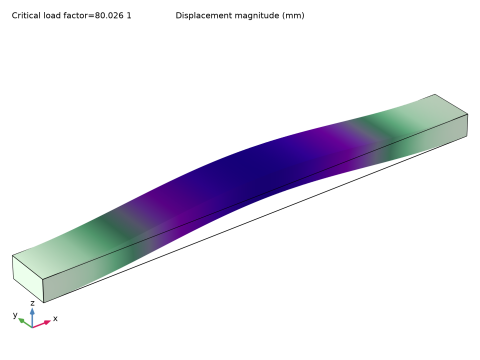


|
Eigenfrequency, Hz ΔT=10 K
|
|||













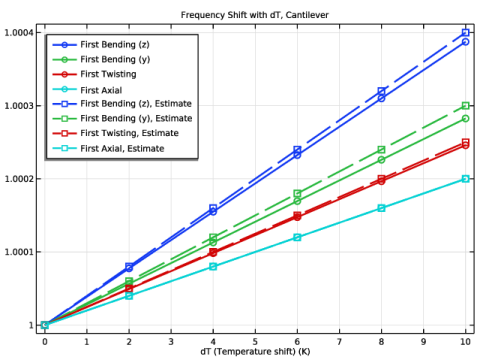
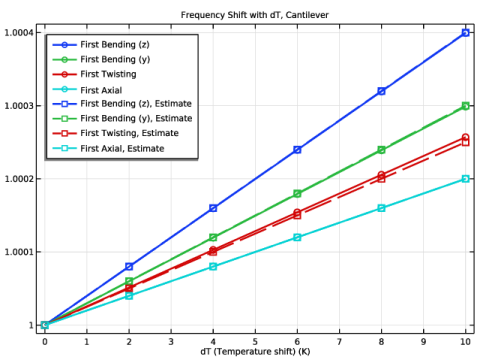
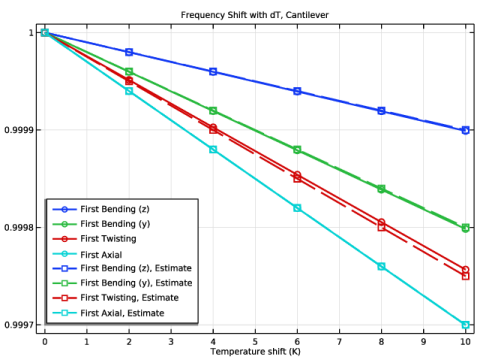






|
•
|
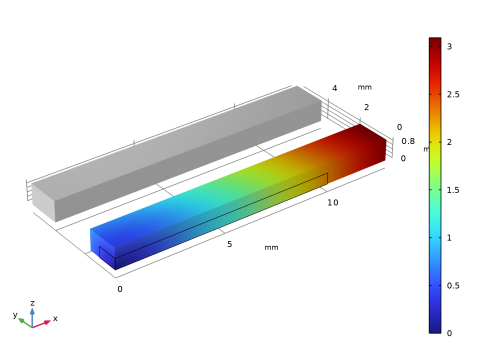
To analyze the effect of thermal expansion, add a Prestressed Analysis, Eigenfrequency study. This study consists of two study steps: a Stationary study step that computes the displacements and stresses caused by the thermal expansion, and an Eigenfrequency study step in which the previously computed solution is used. To compute the reference solution, you either add a separate Eigenfrequency study or run the same study sequence, but without thermal expansion.
|
|
•
|
Computing frequency changes that are at the ppm (parts-per-million) level requires high precision. This means that it is important to avoid spurious rounding errors. There are some actions that you can take to ensure optimal accuracy. In the settings for the Eigenfrequency node, set Search for eigenfrequencies around to a value of the correct order of magnitude. Then, decrease the Relative tolerance in the settings for the Eigenvalue Solver node. Change only the parameters necessary for capturing the physics. For example, use the same mesh for all studies.
|
|
•
|
If you have reason to believe that the problem is ill-conditioned, as can be the case for a slender structure, select Iterative refinement in the settings for the Direct solver.
|
|
1
|
|
2
|
|
3
|
Click Add.
|
|
4
|
Click
 Study. Study. |
|
5
|
|
6
|
Click
 Done. Done. |
|
1
|
|
2
|
|
3
|
Locate the Parameters section. In the table, enter the following settings:
|
|
1
|
|
2
|
|
3
|
|
1
|
|
2
|
|
3
|
|
4
|
|
5
|
|
6
|
Click
 Build Selected. Build Selected. |
|
1
|
|
2
|
|
3
|
Locate the Parameters section. In the table, enter the following settings:
|
|
1
|
In the Model Builder window, under Component 1 (comp1) right-click Materials and choose Blank Material.
|
|
2
|
|
1
|
|
2
|
|
3
|
From the Tref list, choose User defined. From the T list, choose User defined. In the associated text field, type 293.15[K]+dT.
|
|
1
|
|
2
|
|
1
|
|
2
|
|
1
|
|
2
|
In the Settings window for Fixed Constraint, type Fixed Constraint, Left End in the Label text field.
|
|
1
|
|
2
|
In the Settings window for Fixed Constraint, type Fixed Constraint, Right End in the Label text field.
|
|
3
|
|
1
|
|
2
|
|
3
|
|
4
|
Click
 Build All. Build All. |
|
1
|
|
2
|
|
1
|
|
2
|
|
3
|
|
4
|
|
5
|
Locate the Physics and Variables Selection section. Select the Modify model configuration for study step checkbox.
|
|
6
|
In the tree, select Component 1 (comp1) > Solid Mechanics (solid) > Linear Elastic Material 1 > Thermal Expansion 1.
|
|
7
|
Right-click and choose Disable.
|
|
1
|
|
2
|
|
3
|
|
4
|
|
5
|
|
6
|
|
1
|
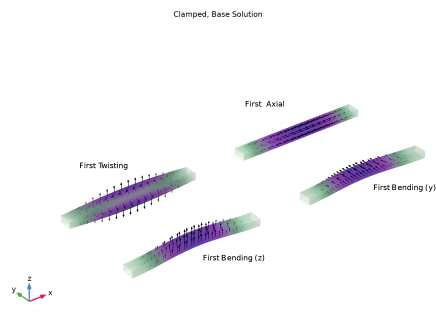
In the Settings window for 3D Plot Group, type Mode Shape, Clamped, Base Solution in the Label text field.
|
|
2
|
|
3
|
|
4
|
Clear the Parameter indicator text field.
|
|
5
|
|
6
|
|
7
|
|
8
|
|
1
|
In the Model Builder window, expand the Mode Shape, Clamped, Base Solution node, then click Surface 1.
|
|
2
|
|
1
|
|
2
|
|
3
|
Locate the Data section. From the Dataset list, choose Study 1, Clamped, Base Solution/Solution 1 (sol1).
|
|
4
|
|
5
|
|
6
|
|
1
|
|
2
|
|
3
|
|
4
|
|
5
|
|
6
|
|
1
|
|
2
|
|
3
|
|
4
|
|
5
|
|
1
|
In the Model Builder window, expand the Results > Mode Shape, Clamped, Base Solution > First Bending, z Direction node, then click Deformation.
|
|
2
|
|
3
|
|
1
|
In the Model Builder window, under Results > Mode Shape, Clamped, Base Solution click First Bending, y Direction.
|
|
2
|
|
3
|
|
1
|
|
2
|
|
3
|
|
1
|
|
2
|
|
3
|
|
4
|
|
1
|
In the Model Builder window, right-click Mode Shape, Clamped, Base Solution and choose Arrow Surface.
|
|
2
|
In the Settings window for Arrow Surface, type Arrow Surface, First Bending, z Direction in the Label text field.
|
|
3
|
|
4
|
Locate the Coloring and Style section.
|
|
5
|
|
6
|
|
7
|
|
1
|
|
2
|
|
3
|
|
4
|
|
1
|
In the Model Builder window, right-click Mode Shape, Clamped, Base Solution and choose Arrow Surface.
|
|
2
|
In the Settings window for Arrow Surface, type Arrow Surface, First Bending, y Direction in the Label text field.
|
|
3
|
Locate the Data section. From the Dataset list, choose Study 1, Clamped, Base Solution/Solution 1 (sol1).
|
|
4
|
|
5
|
|
6
|
|
7
|
|
8
|
Click to expand the Inherit Style section. From the Plot list, choose Arrow Surface, First Bending, z Direction.
|
|
1
|
|
2
|
In the Settings window for Arrow Surface, type Arrow Surface, First Twisting in the Label text field.
|
|
3
|
|
4
|
|
5
|
|
6
|
|
1
|
|
2
|
|
3
|
|
4
|
|
5
|
|
1
|
|
2
|
|
3
|
|
5
|
|
6
|
|
7
|
|
8
|
|
1
|
|
2
|
|
1
|
|
2
|
|
3
|
|
1
|
|
2
|
|
1
|
|
2
|
|
1
|
|
2
|
Go to the Add Study window.
|
|
3
|
|
4
|
Click the Add Study button in the window toolbar.
|
|
5
|
|
1
|
|
2
|
Clear the Generate default plots checkbox.
|
|
1
|
|
2
|
|
3
|
|
4
|
|
5
|
Locate the Physics and Variables Selection section. Select the Modify model configuration for study step checkbox.
|
|
6
|
In the tree, select Component 1 (comp1) > Solid Mechanics (solid) > Linear Elastic Material 1 > Thermal Expansion 1.
|
|
7
|
Right-click and choose Disable.
|
|
8
|
|
9
|
Right-click and choose Disable.
|
|
10
|
|
11
|
|
1
|
|
2
|
|
3
|
|
4
|
|
5
|
|
6
|
|
1
|
|
2
|
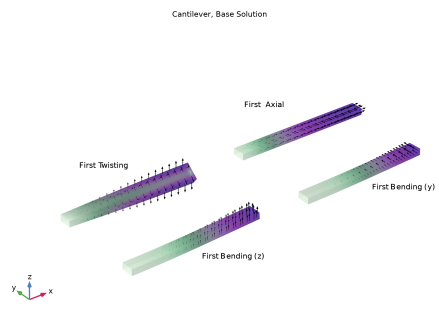
In the Settings window for 3D Plot Group, type Mode Shape, Cantilever, Base Solution in the Label text field.
|
|
3
|
Locate the Data section. From the Dataset list, choose Study 2, Cantilever, Base solution/Solution 2 (sol2).
|
|
4
|
|
1
|
In the Model Builder window, expand the Mode Shape, Cantilever, Base Solution node, then click First Bending, y Direction.
|
|
2
|
|
3
|
|
1
|
|
2
|
|
3
|
|
4
|
|
1
|
|
2
|
|
3
|
|
4
|
|
1
|
|
2
|
|
3
|
|
1
|
|
2
|
|
3
|
|
4
|
|
1
|
|
2
|
|
3
|
|
4
|
|
5
|
|
6
|
|
1
|
In the Model Builder window, right-click Eigenfrequencies (Study 1, Clamped, Base Solution) and choose Duplicate.
|
|
2
|
|
3
|
|
4
|
|
5
|
|
1
|
In the Model Builder window, right-click Participation Factors (Study 1, Clamped, Base Solution) and choose Duplicate.
|
|
2
|
|
3
|
|
4
|
|
5
|
|
1
|
In the Model Builder window, under Results, Ctrl-click to select Mode Shape, Clamped, Base Solution, Eigenfrequencies (Study 1, Clamped, Base Solution), and Participation Factors (Study 1, Clamped, Base Solution).
|
|
2
|
Right-click and choose Group.
|
|
1
|
In the Model Builder window, under Results, Ctrl-click to select Mode Shape, Cantilever, Base Solution, Eigenfrequencies (Study 2, Cantilever, Base Solution), and Participation Factors (Study 2, Cantilever, Base Solution).
|
|
2
|
Right-click and choose Group.
|
|
1
|
|
2
|
Go to the Add Study window.
|
|
3
|
Find the Studies subsection. In the Select Study tree, select Preset Studies for Selected Physics Interfaces > Eigenfrequency, Prestressed.
|
|
4
|
Click the Add Study button in the window toolbar.
|
|
1
|
|
2
|
|
1
|
|
2
|
|
3
|
Clear the Include geometric nonlinearity checkbox.
|
|
1
|
|
2
|
|
3
|
|
4
|
|
1
|
|
2
|
|
3
|
Click
 Add. Add. |
|
5
|
Click
 Range. Range. |
|
6
|
|
7
|
|
8
|
|
9
|
Click Add.
|
|
1
|
In the Model Builder window, expand the Study 3, Clamped, dT > Solver Configurations > Solution 3 (sol3) node, then click Eigenvalue Solver 1.
|
|
2
|
|
3
|
|
4
|
|
1
|
In the Model Builder window, collapse the Study 3, Clamped, dT > Solver Configurations > Solution 3 (sol3) node.
|
|
2
|
|
3
|
|
1
|
|
2
|
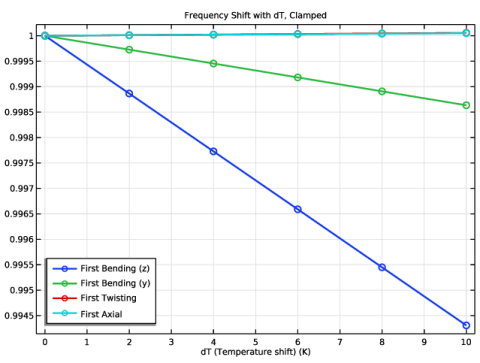
In the Settings window for 1D Plot Group, type Frequency Shift with Temperature, Clamped in the Label text field.
|
|
3
|
Locate the Data section. From the Dataset list, choose Study 3, Clamped, dT/Parametric Solutions 1 (sol5).
|
|
4
|
|
5
|
|
6
|
|
1
|
|
2
|
|
3
|
Locate the y-Axis Data section. In the table, enter the following settings:
|
|
4
|
|
5
|
|
6
|
|
7
|
|
9
|
|
1
|
|
2
|
|
3
|
Locate the Data section. From the Dataset list, choose Study 3, Clamped, dT/Parametric Solutions 1 (sol5).
|
|
4
|
|
5
|
|
6
|
Locate the y-Axis Data section. In the table, enter the following settings:
|
|
7
|
Locate the Legends section. In the table, enter the following settings:
|
|
8
|
|
1
|
|
2
|
|
3
|
|
4
|
Locate the y-Axis Data section. In the table, enter the following settings:
|
|
5
|
Locate the Legends section. In the table, enter the following settings:
|
|
6
|
|
1
|
|
2
|
|
3
|
|
4
|
Locate the y-Axis Data section. In the table, enter the following settings:
|
|
5
|
Locate the Legends section. In the table, enter the following settings:
|
|
6
|
|
1
|
|
2
|
|
3
|
|
4
|
|
1
|
|
2
|
Go to the Add Study window.
|
|
3
|
Find the Studies subsection. In the Select Study tree, select Preset Studies for Selected Physics Interfaces > Eigenfrequency, Prestressed.
|
|
4
|
Click the Add Study button in the window toolbar.
|
|
5
|
|
1
|
|
2
|
|
1
|
|
2
|
|
3
|
Clear the Include geometric nonlinearity checkbox.
|
|
4
|
Locate the Physics and Variables Selection section. Select the Modify model configuration for study step checkbox.
|
|
5
|
|
6
|
Right-click and choose Disable.
|
|
1
|
|
2
|
|
3
|
|
4
|
|
5
|
Locate the Physics and Variables Selection section. Select the Modify model configuration for study step checkbox.
|
|
6
|
In the tree, select Component 1 (comp1) > Solid Mechanics (solid), Controls spatial frame > Fixed Constraint, Right End.
|
|
7
|
Right-click and choose Disable.
|
|
1
|
|
2
|
|
3
|
Click
 Add. Add. |
|
5
|
Click
 Range. Range. |
|
6
|
|
7
|
|
8
|
|
9
|
Click Add.
|
|
1
|
|
2
|
|
3
|
|
4
|
|
5
|
|
1
|
In the Model Builder window, collapse the Study 4, Cantilever, dT > Solver Configurations > Solution 12 (sol12) node.
|
|
2
|
|
1
|
In the Model Builder window, right-click Frequency Shift with Temperature, Clamped and choose Duplicate.
|
|
2
|
In the Settings window for 1D Plot Group, type Frequency Shift with Temperature, Cantilever in the Label text field.
|
|
3
|
Locate the Data section. From the Dataset list, choose Study 4, Cantilever, dT/Parametric Solutions 2 (sol14).
|
|
4
|
|
1
|
In the Model Builder window, expand the Frequency Shift with Temperature, Cantilever node, then click First Bending Mode, z Direction.
|
|
2
|
|
1
|
|
2
|
|
3
|
|
4
|
Locate the y-Axis Data section. In the table, enter the following settings:
|
|
1
|
|
2
|
|
3
|
|
4
|
|
5
|
Locate the y-Axis Data section. In the table, enter the following settings:
|
|
1
|
|
2
|
|
3
|
|
4
|
|
5
|
Locate the y-Axis Data section. In the table, enter the following settings:
|
|
6
|
|
1
|
|
2
|
|
3
|
|
4
|
|
5
|
|
1
|
In the Model Builder window, expand the Results > Clamped node, then click Frequency Shift with Temperature, Clamped.
|
|
2
|
|
1
|
In the Model Builder window, expand the Results > Cantilever node, then click Frequency Shift with Temperature, Cantilever.
|
|
2
|
|
1
|
|
2
|
In the Settings window for Evaluation Group, type Frequency Shift with Temperature, Clamped in the Label text field.
|
|
3
|
Locate the Data section. From the Dataset list, choose Study 3, Clamped, dT/Parametric Solutions 1 (sol5).
|
|
4
|
|
1
|
|
2
|
|
3
|
|
4
|
|
5
|
Locate the Expressions section. In the table, enter the following settings:
|
|
6
|
|
7
|
|
1
|
|
2
|
|
3
|
|
4
|
|
5
|
Locate the Expressions section. In the table, enter the following settings:
|
|
1
|
|
2
|
|
3
|
|
4
|
Locate the Expressions section. In the table, enter the following settings:
|
|
1
|
|
2
|
|
3
|
|
4
|
Locate the Expressions section. In the table, enter the following settings:
|
|
5
|
|
6
|
|
1
|
|
2
|
In the Settings window for Evaluation Group, type Frequency Shift with Temperature, Cantilever in the Label text field.
|
|
3
|
Locate the Data section. From the Dataset list, choose Study 4, Cantilever, dT/Parametric Solutions 2 (sol14).
|
|
1
|
In the Model Builder window, expand the Frequency Shift with Temperature, Cantilever node, then click First Bending (z).
|
|
2
|
|
3
|
|
4
|
Locate the Expressions section. In the table, enter the following settings:
|
|
1
|
|
2
|
|
3
|
|
4
|
Locate the Expressions section. In the table, enter the following settings:
|
|
1
|
|
2
|
|
3
|
|
4
|
|
5
|
Locate the Expressions section. In the table, enter the following settings:
|
|
1
|
|
2
|
|
3
|
|
4
|
|
5
|
Locate the Expressions section. In the table, enter the following settings:
|
|
6
|
|
1
|
|
2
|
Go to the Add Study window.
|
|
3
|
Find the Studies subsection. In the Select Study tree, select Preset Studies for Selected Physics Interfaces > Linear Buckling.
|
|
4
|
Click the Add Study button in the window toolbar.
|
|
5
|
|
1
|
|
2
|
|
3
|
|
1
|
|
2
|
|
1
|
|
2
|
|
3
|
|
1
|
|
2
|
|
1
|
In the Model Builder window, under Results > Cantilever > Frequency Shift with Temperature, Cantilever click First Bending (z).
|
|
2
|
|
1
|
|
2
|
|
1
|
|
2
|
|
1
|
|
2
|
|
4
|
|
1
|
Go to the Frequency Shift with Temperature, Cantilever window.
|
|
2
|
Click the Full Precision button in the window toolbar to better compare numerical results with estimates.
|
|
3
|
Click the Full Precision button in the window toolbar to revert to the default precision.
|
|
1
|
In the Model Builder window, under Results > Cantilever > Frequency Shift with Temperature, Cantilever, Ctrl-click to select First Bending Mode, z Direction, First Bending Mode, y Direction, First Twisting Mode, and First Axial Mode.
|
|
2
|
Right-click and choose Duplicate.
|
|
1
|
In the Settings window for Global, type First Bending Mode, z Direction (Estimate) in the Label text field.
|
|
2
|
Locate the y-Axis Data section. In the table, enter the following settings:
|
|
3
|
Locate the Coloring and Style section. Find the Line style subsection. From the Line list, choose Dashed.
|
|
4
|
|
5
|
Locate the Legends section. In the table, enter the following settings:
|
|
1
|
In the Model Builder window, under Results > Cantilever > Frequency Shift with Temperature, Cantilever click First Bending Mode, y Direction 1.
|
|
2
|
In the Settings window for Global, type First Bending Mode, y Direction (Estimate) in the Label text field.
|
|
3
|
Locate the y-Axis Data section. In the table, enter the following settings:
|
|
4
|
Locate the Coloring and Style section. Find the Line style subsection. From the Line list, choose Dashed.
|
|
5
|
|
6
|
Locate the Legends section. In the table, enter the following settings:
|
|
1
|
In the Model Builder window, under Results > Cantilever > Frequency Shift with Temperature, Cantilever click First Twisting Mode 1.
|
|
2
|
|
3
|
Locate the y-Axis Data section. In the table, enter the following settings:
|
|
4
|
Locate the Coloring and Style section. Find the Line style subsection. From the Line list, choose Dashed.
|
|
5
|
|
6
|
Locate the Legends section. In the table, enter the following settings:
|
|
1
|
In the Model Builder window, under Results > Cantilever > Frequency Shift with Temperature, Cantilever click First Axial Mode 1.
|
|
2
|
|
3
|
Locate the y-Axis Data section. In the table, enter the following settings:
|
|
4
|
Locate the Coloring and Style section. Find the Line style subsection. From the Line list, choose Dashed.
|
|
5
|
|
6
|
Locate the Legends section. In the table, enter the following settings:
|
|
1
|
|
2
|
|
3
|
|
1
|
|
2
|
|
3
|
Locate the Data section. From the Dataset list, choose Study 4, Cantilever, dT/Solution Store 2 (sol13).
|
|
1
|
|
2
|
|
3
|
|
4
|
|
5
|
|
6
|
|
1
|
|
2
|
|
3
|
Select the Inherit from domain checkbox.
|
|
1
|
|
2
|
|
3
|
In the tree, select Component 1 (comp1) > Solid Mechanics (solid) > Fixed Constraint, Left End > Thermal Expansion 1.
|
|
4
|
Right-click and choose Disable.
|
|
1
|
|
2
|
|
3
|
Right-click and choose Disable.
|
|
1
|
|
2
|
|
3
|
Select the Modify model configuration for study step checkbox.
|
|
4
|
In the tree, select Component 1 (comp1) > Solid Mechanics (solid) > Fixed Constraint, Left End > Thermal Expansion 1.
|
|
5
|
Right-click and choose Disable.
|
|
1
|
|
2
|
|
3
|
Select the Modify model configuration for study step checkbox.
|
|
4
|
Right-click and choose Disable.
|
|
1
|
|
2
|
|
3
|
Right-click and choose Disable.
|
|
1
|
|
2
|
|
3
|
Right-click and choose Disable.
|
|
1
|
|
2
|
|
3
|
Select the Modify model configuration for study step checkbox.
|
|
4
|
Right-click and choose Disable.
|
|
1
|
|
2
|
|
3
|
Select the Modify model configuration for study step checkbox.
|
|
4
|
In the tree, select Component 1 (comp1) > Solid Mechanics (solid) > Fixed Constraint, Left End > Thermal Expansion 1.
|
|
5
|
Right-click and choose Disable.
|
|
1
|
|
2
|
Go to the Add Study window.
|
|
3
|
Find the Studies subsection. In the Select Study tree, select Preset Studies for Selected Physics Interfaces > Eigenfrequency, Prestressed.
|
|
4
|
Click the Add Study button in the window toolbar.
|
|
5
|
|
1
|
In the Settings window for Study, type Study 6, Cantilever with Expanding Constraint in the Label text field.
|
|
2
|
|
1
|
In the Model Builder window, under Study 6, Cantilever with Expanding Constraint click Step 1: Stationary.
|
|
2
|
|
3
|
Select the Modify model configuration for study step checkbox.
|
|
4
|
In the tree, select Component 1 (comp1) > Solid Mechanics (solid), Controls spatial frame > Fixed Constraint, Right End.
|
|
5
|
Right-click and choose Disable.
|
|
1
|
|
2
|
|
3
|
|
4
|
|
5
|
Locate the Physics and Variables Selection section. Select the Modify model configuration for study step checkbox.
|
|
6
|
In the tree, select Component 1 (comp1) > Solid Mechanics (solid), Controls spatial frame > Fixed Constraint, Right End.
|
|
7
|
Right-click and choose Disable.
|
|
1
|
|
2
|
|
3
|
Click
 Add. Add. |
|
1
|
|
2
|
|
3
|
|
4
|
|
5
|
|
6
|
|
1
|
In the Model Builder window, right-click Frequency Shift with Temperature, Cantilever and choose Duplicate.
|
|
2
|
In the Settings window for 1D Plot Group, type Frequency Shift with Temperature, Cantilever, Expanding Constraint in the Label text field.
|
|
3
|
Locate the Data section. From the Dataset list, choose Study 6, Cantilever with Expanding Constraint/Parametric Solutions 3 (sol25).
|
|
1
|
In the Model Builder window, expand the Frequency Shift with Temperature, Cantilever, Expanding Constraint node, then click First Bending Mode, y Direction.
|
|
2
|
|
3
|
From the Dataset list, choose Study 6, Cantilever with Expanding Constraint/Parametric Solutions 3 (sol25).
|
|
1
|
|
2
|
|
3
|
From the Dataset list, choose Study 6, Cantilever with Expanding Constraint/Parametric Solutions 3 (sol25).
|
|
1
|
|
2
|
|
3
|
From the Dataset list, choose Study 6, Cantilever with Expanding Constraint/Parametric Solutions 3 (sol25).
|
|
4
|
|
1
|
In the Model Builder window, under Results > Cantilever > Frequency Shift with Temperature, Cantilever click First Bending (z).
|
|
2
|
|
1
|
|
2
|
|
1
|
|
2
|
|
1
|
|
2
|
|
4
|
|
1
|
In the Model Builder window, under Results > Cantilever > Stress at Clamp right-click Volume 1 and choose Duplicate.
|
|
2
|
|
3
|
From the Dataset list, choose Study 6, Cantilever with Expanding Constraint/Solution Store 4 (sol24).
|
|
4
|
|
1
|
|
2
|
|
3
|
|
4
|
|
5
|
|
6
|
|
7
|
|
8
|
|
9
|
|
1
|
|
2
|
|
1
|
|
2
|
|
1
|
|
2
|
|
3
|
|
5
|
|
6
|
|
7
|
|
8
|
|
1
|
|
2
|
|
1
|
|
2
|
|
3
|
|
1
|
|
2
|
|
1
|
In the Model Builder window, expand the Component 1 (comp1) > Materials > Material 1 (mat1) node, then click Basic (def).
|
|
2
|
|
3
|
Click
 Select Quantity. Select Quantity. |
|
4
|
|
5
|
|
6
|
Click OK.
|
|
7
|
In the Model Builder window, under Component 1 (comp1) > Materials > Material 1 (mat1) click Young’s modulus and Poisson’s ratio (Enu).
|
|
8
|
|
9
|
Click
 Select Quantity. Select Quantity. |
|
10
|
|
11
|
Click OK.
|
|
12
|
|
13
|
|
1
|
In the Model Builder window, under Component 1 (comp1) > Solid Mechanics (solid) click Linear Elastic Material 1.
|
|
2
|
|
3
|
From the Tref list, choose User defined. From the T list, choose User defined. In the associated text field, type 293.15[K]+dT.
|
|
1
|
|
2
|
Go to the Add Study window.
|
|
3
|
Find the Studies subsection. In the Select Study tree, select Preset Studies for Selected Physics Interfaces > Eigenfrequency, Prestressed.
|
|
4
|
Click the Add Study button in the window toolbar.
|
|
5
|
|
1
|
In the Settings window for Study, type Study 7, Cantilever with Temperature Dependent E in the Label text field.
|
|
2
|
|
1
|
In the Model Builder window, under Study 7, Cantilever with Temperature Dependent E click Step 1: Stationary.
|
|
2
|
|
3
|
Clear the Include geometric nonlinearity checkbox.
|
|
4
|
Locate the Physics and Variables Selection section. Select the Modify model configuration for study step checkbox.
|
|
5
|
|
6
|
Right-click and choose Disable.
|
|
1
|
|
2
|
|
3
|
|
4
|
|
5
|
Locate the Physics and Variables Selection section. Select the Modify model configuration for study step checkbox.
|
|
6
|
In the tree, select Component 1 (comp1) > Solid Mechanics (solid), Controls spatial frame > Fixed Constraint, Right End.
|
|
7
|
Right-click and choose Disable.
|
|
1
|
|
2
|
|
3
|
Click
 Add. Add. |
|
5
|
Click
 Add. Add. |
|
7
|
|
1
|
|
2
|
|
3
|
|
4
|
|
5
|
|
6
|
|
1
|
In the Model Builder window, right-click Frequency Shift with Temperature, Cantilever, Expanding Constraint and choose Duplicate.
|
|
2
|
In the Settings window for 1D Plot Group, type Frequency Shift with Temperature, Cantilever, Temperature Dependent E in the Label text field.
|
|
3
|
Locate the Data section. From the Dataset list, choose Study 7, Cantilever with Temperature Dependent E/Parametric Solutions 4 (sol34).
|
|
4
|
|
1
|
In the Model Builder window, expand the Frequency Shift with Temperature, Cantilever, Temperature Dependent E node, then click First Bending Mode, z Direction.
|
|
2
|
|
3
|
From the Dataset list, choose Study 7, Cantilever with Temperature Dependent E/Parametric Solutions 4 (sol34).
|
|
4
|
|
5
|
|
6
|
|
7
|
|
1
|
|
2
|
|
3
|
From the Dataset list, choose Study 7, Cantilever with Temperature Dependent E/Parametric Solutions 4 (sol34).
|
|
4
|
|
5
|
|
6
|
|
7
|
|
8
|
|
1
|
|
2
|
|
3
|
From the Dataset list, choose Study 7, Cantilever with Temperature Dependent E/Parametric Solutions 4 (sol34).
|
|
4
|
|
5
|
|
6
|
|
7
|
|
8
|
|
1
|
|
2
|
|
3
|
From the Dataset list, choose Study 7, Cantilever with Temperature Dependent E/Parametric Solutions 4 (sol34).
|
|
4
|
|
5
|
|
6
|
|
7
|
|
8
|
|
1
|
|
2
|
|
3
|
From the Dataset list, choose Study 7, Cantilever with Temperature Dependent E/Parametric Solutions 4 (sol34).
|
|
4
|
|
5
|
|
6
|
|
7
|
|
8
|
Locate the y-Axis Data section. In the table, enter the following settings:
|
|
1
|
|
2
|
|
3
|
From the Dataset list, choose Study 7, Cantilever with Temperature Dependent E/Parametric Solutions 4 (sol34).
|
|
4
|
|
5
|
|
6
|
Locate the y-Axis Data section. In the table, enter the following settings:
|
|
7
|
|
8
|
|
1
|
|
2
|
|
3
|
From the Dataset list, choose Study 7, Cantilever with Temperature Dependent E/Parametric Solutions 4 (sol34).
|
|
4
|
|
5
|
|
6
|
Locate the y-Axis Data section. In the table, enter the following settings:
|
|
7
|
|
8
|
|
1
|
|
2
|
|
3
|
From the Dataset list, choose Study 7, Cantilever with Temperature Dependent E/Parametric Solutions 4 (sol34).
|
|
4
|
|
5
|
|
6
|
Locate the y-Axis Data section. In the table, enter the following settings:
|
|
7
|
|
8
|
|
9
|
|
1
|
In the Model Builder window, collapse the Results > Cantilever > Frequency Shift with Temperature, Cantilever, Temperature Dependent E node.
|
|
2
|
In the Model Builder window, click Frequency Shift with Temperature, Cantilever, Temperature Dependent E.
|
|
3
|
|
4
|
|
5
|
|
1
|
In the Model Builder window, expand the Frequency Shift with Temperature, Cantilever node, then click First Bending (z).
|
|
2
|
|
1
|
|
2
|
|
1
|
|
2
|
|
1
|
|
2
|
|
4
|
|
1
|
|
2
|
Go to the Add Study window.
|
|
3
|
Find the Studies subsection. In the Select Study tree, select Preset Studies for Selected Physics Interfaces > Eigenfrequency, Prestressed.
|
|
4
|
Click the Add Study button in the window toolbar.
|
|
5
|
|
1
|
|
2
|
|
1
|
|
2
|
|
3
|
Clear the Include geometric nonlinearity checkbox.
|
|
4
|
Locate the Physics and Variables Selection section. Select the Modify model configuration for study step checkbox.
|
|
5
|
|
6
|
Right-click and choose Disable.
|
|
1
|
|
2
|
|
3
|
|
4
|
|
5
|
Locate the Physics and Variables Selection section. Select the Modify model configuration for study step checkbox.
|
|
6
|
In the tree, select Component 1 (comp1) > Solid Mechanics (solid), Controls spatial frame > Fixed Constraint, Right End.
|
|
7
|
Right-click and choose Disable.
|
|
1
|
|
2
|
|
3
|
Click
 Add. Add. |
|
1
|
In the Model Builder window, expand the Study 8, Cantilever, dT=30000 > Solver Configurations > Solution 41 (sol41) node, then click Eigenvalue Solver 1.
|
|
2
|
|
3
|
|
4
|
|
5
|
|
6
|
|
1
|
|
2
|
Go to the Add Study window.
|
|
3
|
|
4
|
Click the Add Study button in the window toolbar.
|
|
5
|
|
1
|
|
2
|
|
3
|
|
4
|
Locate the Physics and Variables Selection section. Select the Modify model configuration for study step checkbox.
|
|
5
|
Right-click and choose Disable.
|
|
6
|
|
7
|
In the Settings window for Study, type Study 9, Cantilever, Modified Geometry And Density in the Label text field.
|
|
8
|
|
1
|
|
2
|
|
3
|
In the Model Builder window, under Study 9, Cantilever, Modified Geometry And Density > Solver Configurations > Solution 45 (sol45) click Eigenvalue Solver 1.
|
|
4
|
|
5
|
|
6
|
|
1
|
|
2
|
|
3
|
Click
 Add. Add. |
|
5
|
Click
 Add. Add. |
|
7
|
Click
 Add. Add. |
|
9
|
Click
 Add. Add. |
|
11
|
|
1
|
|
2
|
|
3
|
|
1
|
|
2
|
|
3
|
|
4
|
|
1
|
|
2
|
|
3
|
|
4
|
|
5
|
|
6
|
|
7
|
|
1
|
In the Model Builder window, under Results > 3D Plot Group 9 right-click Volume 1 and choose Duplicate.
|
|
2
|
|
3
|
From the Dataset list, choose Study 9, Cantilever, Modified Geometry And Density/Solution 45 (sol45).
|
|
1
|
|
2
|
|
1
|
|
2
|
|
3
|
|
4
|
|
1
|
|
2
|
|
3
|
Select the Manual indexing checkbox.
|
|
4
|
|
5
|
|
6
|
|
7
|
|
1
|
|
2
|
Drag and drop below Cantilever > Frequency Shift with Temperature, Cantilever, Expanding Constraint.
|
|
3
|
|
4
|
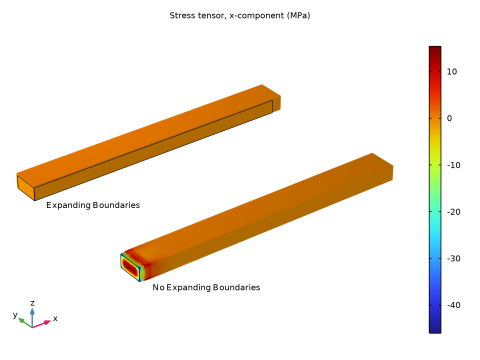
In the Settings window for 3D Plot Group, type Thermal Expansion vs. Modified Geometry in the Label text field.
|
|
1
|
In the Model Builder window, under Results > Cantilever > Thermal Expansion vs. Modified Geometry click Volume 1.
|
|
2
|
|
1
|
In the Model Builder window, under Results > Cantilever > Thermal Expansion vs. Modified Geometry click Volume 2.
|
|
2
|
|
1
|
In the Model Builder window, under Results > Cantilever > Thermal Expansion vs. Modified Geometry click Line 1.
|
|
2
|
|
1
|
In the Model Builder window, collapse the Results > Cantilever > Thermal Expansion vs. Modified Geometry node.
|
|
2
|
|
3
|
|
4
|
|
5
|
|
1
|
|
2
|
In the Settings window for Evaluation Group, type dT=30000[K] vs. Modified Geometry in the Label text field.
|
|
3
|
Locate the Data section. From the Dataset list, choose Study 8, Cantilever, dT=30000/Parametric Solutions 5 (sol43).
|
|
4
|
|
1
|
|
2
|
|
3
|
|
4
|
|
5
|
|
6
|
Locate the Expressions section. In the table, enter the following settings:
|
|
1
|
|
2
|
|
3
|
|
4
|
|
5
|
Locate the Expressions section. In the table, enter the following settings:
|
|
6
|
|
1
|
|
2
|
|
3
|
|
4
|
Locate the Expressions section. In the table, enter the following settings:
|
|
1
|
|
2
|
|
3
|
|
4
|
Locate the Expressions section. In the table, enter the following settings:
|
|
1
|
|
2
|