
PDF

Stress Analysis of an Elliptic Membrane
General Description
In this benchmark, the static stress analysis described in the NAFEMS Test LE1, “Elliptic Membrane”, found on page 5 in Ref. 1 is performed. It is an analysis of a linear elastic plane stress model.
The computed stress level is compared with the values given in the benchmark report.
In addition to the original benchmark, a mesh convergence study is performed.
GEOMETRY
The geometry is an ellipse with an elliptical hole in it. The outer and inner edges are defined by the equations
The thickness (which actually does not influence the analysis) is 0.1 m.
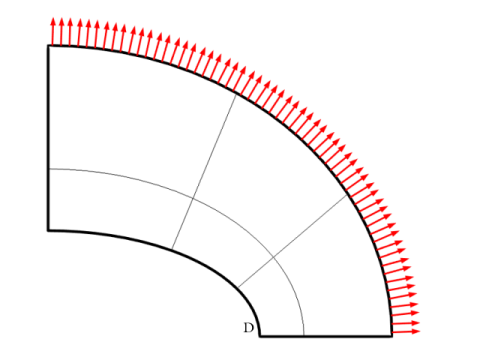
Due to symmetry in load and in geometry, the analysis only includes a quarter of the geometry as shown in Figure 1.
Figure 1: The geometry and load. Only the quarter that is analyzed is shown.
Material
Isotropic with E = 210 GPa and ν = 0.3.
Load
An evenly distributed load of 10 MPa acts along the outward normal of the outer boundary.
Constraints
Symmetry conditions are used along the cuts at X = 0 and Y = 0.
Model Setup
The Solid Mechanics interface with the plane stress assumption is used.
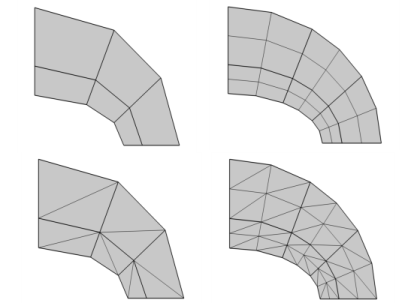
Four meshes are exactly specified in Ref. 1. The “coarse” mesh has 6 quadrilateral or 12 triangular elements. The “fine” mesh has 24 quadrilateral or 48 triangular elements. The triangular elements are created by splitting the quadrilateral elements along a diagonal. The specified meshes are shown in Figure 2 and Figure 3. For the quadrilateral meshes, a reduced integration scheme with hourglass stabilization is also used.
Note that the algorithm used to subdivide the quadrilaterals into triangles tries to place the diagonal so that the two new triangles have the best possible shape. As a result, the triangular mesh used is not identical to the one in the original benchmark, even though the number of elements and even node locations are identical. For very coarse meshes, this can change the stress results appreciably.
For the mesh convergence study, these meshes are uniformly refined using a parameter div. The number of elements along the elliptical boundaries is 3*div and the number of elements along the symmetry cuts is 2*div.
The number of displacement degrees of freedom varies from 48 (div = 1 and quadrilaterals with linear shape order) to 935810 (div = 64 and triangles with cubic shape order).
Figure 2: The meshes as specified in Ref. 1. Left column: “coarse” (div=1). Right column: “fine” (div=2).
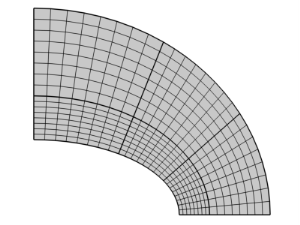
Figure 3: A quadrilateral mesh with div=8.
Due to the specification of the benchmark, the modeling differs somewhat from what you would use in practice:
Results and Discussion
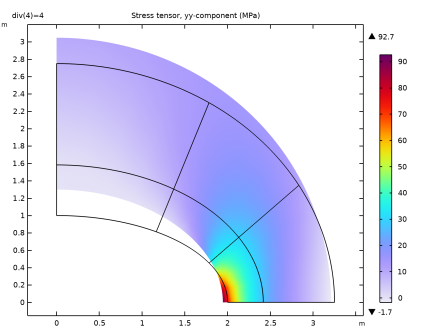
The distribution of the direct stress in the Y direction is shown in Figure 4. As can be seen the result has steep gradients toward the point with maximum values.
Figure 4: The distribution of the σy stress component using div=4 and second order quadrilateral elements.
The normal stress σy at the elliptic hole is evaluated at the point D located at X = 2, Y = 0 (see Figure 1). The target value according to Ref. 1 is 92.7 MPa. The value is based on an analytical result. The COMSOL Multiphysics results for the “coarse” and “fine” meshes are given in Table 1.
As can be expected, the coarse mesh is not able to capture the stress concentration unless elements with high order are used. Generally the quadrilaterals perform better than the corresponding triangles.
The mesh that is denoted as “fine” is more similar to what you would use in an analysis of a larger structure in a case where you are not specifically interested in a high resolution of the stress concentration. Still, with quadratic shape order elements, the accuracy is good enough for most engineering purposes. With the current mesh, the triangular elements will have a small angle at the stress evaluation point, hence the less accurate result.
Using elements with linear shape functions for structural analysis is commonly avoided in the finite element community.
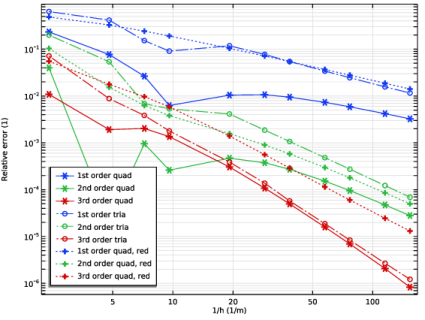
The results of the mesh convergence study are shown in Figure 5. The element size h is defined as 0.417[m]/div, which is the length of an edge in the element where the stress is measured.
The target value in Ref. 1, 92.7 MPa, is given with only three digits. This is not accurate enough for the convergence study here. Instead, the error is measured relative to the value 92.65817 MPa, toward which σy converges.
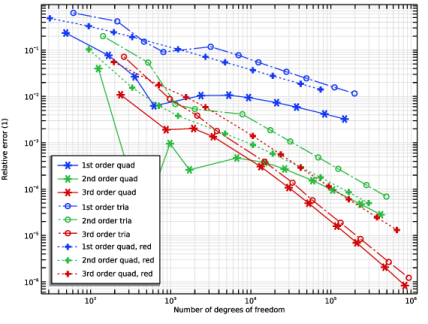
The convergence behavior is as expected since it is faster for elements with a higher shape function order. It can also be seen that quadrilaterals are somewhat more accurate than triangles for quadratic and cubic elements. The quadrilateral elements with a reduced ingratiation rule perform similar to the triangles for first order shape functions. For higher order shape functions, they are almost on par with their fully integrated counterparts.
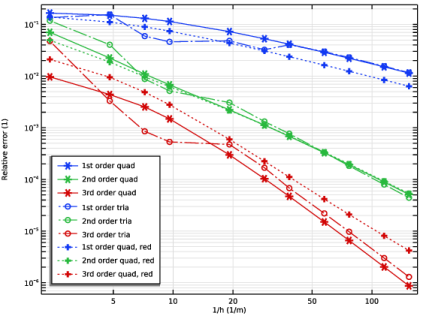
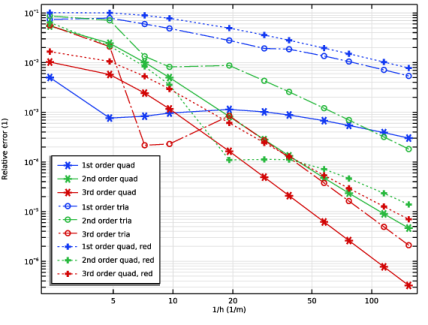
The other two in-plane stress components σx and τxy should both be zero at point D since the boundary is free. In Figure 6 and Figure 7 similar convergence graphs are shown for these stress components.
Figure 5: Error with respect to the stress target value as a function of the element size h.
Figure 6: Error in the stress σx. The values are normalized with the target for σy.
Figure 7: Error in the stress τxy. The values are normalized with the target for σy.
Since elements with different shape function orders are used, a comparison based only on element size may not be fair when efficiency is considered. The number of degrees of freedom in the model varies a lot for the same element size, and so does the solution time. In Figure 8, the error is shown as a function of the number of degrees of freedom. Also when compared this way, the elements with cubic shape functions have the best performance. This is usually true as long as the solutions are smooth, but it may not be true, for example, when solving nonlinear problems.
However, for coarser meshes, which are more representative or real life mesh resolution, the second order quadrilateral elements are quite efficient when compared versus the number of degrees of freedom.
Note that somewhat fewer degrees-of-freedom are used for when a reduced integration rule is used. This follows from the lower order of the auxiliary shape functions used for the out-of-plane displacement derivative.
Figure 8: Error with respect to the stress target value as a function of the number of degrees of freedom.
Reference
1. G.A.O. Davies, R.T. Fenner, and R.W. Lewis, Background to Benchmarks, NAFEMS, Glasgow, 1993.
Application Library path: Structural_Mechanics_Module/Verification_Examples/elliptic_membrane
Modeling Instructions
From the File menu, choose New.
New
In the New window, click  Model Wizard.
Model Wizard
1
In the Model Wizard window, click  2D.
2
In the Select Physics tree, select Structural Mechanics > Solid Mechanics (solid).
3
Click Add.
4
Click  Study.
5
In the Select Study tree, select General Studies > Stationary.
6
Global Definitions
Parameters 1
1
In the Model Builder window, under Global Definitions click Parameters 1.
2
In the Settings window for Parameters, locate the Parameters section.
3
Geometry 1
Ellipse 1 (e1)
1
In the Geometry toolbar, click  Ellipse.
2
In the Settings window for Ellipse, locate the Size and Shape section.
3
In the Sector angle text field, type 90.
4
In the a-semiaxis text field, type 3.25.
5
In the b-semiaxis text field, type 2.75.
Create an extra mesh control ellipse.
Ellipse 2 (e2)
1
In the Geometry toolbar, click  Ellipse.
2
In the Settings window for Ellipse, locate the Size and Shape section.
3
In the a-semiaxis text field, type 2.417.
4
In the b-semiaxis text field, type 1.583.
5
In the Sector angle text field, type 90.
Ellipse 3 (e3)
1
In the Geometry toolbar, click  Ellipse.
2
In the Settings window for Ellipse, locate the Size and Shape section.
3
In the a-semiaxis text field, type 2.
Difference 1 (dif1)
1
In the Geometry toolbar, click  Booleans and Partitions and choose Difference.
2
Select the objects e1 and e2 only.
3
In the Settings window for Difference, locate the Difference section.
4
Click to select the  Activate Selection toggle button for Objects to subtract.
5
6
Click  Build All Objects.
Line Segment 1 (ls1)
1
In the Geometry toolbar, click  More Primitives and choose Line Segment.
2
In the Settings window for Line Segment, locate the Starting Point section.
3
From the Specify list, choose Coordinates.
4
Locate the Endpoint section. From the Specify list, choose Coordinates.
5
Locate the Starting Point section. In the x text field, type 1.783 and y to 2.3.
6
Locate the Endpoint section. In the x text field, type 1.165 and y to 0.812.
Line Segment 2 (ls2)
1
In the Geometry toolbar, click  More Primitives and choose Line Segment.
2
In the Settings window for Line Segment, locate the Starting Point section.
3
From the Specify list, choose Coordinates.
4
Locate the Endpoint section. From the Specify list, choose Coordinates.
5
Locate the Starting Point section. In the x text field, type 2.833 and y to 1.348.
6
Locate the Endpoint section. In the x text field, type 1.783 and y to 0.453.
Materials
Material 1 (mat1)
1
In the Model Builder window, under Component 1 (comp1) right-click Materials and choose Blank Material.
2
In the Settings window for Material, locate the Material Contents section.
3
Solid Mechanics (solid)
1
In the Model Builder window, under Component 1 (comp1) click Solid Mechanics (solid).
2
In the Settings window for Solid Mechanics, locate the 2D Approximation section.
3
4
Locate the Thickness section. In the d text field, type 0.1.
Add a second material to be able to switch between full and reduced integration.
Linear Elastic Material 2
In the Model Builder window, under Component 1 (comp1) > Solid Mechanics (solid) right-click Linear Elastic Material 1 and choose Duplicate.
Linear Elastic Material 1, Reduced Integration
1
In the Settings window for Linear Elastic Material, locate the Quadrature Settings section.
2
Select the Reduced integration checkbox.
3
In the Label text field, type Linear Elastic Material 1, Reduced Integration.
Symmetry 1
1
In the Physics toolbar, click  Boundaries and choose Symmetry.
2
Boundary Load 1
1
In the Physics toolbar, click  Boundaries and choose Boundary Load.
2
3
In the Settings window for Boundary Load, locate the Force section.
4
From the Load type list, choose Pressure.
5
In the p text field, type -10[MPa].
Mesh 1
Mapped 1
In the Mesh toolbar, click  Mapped.
Distribution 1
1
Right-click Mapped 1 and choose Distribution.
2
In the Settings window for Distribution, locate the Distribution section.
3
In the Number of elements text field, type div.
4
5
Click  Build All.
The default discretization of the displacement field consists of quadratic serendipity shape functions. Change to Lagrange shape functions.
Solid Mechanics (solid)
1
In the Model Builder window, under Component 1 (comp1) click Solid Mechanics (solid).
2
In the Settings window for Solid Mechanics, click to expand the Discretization section.
3
From the Displacement field list, choose Quadratic Lagrange.
Add linear and cubic displacement fields as well. The actual selection of discretization type will be done in each study.
4
Click the  Show More Options button in the Model Builder toolbar.
5
In the Show More Options dialog, in the tree, select the checkbox for the node Physics > Advanced Physics Options.
6
Discretization Linear
1
In the Physics toolbar, click  Global and choose Discretization.
2
In the Settings window for Discretization, locate the Discretization section.
3
From the Displacement field list, choose Linear.
4
In the Label text field, type Discretization Linear.
Discretization Cubic
1
Right-click Discretization Linear and choose Duplicate.
2
In the Settings window for Discretization, locate the Discretization section.
3
From the Displacement field list, choose Cubic Lagrange.
4
In the Label text field, type Discretization Cubic.
Study Quad Linear
1
In the Model Builder window, click Study 1.
2
In the Settings window for Study, type Study Quad Linear in the Label text field.
Parametric Sweep
1
In the Study toolbar, click  Parametric Sweep.
2
In the Settings window for Parametric Sweep, locate the Study Settings section.
3
4
Step 1: Stationary
1
In the Model Builder window, click Step 1: Stationary.
2
In the Settings window for Stationary, locate the Physics and Variables Selection section.
3
Select the Modify model configuration for study step checkbox.
4
In the tree, select Component 1 (comp1) > Solid Mechanics (solid).
5
From the Discretization list, choose Discretization Linear.
Root
Add eight more studies for the other discretizations, integration orders, and element shapes. The parameter values are copied from the first study.
Add Study
1
In the Study toolbar, click  Add Study to open the Add Study window.
2
Go to the Add Study window.
3
Find the Studies subsection. In the Select Study tree, select General Studies > Stationary.
4
Click the Add Study button in the window toolbar.
Study Quad Linear
Parametric Sweep
In the Model Builder window, under Study Quad Linear right-click Parametric Sweep and choose Copy.
Study Quad Quadratic
1
In the Model Builder window, click Study 2.
2
In the Settings window for Study, type Study Quad Quadratic in the Label text field.
3
Right-click Study Quad Quadratic and choose Paste Parametric Sweep.
Add Study
1
Go to the Add Study window.
2
Find the Studies subsection. In the Select Study tree, select General Studies > Stationary.
3
Click the Add Study button in the window toolbar.
4
In the Home toolbar, click  Add Study to close the Add Study window.
Study Quad Cubic
1
In the Settings window for Study, type Study Quad Cubic in the Label text field.
2
Right-click Study Quad Cubic and choose Paste Parametric Sweep.
Step 1: Stationary
1
In the Settings window for Stationary, locate the Physics and Variables Selection section.
2
Select the Modify model configuration for study step checkbox.
3
In the tree, select Component 1 (comp1) > Solid Mechanics (solid).
4
From the Discretization list, choose Discretization Cubic.
Mesh 1
Create a triangular mesh. This mesh case will be the default for the new studies created from now on.
In the Model Builder window, under Component 1 (comp1) right-click Mesh 1 and choose Duplicate.
Mesh Tria
In the Settings window for Mesh, type Mesh Tria in the Label text field.
Convert 1
In the Mesh toolbar, click  Modify and choose Convert.
Add Study
1
In the Home toolbar, click  Add Study to open the Add Study window.
2
Go to the Add Study window.
3
Find the Studies subsection. In the Select Study tree, select General Studies > Stationary.
4
Click the Add Study button in the window toolbar.
Study Tria Linear
In the Settings window for Study, type Study Tria Linear in the Label text field.
Parametric Sweep
Right-click Study Tria Linear and choose Paste Parametric Sweep.
Step 1: Stationary
1
In the Settings window for Stationary, locate the Physics and Variables Selection section.
2
Select the Modify model configuration for study step checkbox.
3
In the tree, select Component 1 (comp1) > Solid Mechanics (solid).
4
From the Discretization list, choose Discretization Linear.
5
Clear the Modify model configuration for study step checkbox.
Add Study
1
Go to the Add Study window.
2
Find the Studies subsection. In the Select Study tree, select General Studies > Stationary.
3
Click the Add Study button in the window toolbar.
Study Tria Quadratic
In the Settings window for Study, type Study Tria Quadratic in the Label text field.
Parametric Sweep
Right-click Study Tria Quadratic and choose Paste Parametric Sweep.
Add Study
1
Go to the Add Study window.
2
Find the Studies subsection. In the Select Study tree, select General Studies > Stationary.
3
Click the Add Study button in the window toolbar.
Study Tria Cubic
1
In the Settings window for Study, type Study Tria Cubic in the Label text field.
2
Right-click Study Tria Cubic and choose Paste Parametric Sweep.
Step 1: Stationary
1
In the Settings window for Stationary, locate the Physics and Variables Selection section.
2
Select the Modify model configuration for study step checkbox.
3
In the tree, select Component 1 (comp1) > Solid Mechanics (solid).
4
From the Discretization list, choose Discretization Cubic.
Add Study
1
Go to the Add Study window.
2
Find the Studies subsection. In the Select Study tree, select General Studies > Stationary.
3
Click the Add Study button in the window toolbar.
Study Quad Linear
Parametric Sweep
In the Model Builder window, under Study Quad Linear right-click Parametric Sweep and choose Copy.
Study Quad Linear Reduced
1
In the Model Builder window, click Study 7.
2
In the Settings window for Study, type Study Quad Linear Reduced in the Label text field.
3
Right-click Study Quad Linear Reduced and choose Paste Parametric Sweep.
Step 1: Stationary
1
In the Settings window for Stationary, locate the Physics and Variables Selection section.
2
Select the Modify model configuration for study step checkbox.
3
In the tree, select Component 1 (comp1) > Solid Mechanics (solid) > Linear Elastic Material 2.
4
5
In the tree, select Component 1 (comp1) > Solid Mechanics (solid).
6
From the Discretization list, choose Discretization Linear.
7
Click to expand the Mesh Selection section. In the table, enter the following settings:
Add Study
1
Go to the Add Study window.
2
Find the Studies subsection. In the Select Study tree, select General Studies > Stationary.
3
Click the Add Study button in the window toolbar.
Study Quad Linear
Parametric Sweep
In the Model Builder window, under Study Quad Linear right-click Parametric Sweep and choose Copy.
Study Quad Quadratic Reduced
1
In the Model Builder window, click Study 8.
2
In the Settings window for Study, type Study Quad Quadratic Reduced in the Label text field.
3
Right-click Study Quad Quadratic Reduced and choose Paste Parametric Sweep.
Step 1: Stationary
1
In the Settings window for Stationary, locate the Physics and Variables Selection section.
2
Select the Modify model configuration for study step checkbox.
3
In the tree, select Component 1 (comp1) > Solid Mechanics (solid) > Linear Elastic Material 2.
4
5
Locate the Mesh Selection section. In the table, enter the following settings:
Add Study
1
Go to the Add Study window.
2
Find the Studies subsection. In the Select Study tree, select General Studies > Stationary.
3
Click the Add Study button in the window toolbar.
4
In the Study toolbar, click  Add Study to close the Add Study window.
Study Quad Linear
Parametric Sweep
In the Model Builder window, under Study Quad Linear right-click Parametric Sweep and choose Copy.
Study Quad Cubic Reduced
1
In the Model Builder window, click Study 9.
2
In the Settings window for Study, type Study Quad Cubic Reduced in the Label text field.
3
Right-click Study Quad Cubic Reduced and choose Paste Parametric Sweep.
Step 1: Stationary
1
In the Settings window for Stationary, locate the Physics and Variables Selection section.
2
Select the Modify model configuration for study step checkbox.
3
In the tree, select Component 1 (comp1) > Solid Mechanics (solid) > Linear Elastic Material 2.
4
5
In the tree, select Component 1 (comp1) > Solid Mechanics (solid).
6
From the Discretization list, choose Discretization Cubic.
7
Locate the Mesh Selection section. In the table, enter the following settings:
Study Quad Linear
In the Study toolbar, click  Compute.
Study Quad Quadratic
1
In the Model Builder window, click Study Quad Quadratic.
2
In the Settings window for Study, locate the Study Settings section.
3
Clear the Generate default plots checkbox.
4
In the Study toolbar, click  Compute.
Study Quad Cubic
1
In the Model Builder window, click Study Quad Cubic.
2
In the Settings window for Study, locate the Study Settings section.
3
Clear the Generate default plots checkbox.
4
In the Study toolbar, click  Compute.
Study Tria Linear
1
In the Model Builder window, click Study Tria Linear.
2
In the Settings window for Study, locate the Study Settings section.
3
Clear the Generate default plots checkbox.
4
In the Study toolbar, click  Compute.
Study Tria Quadratic
1
In the Model Builder window, click Study Tria Quadratic.
2
In the Settings window for Study, locate the Study Settings section.
3
Clear the Generate default plots checkbox.
4
In the Study toolbar, click  Compute.
Study Tria Cubic
1
In the Model Builder window, click Study Tria Cubic.
2
In the Settings window for Study, locate the Study Settings section.
3
Clear the Generate default plots checkbox.
4
In the Study toolbar, click  Compute.
Study Quad Linear Reduced
1
In the Model Builder window, click Study Quad Linear Reduced.
2
In the Settings window for Study, locate the Study Settings section.
3
Clear the Generate default plots checkbox.
4
In the Study toolbar, click  Compute.
Study Quad Quadratic Reduced
1
In the Model Builder window, click Study Quad Quadratic Reduced.
2
In the Settings window for Study, locate the Study Settings section.
3
Clear the Generate default plots checkbox.
4
In the Study toolbar, click  Compute.
Study Quad Cubic Reduced
1
In the Model Builder window, click Study Quad Cubic Reduced.
2
In the Settings window for Study, locate the Study Settings section.
3
Clear the Generate default plots checkbox.
4
In the Study toolbar, click  Compute.
Set default units for result presentation.
Results
Preferred Units 1
1
In the Results toolbar, click  Configurations and choose Preferred Units.
2
In the Settings window for Preferred Units, locate the Units section.
3
Click  Add Physical Quantity.
4
In the Physical Quantity dialog, select Solid Mechanics > Stress tensor (N/m^2) in the tree.
5
6
In the Settings window for Preferred Units, locate the Units section.
7
8
Click  Apply.
Mesh Convergence sy at D
1
In the Results toolbar, click  1D Plot Group.
2
In the Settings window for 1D Plot Group, type Mesh Convergence sy at D in the Label text field.
Point Graph 1
1
Right-click Mesh Convergence sy at D and choose Point Graph.
2
3
In the Settings window for Point Graph, locate the Data section.
4
From the Dataset list, choose Study Quad Linear/Parametric Solutions 1 (sol2).
5
Locate the y-Axis Data section. In the Expression text field, type abs(solid.sGpy/sy_ref-1).
6
Locate the x-Axis Data section. From the Parameter list, choose Expression.
7
In the Expression text field, type div/0.417.
8
Click to expand the Coloring and Style section. Find the Line markers subsection. From the Marker list, choose Asterisk.
9
Click to expand the Legends section. Select the Show legends checkbox.
10
From the Legends list, choose Manual.
11
Point Graph 2
1
Right-click Point Graph 1 and choose Duplicate.
2
In the Settings window for Point Graph, locate the Data section.
3
From the Dataset list, choose Study Quad Quadratic/Parametric Solutions 2 (sol15).
4
Locate the Legends section. In the table, enter the following settings:
Point Graph 3
1
Right-click Point Graph 2 and choose Duplicate.
2
In the Settings window for Point Graph, locate the Data section.
3
From the Dataset list, choose Study Quad Cubic/Parametric Solutions 3 (sol28).
4
Locate the Legends section. In the table, enter the following settings:
Point Graph 4
1
Right-click Point Graph 3 and choose Duplicate.
2
In the Settings window for Point Graph, locate the Data section.
3
From the Dataset list, choose Study Tria Linear/Parametric Solutions 4 (sol41).
4
Locate the Coloring and Style section. Find the Line style subsection. From the Line list, choose Dash-dot.
5
From the Color list, choose Cycle (reset).
6
Find the Line markers subsection. From the Marker list, choose Circle.
7
Locate the Legends section. In the table, enter the following settings:
Point Graph 5
1
Right-click Point Graph 4 and choose Duplicate.
2
In the Settings window for Point Graph, locate the Data section.
3
From the Dataset list, choose Study Tria Quadratic/Parametric Solutions 5 (sol54).
4
Locate the Coloring and Style section. From the Color list, choose Cycle.
5
Locate the Legends section. In the table, enter the following settings:
Point Graph 6
1
Right-click Point Graph 5 and choose Duplicate.
2
In the Settings window for Point Graph, locate the Data section.
3
From the Dataset list, choose Study Tria Cubic/Parametric Solutions 6 (sol67).
4
Locate the Legends section. In the table, enter the following settings:
Point Graph 7
1
Right-click Point Graph 6 and choose Duplicate.
2
In the Settings window for Point Graph, locate the Data section.
3
From the Dataset list, choose Study Quad Linear Reduced/Parametric Solutions 7 (sol80).
4
Locate the Coloring and Style section. Find the Line style subsection. From the Line list, choose Dotted.
5
From the Color list, choose Cycle (reset).
6
Find the Line markers subsection. From the Marker list, choose Plus sign.
7
Locate the Legends section. In the table, enter the following settings:
Point Graph 8
1
Right-click Point Graph 7 and choose Duplicate.
2
In the Settings window for Point Graph, locate the Data section.
3
From the Dataset list, choose Study Quad Quadratic Reduced/Parametric Solutions 8 (sol93).
4
Locate the Coloring and Style section. From the Color list, choose Cycle.
5
Locate the Legends section. In the table, enter the following settings:
Point Graph 9
1
Right-click Point Graph 8 and choose Duplicate.
2
In the Settings window for Point Graph, locate the Data section.
3
From the Dataset list, choose Study Quad Cubic Reduced/Parametric Solutions 9 (sol106).
4
Locate the Legends section. In the table, enter the following settings:
Mesh Convergence sy at D
1
In the Model Builder window, click Mesh Convergence sy at D.
2
In the Settings window for 1D Plot Group, locate the Plot Settings section.
3
Select the x-axis label checkbox. In the associated text field, type 1/h (1/m).
4
Select the y-axis label checkbox. In the associated text field, type Relative error (1).
5
Click to expand the Title section. From the Title type list, choose None.
6
Locate the Axis section. Select the x-axis log scale checkbox.
7
Select the y-axis log scale checkbox.
8
Locate the Legend section. From the Position list, choose Lower left.
9
In the Mesh Convergence sy at D toolbar, click  Plot.
Mesh Convergence sx at D
1
Right-click Mesh Convergence sy at D and choose Duplicate.
2
In the Settings window for 1D Plot Group, type Mesh Convergence sx at D in the Label text field.
Find and Replace
1
2
Go to the Find and Replace window.
3
In the Contains text field, type abs(solid.sGpy/sy_ref-1).
4
In the Replace with text field, type abs(solid.sGpx/sy_ref).
5
Clicknext to  Add Filter, then choose Node Filter.
6
In the Node Filter dialog, type sx in the Find text field.
7
8
Go to the Find and Replace window.
9
Click  Search.
10
Clicknext to  Replace, then choose Replace All.
Results
Point Graph 1
1
In the Model Builder window, under Results > Mesh Convergence sx at D click Point Graph 1.
2
In the Mesh Convergence sx at D toolbar, click  Plot.
Mesh Convergence sxy at D
1
In the Model Builder window, right-click Mesh Convergence sx at D and choose Duplicate.
2
In the Settings window for 1D Plot Group, type Mesh Convergence sxy at D in the Label text field.
Find and Replace
1
2
Go to the Find and Replace window.
3
In the Contains text field, type abs(solid.sGpx/sy_ref).
4
In the Replace with text field, type abs(solid.sGpxy/sy_ref).
5
Clicknext to  Add Filter, then choose Node Filter.
6
In the Node Filter dialog, type sxy in the Find text field.
7
8
Go to the Find and Replace window.
9
Click  Search.
10
Clicknext to  Replace, then choose Replace All.
Results
Point Graph 1
1
In the Model Builder window, under Results > Mesh Convergence sxy at D click Point Graph 1.
2
In the Mesh Convergence sxy at D toolbar, click  Plot.
Mesh Convergence sy at D (by DOFs)
1
In the Model Builder window, right-click Mesh Convergence sy at D and choose Duplicate.
2
In the Settings window for 1D Plot Group, type Mesh Convergence sy at D (by DOFs) in the Label text field.
Find and Replace
1
2
Go to the Find and Replace window.
3
In the Contains text field, type div/0.417.
4
In the Replace with text field, type numberofdofs.
5
Clicknext to  Add Filter, then choose Node Filter.
6
In the Node Filter dialog, type by DOFs in the Find text field.
7
8
Go to the Find and Replace window.
9
Click  Search.
10
Clicknext to  Replace, then choose Replace All.
Results
Mesh Convergence sy at D (by DOFs)
1
In the Model Builder window, expand the Mesh Convergence sy at D (by DOFs) node, then click Results > Mesh Convergence sy at D (by DOFs).
2
In the Settings window for 1D Plot Group, locate the Plot Settings section.
3
In the x-axis label text field, type Number of degrees of freedom.
4
In the Mesh Convergence sy at D (by DOFs) toolbar, click  Plot.
Evaluation Group 1
1
In the Results toolbar, click  Evaluation Group.
2
In the Settings window for Evaluation Group, locate the Transformation section.
3
Select the Transpose checkbox.
Point Evaluation 1
1
Right-click Evaluation Group 1 and choose Point Evaluation.
2
3
In the Settings window for Point Evaluation, locate the Data section.
4
From the Dataset list, choose Study Quad Linear/Parametric Solutions 1 (sol2).
5
From the Parameter selection (div) list, choose From list.
6
In the Parameter values (div) list, choose 1 and 2.
7
Click Replace Expression in the upper-right corner of the Expressions section. From the menu, choose Component 1 (comp1) > Solid Mechanics > Stress > Stress tensor (spatial frame) - N/m² > solid.sGpyy - Stress tensor, yy-component.
8
Locate the Expressions section. In the table, enter the following settings:
Point Evaluation 2
1
Right-click Point Evaluation 1 and choose Duplicate.
2
In the Settings window for Point Evaluation, locate the Data section.
3
From the Dataset list, choose Study Quad Quadratic/Parametric Solutions 2 (sol15).
4
Locate the Expressions section. In the table, enter the following settings:
Point Evaluation 3
1
Right-click Point Evaluation 2 and choose Duplicate.
2
In the Settings window for Point Evaluation, locate the Data section.
3
From the Dataset list, choose Study Quad Cubic/Parametric Solutions 3 (sol28).
4
Locate the Expressions section. In the table, enter the following settings:
Point Evaluation 4
1
Right-click Point Evaluation 3 and choose Duplicate.
2
In the Settings window for Point Evaluation, locate the Data section.
3
From the Dataset list, choose Study Tria Linear/Parametric Solutions 4 (sol41).
4
Locate the Expressions section. In the table, enter the following settings:
Point Evaluation 5
1
Right-click Point Evaluation 4 and choose Duplicate.
2
In the Settings window for Point Evaluation, locate the Data section.
3
From the Dataset list, choose Study Tria Quadratic/Parametric Solutions 5 (sol54).
4
Locate the Expressions section. In the table, enter the following settings:
Point Evaluation 6
1
Right-click Point Evaluation 5 and choose Duplicate.
2
In the Settings window for Point Evaluation, locate the Data section.
3
From the Dataset list, choose Study Tria Cubic/Parametric Solutions 6 (sol67).
4
Locate the Expressions section. In the table, enter the following settings:
Point Evaluation 7
1
Right-click Point Evaluation 6 and choose Duplicate.
2
In the Settings window for Point Evaluation, locate the Data section.
3
From the Dataset list, choose Study Quad Linear Reduced/Parametric Solutions 7 (sol80).
4
Locate the Expressions section. In the table, enter the following settings:
Point Evaluation 8
1
Right-click Point Evaluation 7 and choose Duplicate.
2
In the Settings window for Point Evaluation, locate the Data section.
3
From the Dataset list, choose Study Quad Quadratic Reduced/Parametric Solutions 8 (sol93).
4
Locate the Expressions section. In the table, enter the following settings:
Point Evaluation 9
1
Right-click Point Evaluation 8 and choose Duplicate.
2
In the Settings window for Point Evaluation, locate the Data section.
3
From the Dataset list, choose Study Quad Cubic Reduced/Parametric Solutions 9 (sol106).
4
Locate the Expressions section. In the table, enter the following settings:
5
In the Evaluation Group 1 toolbar, click  Evaluate.
Stress (solid)
1
In the Model Builder window, under Results click Stress (solid).
2
In the Settings window for 2D Plot Group, locate the Data section.
3
From the Dataset list, choose Study Quad Quadratic/Parametric Solutions 2 (sol15).
4
From the Parameter value (div) list, choose 4.
Surface 1
1
In the Model Builder window, expand the Stress (solid) node, then click Surface 1.
2
In the Settings window for Surface, click Replace Expression in the upper-right corner of the Expression section. From the menu, choose Component 1 (comp1) > Solid Mechanics > Stress > Stress tensor (spatial frame) - N/m² > solid.sGpyy - Stress tensor, yy-component.
3
In the Stress (solid) toolbar, click  Plot.
Stress (solid)
1
In the Model Builder window, click Stress (solid).
2
In the Settings window for 2D Plot Group, locate the Color Legend section.
3
Select the Show maximum and minimum values checkbox.
4
Click the  Zoom Extents button in the Graphics toolbar.