PDF

Spot Weld Connection in a Double Hat Beam
Introduction
A double hat beam is a commonly used structure in vehicle body construction, because of its light weight, its resistance to bending, and its ability to absorb energy. Such a beam is made of two thin-walled profiles with a hat shape, connected using spot welds. The number of spot welds, the nugget diameter, as well their locations can highly affect the global stiffness of the structure. In this example, the natural frequencies of a double hat beam made of steel are studied for different sets of spot welds locations.
This model serves as an example of how to model spot welds in COMSOL Multiphysics.
Model Definition
The beam geometry is made of two single hat-shaped plates with the following dimensions:
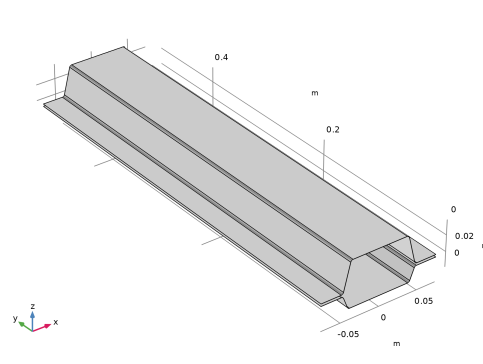
This model uses shell elements, so the geometry is only represented as embedded 3D faces representing the midsurface of the full geometry as shown in Figure 1.
Figure 1: Double hat beam geometry.
The plates are connected on both sides of the flanges by ten spot welds with a diameter of 6 mm. The spot welds are equally spaced along the beam (the y direction) with a distance of 50 mm. In a first step, all the nuggets are aligned in the x direction. In a second step, an offset parameter is introduced to generate a misalignment in the x direction.
The built-in material Structural Steel is used to provide the material properties.
No constraints are applied to the structure. That is, free-free modes are considered. The rigid body modes are, however, not computed.
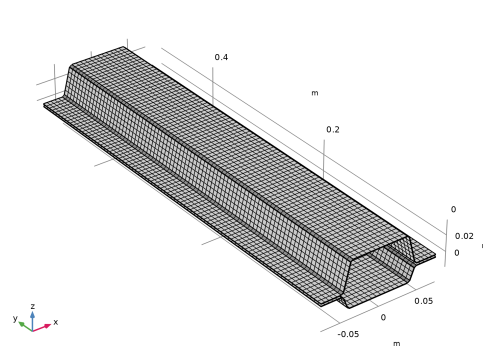
The mesh, shown in Figure 2, consists of a structured quad mesh, defined with a maximum element size of 6 mm.
Figure 2: Mesh.
The mesh is not adapted to the locations of the spot welds.
Results and Discussion
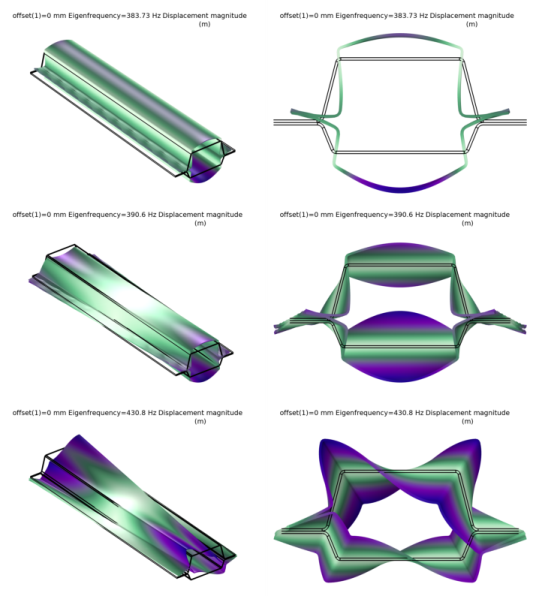
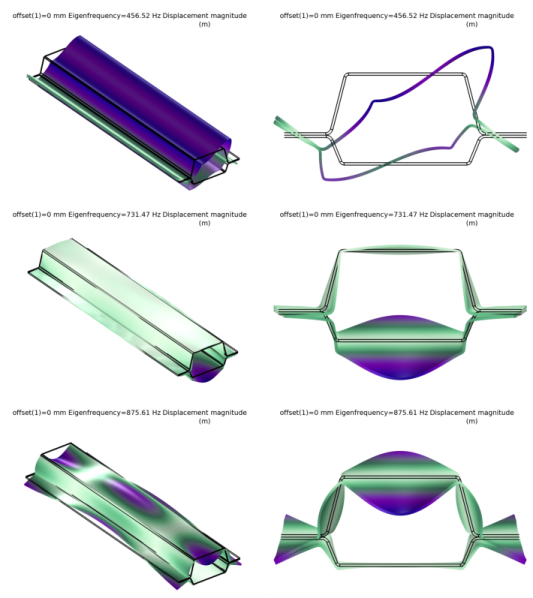
The eigenfrequencies of the beam are summarized in Table 2 below. Figure 3 and Figure 4 show the corresponding mode shapes.
Figure 3: Mode shapes (mode 1 to 3).
Figure 4: .Mode shapes (mode 4 to 6).
It can be noticed that the nugget position affects mainly the two first modes. The two first frequencies increase significantly with the offset, while the other ones show little change. Increasing the offset even more would even cause a swap in the ordering of modes 2 and 3.
Notes About the COMSOL Implementation
The Spot Welds feature for shell connections creates cohesive forces at the specified nugget location. The nugget is defined by its center coordinates and diameter. The coordinates can be stored in a text file and imported into the model. The location is independent of the mesh, so you do not need to regenerate a mesh after adding, or changing, a weld location. The given location does not need to be exactly on the destination surface, as it is automatically projected to the nearest destination boundary.
It is recommended that the element size around the weld locations is not larger than the nugget diameter. You can however use even larger elements, and still maintain a reasonable accuracy by manually adjusting the number of integration points. This will ensure proper force and moment transmission. The integration order is controlled in the Quadrature Settings section in the Spot Welds node.
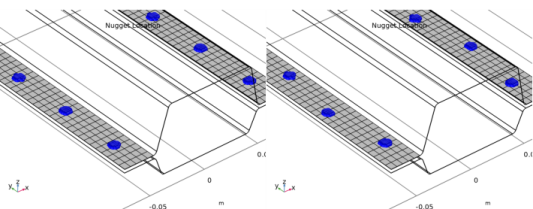
Figure 5 shows the nugget location and the active integration points together with the mesh on the destination boundaries for both cases, with and without offset. This plot can be used for model checking purposes and is accessible from the results templates.
Figure 5: Active integration point at the nugget locations without offset (left) and with 4 mm offset (right).
Application Library path: Structural_Mechanics_Module/Beams_and_Shells/double_hat_spot_welds
Modeling Instructions
From the File menu, choose New.
New
In the New window, click  Model Wizard.
Model Wizard
1
In the Model Wizard window, click  3D.
2
In the Select Physics tree, select Structural Mechanics > Shell (shell).
3
Click Add.
4
Click  Study.
5
In the Select Study tree, select General Studies > Eigenfrequency.
6
Global Definitions
Parameters 1
1
In the Model Builder window, under Global Definitions click Parameters 1.
2
In the Settings window for Parameters, locate the Parameters section.
3
Click  Load from File.
4
Part 1
1
In the Model Builder window, right-click Global Definitions and choose Geometry Parts > 2D Part.
2
In the Settings window for Part, locate the Input Parameters section.
3
Polygon 1 (pol1)
1
In the Geometry toolbar, click  Polygon.
2
In the Settings window for Polygon, locate the Object Type section.
3
From the Type list, choose Open curve.
4
Locate the Coordinates section. In the table, enter the following settings:
5
Click  Build Selected.
Fillet 1 (fil1)
1
In the Geometry toolbar, click  Fillet.
2
On the object pol1, select Points 2–5 only.
3
In the Settings window for Fillet, locate the Radius section.
4
In the Radius text field, type fillet.
Geometry 1
Work Plane 1 (wp1)
1
In the Geometry toolbar, click  Work Plane.
2
In the Settings window for Work Plane, locate the Plane Definition section.
3
From the Plane list, choose xz-plane.
Work Plane 1 (wp1) > Plane Geometry
In the Model Builder window, click Plane Geometry.
Work Plane 1 (wp1) > Part Instance 1 (pi1)
In the Work Plane toolbar, click  Part Instance and choose Part 1.
Work Plane 1 (wp1) > Part Instance 2 (pi2)
1
In the Work Plane toolbar, click  Part Instance and choose Part 1.
2
In the Settings window for Part Instance, locate the Input Parameters section.
3
4
Locate the Position and Orientation of Output section. In the Rotation angle text field, type 180.
5
Click  Build Selected.
Extrude 1 (ext1)
1
In the Model Builder window, under Component 1 (comp1) > Geometry 1 right-click Work Plane 1 (wp1) and choose Extrude.
2
In the Settings window for Extrude, locate the Distances section.
3
4
Select the Reverse direction checkbox.
5
Click  Build All Objects.
6
Click the  Zoom Extents button in the Graphics toolbar.
Add Material
1
In the Materials toolbar, click  Add Material to open the Add Material window.
2
Go to the Add Material window.
3
In the tree, select Built-in > Structural steel.
4
Click the Add to Component button in the window toolbar.
5
In the Materials toolbar, click  Add Material to close the Add Material window.
Shell (shell)
Thickness and Offset 1
1
In the Settings window for Thickness and Offset, locate the Thickness and Offset section.
2
In the d0 text field, type th.
3
From the Position list, choose Top surface on boundary.
Spot Welds 1
1
In the Physics toolbar, click  Boundaries and choose Spot Welds.
2
3
In the Settings window for Spot Welds, locate the Boundary Selection, Destination section.
4
Click to select the  Activate Selection toggle button.
5
6
Locate the Nugget Location section. Click  Load from File.
7
8
Locate the Nugget Properties section. In the dnug text field, type d_nugget.
Mesh 1
Mapped 1
1
In the Mesh toolbar, click  More Generators and choose Mapped.
2
In the Settings window for Mapped, locate the Boundary Selection section.
3
From the Selection list, choose All boundaries.
Size
1
In the Model Builder window, click Size.
2
In the Settings window for Size, locate the Element Size section.
3
Click the Custom button.
4
Locate the Element Size Parameters section. In the Maximum element size text field, type d_nugget.
5
In the Model Builder window, right-click Mesh 1 and choose Build All.
Study 1
Step 1: Eigenfrequency
1
In the Model Builder window, under Study 1 click Step 1: Eigenfrequency.
2
In the Settings window for Eigenfrequency, locate the Study Settings section.
3
In the Search for eigenfrequencies around shift text field, type 200[Hz].
4
From the Search method around shift list, choose Larger real part.
5
In the Study toolbar, click  Compute.
Global Definitions
Parameters 1
1
In the Model Builder window, under Global Definitions click Parameters 1.
2
In the Settings window for Parameters, locate the Parameters section.
3
Shell (shell)
Spot Welds 1
1
In the Model Builder window, under Component 1 (comp1) > Shell (shell) click Spot Welds 1.
2
In the Settings window for Spot Welds, locate the Nugget Location section.
3
Study 1
1
In the Model Builder window, click Study 1.
2
In the Settings window for Study, locate the Study Settings section.
3
Clear the Generate default plots checkbox.
Parametric Sweep
1
In the Study toolbar, click  Parametric Sweep.
2
In the Settings window for Parametric Sweep, locate the Study Settings section.
3
4
5
In the Study toolbar, click  Compute.
Results
Shell
1
In the Model Builder window, expand the Results > Datasets node, then click Shell.
2
In the Settings window for Shell, locate the Data section.
3
From the Dataset list, choose Study 1/Parametric Solutions 1 (sol2).
Eigenfrequencies (Study 1)
1
In the Model Builder window, under Results click Eigenfrequencies (Study 1).
2
In the Settings window for Evaluation Group, locate the Data section.
3
From the Dataset list, choose Study 1/Parametric Solutions 1 (sol2).
4
In the Eigenfrequencies (Study 1) toolbar, click  Evaluate.
Result Templates
1
In the Home toolbar, click  Result Templates to open the Result Templates window.
2
Go to the Result Templates window.
3
In the tree, select Study 1/Parametric Solutions 1 (sol2) > Shell > Nugget Location (shell).
4
Click the Add Result Template button in the window toolbar.
5
In the Results toolbar, click  Result Templates to close the Result Templates window.