

PDF

Cylinder Roller Contact
Introduction
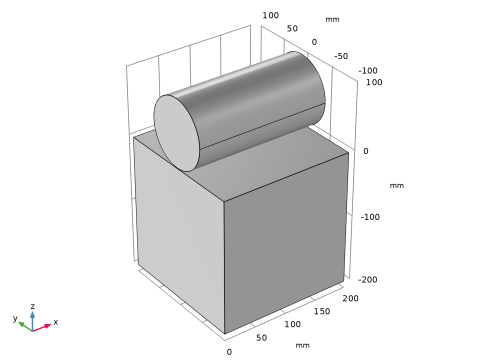
Consider an infinitely long steel cylinder resting on a flat aluminum foundation, where both structures are elastic. The cylinder is subjected to a point load along its top. The objective of this study is to find the contact pressure distribution and the length of contact between the foundation and the cylinder. An analytical solution exists, and this tutorial includes a comparison with the COMSOL Multiphysics solution. The application is based on a NAFEMS benchmark (see Ref. 1).
Model Definition
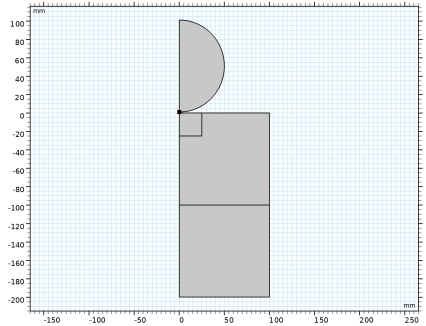
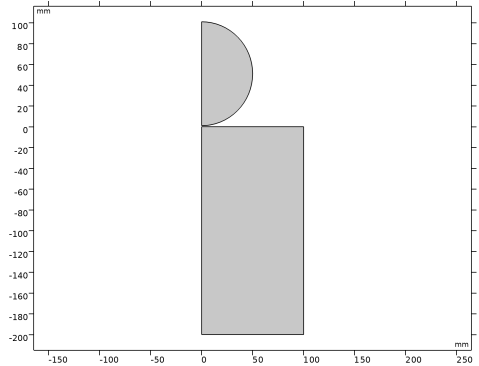
This is a plane strain problem and the 2D Solid Mechanics interface from the Structural Mechanics Module is thus suitable. The 2D geometry is further cut in half at the vertical symmetry axis.
Figure 1: Model geometry.
In 2D, the cylinder is subjected to a point load along its top with an intensity of 35 kN/mm. Both the cylinder and block material are elastic, homogeneous, and isotropic.
The contact modeling in this example only includes the frictionless part of the example described in Ref. 1. The problem is implemented with the Solid Mechanics interface, and four studies are set up to compare the default penalty contact method, the two formulations of the augmented Lagrangian method, and Nitsche method.
Results and Discussion
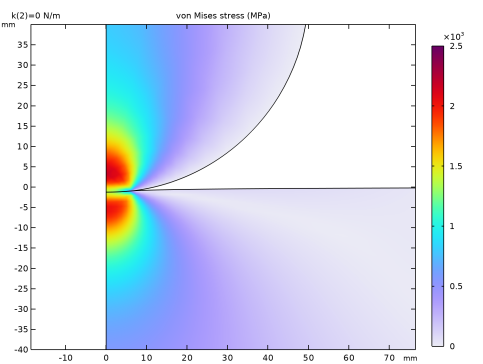
Figure 2 depicts the deformed shape and the von Mises stress distribution obtained with the penalty contact method.
Figure 2: Deformation and von Mises stress at the contact area.
The analytical solution for the contact pressure as a function of the x-coordinate is
where Fn is the applied load per unit length, E' is the combined elasticity modulus, and R' is the combined radius. The combined Young’s modulus and radius are defined as:
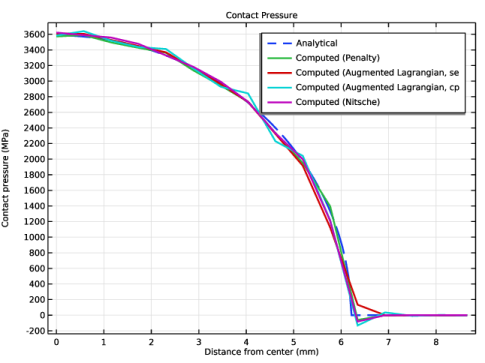
In these equations, E1 and E2 are Young’s modulus of the roller and the block, respectively, and R1 is the radius of the roller. Combining these equations results in a contact length of 6.21 mm and a maximum contact pressure of 3585 MPa.
Figure 3 depicts the contact pressure along the contact area for both the analytical and the four COMSOL Multiphysics solutions.
Figure 3: Analytical pressure distribution (dashed line) and COMSOL Multiphysics solutions (solid lines).
Notes About the COMSOL Implementation
The Structural Mechanics Module supports contact boundary conditions using contact pairs. The contact pair is defined by a source boundary and a destination boundary. The destination boundary is the one which is coupled to the source boundary if contact is established. The terms source and destination should be interpreted as in “the destination receives its displacements from the source.” As a result, the contact pressure variable is available on the destination boundary. The mesh on the destination side should always be finer than on the source side.
In this example, the contact boundary pair consists of a flat source boundary and a curved destination boundary.
The cylinder is initially stabilized with a weak spring. A good approximation of the spring coefficient is to use the value of the external pressure — in this case the external point load divided by one fifth of the initial gap. In a second step, the spring is removed to arrive at the final solution.
The small size of the contact region necessitates a local mesh refinement. Use an unstructured mesh for the cylindrical domain and a mapped mesh for the aluminum block. The block geometry requires some modification to set up a refined mesh area.
References
1. A.W.A. Konter, Advanced Finite Element Contact Benchmarks, NAFEMS, 2006.
2. M.A. Crisfield, Non-linear Finite Element Analysis of Solids and Structures, volume 2: Advanced Topics, John Wiley & Sons, London, 1997.
Application Library path: Structural_Mechanics_Module/Verification_Examples/cylinder_roller_contact
Modeling Instructions
From the File menu, choose New.
New
In the New window, click  Model Wizard.
Model Wizard
1
In the Model Wizard window, click  2D.
2
In the Select Physics tree, select Structural Mechanics > Solid Mechanics (solid).
3
Click Add.
4
Click  Study.
5
In the Select Study tree, select General Studies > Stationary.
6
Global Definitions
Parameters 1
1
In the Model Builder window, under Global Definitions click Parameters 1.
2
In the Settings window for Parameters, locate the Parameters section.
3
Click  Load from File.
4
Definitions
Variables 1
1
In the Definitions toolbar, click  Local Variables.
2
In the Settings window for Variables, locate the Variables section.
3
Geometry 1
1
In the Model Builder window, under Component 1 (comp1) click Geometry 1.
2
In the Settings window for Geometry, locate the Units section.
3
From the Length unit list, choose mm.
Now create the geometry. Recall that you only need to model one half of the 2D cross section.
Circle 1 (c1)
1
In the Geometry toolbar, click  Circle.
2
In the Settings window for Circle, locate the Size and Shape section.
3
In the Radius text field, type R.
4
In the Sector angle text field, type 180.
5
Locate the Position section. In the y text field, type R+dist.
6
Locate the Rotation Angle section. In the Rotation text field, type -90.
7
Click  Build Selected.
Rectangle 1 (r1)
1
In the Geometry toolbar, click  Rectangle.
2
In the Settings window for Rectangle, locate the Size and Shape section.
3
In the Width text field, type d/2.
4
In the Height text field, type d.
5
Locate the Position section. In the y text field, type -d.
6
Click to expand the Layers section. In the table, enter the following settings:
7
Click  Build Selected.
8
Click the  Zoom Extents button in the Graphics toolbar.
Square 1 (sq1)
1
In the Geometry toolbar, click  Square.
2
In the Settings window for Square, locate the Size section.
3
In the Side length text field, type R/2.
4
Locate the Position section. In the y text field, type -R/2.
5
Click  Build Selected.
Point 1 (pt1)
1
In the Geometry toolbar, click  Point.
2
In the Settings window for Point, locate the Point section.
3
In the y text field, type dist.
4
Click  Build Selected.
Rotate 1 (rot1)
1
In the Geometry toolbar, click  Transforms and choose Rotate.
2
3
In the Settings window for Rotate, locate the Rotation section.
4
In the Angle text field, type 10.
5
Locate the Center of Rotation section. In the y text field, type R+dist.
6
Click  Build Selected.
Convert to Solid 1 (csol1)
1
In the Geometry toolbar, click  Conversions and choose Convert to Solid.
2
Click in the Graphics window and then press Ctrl+A to select all objects.
3
In the Settings window for Convert to Solid, click  Build Selected.
Form Union (fin)
1
In the Model Builder window, under Component 1 (comp1) > Geometry 1 click Form Union (fin).
2
In the Settings window for Form Union/Assembly, locate the Form Union/Assembly section.
3
From the Action list, choose Form an assembly.
4
Clear the Create pairs checkbox.
Mesh Control Domains 1 (mcd1)
1
In the Geometry toolbar, click  Virtual Operations and choose Mesh Control Domains.
2
On the object fin, select Domains 1–3 only.
3
In the Geometry toolbar, click  Build All.
The model geometry is now complete.
Definitions
Contact Pair 1 (p1)
1
In the Definitions toolbar, click  Pairs and choose Contact Pair.
2
3
In the Settings window for Pair, locate the Destination Boundaries section.
4
Click to select the  Activate Selection toggle button.
5
Solid Mechanics (solid)
1
In the Model Builder window, under Component 1 (comp1) click Solid Mechanics (solid).
2
In the Settings window for Solid Mechanics, locate the Thickness section.
3
In the d text field, type th.
Symmetry 1
1
In the Physics toolbar, click  Boundaries and choose Symmetry.
2
Fixed Constraint 1
1
In the Physics toolbar, click  Boundaries and choose Fixed Constraint.
2
Point Load 1
1
In the Physics toolbar, click  Points and choose Point Load.
2
Use only half the total load since you only model one symmetry half of the full geometry.
3
In the Settings window for Point Load, locate the Force section.
4
Specify the FP vector as
Attach a spring to the cylinder in order to prevent rigid body motion before the contact is detected.
Spring Foundation 1
1
In the Physics toolbar, click  Points and choose Spring Foundation.
2
3
In the Settings window for Spring Foundation, locate the Spring section.
4
In the kP text field, type k.
Materials
Material 1 (mat1)
1
In the Model Builder window, under Component 1 (comp1) right-click Materials and choose Blank Material.
2
In the Settings window for Material, locate the Material Contents section.
3
Material 2 (mat2)
1
Right-click Materials and choose Blank Material.
2
3
In the Settings window for Material, locate the Material Contents section.
4
The analytical solution to this problem assumes that engineering strains are used. Since the solution of a contact problem forces the study step to be geometrically nonlinear, you must explicitly enforce a linear strain representation.
Solid Mechanics (solid)
Linear Elastic Material 1
1
In the Model Builder window, under Component 1 (comp1) > Solid Mechanics (solid) click Linear Elastic Material 1.
2
In the Settings window for Linear Elastic Material, locate the Geometric Nonlinearity section.
3
From the Formulation list, choose Geometrically linear.
Mesh 1
Free Triangular 1
1
In the Mesh toolbar, click  Free Triangular.
2
In the Settings window for Free Triangular, locate the Domain Selection section.
3
From the Geometric entity level list, choose Domain.
4
Size 1
1
Right-click Free Triangular 1 and choose Size.
2
In the Settings window for Size, locate the Geometric Entity Selection section.
3
From the Geometric entity level list, choose Boundary.
4
5
Locate the Element Size section. Click the Custom button.
6
Locate the Element Size Parameters section.
7
Select the Maximum element size checkbox. In the associated text field, type 0.6.
8
Click  Build All.
Mapped 1
1
In the Mesh toolbar, click  Mapped.
2
In the Settings window for Mapped, click to expand the Control Entities section.
3
From the Smooth across removed control entities list, choose Off.
Distribution 1
1
Right-click Mapped 1 and choose Distribution.
2
3
In the Settings window for Distribution, locate the Distribution section.
4
In the Number of elements text field, type 20.
Distribution 2
1
In the Model Builder window, right-click Mapped 1 and choose Distribution.
2
3
In the Settings window for Distribution, locate the Distribution section.
4
In the Number of elements text field, type 10.
5
Click  Build All.
Study 1
Step 1: Stationary
1
In the Model Builder window, under Study 1 click Step 1: Stationary.
2
In the Settings window for Stationary, click to expand the Study Extensions section.
3
Select the Auxiliary sweep checkbox.
4
5
6
In the Model Builder window, click Study 1.
7
In the Settings window for Study, type Study 1: Penalty in the Label text field.
8
In the Study toolbar, click  Compute.
Results
Surface 1
1
In the Model Builder window, expand the Results > Stress (solid) node, then click Surface 1.
2
In the Settings window for Surface, locate the Expression section.
3
From the Unit list, choose MPa.
4
In the Stress (solid) toolbar, click  Plot.
Because the point load gives a singular stress at the top of the cylinder, adjust the color range to see the stress distribution around the contact region better.
5
Click to expand the Range section. Select the Manual color range checkbox.
6
In the Maximum text field, type 2500.
7
In the Stress (solid) toolbar, click  Plot.
Contact Pressure
1
In the Results toolbar, click  1D Plot Group.
2
In the Settings window for 1D Plot Group, type Contact Pressure in the Label text field.
3
Locate the Data section. From the Parameter selection (k) list, choose Last.
4
Click to expand the Title section. From the Title type list, choose Label.
Line Graph 1
1
Right-click Contact Pressure and choose Line Graph.
2
3
In the Settings window for Line Graph, click Replace Expression in the upper-right corner of the y-Axis Data section. From the menu, choose Component 1 (comp1) > Definitions > Variables > p_analytical - Analytical contact pressure - N/m².
4
Locate the y-Axis Data section. From the Unit list, choose MPa.
5
Click Replace Expression in the upper-right corner of the x-Axis Data section. From the menu, choose Component 1 (comp1) > Geometry > Coordinate (spatial frame) > x - x-coordinate.
6
Click to expand the Coloring and Style section. Find the Line style subsection. From the Line list, choose Dashed.
7
From the Width list, choose 2.
8
Click to expand the Legends section. Select the Show legends checkbox.
9
From the Legends list, choose Manual.
10
11
In the Contact Pressure toolbar, click  Plot.
Line Graph 2
1
Right-click Line Graph 1 and choose Duplicate.
2
In the Settings window for Line Graph, locate the y-Axis Data section.
3
In the Expression text field, type gpeval(4,solid.Tn).
4
Locate the Coloring and Style section. Find the Line style subsection. From the Line list, choose Solid.
5
Locate the Legends section. In the table, enter the following settings:
To avoid oscillations in the contact pressure representation, turn off the refinement within the elements.
6
Click to expand the Quality section. From the Evaluation settings list, choose Manual.
7
From the Resolution list, choose No refinement.
Contact Pressure
1
In the Model Builder window, click Contact Pressure.
2
In the Settings window for 1D Plot Group, locate the Plot Settings section.
3
Select the x-axis label checkbox. In the associated text field, type Distance from center (mm).
4
Select the y-axis label checkbox. In the associated text field, type Contact pressure (MPa).
5
In the Contact Pressure toolbar, click  Plot.
Now, solve the model using the augmented Lagrangian formulation. Explore both a segregated and a coupled solution method.
Solid Mechanics (solid)
Contact 1a
1
In the Physics toolbar, click  Pairs and choose Contact.
2
In the Settings window for Contact, locate the Pair Selection section.
3
4
In the Add dialog, select Contact Pair 1 (p1) in the Pairs list.
5
6
In the Settings window for Contact, locate the Contact Method section.
7
From the list, choose Augmented Lagrangian.
Contact 2
1
Right-click Contact 1a and choose Duplicate.
2
In the Settings window for Contact, locate the Contact Method section.
3
From the Solution method list, choose Fully coupled.
Add Study
1
In the Home toolbar, click  Add Study to open the Add Study window.
2
Go to the Add Study window.
3
Find the Studies subsection. In the Select Study tree, select General Studies > Stationary.
4
5
In the Home toolbar, click  Add Study to close the Add Study window.
Study 2
Step 1: Stationary
1
In the Settings window for Stationary, locate the Physics and Variables Selection section.
2
Select the Modify model configuration for study step checkbox.
3
In the tree, select Component 1 (comp1) > Solid Mechanics (solid), Controls spatial frame > Contact 2.
4
5
Locate the Study Extensions section. Select the Auxiliary sweep checkbox.
6
7
8
In the Model Builder window, click Study 2.
9
In the Settings window for Study, locate the Study Settings section.
10
Clear the Generate default plots checkbox.
11
In the Label text field, type Study 2: Augmented Lagrangian, Segregated.
Solution 2 (sol2)
1
In the Study toolbar, click  Show Default Solver.
Adjust the scale for the contact pressure variable based on the analytical solution.
2
In the Model Builder window, expand the Solution 2 (sol2) node.
3
In the Model Builder window, expand the Study 2: Augmented Lagrangian, Segregated > Solver Configurations > Solution 2 (sol2) > Dependent Variables 1 node, then click Contact Pressure (comp1.solid.Tn_p1).
4
In the Settings window for Field, locate the Scaling section.
5
In the Scale text field, type 1e9.
6
In the Study toolbar, click  Compute.
The default plot for the second study was disabled. To visualize the stress and contact forces, change the dataset in the 2D plot group.
Similarly, add a third study for the augmented Lagrangian formulation with a coupled solution method and compute the solution.
Add Study
1
In the Home toolbar, click  Add Study to open the Add Study window.
2
Go to the Add Study window.
3
Find the Studies subsection. In the Select Study tree, select General Studies > Stationary.
4
5
In the Home toolbar, click  Add Study to close the Add Study window.
Study 3
Step 1: Stationary
1
In the Settings window for Stationary, locate the Study Extensions section.
2
Select the Auxiliary sweep checkbox.
3
4
5
In the Model Builder window, click Study 3.
6
In the Settings window for Study, locate the Study Settings section.
7
Clear the Generate default plots checkbox.
8
In the Label text field, type Study 3: Augmented Lagrangian, Coupled.
Solution 3 (sol3)
1
In the Study toolbar, click  Show Default Solver.
2
In the Model Builder window, expand the Solution 3 (sol3) node.
3
In the Model Builder window, expand the Study 3: Augmented Lagrangian, Coupled > Solver Configurations > Solution 3 (sol3) > Dependent Variables 1 node, then click Contact Pressure (comp1.solid.Tn_p1).
4
In the Settings window for Field, locate the Scaling section.
5
In the Scale text field, type 1e9.
6
In the Study toolbar, click  Compute.
Results
Line Graph 3
1
In the Model Builder window, under Results > Contact Pressure right-click Line Graph 2 and choose Duplicate.
2
In the Settings window for Line Graph, locate the Data section.
3
From the Dataset list, choose Study 2: Augmented Lagrangian, Segregated/Solution 2 (sol2).
4
From the Parameter selection (k) list, choose Last.
5
Locate the Legends section. In the table, enter the following settings:
Line Graph 4
1
Right-click Line Graph 3 and choose Duplicate.
2
In the Settings window for Line Graph, locate the Data section.
3
From the Dataset list, choose Study 3: Augmented Lagrangian, Coupled/Solution 3 (sol3).
4
Locate the Legends section. In the table, enter the following settings:
5
In the Contact Pressure toolbar, click  Plot.
Now, solve the model using the Nitsche method.
Solid Mechanics (solid)
Contact 3
1
In the Physics toolbar, click  Pairs and choose Contact.
2
In the Settings window for Contact, locate the Pair Selection section.
3
4
In the Add dialog, select Contact Pair 1 (p1) in the Pairs list.
5
6
In the Settings window for Contact, locate the Contact Method section.
7
Add a fourth study for the Nitsche method and compute the solution.
Add Study
1
In the Home toolbar, click  Add Study to open the Add Study window.
2
Go to the Add Study window.
3
Find the Studies subsection. In the Select Study tree, select General Studies > Stationary.
4
5
In the Home toolbar, click  Add Study to close the Add Study window.
Study 4
Step 1: Stationary
1
In the Settings window for Stationary, locate the Study Extensions section.
2
Select the Auxiliary sweep checkbox.
3
4
5
In the Model Builder window, click Study 4.
6
In the Settings window for Study, locate the Study Settings section.
7
Clear the Generate default plots checkbox.
8
In the Label text field, type Study 4: Nitsche.
Solution 4 (sol4)
1
In the Study toolbar, click  Show Default Solver.
2
Click  Compute.
Results
Line Graph 5
1
In the Model Builder window, under Results > Contact Pressure right-click Line Graph 4 and choose Duplicate.
2
In the Settings window for Line Graph, locate the Data section.
3
From the Dataset list, choose Study 4: Nitsche/Solution 4 (sol4).
4
Locate the y-Axis Data section. In the Expression text field, type gpeval(8,solid.Tn).
5
Locate the Legends section. In the table, enter the following settings:
6
In the Contact Pressure toolbar, click  Plot.
Prepare the model for later use by making sure that the correct Contact node is active all previous studies.
Study 1: Penalty
Step 1: Stationary
1
In the Model Builder window, under Study 1: Penalty click Step 1: Stationary.
2
In the Settings window for Stationary, locate the Physics and Variables Selection section.
3
Select the Modify model configuration for study step checkbox.
4
In the tree, select Component 1 (comp1) > Solid Mechanics (solid), Controls spatial frame > Contact 1a.
5
6
In the tree, select Component 1 (comp1) > Solid Mechanics (solid), Controls spatial frame > Contact 2.
7
8
In the tree, select Component 1 (comp1) > Solid Mechanics (solid), Controls spatial frame > Contact 3.
9
Study 2: Augmented Lagrangian, Segregated
1
In the Model Builder window, under Study 2: Augmented Lagrangian, Segregated click Step 1: Stationary.
2
In the Settings window for Stationary, locate the Physics and Variables Selection section.
3
In the tree, select Component 1 (comp1) > Solid Mechanics (solid), Controls spatial frame > Contact 3.
4
Study 3: Augmented Lagrangian, Coupled
1
In the Model Builder window, under Study 3: Augmented Lagrangian, Coupled click Step 1: Stationary.
2
In the Settings window for Stationary, locate the Physics and Variables Selection section.
3
Select the Modify model configuration for study step checkbox.
4
In the tree, select Component 1 (comp1) > Solid Mechanics (solid), Controls spatial frame > Contact 3.
5