PDF

Vibrations of a Disk Backed by an Air-Filled Cylinder
Introduction
The vibration modes of a thin or thick circular disc are well known, and it is possible to compute the corresponding eigenfrequencies with an arbitrary precision from a series solution. The same is true for the acoustic modes of an air-filled cylinder with perfectly rigid walls. A more interesting question to ask is: What happens if the cylinder is sealed in one end not by a rigid wall but by a thin disc? This is the question addressed in this tutorial.
The application uses the Structural Mechanics Module’s Shell interface and the Pressure Acoustics interface from COMSOL Multiphysics. If you have a license for the Acoustics Module, see Vibrations of a Disk Backed by an Air-Filled Cylinder in the Acoustics Module Application Library for a model version that uses the Acoustic-Shell Interaction, Frequency Domain multiphysics interface.
Model Definition
The geometry is a rigid steel cylinder with a height of 255 mm and a radius of 38 mm. One end is welded to a heavy slab, while the other is sealed with a steel disc only 0.38 mm thick. The disc is modeled using shell elements with the outer edge of the disc fixed. The acoustics in the cylinder is described in terms of the acoustic (differential) pressure. The eigenvalue equation for the pressure is
where  c is the speed of sound and ω = 2π f defines the eigenfrequency, f.
A first step is to calculate the eigenfrequencies for the disc and the cylinder separately and compare them with theoretical values. This way you can verify the basic components of the model and assess the accuracy of the finite-element solution before modeling the coupled system. When computing the decoupled problem, the acoustic domain is completely surrounded by sound hard boundaries. In the coupled analysis, the boundary at the disc instead has the accelerations of the disc as boundary conditions. At the same time, the acoustic pressure supplies a load on the disc.
Results and Discussion
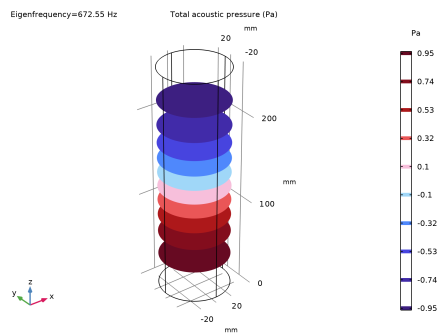
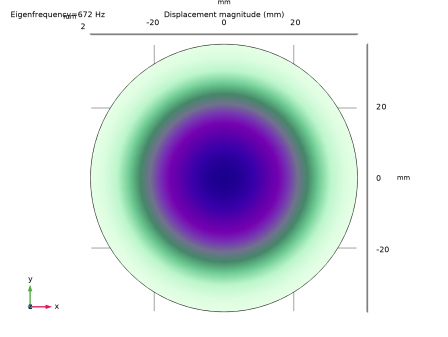
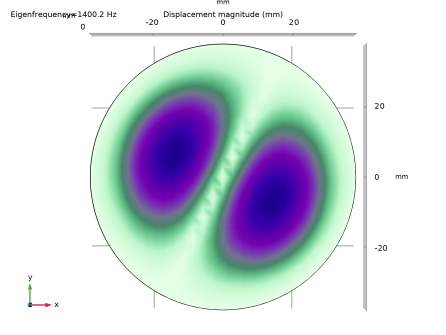
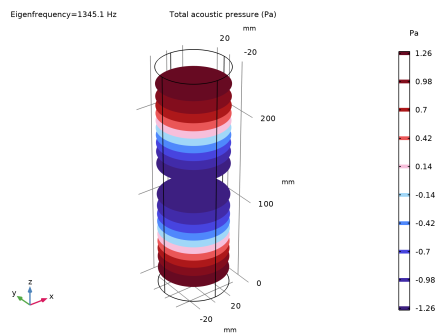
To be able to study the effects of the coupling, we first look at the solution of the uncoupled problem. Figure 1 through Figure 4 show the two first uncoupled structural and acoustic modes.
Figure 1: First structural mode displayed by displacement magnitude.
Figure 2: Second structural mode displayed by displacement magnitude.
Figure 3: First acoustic mode displayed by pressure isosurfaces.
Figure 4: Second acoustic mode displayed by pressure isosurfaces.
In Ref. 1, D.G. Gorman and others have thoroughly investigated the coupled model at hand, and they have developed a semi-analytical solution verified by experiments. Their results for the coupled problem are presented in Table 1, together with the computed results from the COMSOL Multiphysics analysis.
As the table shows, the computed eigenfrequencies are in good agreement with both the theoretical predictions and the experimentally measured values. The table also states whether the mode is structurally dominated (str), acoustically dominated (ac), or tightly coupled (str/ac).The eigenfrequency precision is generally better for the acoustically dominated modes.
Most of the modes show rather weak coupling between the structural bending of the disc and the pressure field in the cylinder. It is, however, interesting to note that some of the uncoupled modes have been split into one  covibrating and one contravibrating mode with distinct eigenfrequencies. This is, for example, the case for modes 1 and 2 in the FEM solution.
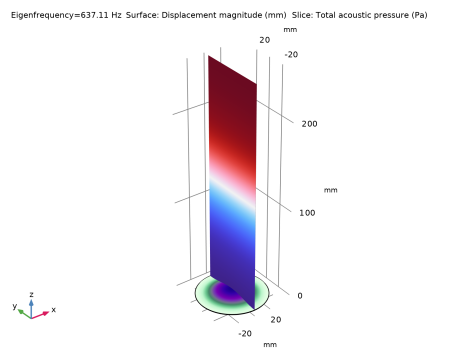
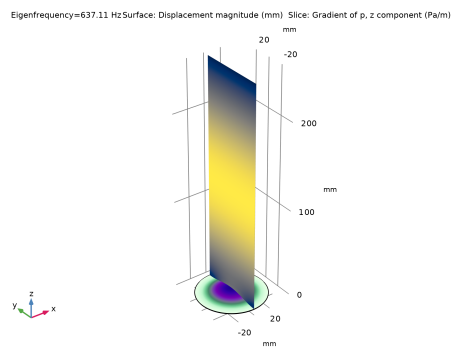
In Figure 5, the first coupled mode is shown in terms of disc displacements and air pressure. The coupling effect can be clearly displayed using a plot of pressure gradients, as in Figure 6.
Figure 5: Disc deformation and pressure slice plot for the first coupled mode.
Figure 6: Disc deformation and pressure gradient slice plot for the first coupled mode.
Notes About the COMSOL Implementation
You specify the part of the physics for which to compute the uncoupled eigenvalues by selecting the physics interface in the eigenfrequency study.
When coupling the two types of physics, be careful when selecting the sign of the coupling terms, so that they act in the intended direction. You should specify the acceleration in the inward normal direction for the pressure acoustics domain, which in this case is the positive z-acceleration of the disc. The acceleration is denoted wtt as it is the second time derivative of the variable w. The pressure on the shell can be given using global directions, so that a positive pressure acts as a face load in the negative z direction. This is handled automatically by COMSOL in the setup in this example.
Reference
1. D.G. Gorman, J.M. Reese, J. Horacek, and D. Dedouch, “Vibration Analysis of a Circular Disk Backed by a Cylindrical Cavity,” Proc. Instn. Mech. Engrs., Part C, vol. 215, no. 11, pp. 1303–1311, 2001.
Application Library path: Structural_Mechanics_Module/Acoustic-Structure_Interaction/coupled_vibrations_manual
Modeling Instructions
From the File menu, choose New.
New
In the New window, click  Model Wizard.
Model Wizard
1
In the Model Wizard window, click  3D.
2
In the Select Physics tree, select Structural Mechanics > Shell (shell).
3
Click Add.
4
In the Select Physics tree, select Acoustics > Pressure Acoustics > Pressure Acoustics, Frequency Domain (acpr).
5
Click Add.
6
Click  Study.
7
In the Select Study tree, select General Studies > Eigenfrequency.
8
Geometry 1
1
In the Model Builder window, under Component 1 (comp1) click Geometry 1.
2
In the Settings window for Geometry, locate the Units section.
3
From the Length unit list, choose mm.
Cylinder 1 (cyl1)
1
In the Geometry toolbar, click  Cylinder.
2
In the Settings window for Cylinder, locate the Size and Shape section.
3
In the Radius text field, type 38.
4
In the Height text field, type 255.
5
Click  Build Selected.
Form Union (fin)
1
In the Model Builder window, click Form Union (fin).
2
In the Settings window for Form Union/Assembly, click  Build Selected.
Shell (shell)
1
In the Model Builder window, under Component 1 (comp1) click Shell (shell).
2
Thickness and Offset 1
1
In the Model Builder window, under Component 1 (comp1) > Shell (shell) click Thickness and Offset 1.
2
In the Settings window for Thickness and Offset, locate the Thickness and Offset section.
3
In the d0 text field, type 0.38[mm].
Fixed Constraint 1
1
In the Physics toolbar, click  Edges and choose Fixed Constraint.
2
Materials
Material 1 (mat1)
1
In the Model Builder window, under Component 1 (comp1) right-click Materials and choose Blank Material.
2
In the Settings window for Material, locate the Material Contents section.
3
Material 2 (mat2)
1
Right-click Materials and choose Blank Material.
2
In the Settings window for Material, locate the Geometric Entity Selection section.
3
From the Geometric entity level list, choose Boundary.
4
5
Locate the Material Contents section. In the table, enter the following settings:
Mesh 1
In this model, the mesh is set up manually. Proceed by directly adding the desired mesh component.
Free Quad 1
1
In the Mesh toolbar, click  More Generators and choose Free Quad.
2
Size
1
In the Model Builder window, click Size.
2
In the Settings window for Size, locate the Element Size section.
3
Click the Custom button.
4
Locate the Element Size Parameters section. In the Maximum element size text field, type 10.
In general, 5 to 6 second-order elements per wavelength are needed to resolve the waves. For more details, see Meshing (Resolving the Waves) in the Acoustics Module User’s Guide. The mesh size used in this model corresponds to resolving the wavelength with about 9 elements at 4000 Hz, the maximum eigenfrequency studied in the model. The wavelength in air at 4000 Hz is 8.6 cm.
Free Quad 1
In the Model Builder window, right-click Free Quad 1 and choose Build Selected.
Swept 1
1
In the Mesh toolbar, click  Swept.
2
In the Settings window for Swept, click  Build Selected.
Structural Analysis
In the first study, you solve the structural problem only.
1
In the Model Builder window, click Study 1.
2
In the Settings window for Study, type Structural Analysis in the Label text field.
Step 1: Eigenfrequency
1
In the Model Builder window, under Structural Analysis click Step 1: Eigenfrequency.
2
In the Settings window for Eigenfrequency, locate the Study Settings section.
3
Select the Desired number of eigenfrequencies checkbox. In the associated text field, type 20.
4
In the Search for eigenfrequencies around shift text field, type 500.
Exclude the Pressure Acoustics interface.
5
Locate the Physics and Variables Selection section. In the Solve for column of the table, under Component 1 (comp1), clear the checkbox for Pressure Acoustics, Frequency Domain (acpr).
6
In the Study toolbar, click  Compute.
Results
Mode Shape, Structural Analysis
In the Settings window for 3D Plot Group, type Mode Shape, Structural Analysis in the Label text field.
Surface 1
1
Click the  Go to XY View button in the Graphics toolbar.
2
Click the  Scene Light button in the Graphics toolbar.
Mode Shape, Structural Analysis
1
In the Model Builder window, expand the Mode Shape, Structural Analysis node, then click Results > Mode Shape, Structural Analysis.
2
In the Settings window for 3D Plot Group, locate the Data section.
3
From the Eigenfrequency (Hz) list, choose 1400.2.
4
In the Mode Shape, Structural Analysis toolbar, click  Plot.
Root
Add the second study to solve the pure acoustics problem.
Add Study
1
In the Home toolbar, click  Add Study to open the Add Study window.
2
Go to the Add Study window.
3
Find the Studies subsection. In the Select Study tree, select General Studies > Eigenfrequency.
For this study, exclude the Shell interface.
4
Find the Physics interfaces in study subsection. In the table, clear the Solve checkbox for Shell (shell).
5
Click the Add Study button in the window toolbar.
6
In the Home toolbar, click  Add Study to close the Add Study window.
Acoustics Analysis
In the Settings window for Study, type Acoustics Analysis in the Label text field.
Step 1: Eigenfrequency
1
In the Model Builder window, under Acoustics Analysis click Step 1: Eigenfrequency.
2
In the Settings window for Eigenfrequency, locate the Study Settings section.
3
Select the Desired number of eigenfrequencies checkbox. In the associated text field, type 20.
4
In the Search for eigenfrequencies around shift text field, type 500.
5
From the Search method around shift list, choose Larger real part.
6
In the Study toolbar, click  Compute.
Results
Acoustic Pressure, Acoustics Analysis, Isosurfaces
1
In the Model Builder window, under Results click Acoustic Pressure, Isosurfaces (acpr).
2
In the Settings window for 3D Plot Group, type Acoustic Pressure, Acoustics Analysis, Isosurfaces in the Label text field.
3
Locate the Data section. From the Eigenfrequency (Hz) list, choose 672.55.
4
In the Acoustic Pressure, Acoustics Analysis, Isosurfaces toolbar, click  Plot.
5
Click the  Go to Default View button in the Graphics toolbar.
6
In the Acoustic Pressure, Acoustics Analysis, Isosurfaces toolbar, click  Plot.
7
From the Eigenfrequency (Hz) list, choose 1345.1.
8
In the Acoustic Pressure, Acoustics Analysis, Isosurfaces toolbar, click  Plot.
Add the boundary conditions that couple the Pressure Acoustics and the Shell interfaces.
Shell (shell)
Face Load 1
1
In the Physics toolbar, click  Boundaries and choose Face Load.
2
The acoustic pressure exerts a normal load on the plate.
3
In the Settings window for Face Load, locate the Force section.
4
From the Load type list, choose Force per deformed area.
5
From the fa list, choose Acoustic load per unit area (acpr/fpam1).
Pressure Acoustics, Frequency Domain (acpr)
Normal Acceleration 1
1
In the Physics toolbar, click  Boundaries and choose Normal Acceleration.
2
The inward normal acceleration at the plate equals the second time derivative of the vertical displacement.
3
In the Settings window for Normal Acceleration, locate the Normal Acceleration section.
4
From the Type list, choose Acceleration.
5
From the a0 list, choose Acceleration (shell/emm1).
Add the third study for the coupled problem.
Add Study
1
In the Home toolbar, click  Add Study to open the Add Study window.
2
Go to the Add Study window.
3
Find the Studies subsection. In the Select Study tree, select General Studies > Eigenfrequency.
4
Click the Add Study button in the window toolbar.
5
In the Home toolbar, click  Add Study to close the Add Study window.
Coupled Analysis
In the Settings window for Study, type Coupled Analysis in the Label text field.
Step 1: Eigenfrequency
1
In the Model Builder window, under Coupled Analysis click Step 1: Eigenfrequency.
2
In the Settings window for Eigenfrequency, locate the Study Settings section.
3
Select the Desired number of eigenfrequencies checkbox. In the associated text field, type 20.
4
In the Search for eigenfrequencies around shift text field, type 500.
5
From the Search method around shift list, choose Larger real part.
6
In the Study toolbar, click  Compute.
Results
Mode Shape, Coupled Analysis
1
In the Settings window for 3D Plot Group, type Mode Shape, Coupled Analysis in the Label text field.
2
Locate the Data section. From the Eigenfrequency (Hz) list, choose 637.11.
Slice 1
1
In the Model Builder window, expand the Mode Shape, Coupled Analysis node.
2
Right-click Mode Shape, Coupled Analysis and choose Slice.
3
In the Settings window for Slice, locate the Data section.
4
From the Dataset list, choose Coupled Analysis/Solution 3 (sol3).
5
From the Solution parameters list, choose From parent.
6
Locate the Expression section. In the Expression text field, type acpr.p_t.
7
Locate the Plane Data section. In the Planes text field, type 1.
8
Locate the Coloring and Style section. From the Color table list, choose Wave.
9
From the Scale list, choose Linear symmetric.
10
In the Mode Shape, Coupled Analysis toolbar, click  Plot.
11
Click the  Zoom Extents button in the Graphics toolbar.
Plot the pressure gradient to display the connection to the disk shape.
Coupling Effect
1
Right-click Mode Shape, Coupled Analysis and choose Duplicate.
2
In the Settings window for 3D Plot Group, type Coupling Effect in the Label text field.
Slice 1
1
In the Model Builder window, expand the Coupling Effect node, then click Slice 1.
2
In the Settings window for Slice, locate the Expression section.
3
In the Expression text field, type pz.
4
In the Unit field, type Pa/m.
5
Locate the Coloring and Style section. From the Scale list, choose Linear.
6
From the Color table list, choose Cividis.
7
In the Coupling Effect toolbar, click  Plot.
Notice the Eigenfrequency evaluation groups located under the Results node. These are automatically created when an eigenfrequency analysis is carried out. The generated table shows the eigenfrequency, angular frequency, damping ratio, and Q factor.
Eigenfrequencies (Coupled Analysis)
1
In the Model Builder window, under Results click Eigenfrequencies (Coupled Analysis).
2
In the Eigenfrequencies (Coupled Analysis) toolbar, click  Evaluate.
The final instruction steps are optional. Here you rename the remaining plot groups to reflect which study and physics they refer to. It is always good modeling practice to give plots and plot groups proper names. This makes it easier to debug the models and gives a better overview.
Acoustic Pressure, Acoustics Analysis
1
In the Model Builder window, under Results click Acoustic Pressure (acpr).
2
In the Settings window for 3D Plot Group, type Acoustic Pressure, Acoustics Analysis in the Label text field.
Sound Pressure Level, Acoustics Analysis
1
In the Model Builder window, under Results click Sound Pressure Level (acpr).
2
In the Settings window for 3D Plot Group, type Sound Pressure Level, Acoustics Analysis in the Label text field.
Acoustic Pressure, Coupled Analysis
1
In the Model Builder window, under Results click Acoustic Pressure (acpr) 1.
2
In the Settings window for 3D Plot Group, type Acoustic Pressure, Coupled Analysis in the Label text field.
Sound Pressure Level, Coupled Analysis
1
In the Model Builder window, under Results click Sound Pressure Level (acpr) 1.
2
In the Settings window for 3D Plot Group, type Sound Pressure Level, Coupled Analysis in the Label text field.
Acoustic Pressure, Coupled Analysis, Isosurfaces
1
In the Model Builder window, under Results click Acoustic Pressure, Isosurfaces (acpr).
2
In the Settings window for 3D Plot Group, type Acoustic Pressure, Coupled Analysis, Isosurfaces in the Label text field.