
|
|
|
|
•
|
|
•
|
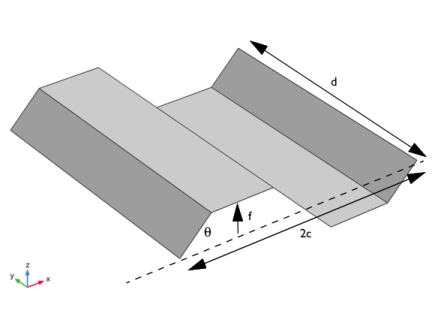
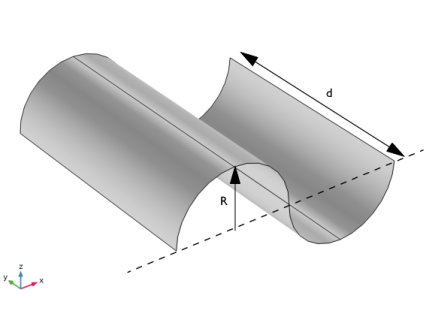
 ,
, 


 |
 |
|
 |
 |
|
 |
 |
|
 |
 |
|
 |
 |
|
 |
 |
 |
 |
 |
 |
 |
 |
 |
 |
 |
 |
 |
 |
 |
 |
 |
 |
 |
 |
 |
 |
 |
 |
 |
 |
 |
||
 |
||
 |
||
 |
 |
 |
 |
 |
 |
 |
 |
 |
 |
 |
 |
 |
 |
 |
 |
 |
|
•
|
|
•
|
The authors of Ref. 3 report the incorrectness of the analytical formula for the equivalent bending stiffness component
 proposed in Ref. 1 and Ref. 2. They have presented an analytical formula that closely matches the numerical results presented in this example. proposed in Ref. 1 and Ref. 2. They have presented an analytical formula that closely matches the numerical results presented in this example. |
 and
and  by comparing one half of the unit cell with a solid block of width c, depth d, and thickness 2f, where f is the amplitude of the corrugated sheet. The proposed analytical formulas are



 . The function f(x) describes the shape of the corrugation.
 |
 |
|
 |
 |
|
 |
 |
|
 |
 |
|
 |
 |
|
 |
 |
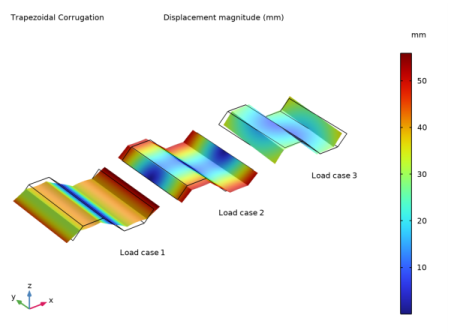
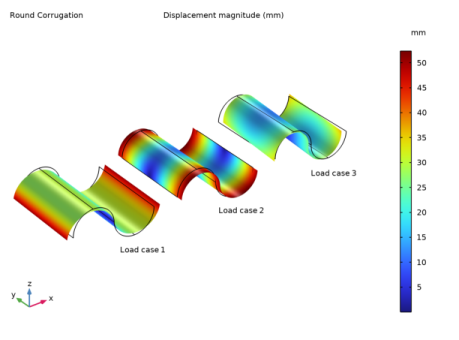
|
•
|
The analytical values of the extensional stiffness matrix component
 varies somewhat when compared to each other. The numerical values match more closely with the values presented in Ref. 2 as the authors considered the effect of transverse shear stiffness on the longitudinal extension, an effect the authors of the other two papers have ignored. varies somewhat when compared to each other. The numerical values match more closely with the values presented in Ref. 2 as the authors considered the effect of transverse shear stiffness on the longitudinal extension, an effect the authors of the other two papers have ignored. |
|
•
|
The analytical values of the extensional stiffness matrix component
 varies somewhat when compared to each other. For the trapezoidal sheet, the numerical value matches more closely with the values presented in Ref. 2 as the authors considered the effect of the transverse shear stiffness, an effect the authors of the other two papers ignored. However, surprisingly, the round sheet numerical value is twice the analytical value based on Ref. 2. varies somewhat when compared to each other. For the trapezoidal sheet, the numerical value matches more closely with the values presented in Ref. 2 as the authors considered the effect of the transverse shear stiffness, an effect the authors of the other two papers ignored. However, surprisingly, the round sheet numerical value is twice the analytical value based on Ref. 2. |
|
•
|
The numerical value of the equivalent bending stiffness matrix component
 closely matches the analytical value based on the formula presented in Ref. 3, but deviates from the analytical values computed based on the formula presented in Ref. 1 and Ref. 2. The reason is explained by the authors of Ref. 3, who point out errors in the formula presented by the authors of Ref. 1 and Ref. 2. closely matches the analytical value based on the formula presented in Ref. 3, but deviates from the analytical values computed based on the formula presented in Ref. 1 and Ref. 2. The reason is explained by the authors of Ref. 3, who point out errors in the formula presented by the authors of Ref. 1 and Ref. 2. |
|
1
|
|
2
|
|
3
|
Click Add.
|
|
4
|
Click
 Study. Study. |
|
5
|
|
6
|
Click
 Done. Done. |
|
1
|
|
2
|
|
3
|
Locate the Parameters section. In the table, enter the following settings:
|
|
1
|
|
2
|
In the Settings window for Parameters, type Common Geometric and Material Properties in the Label text field.
|
|
3
|
|
4
|
Browse to the model’s Application Libraries folder and double-click the file corrugated_sheet_parameters_trapezoidal.txt.
|
|
5
|
|
6
|
|
7
|
|
8
|
|
9
|
|
10
|
Browse to the model’s Application Libraries folder and double-click the file corrugated_sheet_parameters_round.txt.
|
|
11
|
In the Model Builder window, right-click Global Definitions and choose Geometry Parts > Part Libraries.
|
|
1
|
In the Part Libraries window, select COMSOL Multiphysics > Unit Cells and RVEs > Corrugated Sheets > round_corrugation in the tree.
|
|
2
|
Click
 Add to Model. Add to Model. |
|
1
|
|
2
|
|
3
|
|
1
|
|
2
|
|
1
|
Drag and drop below End If 1 (endif1).
|
|
2
|
|
3
|
|
1
|
|
2
|
|
1
|
|
2
|
|
1
|
|
2
|
|
3
|
|
4
|
|
5
|
In the Add dialog, in the Selections to add list, choose Pair 1, Source (Trapezoidal Corrugation 1) and Pair 1, Source (Round Corrugation 1).
|
|
6
|
Click OK.
|
|
1
|
|
2
|
|
3
|
|
4
|
|
5
|
In the Add dialog, in the Selections to add list, choose Pair 1, Destination (Trapezoidal Corrugation 1) and Pair 1, Destination (Round Corrugation 1).
|
|
6
|
Click OK.
|
|
1
|
|
2
|
|
3
|
|
4
|
|
5
|
In the Add dialog, in the Selections to add list, choose Pair 2, Source (Trapezoidal Corrugation 1) and Pair 2, Source (Round Corrugation 1).
|
|
6
|
Click OK.
|
|
1
|
|
2
|
|
3
|
|
4
|
|
5
|
In the Add dialog, in the Selections to add list, choose Pair 2, Destination (Trapezoidal Corrugation 1) and Pair 2, Destination (Round Corrugation 1).
|
|
6
|
Click OK.
|
|
1
|
|
2
|
|
3
|
|
4
|
|
5
|
|
1
|
|
2
|
|
3
|
|
4
|
|
5
|
|
6
|
|
1
|
|
2
|
|
3
|
|
4
|
|
5
|
|
6
|
Click OK.
|
|
7
|
|
1
|
|
2
|
|
3
|
|
4
|
|
5
|
|
1
|
|
2
|
|
3
|
|
4
|
|
5
|
|
1
|
|
2
|
|
3
|
|
4
|
|
5
|
|
1
|
|
2
|
In the Settings window for Variables, type Analytical Stiffness Components by Xia et al. in the Label text field.
|
|
3
|
|
4
|
Browse to the model’s Application Libraries folder and double-click the file corrugated_sheet_variables_Xia.txt.
|
|
1
|
|
2
|
In the Settings window for Variables, type Analytical Stiffness Components by Park et al. in the Label text field.
|
|
3
|
|
4
|
Browse to the model’s Application Libraries folder and double-click the file corrugated_sheet_variables_Park.txt.
|
|
1
|
|
2
|
In the Settings window for Variables, type Analytical Stiffness Components by Ye et al. in the Label text field.
|
|
3
|
|
4
|
Browse to the model’s Application Libraries folder and double-click the file corrugated_sheet_variables_Ye.txt.
|
|
1
|
|
2
|
In the Settings window for Variables, type Numerical Stiffness Components Based on Reaction Forces in the Label text field.
|
|
3
|
|
4
|
Browse to the model’s Application Libraries folder and double-click the file corrugated_sheet_variables_reaction_forces.txt.
|
|
1
|
|
2
|
In the Settings window for Variables, type Numerical Stiffness Components Based on Energy Equivalence in the Label text field.
|
|
3
|
|
4
|
Browse to the model’s Application Libraries folder and double-click the file corrugated_sheet_variables_energy_equivalence.txt.
|
|
1
|
In the Model Builder window, under Component 1 (comp1) right-click Materials and choose Blank Material.
|
|
2
|
|
1
|
In the Model Builder window, under Component 1 (comp1) > Shell (shell) click Thickness and Offset 1.
|
|
2
|
|
3
|
|
1
|
|
2
|
|
1
|
|
2
|
|
3
|
|
4
|
Locate the Prescribed Displacement section. From the Displacement in x direction list, choose Prescribed.
|
|
5
|
|
6
|
|
7
|
|
8
|
Select the Free rotation around t1 direction checkbox.
|
|
1
|
|
2
|
|
3
|
|
4
|
Locate the Prescribed Displacement section. From the Displacement in x direction list, choose Prescribed.
|
|
5
|
|
6
|
|
7
|
|
8
|
Select the Free rotation around t1 direction checkbox.
|
|
1
|
|
2
|
|
3
|
|
4
|
Locate the Prescribed Displacement section. From the Displacement in y direction list, choose Prescribed.
|
|
5
|
|
6
|
Select the Free rotation around t2 direction checkbox.
|
|
1
|
|
2
|
|
3
|
|
4
|
Locate the Prescribed Displacement section. From the Displacement in y direction list, choose Prescribed.
|
|
5
|
|
6
|
Select the Free rotation around t2 direction checkbox.
|
|
1
|
|
2
|
|
3
|
|
1
|
|
2
|
|
3
|
|
4
|
|
1
|
|
2
|
|
3
|
|
4
|
|
5
|
Click
 Build Selected. Build Selected. |
|
1
|
|
2
|
|
3
|
|
1
|
|
2
|
|
3
|
|
4
|
Click
 Add. Add. |
|
1
|
|
2
|
|
3
|
Select the Modify model configuration for study step checkbox.
|
|
4
|
In the tree, select Component 1 (comp1) > Shell (shell) > Load Case 2: DA21 and DA22, Component 1 (comp1) > Shell (shell) > Load Case 3: DA33, Component 1 (comp1) > Shell (shell) > Load Case 4: DD11 and DD12, Component 1 (comp1) > Shell (shell) > Load Case 5: DD21 and DD22, and Component 1 (comp1) > Shell (shell) > Load Case 6: DD33.
|
|
5
|
Right-click and choose Disable.
|
|
6
|
|
1
|
|
2
|
|
3
|
Click
 Add Physical Quantity. Add Physical Quantity. |
|
4
|
|
5
|
Click OK.
|
|
6
|
|
8
|
Click
 Add Physical Quantity. Add Physical Quantity. |
|
9
|
|
10
|
Click OK.
|
|
11
|
|
13
|
Click
 Apply. Apply. |
|
1
|
|
2
|
In the Settings window for 3D Plot Group, type Displacement for Translational Load Cases in the Label text field.
|
|
3
|
Locate the Data section. From the Dataset list, choose Study: Load Case 1/Parametric Solutions 1 (sol2).
|
|
4
|
|
5
|
|
6
|
|
1
|
|
2
|
|
3
|
|
1
|
In the Model Builder window, under Results > Displacement for Translational Load Cases right-click Surface 1 and choose Duplicate.
|
|
2
|
|
3
|
|
4
|
|
5
|
|
6
|
|
1
|
|
2
|
|
3
|
|
1
|
In the Displacement for Translational Load Cases toolbar, click
 More Plots and choose Table Annotation. More Plots and choose Table Annotation. |
|
2
|
|
3
|
|
5
|
|
6
|
|
1
|
|
2
|
In the Settings window for 3D Plot Group, type Total Rotations for Rotational Load Cases in the Label text field.
|
|
3
|
Locate the Data section. From the Dataset list, choose Study: Load Case 4/Parametric Solutions 4 (sol14).
|
|
1
|
In the Model Builder window, expand the Total Rotations for Rotational Load Cases node, then click Surface 1.
|
|
2
|
|
3
|
|
1
|
|
2
|
|
3
|
|
1
|
In the Model Builder window, under Results > Total Rotations for Rotational Load Cases click Surface 2.
|
|
2
|
|
3
|
|
4
|
|
1
|
|
2
|
|
3
|
|
4
|
|
1
|
|
2
|
|
1
|
|
2
|
In the Settings window for Evaluation Group, type Analytical Extensional Stiffness Matrix by Xia et al. in the Label text field.
|
|
3
|
Locate the Data section. From the Dataset list, choose Study: Load Case 1/Parametric Solutions 1 (sol2).
|
|
4
|
|
5
|
|
6
|
|
7
|
|
1
|
|
2
|
|
4
|
|
1
|
|
2
|
In the Settings window for Evaluation Group, type Numerical Extensional Stiffness Matrix Based on Reaction Forces in the Label text field.
|
|
3
|
Locate the Data section. From the Dataset list, choose Study: Load Case 1/Parametric Solutions 1 (sol2).
|
|
4
|
|
5
|
|
6
|
|
7
|
|
1
|
Right-click Numerical Extensional Stiffness Matrix Based on Reaction Forces and choose Global Evaluation.
|
|
2
|
|
1
|
In the Model Builder window, right-click Numerical Extensional Stiffness Matrix Based on Reaction Forces and choose Global Evaluation.
|
|
2
|
|
3
|
|
4
|
|
5
|
|
6
|
Locate the Expressions section. In the table, enter the following settings:
|
|
1
|
Right-click Numerical Extensional Stiffness Matrix Based on Reaction Forces and choose Global Evaluation.
|
|
2
|
|
3
|
|
4
|
|
5
|
|
6
|
Locate the Expressions section. In the table, enter the following settings:
|
|
7
|
|
1
|
|
2
|
 ,
, 
 ,
,  , and
, and  are the force, moment, and transverse shear resultants, respectively. Moreover,
  ,
,  , and
, and  are the membrane, bending, and transverse shear strains, respectively.
 ,
,  , and
, and  can be deduced from the stiffness matrices of the corrugated sheet and geometric parameters by subjecting the corrugated sheet to the same boundary conditions as the equivalent sheet and evaluating either internal forces (reactions) or the total strain energy.
 for the equivalent sheet is written as






 and
and  . It would be possible to deduce them to, but at the expense of adding more load cases.
 ; this effect is neglected in the other two papers.
 denotes summation of reaction forces or moments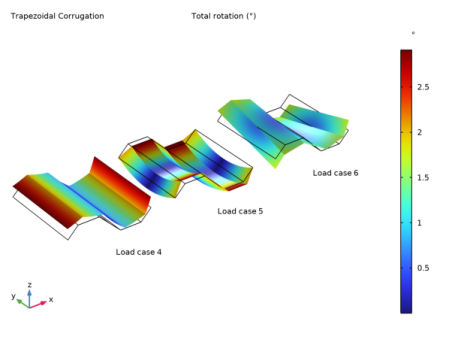
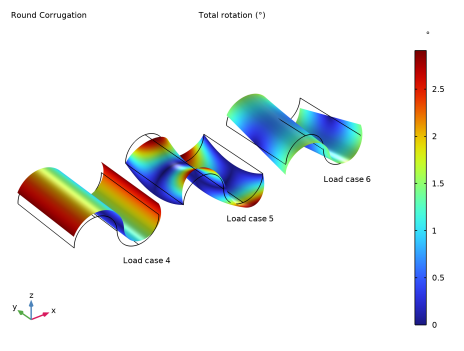
 and
and  closely match the analytical values.
 closely matches the analytical values.
 closely matches the analytical values for the trapezoidal sheet (although there is a small mismatch between the numerically obtained
  and
and  components). For the round sheet, the numerical value of the equivalent bending stiffness matrix component
  is zero although the analytical value is nonzero.
 is in the same range as the analytical values for the trapezoidal sheet. For the round sheet, the numerical value of the equivalent bending stiffness matrix component
  closely matches the analytical value.
 (N/m)
(N/m) (N/m)
(N/m) (N/m)
(N/m) (N/m)
(N/m) (Nm)
(Nm) (Nm)
(Nm) (Nm)
(Nm) (Nm)
(Nm) (N/m)
(N/m) (N/m)
(N/m) (N/m)
(N/m) (N/m)
(N/m) (Nm)
(Nm) (Nm)
(Nm) (Nm)
(Nm) (Nm)
(Nm)


