PDF

Friction Between Contacting Rings
Introduction
This is a benchmark model involving stick-slip friction of a ring rolling inside another ring. The displacement of the inner ring is computed and compared to the analytical result (Ref. 1).
Model Definition
As illustrated in Figure 1, the geometry consists of two rings. The outer ring is 4 mm thick and has an inner radius of 156 mm. The inner ring has an inner radius of 100 mm and a thickness of 11.5 mm.
Figure 1: Model geometry.
The outer ring is fixed and rigid. Thus for the contact analysis only its mesh is required, without any physics attached. The inner ring is subjected to a prescribed rotation phi at its origin.
At the center of rotation, the resultant of the gravity load (500 N) is applied to the inner ring.
A friction coefficient with the value 1 is used.
Results and Discussion
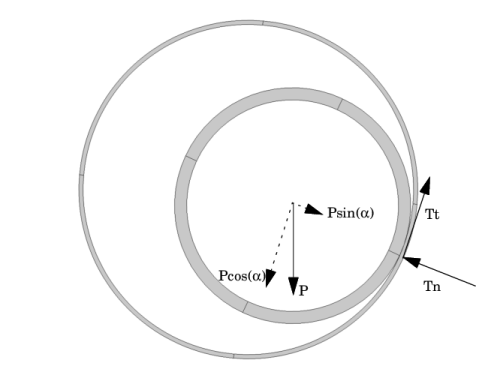
The analytical solution of the problem can be described as follows. The inner ring rolls along the outer ring until the tangential component of the gravity load becomes equal to the friction force (see Figure 2). At this critical point, slip occurs and the elevation of the inner ring reaches its maximum value.
Figure 2: Representation of the contact and friction forces and the resultant of the gravity load.
The contact force corresponds to the normal component of the gravity load, . In this problem, the friction coefficient is 1, thus Tn = Tt when sliding. As the critical position is reached when , the critical angle is α = 45o.
The maximum rolling distance is then .
The vertical displacement of the center of the inner ring is defined as , where R is the inner radius of the outer ring and r is the outer radius of the inner ring. The maximum vertical displacement Ymax = 13 mm is reached at α 45o.
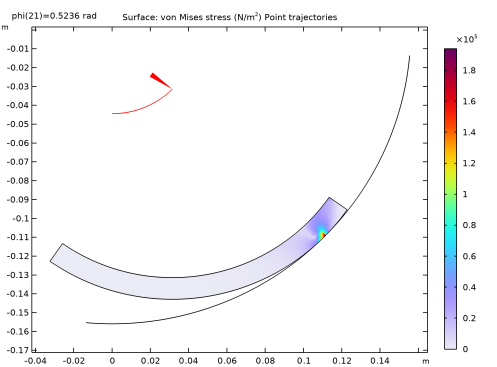
Figure 3 shows the von Mises stress distribution in the inner ring at the final step.
Figure 3: Stress distribution.
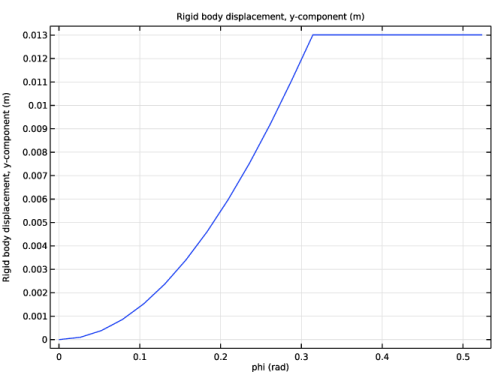
In Figure 4, you can see the elevation of the center of the inner ring with respect to its rotation angle. The computed maximum elevation is about 13 mm, and is in excellent agreement with the analytical solution.
Figure 4: Elevation of the inner ring center versus applied rotation angle.
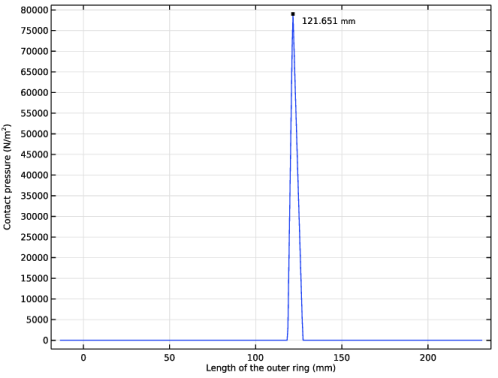
Figure 5 shows the contact pressure on the outer ring with respect to its length. The peak of the contact pressure occurs around 122 mm, as predicted by the analytical solution.
Figure 5: Contact pressure versus length of the outer ring.
Notes About the COMSOL Implementation
A rigid connector is used to prescribe the rotation of the inner ring, while leaving the translation free so that it can follow the curvature of the outer ring. The rigid connector is attached to the inner boundary of the inner ring.
Since the outer ring is assumed fixed and rigid, it requires no physics and it is sufficient to define a mesh on its the boundary.
To capture the transition between stick friction and slip friction, a small continuation parameter step is used. Furthermore, the augmented Lagrangian method is better suited for problems dominated by stick-slip friction than the default penalty method, and is thus used in this example.
The model is not stable in its initial configuration; there are possible rigid body displacements before contact is established. To avoid convergence problem, add a stabilization node to the contact feature which is automatically removed after few iterations.
Reference
1. Q. Feng and N.K. Prinja, “NAFEMS Benchmark Tests for Finite Element Modeling of Contact, Gapping and Sliding,” NAFEMS R0081, 2001.
Application Library path: Structural_Mechanics_Module/Verification_Examples/contacting_rings
Modeling Instructions
From the File menu, choose New.
New
In the New window, click  Model Wizard.
Model Wizard
1
In the Model Wizard window, click  2D.
2
In the Select Physics tree, select Structural Mechanics > Solid Mechanics (solid).
3
Click Add.
4
Click  Study.
5
In the Select Study tree, select General Studies > Stationary.
6
Global Definitions
Parameters 1
1
In the Model Builder window, under Global Definitions click Parameters 1.
2
In the Settings window for Parameters, locate the Parameters section.
3
Geometry 1
Circle 1 (c1)
1
In the Geometry toolbar, click  Circle.
Only the inner surface of the outer ring needs to be modeled.
2
In the Settings window for Circle, locate the Object Type section.
3
From the Type list, choose Curve.
4
Locate the Size and Shape section. In the Radius text field, type r1-t1.
5
In the Sector angle text field, type 90.
6
Locate the Rotation Angle section. In the Rotation text field, type -95.
7
Click to expand the Layers section. Click  Build Selected.
Circle 2 (c2)
1
In the Geometry toolbar, click  Circle.
2
In the Settings window for Circle, locate the Size and Shape section.
3
In the Radius text field, type r2.
4
In the Sector angle text field, type 90.
5
Locate the Position section. In the y text field, type y0.
6
Locate the Rotation Angle section. In the Rotation text field, type -95.
7
Locate the Layers section. In the table, enter the following settings:
8
Click  Build Selected.
Delete Entities 1 (del1)
1
In the Model Builder window, right-click Geometry 1 and choose Delete Entities.
2
In the Settings window for Delete Entities, locate the Entities or Objects to Delete section.
3
From the Geometric entity level list, choose Domain.
4
On the object c2, select Domain 1 only.
Delete Entities 2 (del2)
1
Right-click Geometry 1 and choose Delete Entities.
2
On the object c1, select Boundaries 2 and 3 only.
3
In the Settings window for Delete Entities, click  Build Selected.
Form Union (fin)
1
In the Model Builder window, under Component 1 (comp1) > Geometry 1 click Form Union (fin).
2
In the Settings window for Form Union/Assembly, locate the Form Union/Assembly section.
3
From the Action list, choose Form an assembly.
4
Click  Build Selected.
Definitions
Variables 1
1
In the Definitions toolbar, click  Local Variables.
2
In the Settings window for Variables, locate the Geometric Entity Selection section.
3
From the Geometric entity level list, choose Boundary.
4
5
Locate the Variables section. In the table, enter the following settings:
Contact Pair 1 (p1)
1
In the Definitions toolbar, click  Pairs and choose Contact Pair.
2
In the Settings window for Pair, locate the Source Boundaries section.
3
Click  Paste Selection.
4
In the Paste Selection dialog, type 1 in the Selection text field.
5
6
In the Settings window for Pair, locate the Destination Boundaries section.
7
Click to select the  Activate Selection toggle button.
8
Click  Paste Selection.
9
In the Paste Selection dialog, type 4 in the Selection text field.
10
Materials
Material 1 (mat1)
1
In the Model Builder window, under Component 1 (comp1) right-click Materials and choose Blank Material.
2
In the Settings window for Material, locate the Material Contents section.
3
Solid Mechanics (solid)
Contact 1
Use the augmented Lagrange method to evaluate the stick-slip contact.
1
In the Model Builder window, under Component 1 (comp1) > Solid Mechanics (solid) click Contact 1.
2
In the Settings window for Contact, locate the Contact Method section.
3
From the list, choose Augmented Lagrangian.
4
Locate the Contact Pressure Penalty Factor section. From the Penalty factor control list, choose Manual tuning.
5
In the fp text field, type 1/50.
Friction 1
1
In the Physics toolbar, click  Attributes and choose Friction.
2
In the Settings window for Friction, locate the Friction Parameters section.
3
In the μ text field, type 1.
4
Click the  Show More Options button in the Model Builder toolbar.
5
In the Show More Options dialog, in the tree, select the checkbox for the node Physics > Advanced Physics Options.
6
7
In the Settings window for Friction, click to expand the Advanced section.
8
Select the Store accumulated slip checkbox.
Contact 1
In the Model Builder window, click Contact 1.
Stabilization 1
In the Physics toolbar, click  Attributes and choose Stabilization.
Global Definitions
Parameters 1
1
In the Model Builder window, under Global Definitions click Parameters 1.
2
In the Settings window for Parameters, locate the Parameters section.
3
Solid Mechanics (solid)
Rigid Connector 1
1
In the Physics toolbar, click  Boundaries and choose Rigid Connector.
2
3
In the Settings window for Rigid Connector, locate the Center of Rotation section.
4
5
Specify the Xc vector as
6
Locate the Prescribed Rotation section. From the By list, choose Prescribed rotation.
7
In the ϕ0 text field, type -phi.
Applied Force 1
1
In the Physics toolbar, click  Attributes and choose Applied Force.
2
In the Settings window for Applied Force, locate the Applied Force section.
3
Specify the F vector as
Mesh 1
Mapped 1
In the Mesh toolbar, click  Mapped.
Distribution 1
1
Right-click Mapped 1 and choose Distribution.
2
3
In the Settings window for Distribution, locate the Distribution section.
4
In the Number of elements text field, type 3.
Distribution 2
1
In the Model Builder window, right-click Mapped 1 and choose Distribution.
2
3
In the Settings window for Distribution, locate the Distribution section.
4
In the Number of elements text field, type 60.
Edge 1
1
In the Mesh toolbar, click  More Generators and choose Edge.
2
Distribution 1
1
Right-click Edge 1 and choose Distribution.
2
In the Settings window for Distribution, locate the Distribution section.
3
In the Number of elements text field, type 100.
4
Click  Build All.
Study 1
Step 1: Stationary
Set up an auxiliary continuation sweep for the phi parameter.
1
In the Model Builder window, under Study 1 click Step 1: Stationary.
2
In the Settings window for Stationary, click to expand the Results While Solving section.
3
Select the Plot checkbox.
4
From the Update at list, choose Steps taken by solver.
5
Click to expand the Study Extensions section. Select the Auxiliary sweep checkbox.
6
7
Solution 1 (sol1)
1
In the Study toolbar, click  Show Default Solver.
2
In the Model Builder window, expand the Solution 1 (sol1) node.
3
In the Model Builder window, expand the Study 1 > Solver Configurations > Solution 1 (sol1) > Dependent Variables 1 node, then click Contact Pressure (comp1.solid.Tn_p1).
4
In the Settings window for Field, locate the Scaling section.
5
In the Scale text field, type 1e5.
6
In the Model Builder window, under Study 1 > Solver Configurations > Solution 1 (sol1) > Dependent Variables 1 click Friction Force (Spatial Frame) (comp1.solid.Tt_p1).
7
In the Settings window for Field, locate the Scaling section.
8
In the Scale text field, type 1e5.
9
In the Model Builder window, expand the Study 1 > Solver Configurations > Solution 1 (sol1) > Stationary Solver 1 node, then click Parametric 1.
10
In the Settings window for Parametric, click to expand the Continuation section.
11
Select the Tuning of step size checkbox.
12
In the Initial step size text field, type pi/1000.
13
In the Maximum step size text field, type pi/1000.
14
In the Minimum step size text field, type pi/10000.
15
In the Model Builder window, expand the Study 1 > Solver Configurations > Solution 1 (sol1) > Stationary Solver 1 > Segregated 1 node, then click Solid Mechanics.
16
In the Settings window for Segregated Step, click to expand the Method and Termination section.
17
In the Number of iterations text field, type 15.
18
In the Model Builder window, under Study 1 > Solver Configurations > Solution 1 (sol1) right-click Compile Equations: Stationary and choose Run to Selected.
Results
Stress (solid)
Create a marker to make it easier to track the rotation of the inner ring. One way of doing it is to add an arrow to the default plot, which is generated below.
Point Trajectories 1
1
In the Stress (solid) toolbar, click  More Plots and choose Point Trajectories.
2
In the Settings window for Point Trajectories, locate the Trajectory Data section.
3
In the X-expression text field, type solid.u_rig1.
4
In the Y-expression text field, type y0+solid.v_rig1.
5
Locate the Coloring and Style section. Find the Line style subsection. From the Color list, choose Red.
6
Find the Point style subsection. From the Type list, choose Arrow.
7
In the Arrow, X-component text field, type cos(phi+5[deg]).
8
In the Arrow, Y-component text field, type sin(-phi-5[deg]).
9
From the Arrow type list, choose Cone.
10
From the Arrow base list, choose Head.
Study 1
In the Study toolbar, click  Compute.
Results
Rigid Body Displacement
1
In the Results toolbar, click  1D Plot Group.
2
In the Settings window for 1D Plot Group, locate the Legend section.
3
From the Position list, choose Upper left.
4
In the Label text field, type Rigid Body Displacement.
5
Locate the Legend section. Clear the Show legends checkbox.
Global 1
1
Right-click Rigid Body Displacement and choose Global.
2
In the Settings window for Global, click Replace Expression in the upper-right corner of the y-Axis Data section. From the menu, choose Component 1 (comp1) > Solid Mechanics > Rigid connectors > Rigid Connector 1 > Rigid body displacement (spatial frame) - m > solid.rig1.v - Rigid body displacement, y-component.
3
In the Rigid Body Displacement toolbar, click  Plot.
Contact Pressure, Outer Ring
1
In the Results toolbar, click  1D Plot Group.
2
In the Settings window for 1D Plot Group, locate the Data section.
3
From the Parameter selection (phi) list, choose Last.
4
In the Label text field, type Contact Pressure, Outer Ring.
5
Click to expand the Title section. From the Title type list, choose None.
6
Locate the Plot Settings section.
7
Select the y-axis label checkbox. In the associated text field, type Contact pressure (N/m<sup>2</sup>).
Line Graph 1
1
Right-click Contact Pressure, Outer Ring and choose Line Graph.
2
3
In the Settings window for Line Graph, locate the y-Axis Data section.
4
In the Expression text field, type dst2src_p1(solid.Tn_p1).
5
Locate the x-Axis Data section. From the Parameter list, choose Expression.
6
In the Expression text field, type L.
7
From the Unit list, choose mm.
Graph Marker 1
1
Right-click Line Graph 1 and choose Graph Marker.
2
In the Settings window for Graph Marker, locate the Display section.
3
From the Display list, choose Max.
4
Locate the Text Format section. Select the Show x-coordinate checkbox.
5
Clear the Show y-coordinate checkbox.
6
Select the Include unit checkbox.
7
In the Contact Pressure, Outer Ring toolbar, click  Plot.
Edge 2D 1
1
In the Results toolbar, click  More Datasets and choose Edge 2D.
2
Parametric Extrusion 1D 1
In the Results toolbar, click  More Datasets and choose Parametric Extrusion 1D.
Accumulated Slip
1
In the Results toolbar, click  2D Plot Group.
2
In the Settings window for 2D Plot Group, type Accumulated Slip in the Label text field.
3
Locate the Data section. From the Dataset list, choose Parametric Extrusion 1D 1.
4
Click to expand the Title section. From the Title type list, choose Label.
Surface 1
1
Right-click Accumulated Slip and choose Surface.
2
In the Settings window for Surface, locate the Expression section.
3
In the Expression text field, type gpeval(4,solid.sliptot).
Height Expression 1
1
Right-click Surface 1 and choose Height Expression.
2
In the Accumulated Slip toolbar, click  Plot.