PDF

Bracket — Transient Analysis
Introduction
Transient analyses provide the time-domain response of a structure subjected to time-dependent loads. A transient analysis can be important when the time scale of the load is such that inertial or damping effects have a significant influence on the behavior of the structure.
In this example, you learn how to add damping properties to the material, define external loads varying with time, set up time-stepping data for the study, and generate animations.
It is recommended you review the Introduction to the Structural Mechanics Module, which includes background information and discusses the bracket_basic.mph models relevant to this example.
Model Definition
This model is an extension of the example described in the section “The Fundamentals: A Static Linear Analysis” in the Introduction to the Structural Mechanics Module.
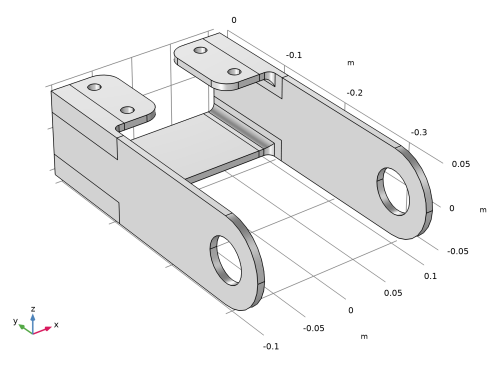
The model geometry is represented in Figure 1.
Figure 1: Bracket geometry.
A rigid body, on which the time-varying load is applied, is assumed to be connected to the arms of the bracket. This body is modeled using a rigid connector. The following loads are applied:
In the x direction, a 400 N load applied between 4 and 4.5 ms
In the y direction, a 500 N force with300 Hz sinusoidal time dependence
In the z direction, a constant load 100 N
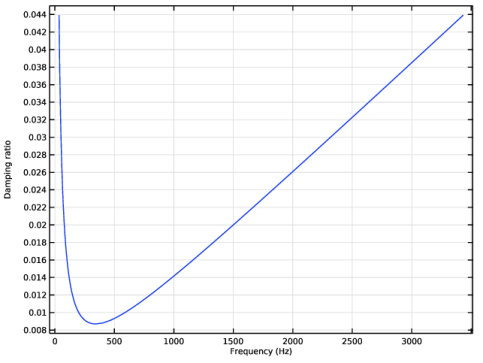
Rayleigh damping is chosen here with relative damping set to 0.01 and 0.02 at the frequencies 216 Hz and 1515 Hz, respectively. The resulting damping ratio curve is shown in Figure 2.
Figure 2: The damping ratio curve.
Results and Discussion
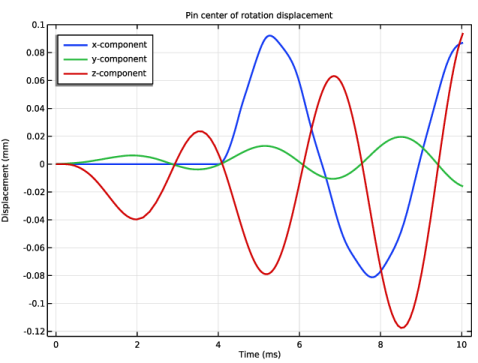
Figure 3 shows the rigid connector’s displacements at the center of rotation versus time.
Figure 3: Displacement of the pin center of rotation versus time.
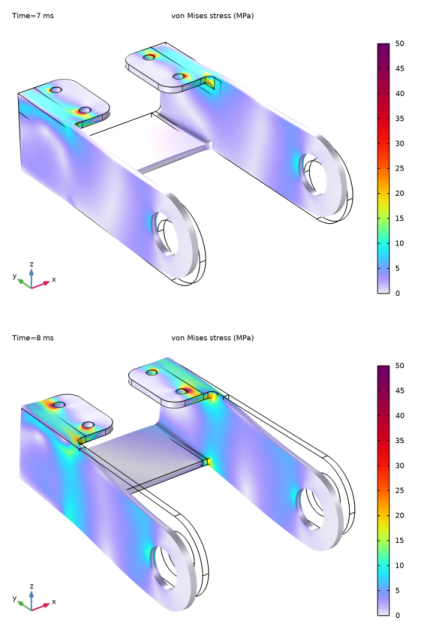
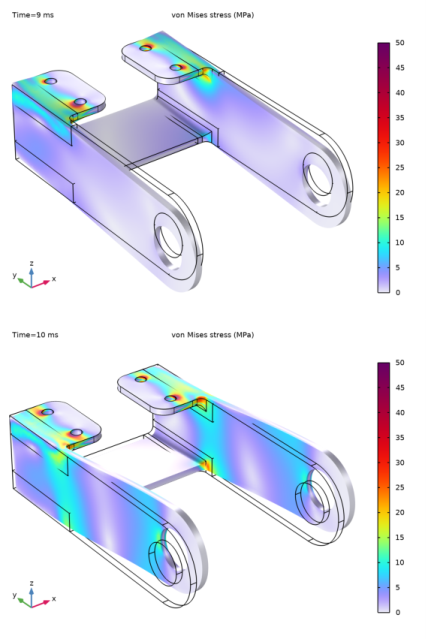
Figure 4: von Mises stress distribution in the bracket (from top to bottom, t = 7 ms, 8 ms, 9 ms and 10 ms).
Notes About the COMSOL Implementation
To accurately model the physical problem, you need to apply damping in a dynamic analysis. In COMSOL you have the possibility to add damping of several types, for example loss factor damping, viscous damping, or Rayleigh damping. Damping is also inherent in some material models, like viscoelasticity.
To describe time-dependent boundary conditions you can enter expressions using the built-in time variable, t.
To improve accuracy, the scaling of the displacement variables can be changed to correspond to the expected deformations. Manual scaling is the default for the displacement variables. The default manual scaling used for the structural displacement is 1% of the geometry size. In this example, the size of the geometry is about 200 mm, so the assumed displacement scale is 2 mm. In this case, the expected deformations are in the order of 0.1 mm. The manual scaling factor should thus be changed to 10-4.
Because of the constant load in the z direction, the initial zero displacement assumption is not consistent with the boundary conditions. This singularity at initial time would induce high frequency dynamics requiring a small time step. To avoid issues at the initial time, it is recommended to use a smooth step function to ramp up the load. Another alternative would be to solve a stationary study first with only the static load, and then use the results from that study as initial conditions for the time-dependent analysis.
Two action buttons are provided in the Damping Settings section in order to visualize the damping ratio with respect to frequency. The first button shows a dynamic preview plot of the damping ratio, while the second button generates a plot in the Results node.
Application Library path: Structural_Mechanics_Module/Tutorials/bracket_transient
Modeling Instructions
Application Libraries
1
From the File menu, choose Application Libraries.
2
In the Application Libraries window, select Structural Mechanics Module > Tutorials > bracket_basic in the tree.
3
Solid Mechanics (solid)
Linear Elastic Material 1
In the Model Builder window, expand the Component 1 (comp1) > Solid Mechanics (solid) node, then click Linear Elastic Material 1.
Damping 1
1
In the Physics toolbar, click  Attributes and choose Damping.
In this example, you will use Rayleigh damping defined using damping ratios.
2
In the Settings window for Damping, locate the Damping Settings section.
3
From the Input parameters list, choose Damping ratios.
4
In the f1 text field, type 200.
5
In the ζ1 text field, type 1e-2.
6
In the f2 text field, type 1500.
7
In the ζ2 text field, type 2e-2.
In order to visualize the damping ratio curve, create the Damping Ratio plot through an action button from the Damping Settings section.
8
Click Damping Ratio Preview in the upper-right corner of the Damping Settings section. From the menu, choose Create Damping Ratio Plot.
Results
Damping Ratio Plot
1
In the Model Builder window, under Results click Damping Ratio Plot.
2
In the Damping Ratio Plot toolbar, click  Plot.
Global Definitions
Step 1 (step1)
1
In the Home toolbar, click  Functions and choose Global > Step.
2
In the Settings window for Step, locate the Parameters section.
3
In the Location text field, type 1[ms].
4
Click to expand the Smoothing section. In the Size of transition zone text field, type 2[ms].
Rectangle 1 (rect1)
1
In the Home toolbar, click  Functions and choose Global > Rectangle.
2
In the Settings window for Rectangle, locate the Parameters section.
3
In the Lower limit text field, type 4[ms].
4
In the Upper limit text field, type 4.5[ms].
5
Click to expand the Smoothing section. Clear the Size of transition zone checkbox.
Parameters 1
1
In the Model Builder window, click Parameters 1.
2
In the Settings window for Parameters, locate the Parameters section.
3
This way of adding time dependent functions as parameters is possible, since they can be evaluated when t is also a parameter. By doing so, it is easy to verify that the loads in all directions are zero at the initial time. This is consistent with the initial conditions.
Solid Mechanics (solid)
To represent the pin between the arms of the bracket use a rigid connector to which a load is applied.
Rigid Connector 1
1
In the Physics toolbar, click  Boundaries and choose Rigid Connector.
2
In the Settings window for Rigid Connector, locate the Boundary Selection section.
3
From the Selection list, choose Pin Holes.
Applied Force 1
1
In the Physics toolbar, click  Attributes and choose Applied Force.
2
In the Settings window for Applied Force, locate the Applied Force section.
3
Specify the F vector as
Add Study
1
In the Home toolbar, click  Add Study to open the Add Study window.
2
Go to the Add Study window.
3
Find the Studies subsection. In the Select Study tree, select General Studies > Time Dependent.
4
Click the Add Study button in the window toolbar.
5
In the Home toolbar, click  Add Study to close the Add Study window.
Study 1
Step 1: Time Dependent
1
In the Settings window for Time Dependent, locate the Study Settings section.
2
From the Time unit list, choose ms.
3
In the Output times text field, type range(0,0.2,10).
With this time stepping, the solver automatically stores the solution every 0.2 ms from 0 to 10 ms.
The time-dependent solver adapts its time stepping based on a tolerance criterion. This ensures that the solver takes sufficiently small time steps if large variations occur between the specified output times.
4
Click to expand the Results While Solving section. Select the Plot checkbox.
Solution 1 (sol1)
1
In the Study toolbar, click  Show Default Solver.
Adjust the manual scaling in the solver settings to match the expected deformations.
2
In the Model Builder window, expand the Solution 1 (sol1) node.
3
In the Model Builder window, expand the Study 1 > Solver Configurations > Solution 1 (sol1) > Dependent Variables 1 node, then click Displacement Field (comp1.u).
4
In the Settings window for Field, locate the Scaling section.
5
In the Scale text field, type 1e-4.
You can speed up the computation for a small model by disabling the convergence plot. To do this, go to the Options menu and select Preferences. Under Results, click to clear the Generate convergence plots checkbox.
Create probes to visualize the pin displacement while computing.
Definitions
Pin displacement, x-component
1
In the Definitions toolbar, click  Probes and choose Global Variable Probe.
2
In the Settings window for Global Variable Probe, type Pin displacement, x-component in the Label text field.
3
Click Replace Expression in the upper-right corner of the Expression section. From the menu, choose Component 1 (comp1) > Solid Mechanics > Rigid connectors > Rigid Connector 1 > Rigid body displacement (spatial frame) - m > solid.rig1.u - Rigid body displacement, x-component.
4
Locate the Expression section. From the Table and plot unit list, choose mm.
Pin displacement, y-component
1
Right-click Pin displacement, x-component and choose Duplicate.
2
In the Settings window for Global Variable Probe, type Pin displacement, y-component in the Label text field.
3
Locate the Expression section. In the Expression text field, type solid.rig1.v.
Pin displacement, z-component
1
Right-click Pin displacement, y-component and choose Duplicate.
2
In the Settings window for Global Variable Probe, type Pin displacement, z-component in the Label text field.
3
Locate the Expression section. In the Expression text field, type solid.rig1.w.
Study 1
In the Study toolbar, click  Compute.
Results
Stress (solid)
The default plot shows the stress distribution at the final time. You can change the time for the plot display in the Time list of the plot group settings.
Volume 1
1
Click the  Show Grid button in the Graphics toolbar.
2
In the Model Builder window, expand the Stress (solid) node, then click Volume 1.
3
In the Settings window for Volume, click to expand the Range section.
4
Select the Manual color range checkbox.
5
In the Maximum text field, type 50.
6
Locate the Coloring and Style section. From the Color table transformation list, choose Nonlinear.
7
In the Color calibration parameter text field, type -1.
To visualize the results in an animation, create a player.
Animation 1
1
In the Results toolbar, click  Animation and choose Player.
2
In the Settings window for Animation, locate the Scene section.
3
From the Subject list, choose Stress (solid).
4
Locate the Frames section. From the Frame selection list, choose All.
5
Click  Show Frame.
The movie is generated, and then played. To replay the movie, click the Play button in the Graphics toolbar.
If you want to export a movie, right-click Export and create an Animation node.
Displacement at Center of Pin
1
In the Model Builder window, under Results click Probe Plot Group 2.
2
In the Settings window for 1D Plot Group, type Displacement at Center of Pin in the Label text field.
3
Click to expand the Title section. From the Title type list, choose Manual.
4
In the Title text area, type Pin center of rotation displacement.
5
Locate the Plot Settings section.
6
Select the y-axis label checkbox. In the associated text field, type Displacement (mm).
7
Locate the Legend section. From the Position list, choose Upper left.
Probe Table Graph 1
1
In the Model Builder window, expand the Displacement at Center of Pin node, then click Probe Table Graph 1.
2
In the Settings window for Table Graph, locate the Coloring and Style section.
3
From the Width list, choose 2.
4
Click to expand the Legends section. From the Legends list, choose Manual.
5
6
In the Displacement at Center of Pin toolbar, click  Plot.