PDF

Bracket — Spring Foundation Analysis
Introduction
A fixed, fully constrained, boundary condition contains the assumption that the analyzed structure is attached to an infinitely stiff support. In many cases, this is a useful approximation, but sometimes you may need to consider the flexibility of the supporting structure in your model. In COMSOL Multiphysics you can do this by using the Spring Foundation boundary condition.
In this example, you study the stress in a bracket subjected to external loads. The stiffness of the connected support is modeled with spring foundations.
It is recommended you review the Introduction to the Structural Mechanics Module, which includes background information and discusses the bracket_basic.mph model relevant to this example.
Model Definition
This model is an extension of the model example described in the section “The Fundamentals: A Static Linear Analysis” in the Introduction to the Structural Mechanics Module.
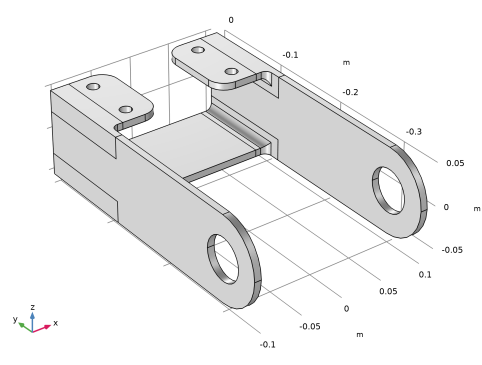
The model geometry is shown in Figure 1.
Figure 1: Bracket geometry.
The load is applied in the positive z-direction in the bracket left arm and in the negative z-direction in the bracket right arm, the same as in the original model.
The bolts, as such, are ignored. The spring stiffness is distributed over the upper flat surfaces with the bolt holes. Large part of these surfaces will be pressed against the mounting plate by the bolted joints. The spring constants should then reasonably well approximate the stiffness of the mounting plate.
The total spring stiffness that the bracket experiences is assumed to be 1 MN/mm in the two in-plane directions, and 2 MN/mm in the vertical direction.
Results and Discussion
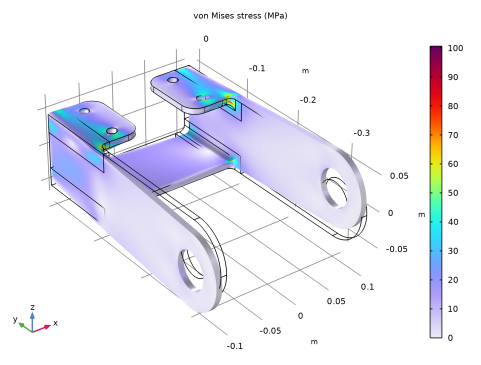
Figure 2 shows the von Mises stress on a deformed geometry.
Figure 2: The Von Mises stress distribution.
The maximum stress in the bracket when connected using spring foundation is slightly above 100MPa, a significant increase from the situation where the bolt holes were fixed. There are also general differences in the stress distribution (see the Results section in the tutorial Bracket - Static analysis). The singular stress fields around the bolt holes are no longer present. This is an effect of the flexibility that a spring connection provides.
In order to supply proper values for the springs in a case like this, it is necessary that the stiffness of the supporting structure can be estimated. This can possibly be done in a separate finite element analysis.
Application Library path: Structural_Mechanics_Module/Tutorials/bracket_spring
Modeling Instructions
Application Libraries
1
From the File menu, choose Application Libraries.
2
In the Application Libraries window, select Structural Mechanics Module > Tutorials > bracket_basic in the tree.
3
Component 1 (comp1)
Add the two new parameters for the spring coefficients of the external structure to the table.
Global Definitions
Parameters 1
1
In the Model Builder window, under Global Definitions click Parameters 1.
2
In the Settings window for Parameters, locate the Parameters section.
3
Solid Mechanics (solid)
Boundary Load 1
1
In the Physics toolbar, click  Boundaries and choose Boundary Load.
Apply a boundary load to the bracket holes. Since the entire circumference of each hole is selected, the expression for the pressure must be truncated so that it acts only on the intended 180 degrees
2
In the Settings window for Boundary Load, locate the Boundary Selection section.
3
From the Selection list, choose Pin Holes.
4
Locate the Coordinate System Selection section. From the Coordinate system list, choose Boundary System 1 (sys1).
5
Locate the Force section. Specify the fA vector as
Fixed Constraint 1
In the Model Builder window, right-click Fixed Constraint 1 and choose Disable.
Spring Foundation 1
1
In the Physics toolbar, click  Boundaries and choose Spring Foundation.
2
3
In the Settings window for Spring Foundation, locate the Spring section.
4
From the Spring type list, choose Total spring constant.
5
6
Specify the ktot matrix as
Add Study
1
In the Home toolbar, click  Add Study to open the Add Study window.
2
Go to the Add Study window.
3
Find the Studies subsection. In the Select Study tree, select General Studies > Stationary.
4
Click the Add Study button in the window toolbar.
5
In the Home toolbar, click  Add Study to close the Add Study window.
Study 1
Step 1: Stationary
In the Study toolbar, click  Compute.
Results
Stress (solid)
The default plot shows the von Mises stress distribution, shown in Figure 2.
Volume 1
1
In the Model Builder window, expand the Stress (solid) node, then click Volume 1.
2
In the Stress (solid) toolbar, click  Plot.