PDF

Bracket — Reduced-Order Modeling
Introduction
Transient analyses provide the time-domain response of a structure subjected to time-dependent loads. Solving large models in time domain may be computationally intensive in terms of memory and CPU time. Modal reduced-order modeling is one approach available to improve the performance for linear structural dynamics.
In this example you learn how to create a reduced-order model: from defining the model inputs and outputs, setting up the model reduction study, and finally postprocessing the reconstructed solution on the full geometry.
It is recommended you review the model Bracket — Transient Analysis, which includes background information and discusses the models relevant for this example.
Model Definition
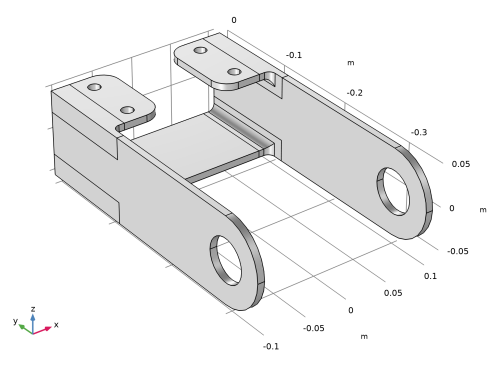
The model geometry is represented in Figure 1.
Figure 1: Bracket geometry.
A rigid body is assumed to be connected to the holes in the arms of the bracket. This body is modeled using a rigid connector. Time-varying loads are applied to it.
In the x direction, a rectangular pulse train with amplitude 400 N and width 0.5 ms is acting every 10 ms
In the y direction, a 500 N force with300 Hz sinusoidal time dependence is acting
In the z direction, a constant load of 100 N is applied
In the first stage of this tutorial, you will set up the reduced-order model (ROM) and compare the solution with the results from the unreduced model for a short segment of the start-up transient. In a second stage, you will compute the solution up to steady-state, as the ROM allow much faster computations.
Results and Discussion
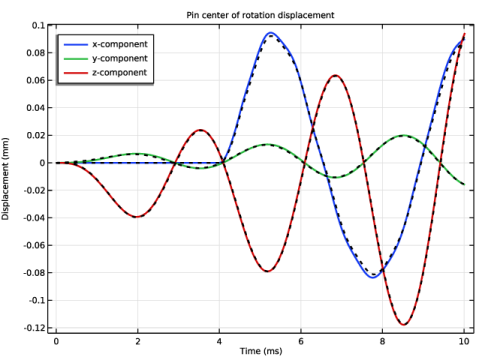
Figure 2 shows the rigid connector’s displacements at the center of rotation versus time. The black dotted lines correspond to the solution computed with the unreduced model. This validates the choice for the number of eigenfrequencies and tolerance used by the solver.
Figure 2: Displacement of the pin center of rotation vs time computed with either reduced model (colored solid lines) or unreduced model (black dotted lines).
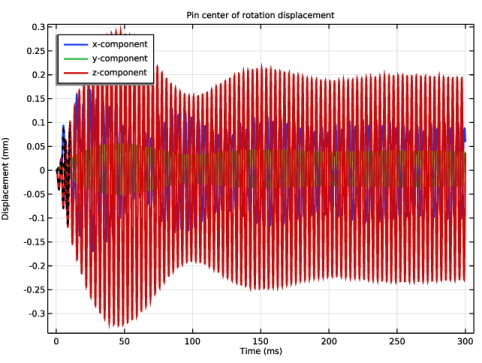
In Figure 3 below, you can see that the steady state is reached after about 250 ms. This time depends on the chosen damping parameters.
Figure 3: Displacement of the pin center of rotation vs time.
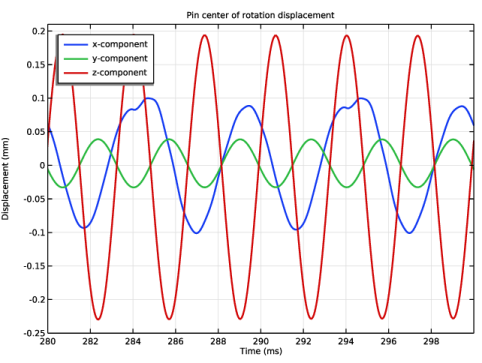
Figure 4 below shows the displacement of the pin center of rotation for the steady state regime only. The bracket arm displacement in both the y and z directions oscillate at the same frequency (300 Hz) as the harmonic excitation in the y direction. The z-direction displacements are also slightly shifted due to the negative constant z-direction load. In the x direction, however, the oscillations are dominated by the first natural frequency. Note also the small dip every 10 ms corresponding to the periodic pulse applied in the x direction.
Figure 4: Displacement of the pin center of rotation versus time, steady state regime only.
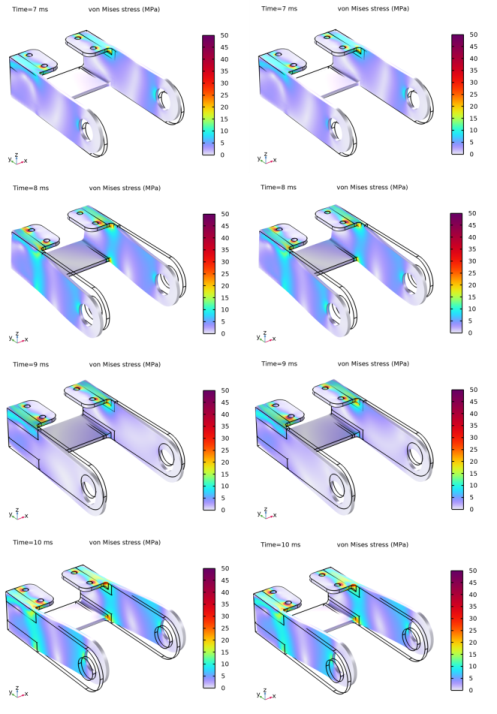
In Figure 5, the von Mises stress distribution computed using the unreduced model is compared with the one reconstructed from a reduced model solution for some time steps. The figure shows a good agreement between the two types of solutions.
Figure 5: von Mises stress distribution, reconstructed from a reduced model (right) and unreduced model (left).
Notes About the COMSOL Implementation
To set up a model reduction, you need:
For structural dynamics problems, it is recommended to use the stateful interface for the reduced-order model, since it allows more control over the solution through the solver settings.
Application Library path: Structural_Mechanics_Module/Tutorials/bracket_rom
Modeling Instructions
Root
In this tutorial, you start from the model bracket_transient.mph. It is used as the unreduced model as well as to validate the solution of the reduced model.
Application Libraries
1
From the File menu, choose Application Libraries.
2
In the Application Libraries window, select Structural Mechanics Module > Tutorials > bracket_transient in the tree.
3
Results
Next, prepare the probe plot to include the full model solution for direct comparison.
Probe Table 2.1
1
In the Model Builder window, expand the Results > Tables node.
2
Right-click Probe Table 2 and choose Duplicate.
Unreduced Model
1
In the Model Builder window, right-click Probe Table Graph 1 and choose Duplicate.
2
In the Settings window for Table Graph, type Unreduced Model in the Label text field.
3
Locate the Data section. From the Table list, choose Probe Table 2.1.
4
Locate the Coloring and Style section. Find the Line style subsection. From the Line list, choose Dotted.
5
From the Color list, choose Black.
6
Click to expand the Legends section. Clear the Show legends checkbox.
7
In the Displacement at Center of Pin toolbar, click  Plot.
Global Definitions
Reduced-order modeling must be enabled in the Model Builder.
1
Click the  Show More Options button in the Model Builder toolbar.
2
In the Show More Options dialog, select Study > Reduced-Order Modeling in the tree.
3
In the tree, select the checkbox for the node Study > Reduced-Order Modeling.
4
Define the pin loads as reduced model inputs.
Global Reduced-Model Inputs 1
1
In the Physics toolbar, click  Reduced-Order Modeling and choose Global Reduced-Model Inputs.
2
In the Settings window for Global Reduced-Model Inputs, locate the Reduced-Model Inputs section.
3
Add Study
1
In the Home toolbar, click  Add Study to open the Add Study window.
2
Go to the Add Study window.
3
Find the Studies subsection. In the Select Study tree, select General Studies > Eigenfrequency.
4
5
In the Home toolbar, click  Add Study to close the Add Study window.
Study 2
Step 1: Eigenfrequency
1
In the Settings window for Eigenfrequency, locate the Study Settings section.
2
Select the Desired number of eigenfrequencies checkbox.
For this model, the first 8 eigenfrequencies are relevant to properly resolve the dynamic response to the loading. In the associated text field, type 8.
3
Locate the Physics and Variables Selection section. Select the Modify model configuration for study step checkbox.
4
In the tree, select Component 1 (comp1) > Solid Mechanics (solid) > Linear Elastic Material 1 > Damping 1.
5
Right-click and choose Disable, as only undamped eigenfrequencies are relevant for model reduction.
6
In the Model Builder window, click Study 2.
7
In the Settings window for Study, type Model Reduction in the Label text field.
Step 2: Model Reduction
1
In the Study toolbar, click  More Study Extensions and choose Model Reduction.
2
In the Settings window for Model Reduction, locate the Model Reduction Settings section.
3
From the Training study for eigenmodes list, choose Model Reduction.
4
From the Study step for eigenmodes list, choose Eigenfrequency.
5
From the Unreduced model study list, choose Study 1.
6
From the Defined by study step list, choose Time Dependent.
7
Click Add Expression in the upper-right corner of the Outputs section. From the menu, choose Component 1 (comp1) > Definitions > comp1.var1 - Pin displacement, x-component - m.
8
Click Add Expression in the upper-right corner of the Outputs section. From the menu, choose Component 1 (comp1) > Definitions > comp1.var2 - Pin displacement, y-component - m.
9
Click Add Expression in the upper-right corner of the Outputs section. From the menu, choose Component 1 (comp1) > Definitions > comp1.var3 - Pin displacement, z-component - m.
10
In the Study toolbar, click  Compute.
The default generated ROM uses a stateless interface. Stateful interface ROMs are preferred for structural dynamics, since they allow better control of solver settings.
Global Definitions
Time Dependent, Modal Reduced-Order Model 1 (rom1)
1
In the Model Builder window, under Global Definitions > Reduced-Order Modeling click Time Dependent, Modal Reduced-Order Model 1 (rom1).
2
In the Settings window for Time Dependent, Modal Reduced-Order Model, locate the Usage section.
3
From the Interface list, choose Stateful.
Add Study
1
In the Home toolbar, click  Add Study to open the Add Study window.
2
Go to the Add Study window.
3
Find the Studies subsection. In the Select Study tree, select General Studies > Time Dependent.
4
5
In the Home toolbar, click  Add Study to close the Add Study window.
Study 3
Step 1: Time Dependent
1
In the Settings window for Time Dependent, locate the Study Settings section.
2
From the Time unit list, choose ms.
3
In the Output times text field, type range(0,0.2,10).
4
From the Tolerance list, choose User controlled.
5
In the Relative tolerance text field, type 1e-4.
6
Locate the Physics and Variables Selection section. In the Solve for column of the table, under Component 1 (comp1), clear the checkbox for Solid Mechanics (solid).
7
In the Solve for column of the table, under Global Definitions > Reduced-Order Modeling, select the checkbox for Time Dependent, Modal Reduced-Order Model 1 (rom1).
Make it possible to reconstruct the full solution of the reduced model during postprocessing.
8
9
In the Model Builder window, click Study 3.
10
In the Settings window for Study, type Reduced Model in the Label text field.
11
In the Study toolbar, click  Compute.
Results
Pin displacement, x-component
Since you have enabled solution reconstruction, you can evaluate any expression in the 3D model as you would do for the unreduced model.
Stress (Reduced Model)
1
In the Model Builder window, under Results click Stress (solid) 1.
2
In the Settings window for 3D Plot Group, locate the Data section.
3
From the Dataset list, choose Reduced Model/Solution 4 (sol4).
4
In the Label text field, type Stress (Reduced Model).
Volume 1
1
In the Model Builder window, expand the Stress (Reduced Model) node, then click Volume 1.
2
In the Settings window for Volume, click to expand the Range section.
3
Select the Manual color range checkbox.
4
In the Maximum text field, type 50.
5
Locate the Coloring and Style section. From the Color table transformation list, choose Nonlinear.
6
In the Color calibration parameter text field, type -1.
7
In the Stress (Reduced Model) toolbar, click  Plot.
Modify the analysis in order to compute the steady-state solution.
Global Definitions
Analytic 1 (an1)
1
In the Home toolbar, click  Functions and choose Global > Analytic.
The load in the x direction is periodic with a period of 10 ms.
2
In the Settings window for Analytic, locate the Definition section.
3
In the Expression text field, type rect1(x).
4
Click to expand the Periodic Extension section. Select the Make periodic checkbox.
5
In the Upper limit text field, type 10[ms].
6
Locate the Units section. In the table, enter the following settings:
Parameters 1
1
In the Model Builder window, click Parameters 1.
2
In the Settings window for Parameters, locate the Parameters section.
3
Reduced Model
Step 1: Time Dependent
Because probes contain the solution of interest you do not need to specify output time stepping, only the initial and final times.
1
In the Model Builder window, under Reduced Model click Step 1: Time Dependent.
2
In the Settings window for Time Dependent, locate the Study Settings section.
3
In the Output times text field, type 0 300.
4
In the Study toolbar, click  Compute.
Results
Stress (Reduced Model)
1
In the Settings window for 3D Plot Group, locate the Data section.
2
From the Time (ms) list, choose 300.
Stress (Unreduced Model)
1
In the Model Builder window, click Stress (Unreduced Model).
2
In the Settings window for 1D Plot Group, locate the Axis section.
3
Select the Manual axis limits checkbox.
4
In the x minimum text field, type 280.
5
In the x maximum text field, type 300.
6
In the y minimum text field, type -0.25.
7
In the y maximum text field, type 0.21.
8
In the Stress (Unreduced Model) toolbar, click  Plot.